Instrument Studio builds synthetic instruments from the market data of one or more regular instruments. You can combine the order books of several contracts or exchanges into one, remove orders you do not want to see, such as small orders or market maker quotes, show where orders are canceled, added or executed, or build a spread between instruments.
A synthetic instrument opens like a regular one: on a chart, in the DOM, Heatmap and Smart Tape. It is calculated on your computer from the live data of your connection. You cannot place orders on a synthetic instrument.
What you need
- ATAS or ATAS X desktop.
- Instrument Studio in your ATAS account. Without it, the Instrument Studio button is not shown.
- A connection with the instruments you want to use as sources. Filters that work with individual orders need order-by-order (MBO) data, which Rithmic and dxFeed connections provide. With other connections, the synthetic instrument uses the regular aggregated DOM.
Open Instrument Studio
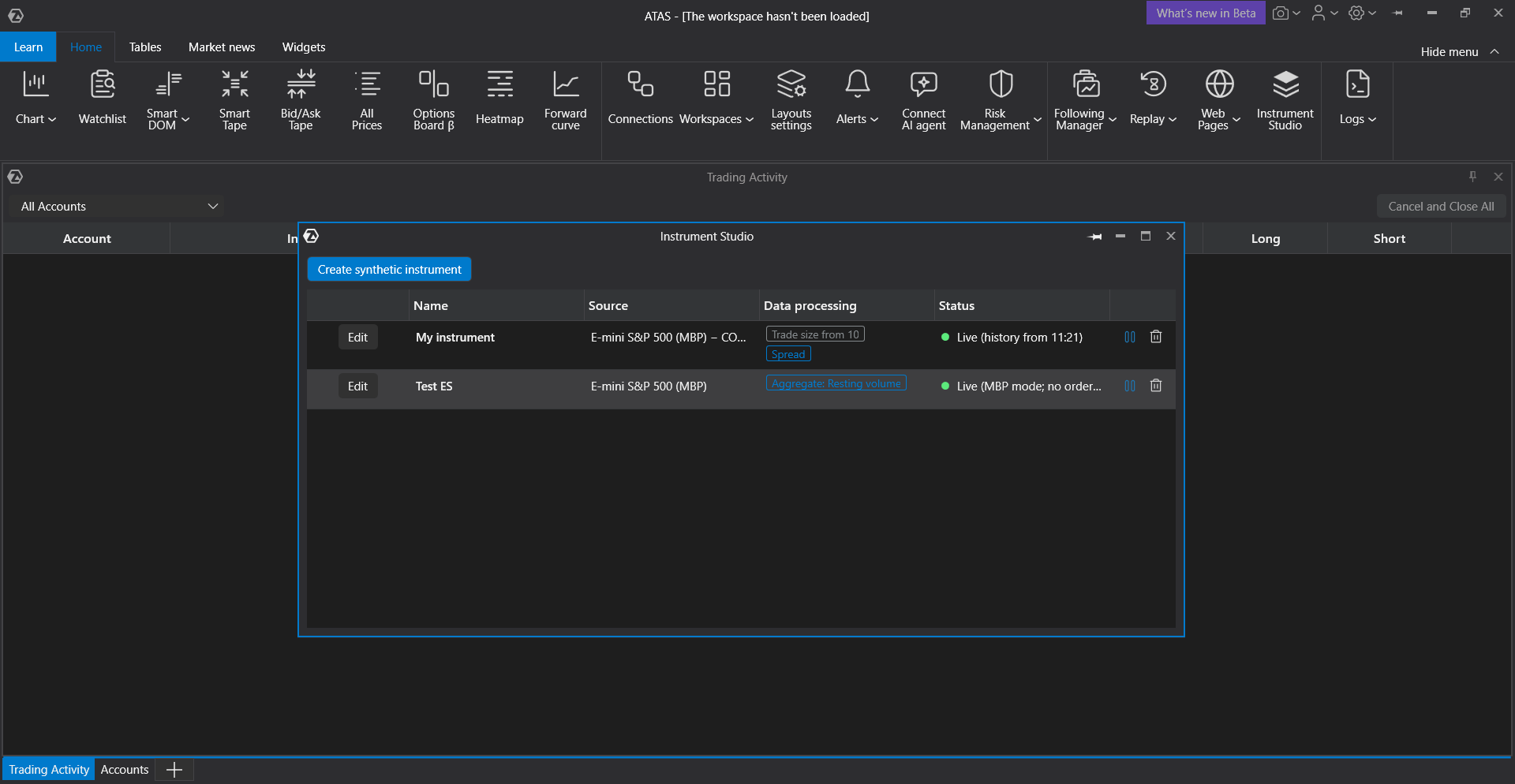
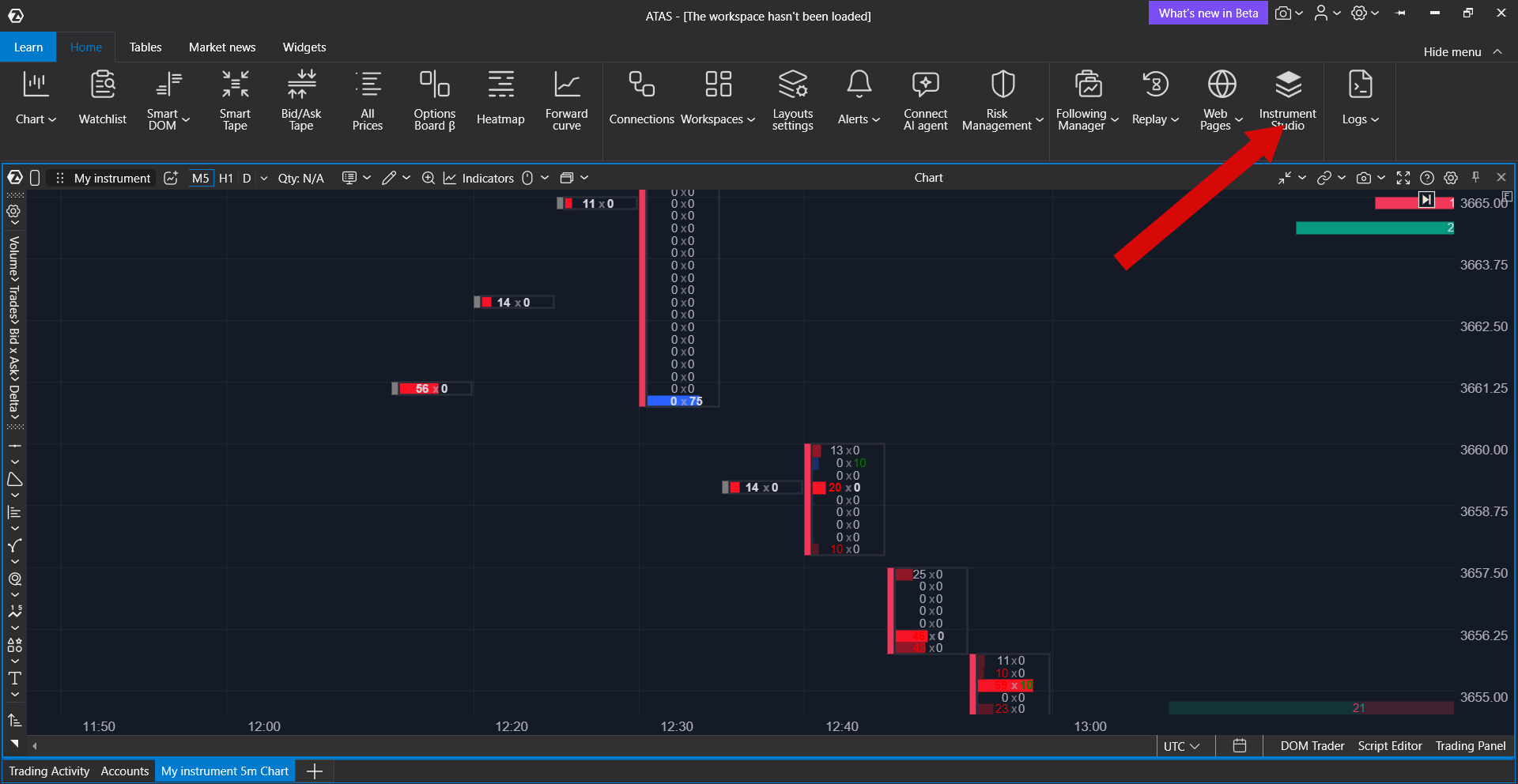
Click Instrument Studio on the ribbon of the main window. While you have no synthetic instruments, the list says No synthetic instruments yet.
Create a synthetic instrument
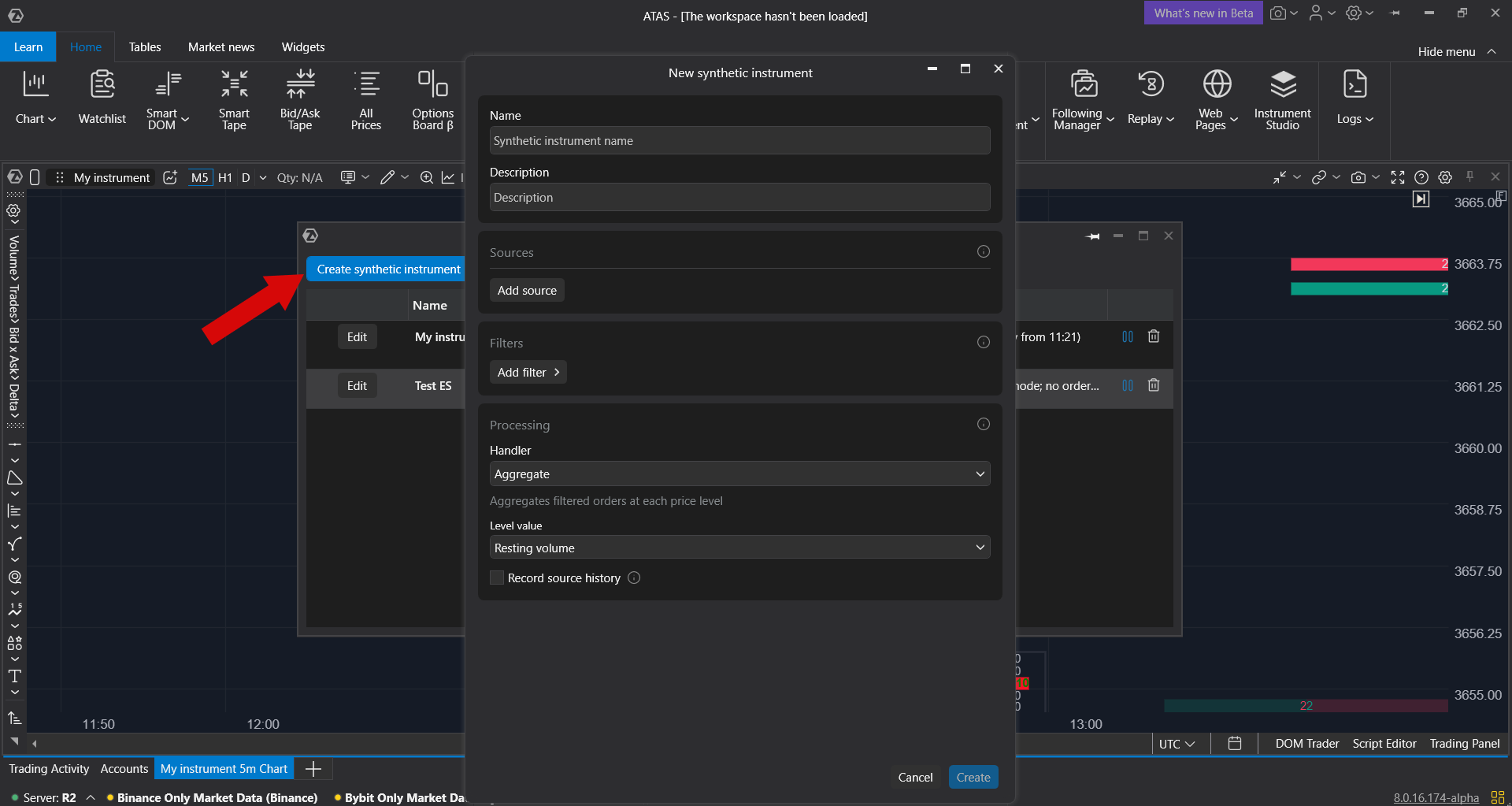
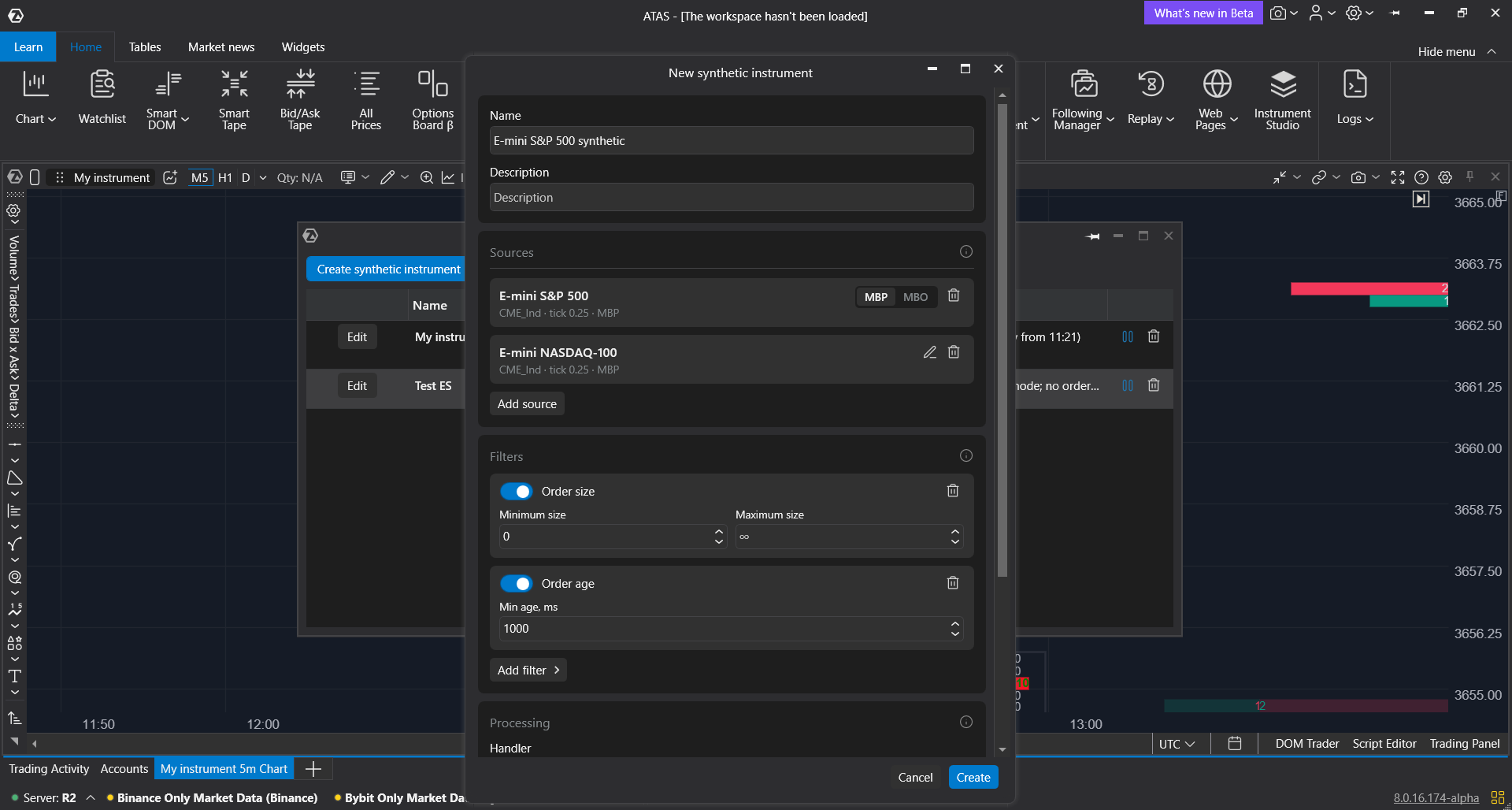
- Click Create synthetic instrument. The New synthetic instrument window opens.
- Enter a Name (up to 80 characters) and, if you like, a Description (up to 500 characters). If you leave the name empty, it is filled in when you add the first source, for example E-mini S&P 500 synthetic.
- In Sources, click Add source and choose an instrument. Add more sources the same way.
- In Filters, add the filters you need. Without filters, all orders are used.
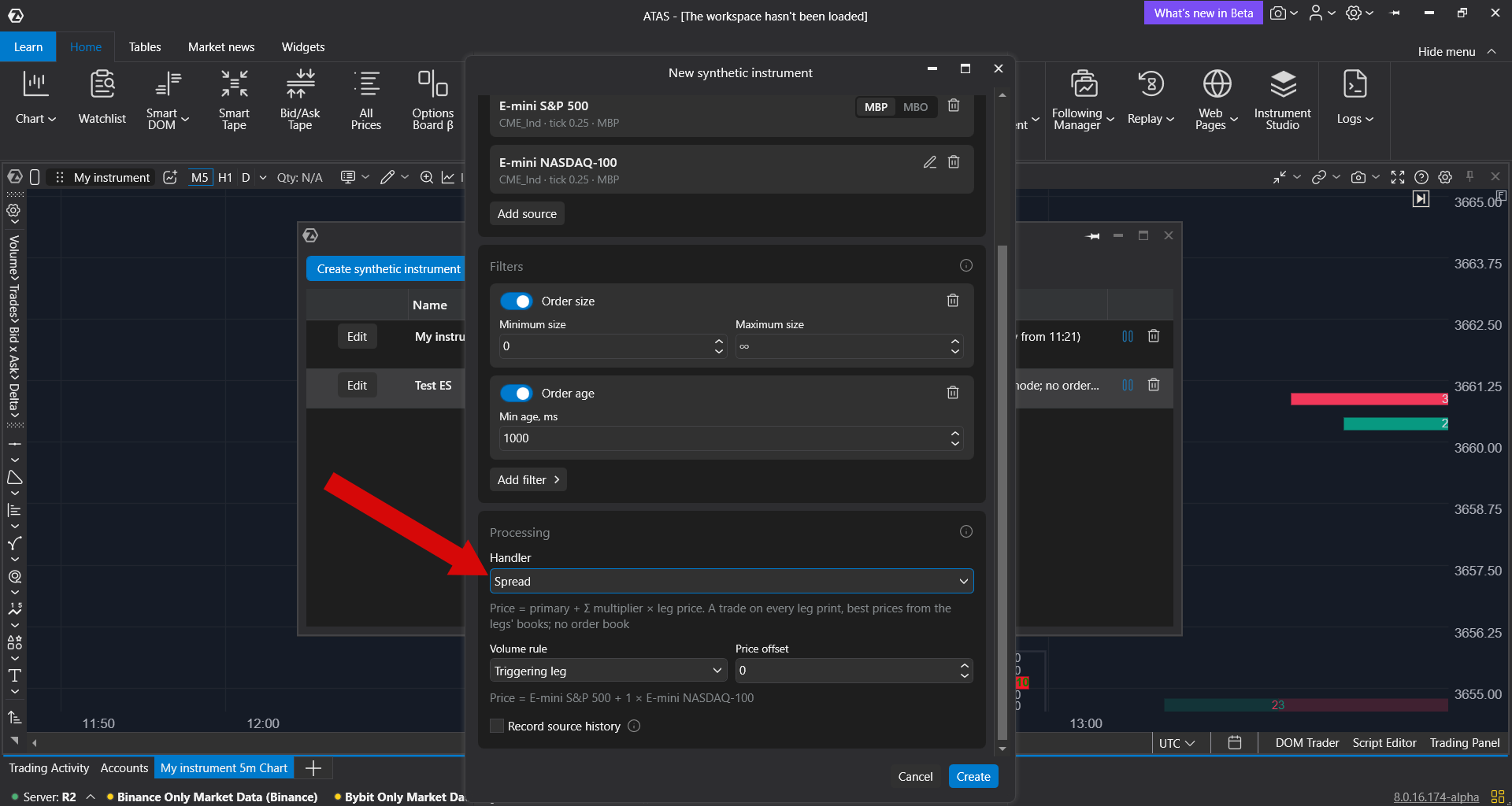
- In Processing, choose the Handler: Aggregate, Order events or Spread.
- Click Create.
If the instrument cannot be created, the reason is shown in red above the buttons. Create stays inactive until you add at least one source.
Add sources
The first source you add is the main one. It sets the price tick and units of the synthetic instrument. In its card, choose MBP or MBO data.
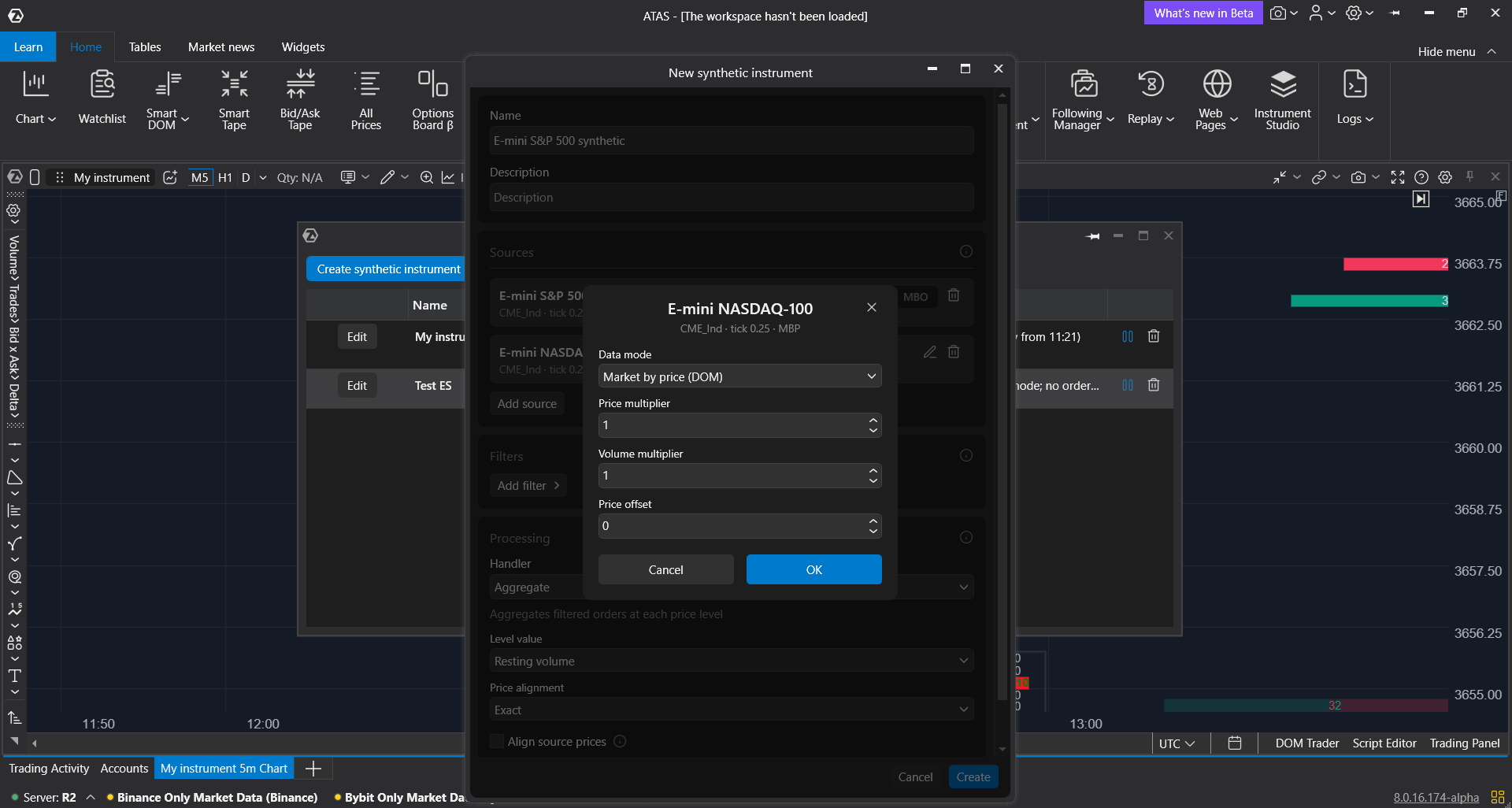
The prices of additional sources are converted into the prices of the main source. To set this up, click the pencil icon Source settings next to an additional source:
- Data mode: Market by order (MBO) uses individual orders and works with all filters. Market by price (DOM) uses only the aggregated DOM, so filters that need individual orders are skipped.
- Price multiplier: converts the source prices into the prices of the main source. 1 means the same prices.
- Volume multiplier: converts the source volumes into the units of the main source, for example 0.1 for a micro contract.
- Price offset: a constant added to the source prices after the multiplier.
With the Aggregate handler and Price alignment set to Exact, the tick size of each additional source multiplied by its Price multiplier must equal the tick size of the main source. For example, ES and MES have the same tick, so the multiplier 1 works. For sources with a different tick, set Price alignment to Round to tick. The Spread handler does not have this check.
Click OK to apply the source settings. You can combine instruments from different connections and exchanges. The same instrument cannot be added twice, and a synthetic instrument cannot be used as a source.
To remove a source, click its trash icon. If you remove the main source, the next one becomes the main source, and its multipliers and offset are reset to 1, 1 and 0.
Filter orders
Click Add filter and choose a filter. Each filter appears as a card with its settings. Use the switch to turn a filter off and the trash icon to remove it. An order must pass all enabled filters.
| Filter | What it keeps | Needs MBO |
| Order size | Orders whose visible size is between Minimum size and Maximum size. ∞ in Maximum size means no limit. | Yes |
| Trade size | Trades whose volume is in the size range. It affects the tape and the candles of the synthetic instrument. | No |
| Order age | Orders that have been resting for at least Min age, ms. An order appears once it reaches this age. | Yes |
| Distance and size exclusion | Removes orders at the given distance from the best bid and ask with a size in the given range, for example market maker quotes. | Yes |
If a source uses Market by price (DOM) data, filters that need MBO are skipped, and the status of the instrument says so.
Choose the processing
The Handler decides what the synthetic instrument shows. Only one handler can be used. Some settings appear only when they apply, for example the alignment settings appear only with two or more sources.
- Aggregate: a combined order book of the same asset traded as different contracts or on different exchanges, for example ES and MES. Orders that passed the filters are added up at each price level. Level value sets what is shown at a level: Resting volume, Order count or Average order size. With sources of a different tick, set Price alignment to Round to tick to merge their levels into the tick of the synthetic instrument. Align source prices shifts each additional source by the smoothed difference of its mid price to the main source, so exchanges with a different price basis line up.
- Order events: how many orders are canceled, added or executed at each level. Choose the Event and the Hold time, ms. This handler needs MBO data on the sources.
- Spread: the price of the main source plus each additional source multiplied by its Price multiplier, plus the Price offset. The multiplier can be negative, for example −1 to subtract a source. The formula is shown under the settings. A spread needs at least two sources. It makes a trade on every trade of any source and takes the best prices from the sources' order books, but it has no order book of its own. Volume rule sets the trade volume: Triggering leg or Minimum. Use Price offset, for example 1000, to keep a spread around zero in positive prices on charts.
Open a synthetic instrument
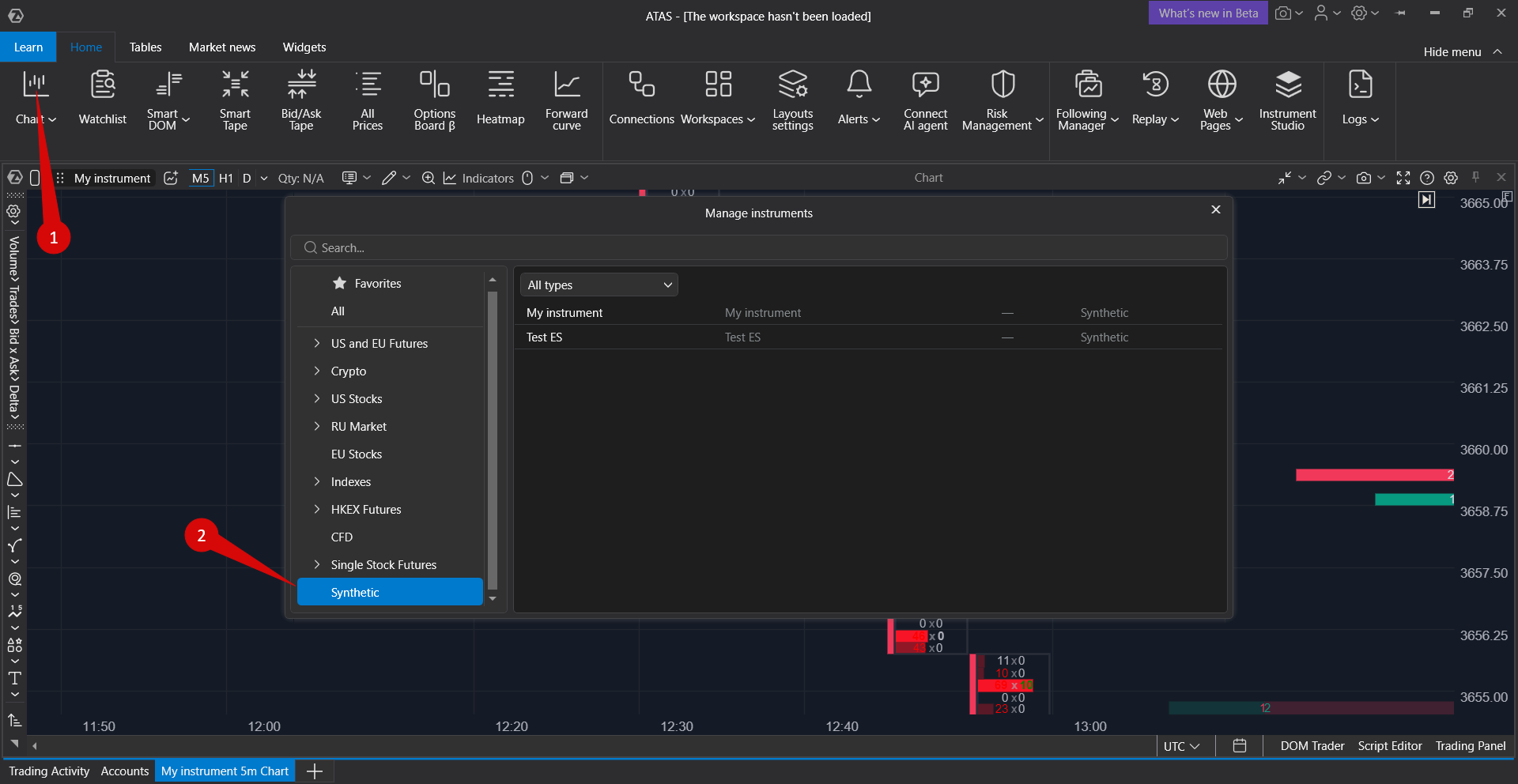
Open a chart, DOM, Heatmap or Smart Tape and choose the instrument as usual. Synthetic instruments are in the Synthetic group. A synthetic instrument is saved in your workspace like any other instrument.
- DOM and Heatmap show the order book after the filters, in the prices and units of the main source. The best bid and ask are the real best prices of all sources before the filters.
- Smart Tape shows the trades of all sources in the order they arrive, converted into the units of the main source.
- Chart shows regular candles with footprint. The Big Trades indicator shows large trades of the synthetic instrument.
History and live data
A synthetic instrument is calculated from the live data of its sources, so the connections of the sources must be connected.
- Chart with one source. If the instrument has one source, the Aggregate handler and no Trade size filter, the chart shows the history of the source instrument. New data comes from the synthetic instrument.
- Other charts. With two or more sources, a Trade size filter or the Spread handler, the chart starts from the moment the instrument started in the current session of the platform. The chart shows Waiting for the first trade of the synthetic instrument… until the first trade comes. After a restart of the platform or a change of the instrument settings, the chart starts again. The latest 1,000,000 trades are kept.
- Heatmap history. Turn on Record source history in the Processing section. Your computer then records the order flow of the sources, and when the instrument starts again, Heatmap shows the recent hours. This works only with MBO sources. Recording uses the storage period for MBO data from the platform settings (1 to 30 days, 1 day by default) and can take about 2–3 GB of disk space per day for an instrument like ES. Without recording, Heatmap shows only live data.
Synthetic instruments use their own 24/7 session in UTC. They do not take the session of the sources, so breaks in the market of a source are shown as gaps.
Edit, stop and delete
- Edit: change the settings and click Apply. A change of sources, data modes, filters or handler restarts the instrument, and its picture is built again.
- A new instrument is listed as Stopped. It starts when you open it on a chart, in the DOM, Heatmap or Smart Tape, or right away if Record source history is on. Until then, Start does not change the status.
- Stop stops the calculation, Start starts it again. Closing the last chart or panel with the instrument does not stop it. An instrument with Record source history keeps running in the background and starts together with the platform, even without open panels.
- Delete removes the instrument after a confirmation. This cannot be undone. Open panels with this instrument stop receiving data.
The Status column shows Stopped, Initializing with a percentage, Live with a note in brackets, for example that a source is unavailable, Recovering or Error with the reason.
Good to know
- Trading is not available on synthetic instruments. To trade, use the source instruments.
- Synthetic instruments do not work in Market Replay.
- A synthetic instrument counts toward the limit of open instruments of your plan as the source instruments it uses.
- Synthetic instruments are saved on your computer in the ATAS settings.
If something goes wrong
| Problem | What to do |
| A new instrument stays Stopped after you click Start | Open the instrument on a chart, in the DOM, Heatmap or Smart Tape. The calculation starts when the instrument is opened in a panel. |
| There is no Instrument Studio button | Update the platform to the latest version and check that your account includes Instrument Studio. If access was just added, sign out of your ATAS account and sign in again. If the button is still missing, contact support. |
| The Create button is inactive | Add at least one source. If there is a reason in red above the buttons, fix it. |
| The error says the tick size of a source does not match the main source after the price multiplier | The sources have a different tick size, for example ES (0.25) and GC (0.10). With the Aggregate handler, set Price alignment to Round to tick. To build a spread between different instruments, choose the Spread handler: it does not check the tick. The same message is shown when the Price multiplier is zero or below zero, so check it too. |
| The error says the price offset must be a multiple of the tick size | Enter an offset that is a whole number of ticks of the main source, or set Price alignment to Round to tick. |
| The error says the spread needs at least two sources | Add a second source or choose another handler. |
| The error says the handler needs the MBO data mode | Switch the sources to MBO data. MBO data comes from Rithmic and dxFeed connections. |
| The status says MBP mode and that components are skipped | A source uses Market by price data, so filters that need individual orders are not applied. Switch the source to MBO if your connection provides it. |
| The status says a source is unavailable or sends no data | Check that the connection of this source is connected. With two or more sources, the instrument keeps working without it and picks the source up again when its data returns. |
| The chart shows Waiting for the first trade of the synthetic instrument… | This chart starts from the moment the instrument started. Wait for the first trade. |
| Heatmap shows no history | Turn on Record source history and use MBO sources. History is available only from the moment recording started. |
| An order is rejected with Trading is not available for synthetic instruments | Synthetic instruments are for analysis only. Place orders on the source instruments. |
| A synthetic instrument keeps running after you closed its panels | Click Stop in the Instrument Studio list. Closing panels does not stop an instrument, and an instrument with Record source history also starts together with the platform. |
Was this article helpful?
That’s Great!
Thank you for your feedback
Sorry! We couldn't be helpful
Thank you for your feedback
Feedback sent
We appreciate your effort and will try to fix the article