DPrimeVU (dxFeed) and DataFeed Prime Connections
DPrimeVU (dxFeed) and DataFeed Prime are dxFeed-based market data connections. They are intended for users whose broker or partner has provided access to market data through one of these brands.
Use:
- DPrimeVU (dxFeed) — if access was provided for DPrime.
- DataFeed Prime — if access was provided for 6i Trade or RKX.
Both connections work as separate connectors in ATAS. You do not need to manually specify servers, API keys, or technical connection parameters. To connect, you only need the account credentials provided by your broker or partner.
Before Connecting
Before configuring the connection, check the following:
- you have a login and password for the required connection;
- you know which connector to select: DPrimeVU (dxFeed) or DataFeed Prime;
- if you received test credentials, check which environment they are intended for: Production or Staging.
Production is used for regular operation. Staging is used only for test credentials if they were provided separately by your broker or partner.
Adding the Connection
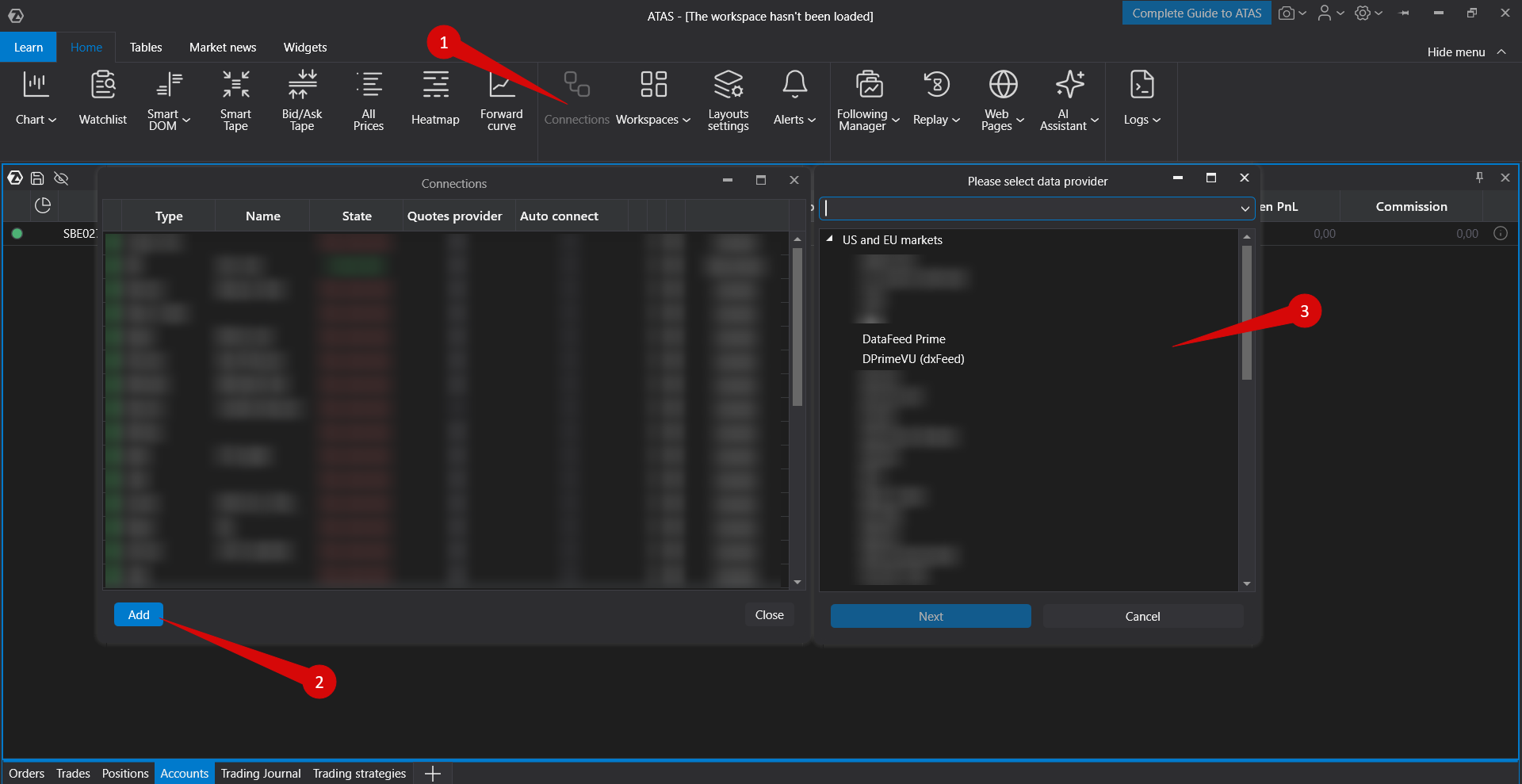
- Open the main ATAS window.
- Go to Connections.
- Click Add.
- Select the required connector from the list:
- DPrimeVU (dxFeed) — for DPrime;
- DataFeed Prime — for 6i Trade or RKX.
- Click Next.
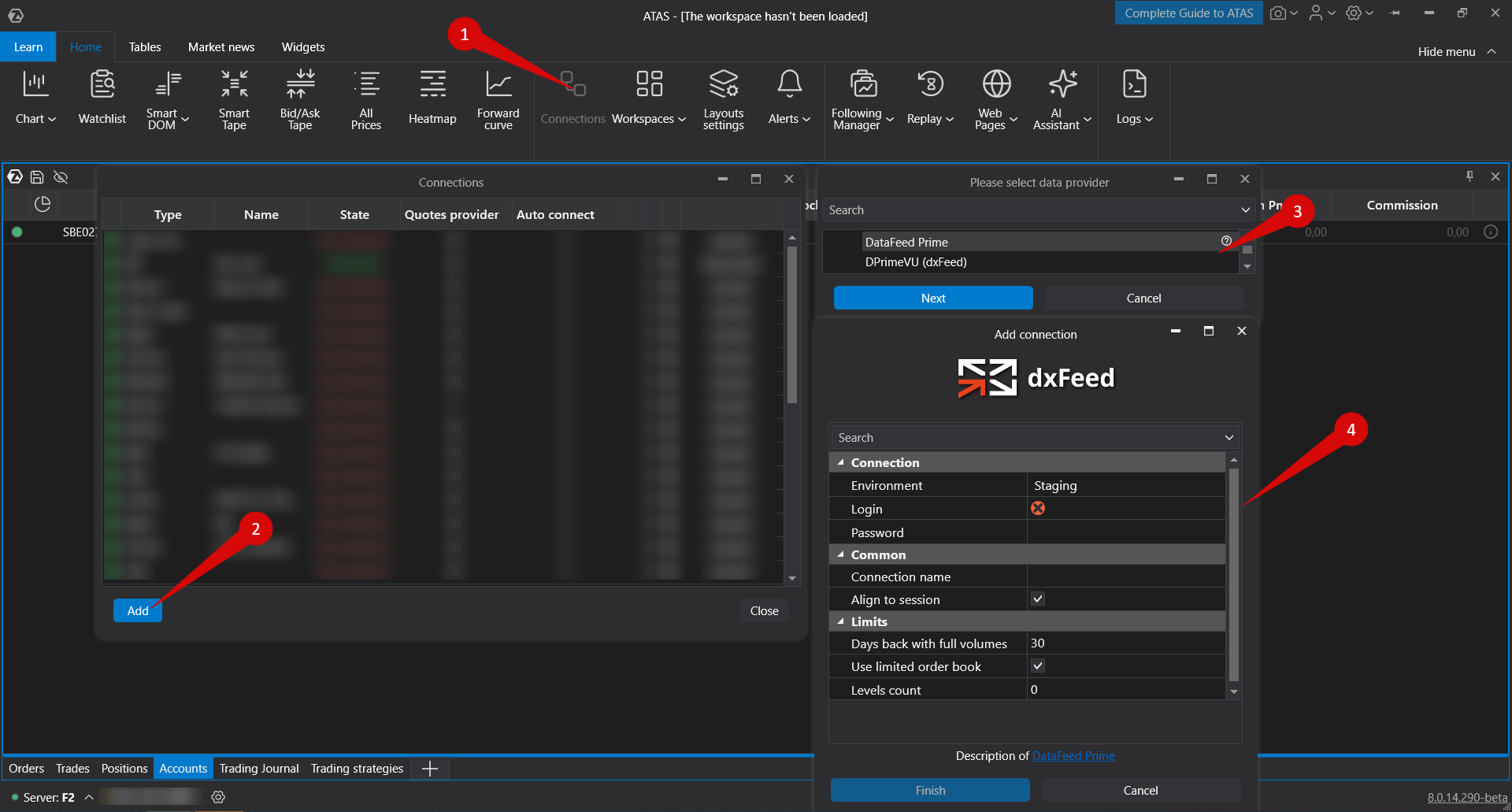
- Select the required environment in the connection settings window.
- Enter the login and password provided by your broker or partner.
- Click Finish or complete the connection setup.
- Connect the created connection manually or enable Auto-Connect if you want it to start together with ATAS.
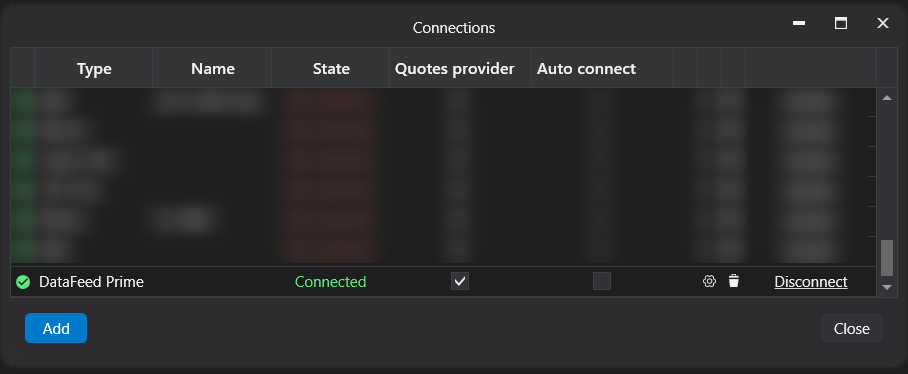
After the connection is added, it will appear as a separate line in the Connections list. When the connection is active, ATAS can receive quotes available for your account through the selected market data source.
Choosing the Correct Connector
The connector choice depends on where your market data access was issued.
DPrimeVU (dxFeed)
Select this connector if your account belongs to DPrime.
DataFeed Prime
Select this connector if your account belongs to 6i Trade or RKX.
Do not select another dxFeed connector unless your broker or ATAS Support specifically instructed you to use it. Different dxFeed-based connections may have different access parameters, so credentials issued for one brand may not work with another connector.
Production and Staging
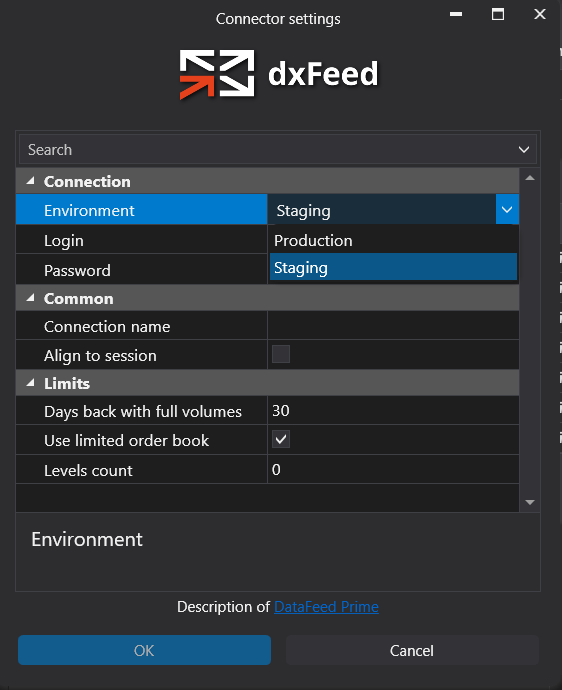
The connection settings include environment selection:
- Production — the main working environment for real user credentials;
- Staging — a test environment used only if you were provided with test credentials specifically for Staging.
If authorization fails, first check that the correct connector and environment are selected. Credentials for Production and Staging should not be mixed.
Opening a Chart After Connecting
After the connection is successfully established, open a chart or the Instruments Manager and select an instrument for which your account has market data access.
If the instrument is available in your subscription or through your broker, ATAS will start receiving quotes and building the chart. If no data is available for the selected instrument, the chart may not load, and a message may appear stating that there is no data for this instrument.
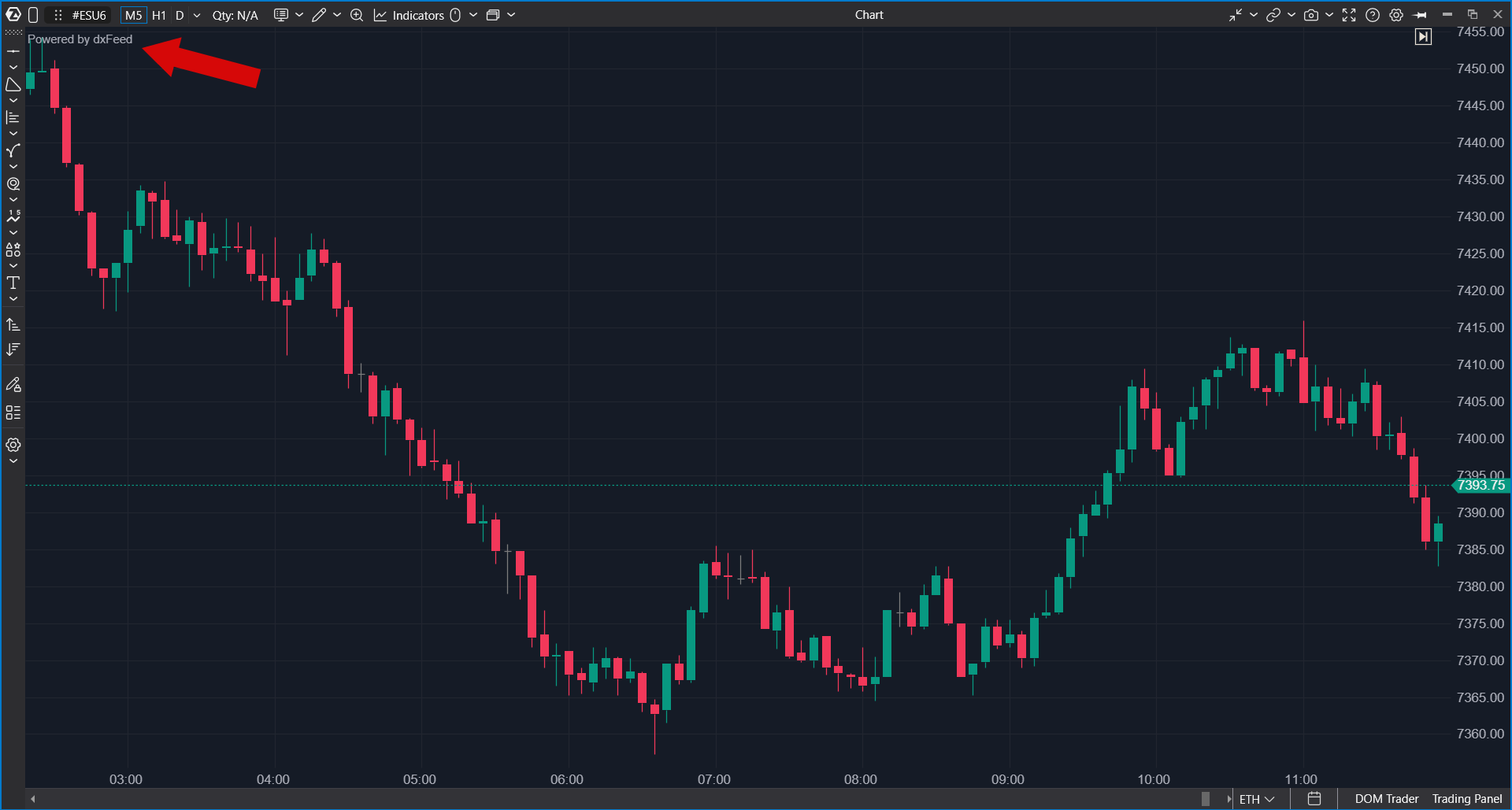
If the required instrument is not displayed or does not load, check the following:
- the connection is active;
- the correct market data source is selected;
- the instrument is included in the data package available for your account;
- the login and password were entered correctly;
- the correct Environment is selected.
If popular instruments load correctly but a specific less common instrument does not open, the instrument may be unavailable from the data provider or for your specific account.
If the Connection Does Not Work
Check the Connector
Make sure you selected the connector that matches your account: DPrimeVU (dxFeed) or DataFeed Prime.
Check the Credentials
The login and password must belong to the same brand and environment selected in the connection settings.
Check the Environment
Use Production for regular connections. Use Staging only if you received test credentials specifically for Staging.
Check the Instrument
If the connection is active but the chart does not load for a specific instrument, try opening one of the main instruments that should be available in your subscription.
If main instruments work but a specific instrument does not, contact your broker or data provider to check whether this instrument is available for your account.
Reconnect the Connection
Disconnect and reconnect the connection. If the issue remains, update ATAS to the latest version and check again.
Important Notes
- DPrimeVU (dxFeed) and DataFeed Prime use dxFeed infrastructure but are displayed in ATAS as separate connections.
- Credentials issued for one brand should not be used with another connector.
- Do not connect multiple data sources for the same market at the same time unless necessary, as this may make it harder to understand which source is used for market data.
- ATAS does not manage the list of instruments available for a specific account. If no data is available for an instrument, check its availability with your broker or data provider.
Was this article helpful?
That’s Great!
Thank you for your feedback
Sorry! We couldn't be helpful
Thank you for your feedback
Feedback sent
We appreciate your effort and will try to fix the article