Smart DOM module overview
Module purpose
The Smart DOM module is designed for executing trades. It includes advanced functionality such as semi-automated protective strategies, one-click order submission, and the ability to customize the appearance and behavior
How to open the module
To open this module, click the Smart DOM icon on the Home tab.
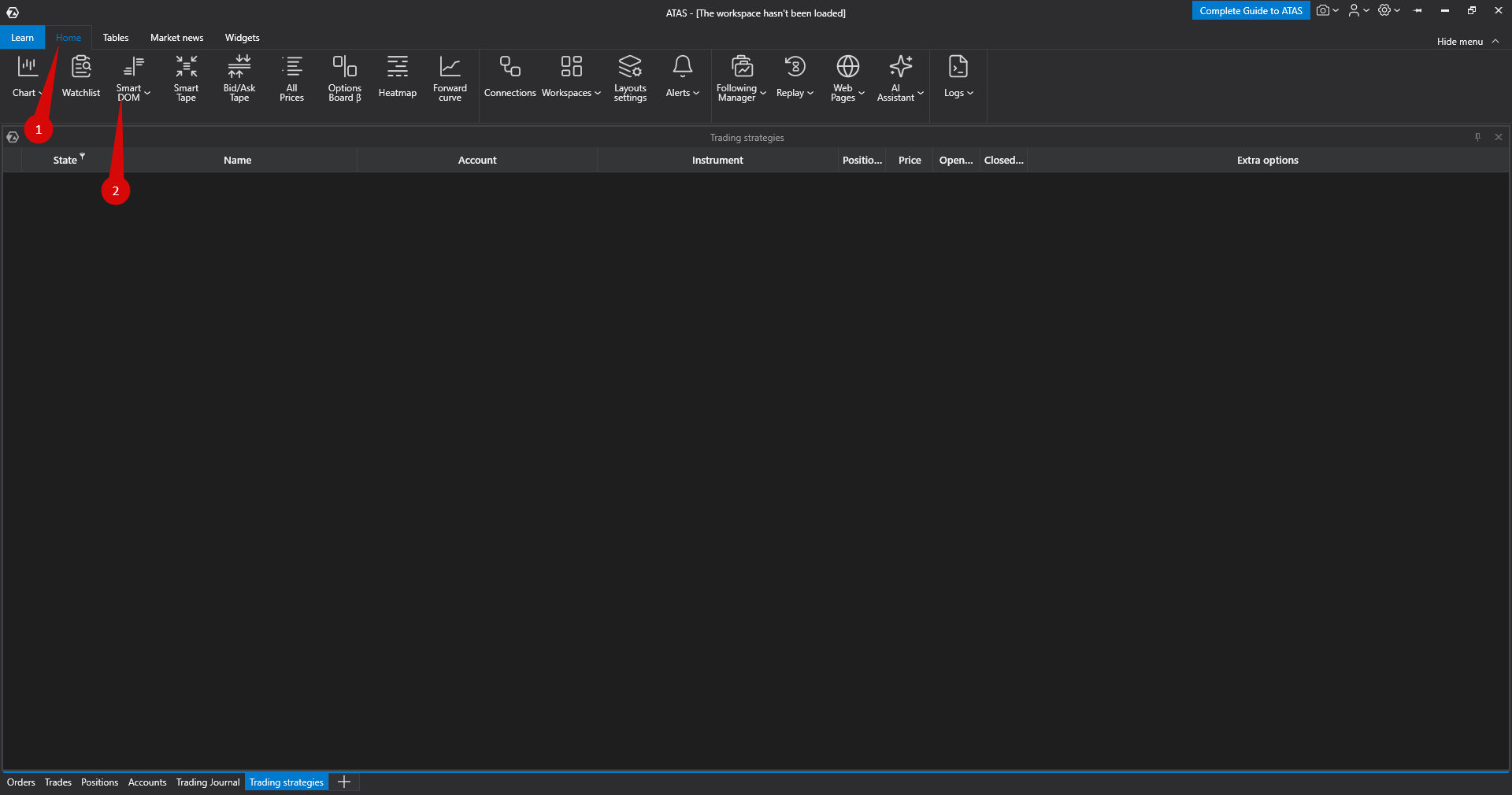
This will open the Instruments manager window:
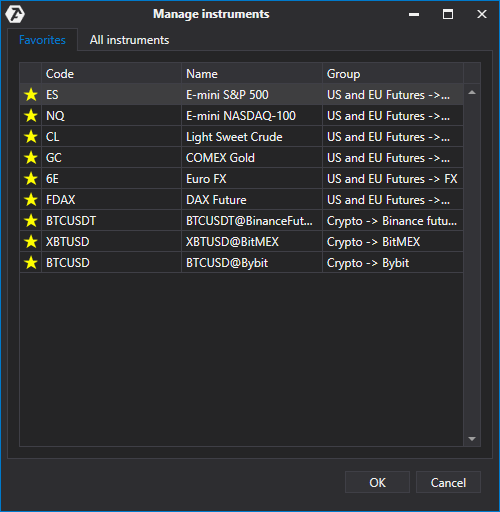
In this window, select the instrument from the Instruments or Favorites tab.
Adding instruments to the Favorites tab is described in detail here: Instruments manager.
Once the instrument is selected, the DOM window will open:
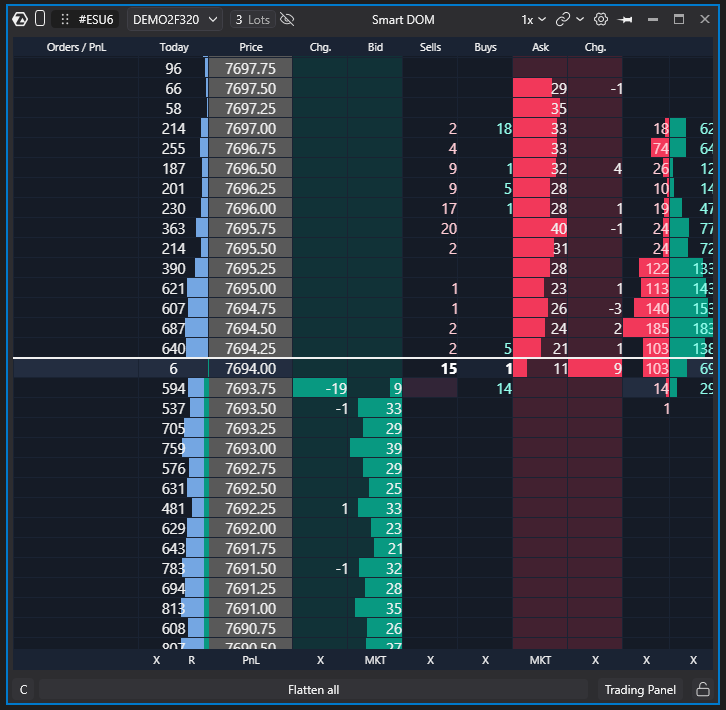
Module description
- Instrument ticker – click to change the instrument.
- Scale function.
- Clone window (right click)
- Layout selection (right click)
- Window grouping.
- Smart DOM settings.
- Trading panel
- Topmost – keep DOM always on top.
- Trading account.
- Fast volume input.
- Flatten – close all open positions and orders.
- Lock trading – prevents accidental clicks.
- Center – center spread in one or all DOMs.
You can also center the spread by double-clicking the price column in the DOM.
Context menu settings
Right-click any area of the DOM (except trading columns) to open the context menu.
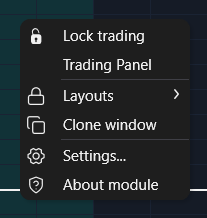
- Lock trading – disables trading interactions.
- Trading Panel - panel for trading
- Settings – open module settings window (also via button 6).
- Clone window.
- Layouts - layouts menu
Related articles
Was this article helpful?
That’s Great!
Thank you for your feedback
Sorry! We couldn't be helpful
Thank you for your feedback
Feedback sent
We appreciate your effort and will try to fix the article