AI Connect lets an AI agent on your computer work with ATAS. The agent can open and arrange modules, set up charts and indicators, write and compile your own indicators, and place drawings and alerts. You use your own AI agent and pay for its subscription yourself. ATAS does not provide the AI model and never asks for your AI keys.
The agent receives market data only from crypto exchanges. On futures, stocks and options it sets up the platform and writes indicators, but does not receive market data.
What you need
- ATAS or ATAS X desktop, beta version. AI Connect does not work in ATAS Web.
- Ultra plan or Ultra trial.
- An AI agent app installed on the same computer: Claude Code, Claude Desktop (Windows), OpenAI Codex, Cursor or VS Code with GitHub Copilot. A chat in the browser cannot connect: ATAS accepts connections only from your own computer.
What the agent can do
What the agent can do depends on where the instrument's data comes from. Your plan and data provider do not change this.
| Task | Crypto exchange data | Futures, stocks, options |
| Set up the platform: workspaces, charts, templates, themes | Yes | Yes |
| Add and configure indicators on request | Yes | Yes |
| Write an indicator from your description, compile it and fix errors | Yes | Yes |
| Port an indicator from TradingView | Yes | Yes |
| Explain how to do something in the platform | Yes | Yes |
| Place alerts and drawings at prices you name | Yes | Yes |
| Read quotes, bars, footprint and the order book | Yes | No |
| Read indicator values and take chart screenshots | Yes | No |
| Explain what is happening on the chart and mark levels found in the data | Yes | No |
| Test an idea on history and tune indicator settings to the instrument | Yes | No |
| Check how a new indicator works on the data | Yes | No |
On futures, stocks and options you check the result yourself: the agent writes the indicator and puts it on the chart, you look at it and tell the agent what to change. If the agent asks for data on such an instrument, it gets the reply that data is not available for this instrument. This is a data restriction, not an error.
AI can make mistakes in analysis and backtests. Trading decisions are yours.
Connect your agent
- Open the AI agent app on your computer.
- In ATAS, click Connect AI agent on the ribbon, after Alerts. In ATAS X, open the main menu and choose Connect AI agent.
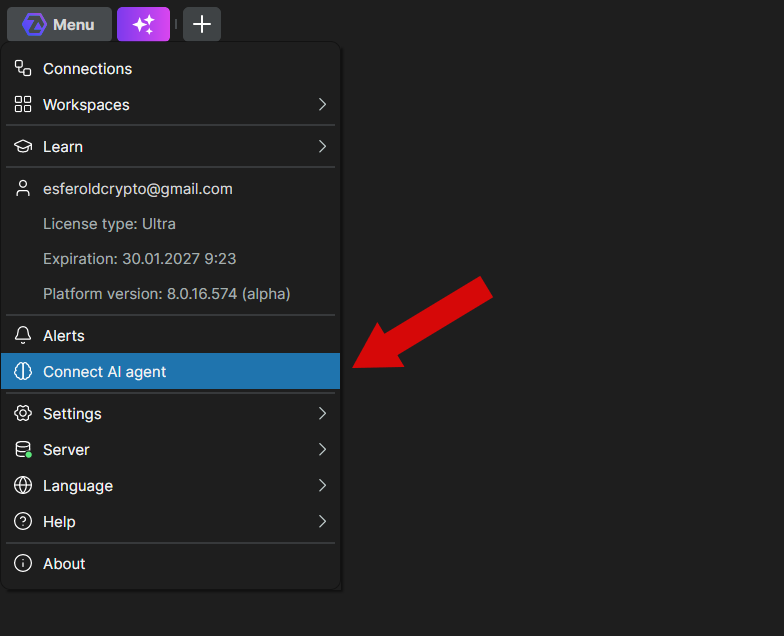
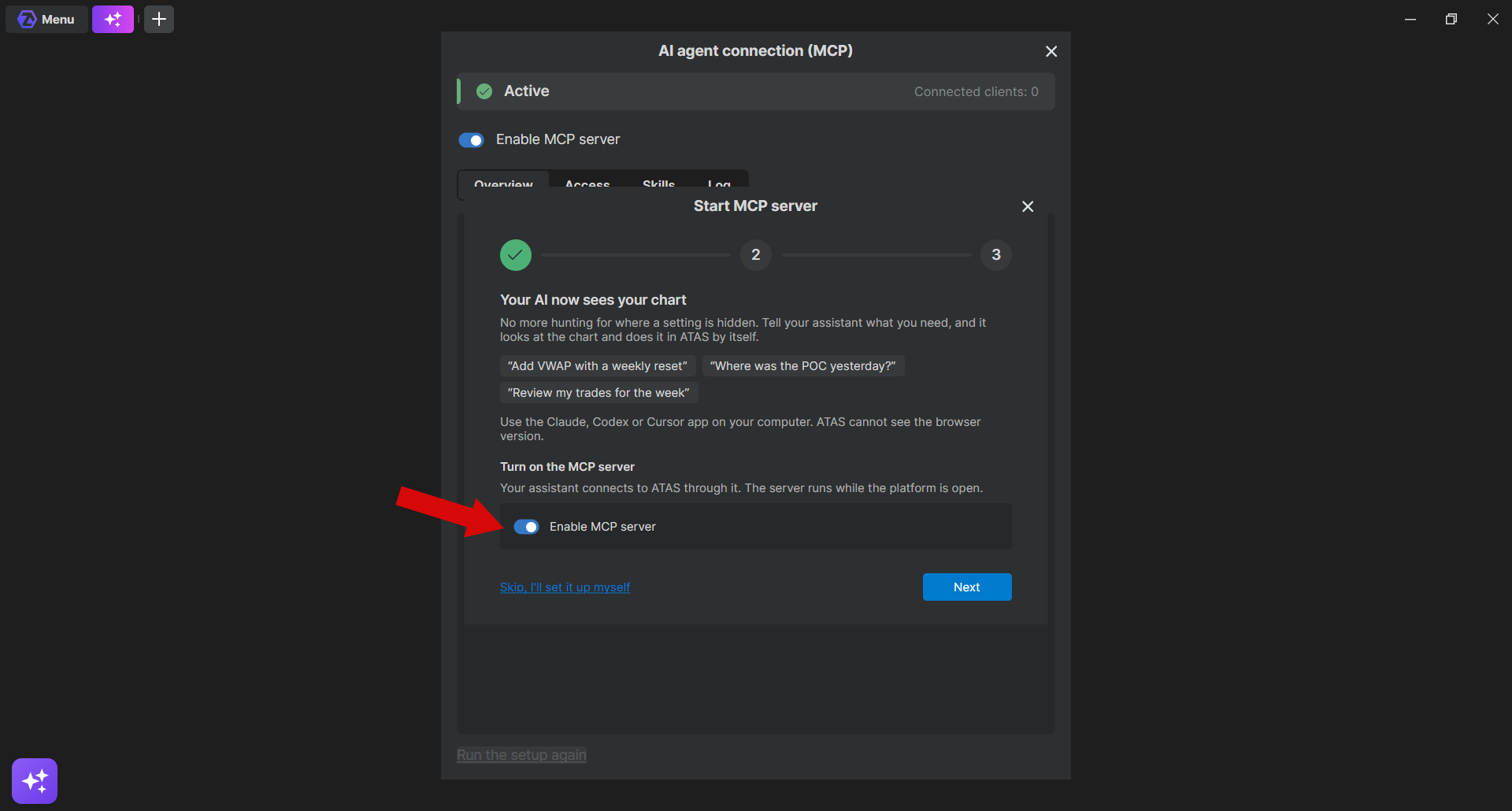
The first time, the Start MCP server wizard opens.
- Turn on Enable MCP server and click Next.
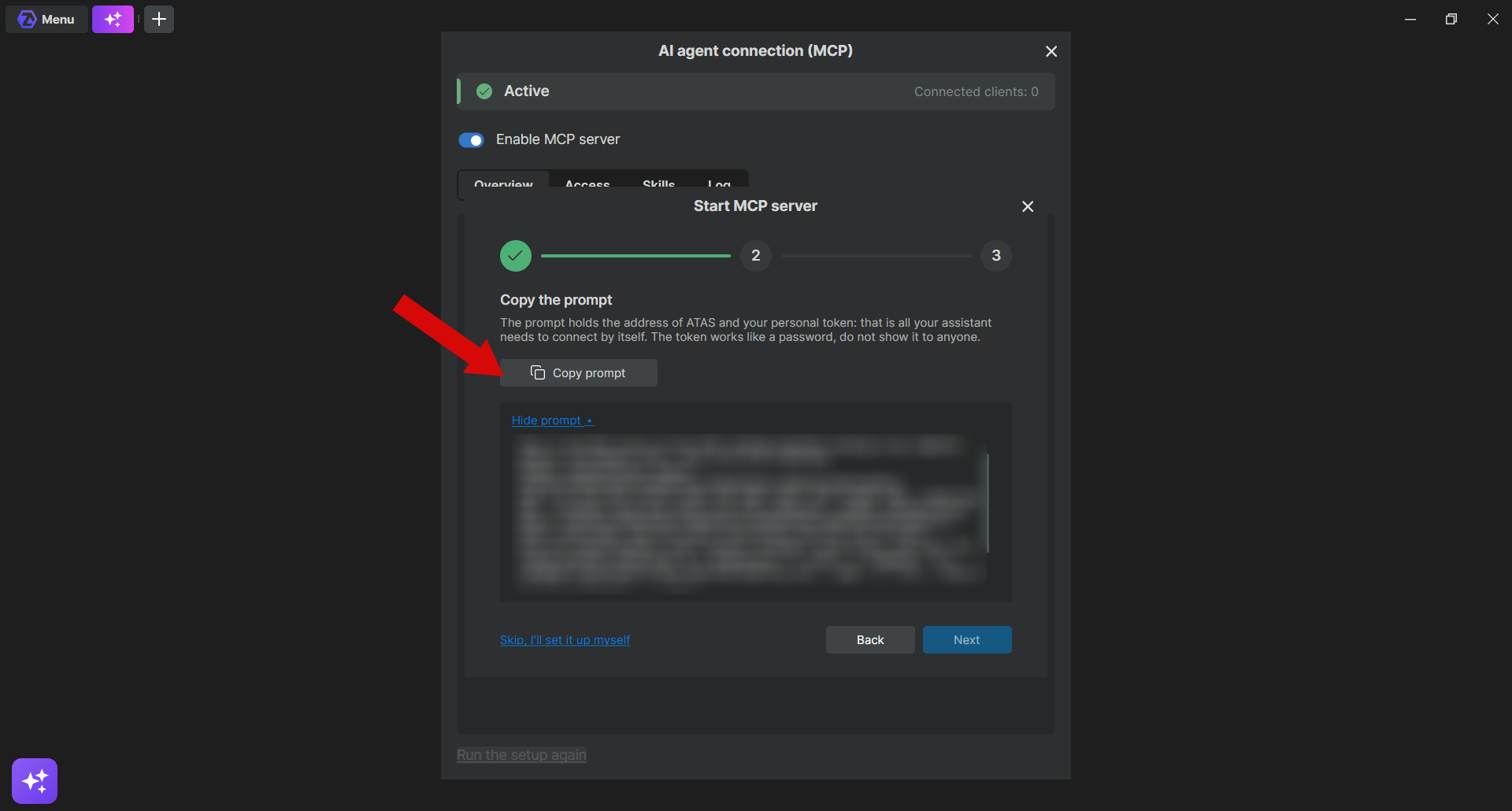
- Click Copy prompt, then Next. The prompt contains the connection address and your access token.
- Paste the prompt into the agent's chat and send it. If the agent asks you to restart it, restart it.
- When the agent connects, the wizard shows that it is connected. Click Done.
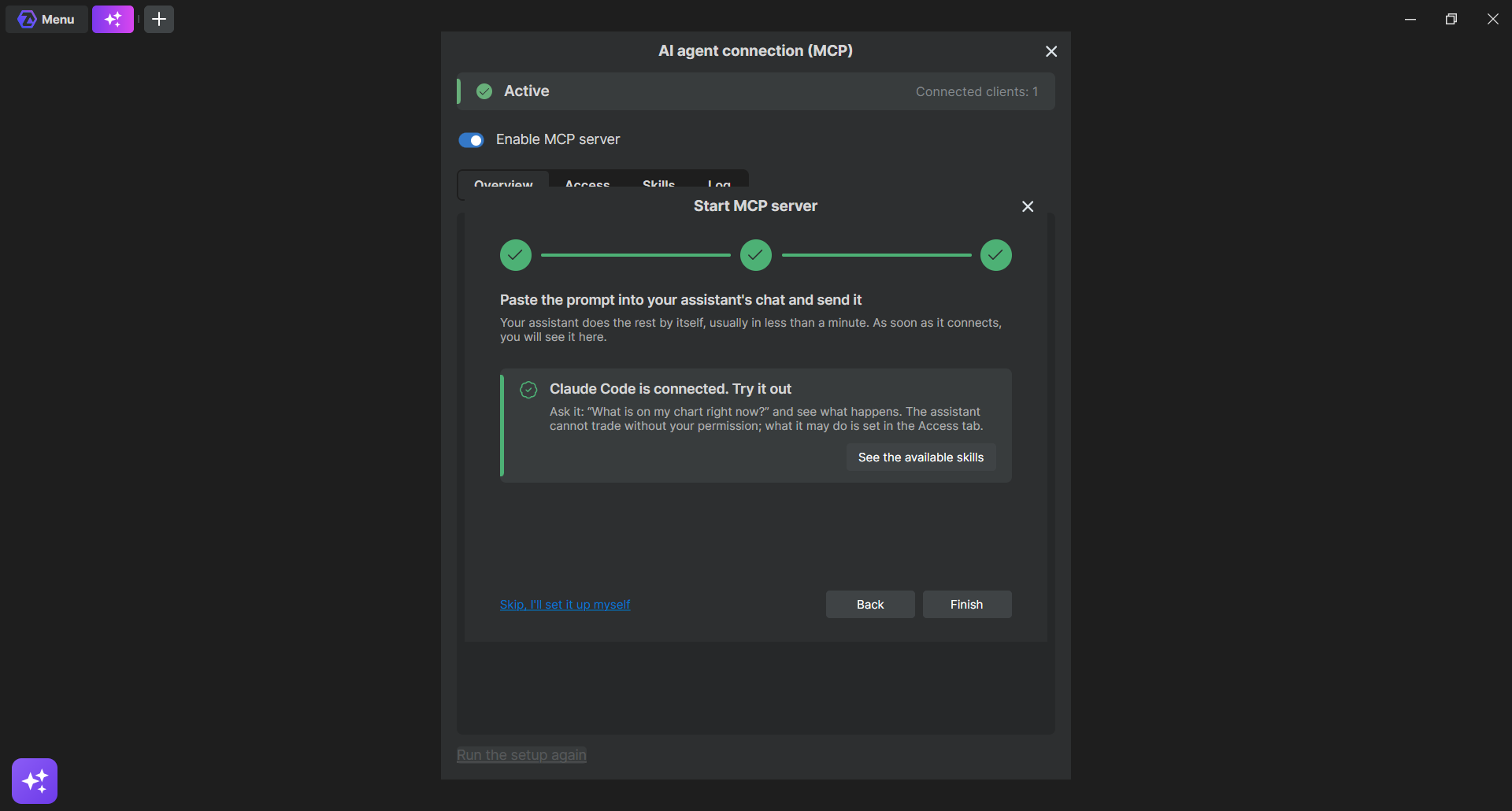
Claude Desktop on Windows: the prompt includes an entry for the Claude Desktop configuration file. After the entry is added, restart Claude Desktop.
To check the connection, ask the agent: "Which charts are open in ATAS? Don't change anything."
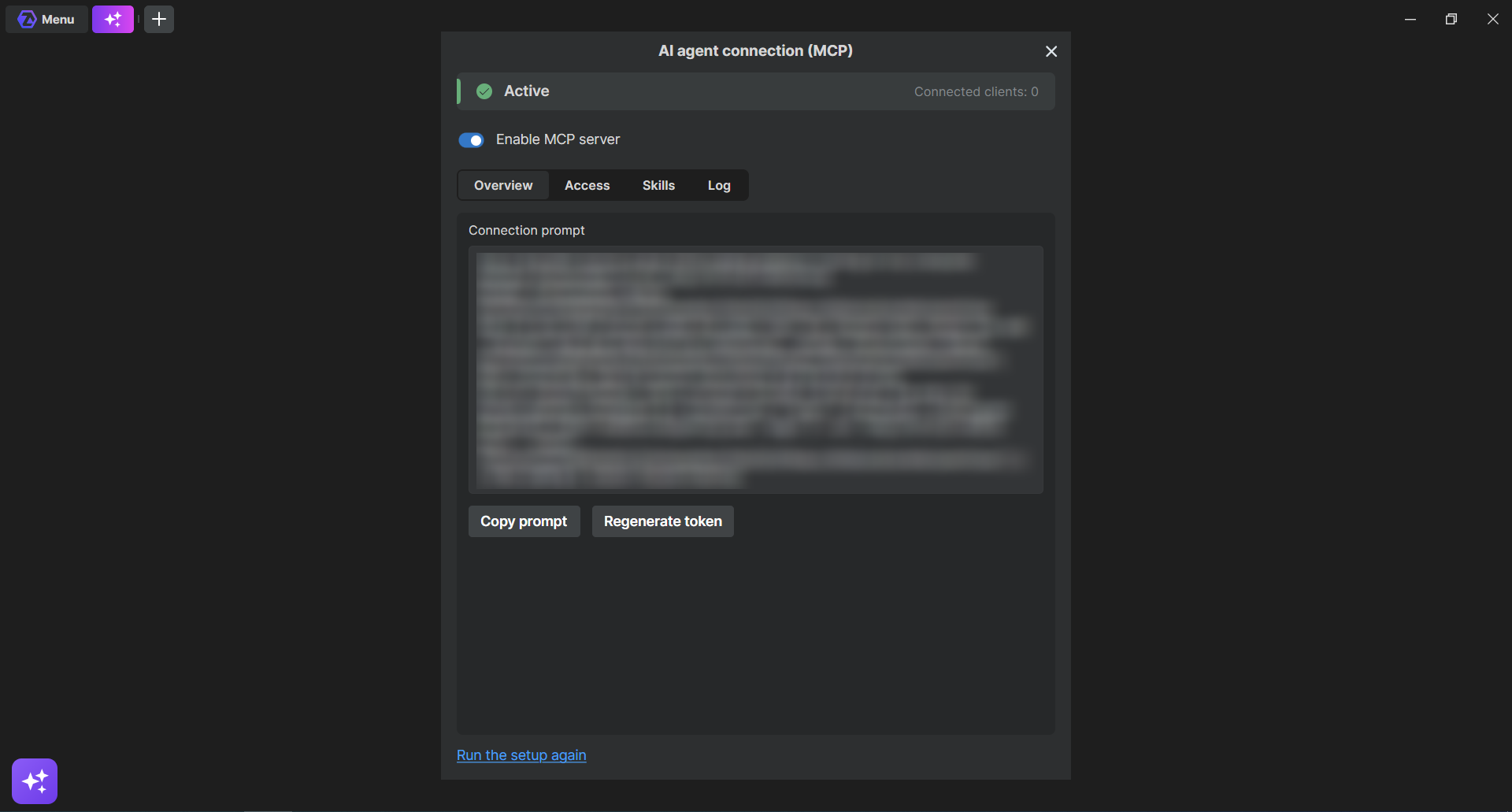
The wizard opens only until the first agent connects. To go through it again, click Run the setup again in the window.
The AI agent connection window
- Overview — server status, the number of connected agents, Copy prompt and Regenerate token.
- Access — what the agent is allowed to do.
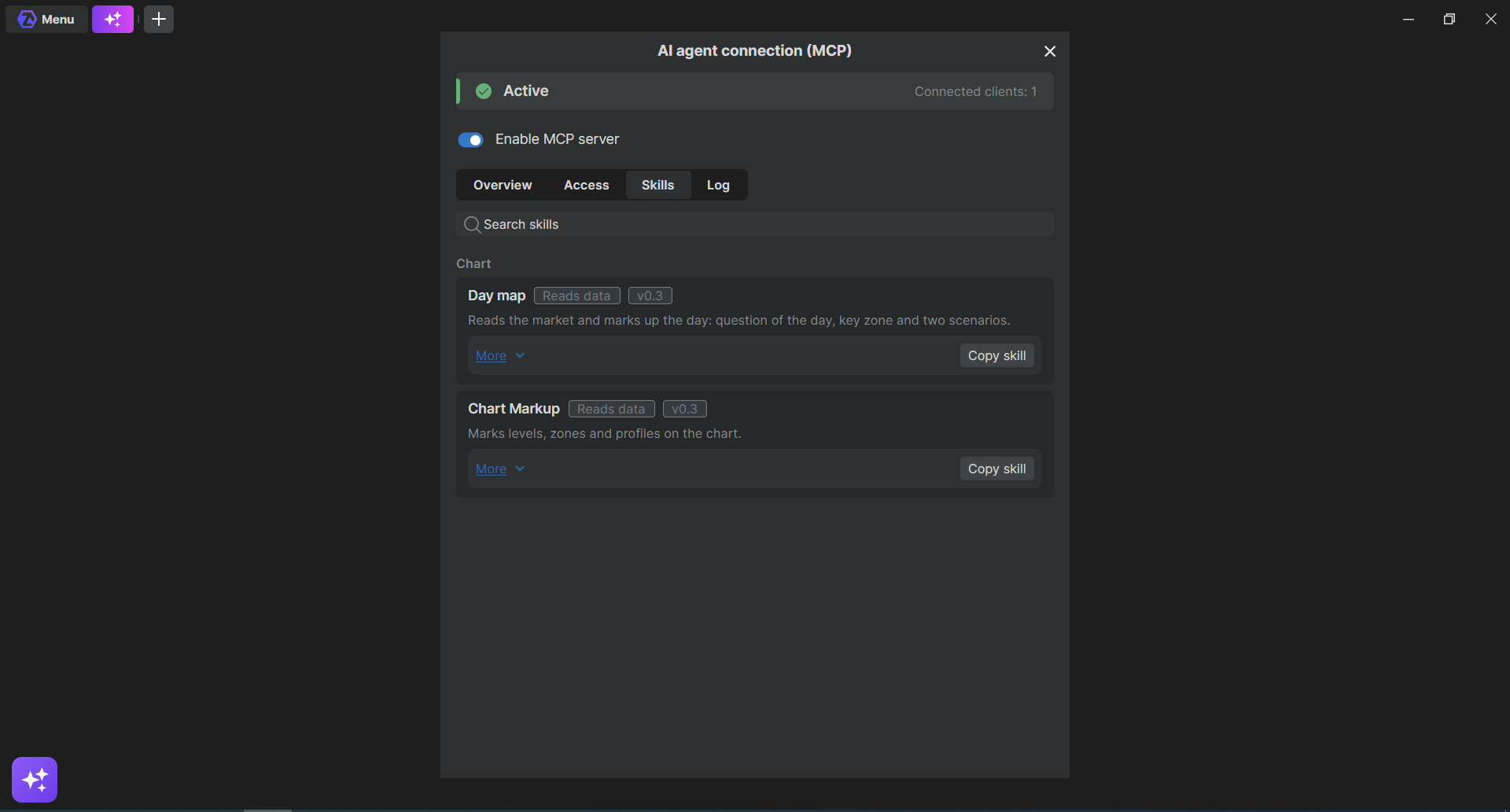
- Skills — ready-made instructions for the agent. Click Copy skill and paste the text into the agent's chat. Skills that analyze market data work only with crypto exchange data.
- Log — the agent's requests and their results, and the button that undoes the agent's last change.
Choose what the agent may do
Open the Access tab. Each switch applies immediately.
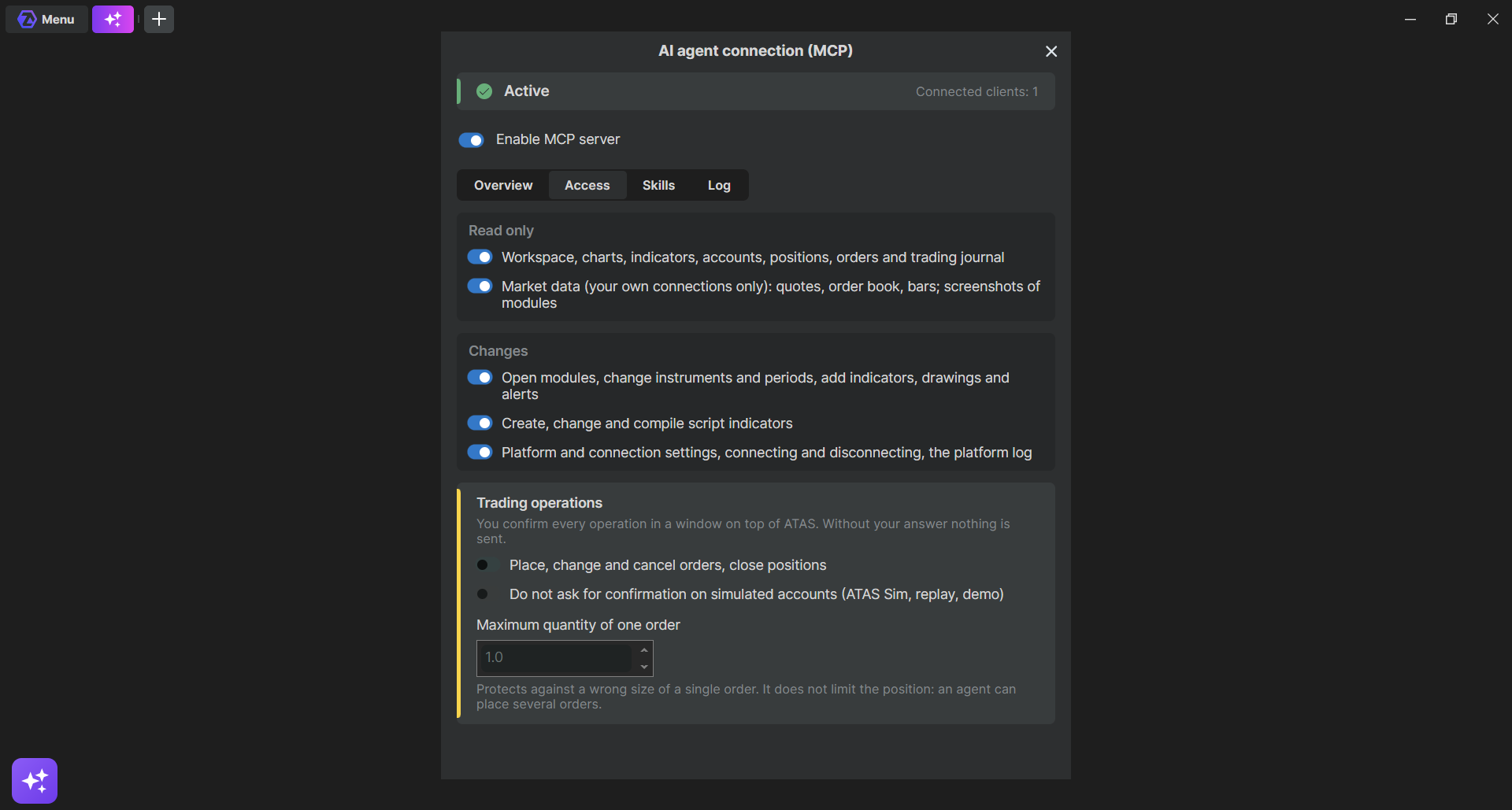
| Group | Switch | By default |
| Read only | Workspace, charts, indicators, accounts, positions, orders and trading journal | On |
| Read only | Market data: quotes, order book, bars; screenshots of modules | On, crypto exchange data only |
| Changes | Open modules, change instruments and periods, add indicators, drawings and alerts | On |
| Changes | Create, change and compile script indicators | On |
| Changes | Platform and connection settings, connecting and disconnecting, the platform log | On |
| Trading operations | Place, change and cancel orders, close positions | Off |
- Writing script indicators requires Script Lab in your ATAS subscription.
- The agent does not see connection passwords and API keys. To create a connection, it asks you to enter the credentials in ATAS.
- If an action is not allowed, the agent names the switch it needs. Turn it on in Access and ask again.
Trading operations
Trading is off by default. If you turn on Trading operations, every order the agent prepares opens a confirmation window in ATAS. Check every field before you confirm. If you do not respond within 60 seconds, nothing is sent.
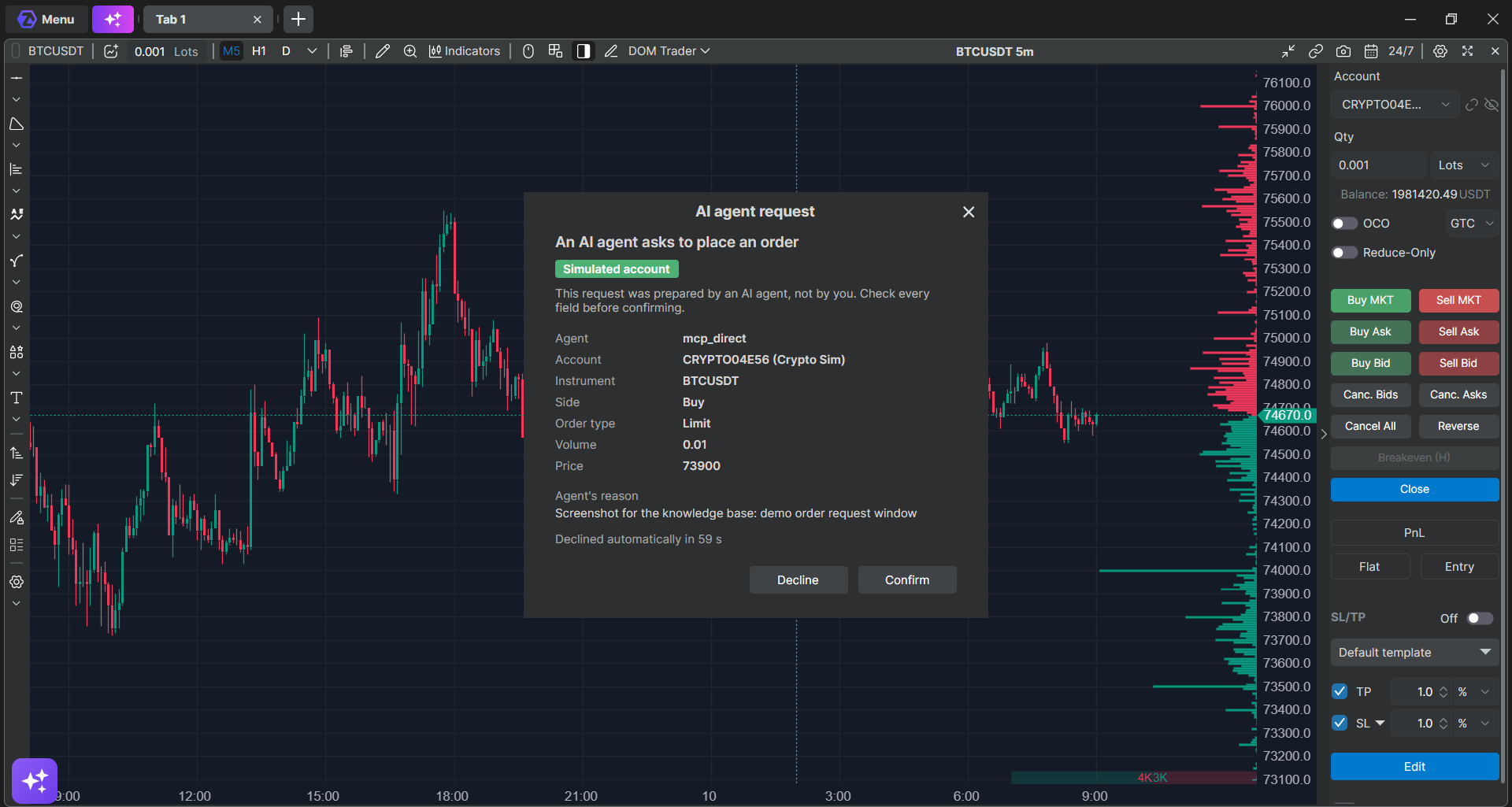
- One agent order is limited to 1 contract or lot by default. This limits a single order, not the position: the agent can place several orders.
- If trading is locked in ATAS, the agent cannot place orders.
- While you trade, ask the agent to work in a separate tab: it can change the instrument and period on a chart.
Security and your data
- ATAS accepts agent connections only from your computer and only with your token.
- The token works like a password. Do not share it or show it on screenshots. If it leaks, click Regenerate token on the Overview tab: all agents disconnect, and you connect them again with the new prompt.
- Everything the agent reads in ATAS goes to your AI provider together with the conversation. Check your agent's settings for training on conversations.
- ATAS counts which functions the agent called and whether they succeeded, without arguments or market data.
- Privacy mode hides account names and balances on your screen, but the agent can still read them.
- To undo an agent's change, ask the agent or click the undo button on the Log tab. Undo is available until ATAS restarts.
If something goes wrong
| Problem | What to do |
| There is no Connect AI agent button or menu item | Check that you use the desktop beta version of ATAS or ATAS X and the Ultra plan or Ultra trial. If both are right, contact support. |
| The wizard keeps waiting for the connection | Make sure the agent app is open on the same computer and that you sent the prompt. If the agent asked for a restart, restart it. |
| The agent cannot connect after ATAS was restarted | The address may have changed. Copy the prompt again on the Overview tab and send it to the agent. |
| The agent reports a connection error | Check that ATAS is running and the server is turned on in the AI agent connection window. |
| The agent says an action is not allowed | Turn on the switch the agent names on the Access tab and ask again. If the agent still does not see the new functions, start a new session with the agent. |
| The agent asks you to approve every ATAS request | This is a setting of your agent app. Allow requests to the ATAS server there. |
| The agent says data is not available for a futures or stock instrument | This is expected: market data is available only from crypto exchanges. The agent can still set up the chart, write indicators and place drawings and alerts. |
| No data on a crypto instrument | Make sure the instrument comes from your connection to a crypto exchange, not from ATAS Sim or Market Replay. Open a chart of the instrument first. |
| Orders are not sent | Turn on Trading operations on the Access tab and check that trading is not locked in ATAS. |
| The token appeared on a screenshot | Click Regenerate token and connect your agents again. |
| A change cannot be undone after a restart | Undo is available only until ATAS restarts. Change the setting back manually. |
Was this article helpful?
That’s Great!
Thank you for your feedback
Sorry! We couldn't be helpful
Thank you for your feedback
Feedback sent
We appreciate your effort and will try to fix the article