Your ATAS password is the same for the personal account and for the platform. If you forgot it, reset it with a link sent to your email. If you know it and want a new one, change it in your personal account.
Reset a forgotten password
- Open the password reset page: https://id.atas.net/Account/Login?screen_hint=reset
- In Email, enter the email of your ATAS account.
- Click Send reset link.
- Open the email from ATAS and click the link in it.
- Enter the new password twice and save it.
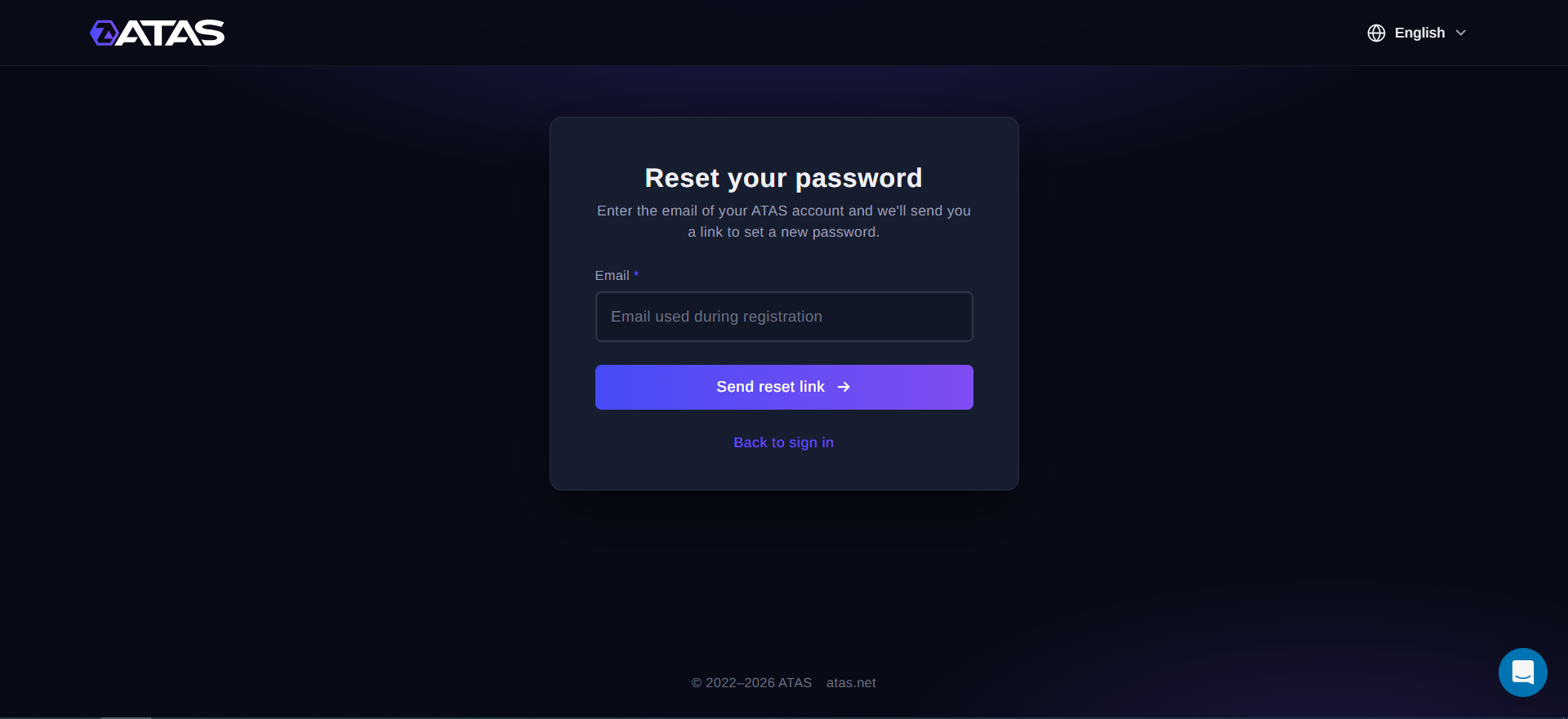
After that, sign in to the ATAS platform and your personal account with the new password. If your ATAS welcome email contained a password, it no longer works.
The Forgot your password? button in the platform sign-in window opens the same page.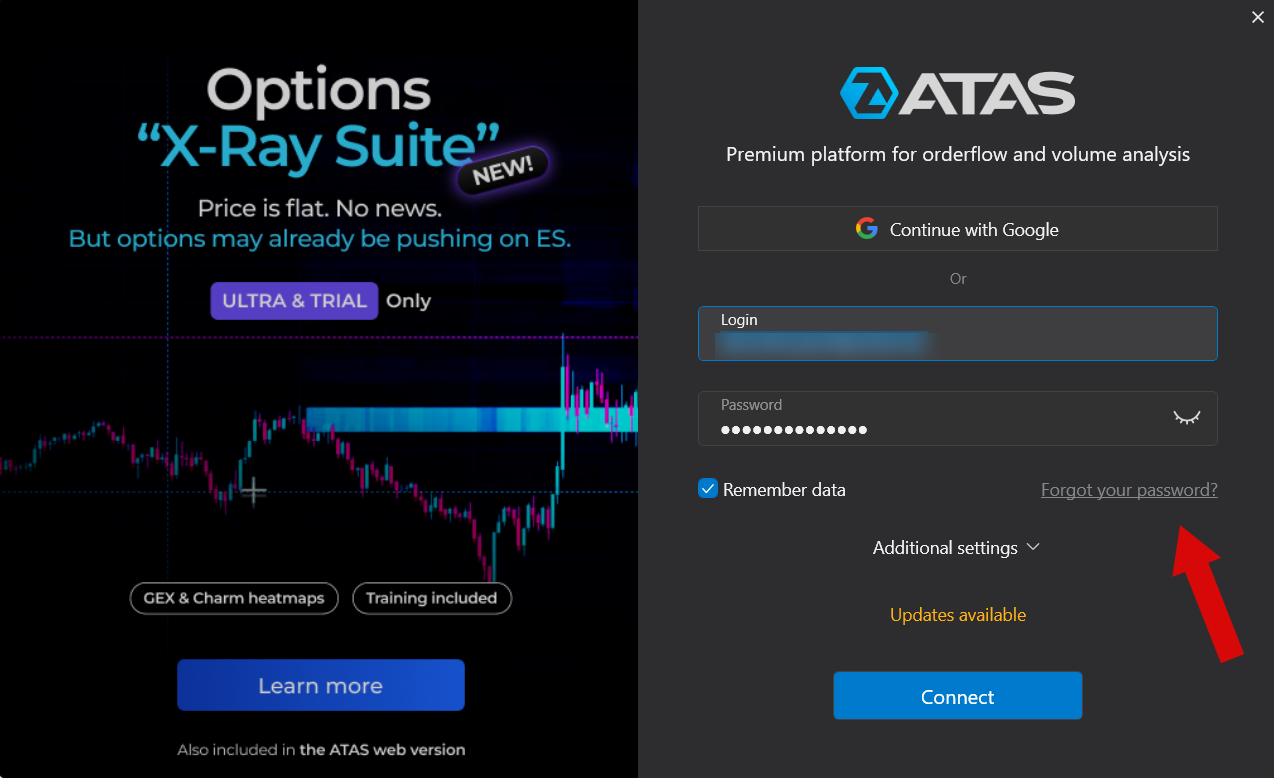
Change your password in the personal account
- Sign in to your ATAS personal account.
- Open My profile.
- In Change password, enter your Current Password.
- Enter the new password in New password and Password Confirmation.
- Click Change password.
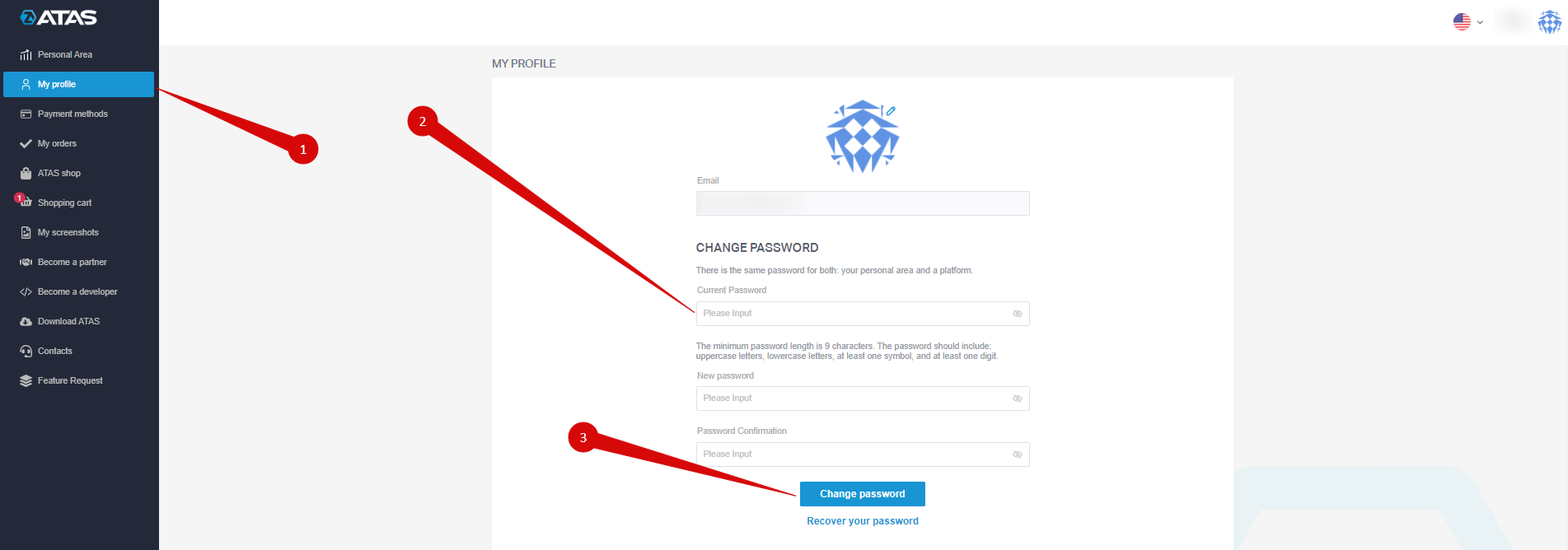
You will see the message Password is successfully changed. Use the new password the next time you sign in to the platform.
If you do not remember the current password, use the reset page above.
Password rules
- 12 to 50 characters.
- Latin letters (A–Z, a–z) and digits only. Special characters and spaces are not allowed.
- At least one uppercase letter, one lowercase letter and one digit.
- It must not match your current password or one of your recent passwords.
The hint under the password field in the personal account may still show older requirements (at least 9 characters and a symbol). Follow the rules above: special characters are not accepted.
If something goes wrong
| Problem | What to do |
| The platform does not accept the password after a reset | Enter the new password you have just set, not the password from the ATAS welcome email. |
| The email does not arrive | Wait a few minutes and check the Spam folder. Make sure you entered the email you used to register with ATAS. |
| The link in the email does not work | Request a new link on the reset page and use the latest email. |
| The new password is not accepted | Check it against the password rules above. Most often it contains a special character or a space. |
| You no longer have access to the email of your account | Contact ATAS support. |
Was this article helpful?
That’s Great!
Thank you for your feedback
Sorry! We couldn't be helpful
Thank you for your feedback
Feedback sent
We appreciate your effort and will try to fix the article