Risk Management helps you stop trading when you reach the daily limits that you set in advance. You decide how much you are ready to lose in a day, how much profit is enough, how many trades you can make, and how many losing trades in a row you can accept. After that, ATAS monitors these limits for you.
Large losses often happen not because of a bad strategy, but because a trader breaks their own rules: trying to win back losses, increasing volume after a profitable morning, or continuing to trade while tired. Risk Management is designed for these moments, so a decision made with a clear head continues to work when emotions appear.
 What You Should Know Before You Start
Where Risk Management Works
Risk Management works only inside ATAS. It does not block your account at the broker. If you open the same account in another platform or on the broker's website, you will still be able to trade there without ATAS limits.
Separate Settings for Each Account
Limits are configured separately for each trading account. You can use strict rules on one account and only monitor another account.
ATAS and ATAS X
ATAS and ATAS X have separate Risk Management settings and separate daily values. Limits configured in ATAS are not transferred to ATAS X. Configure them separately in each platform that you use for trading.
Which Accounts Are Shown
The list shows accounts that were connected during the current platform session. If the connection is lost, the account remains in the list with a red dot.
Replay
Replay trades are also counted. They are counted on a separate Replay account and always for the current day, even if you are replaying historical dates.
When the Platform Is Closed
Risk Management limits are saved after a restart. If ATAS was closed at the scheduled reset time, the reset will happen the next time the platform starts. If a limit has already been exceeded, the account will be blocked immediately after startup.
How to Open Risk Management
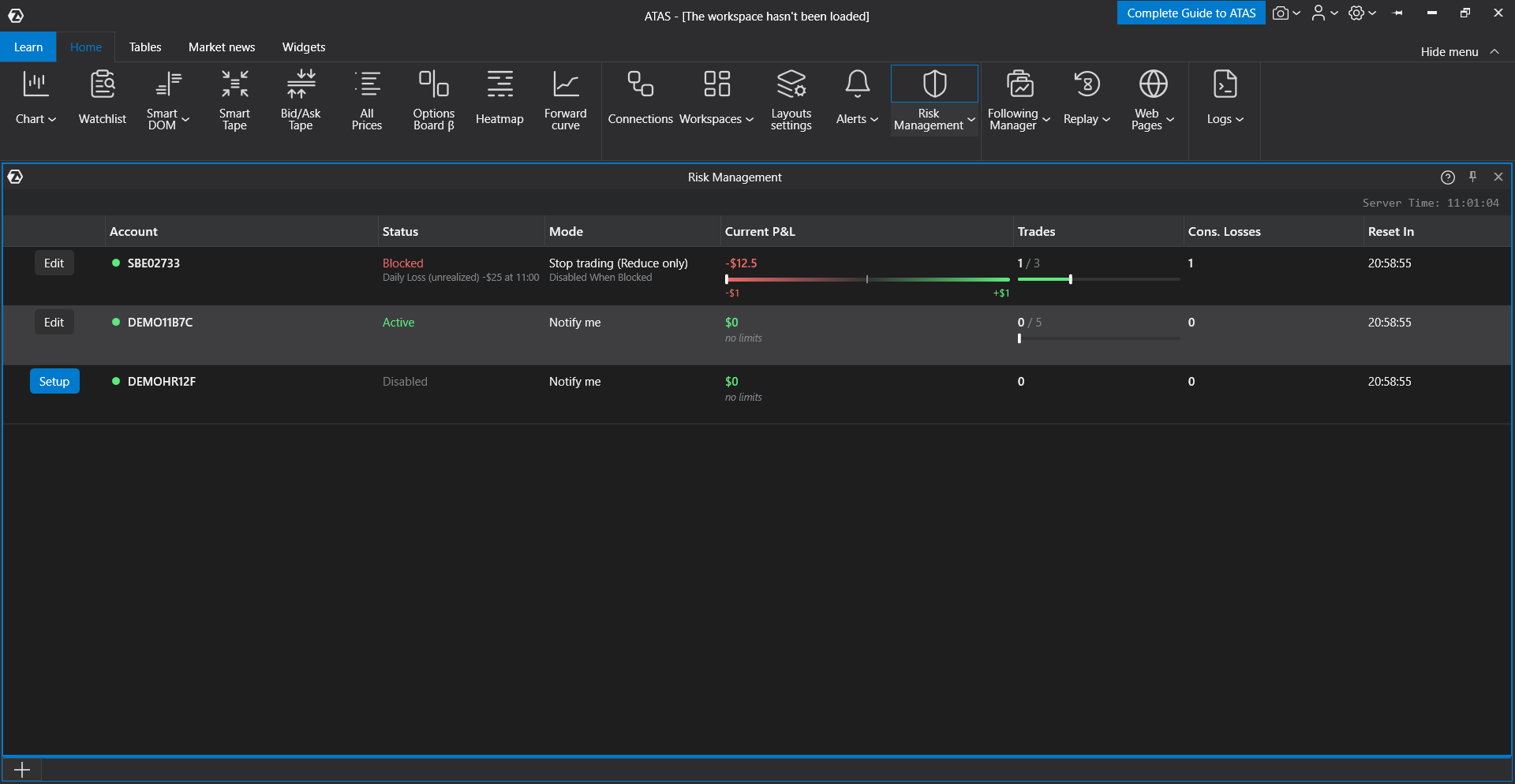
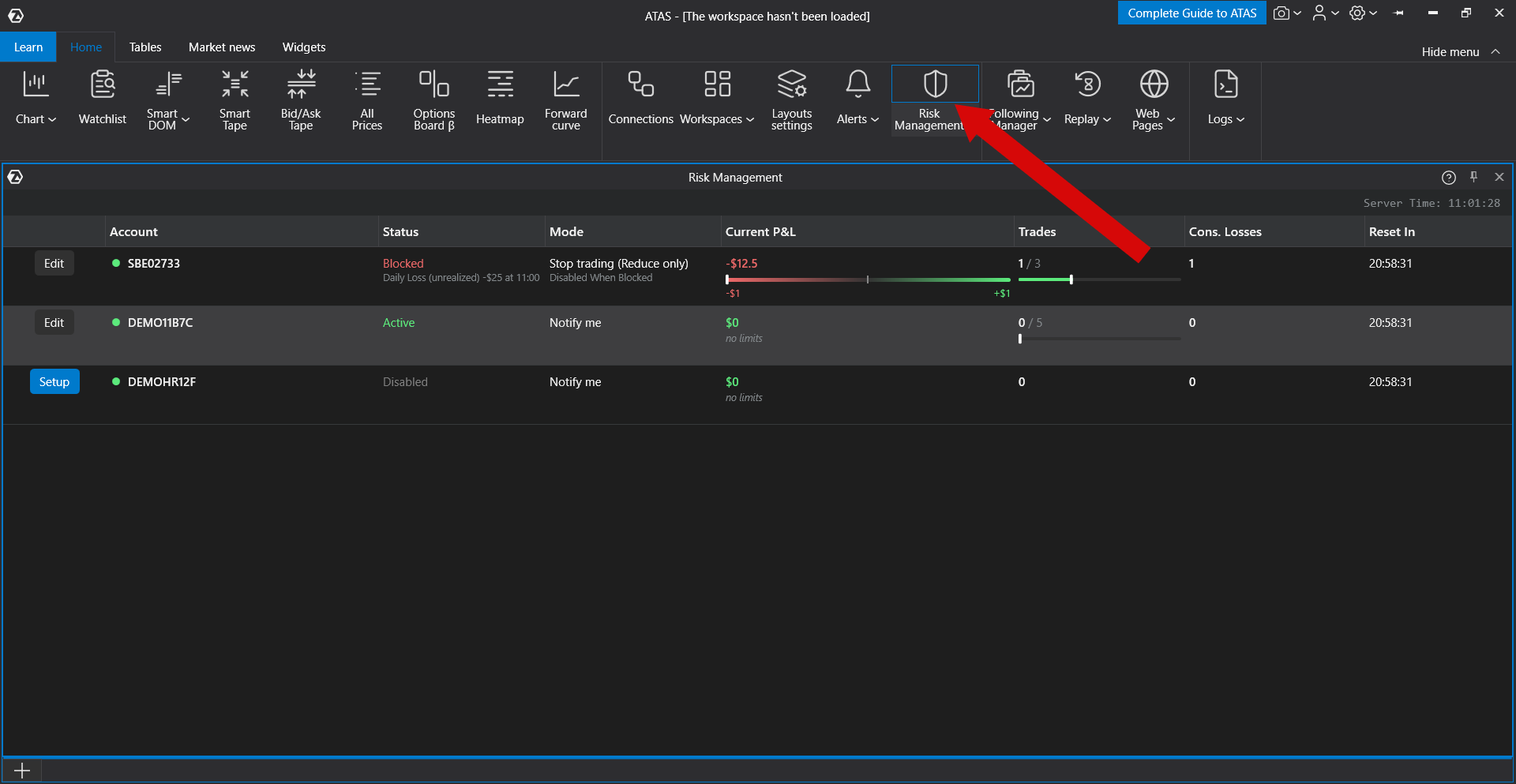
In the main ATAS window, open the Home tab and click Risk Management with the shield icon. The Risk Management window opens at the bottom of the main window, next to Orders, Positions, and Trading Journal.
 The Risk Management Window
Each row in the window represents one trading account.
| Column | What it shows |
| Button at the beginning of the row | Set up is shown if no limits have been configured for the account yet. Edit is shown if limits are already enabled. The button opens the account settings. |
| Account | The account name. A green dot means the account is connected. A red dot means it is disconnected. |
| Status | The account state. For a blocked account, the status also shows which limit was triggered, at what value, and at what time. |
| Mode | What ATAS does when a limit is reached: only notify you, or stop trading. |
| Current PnL | The result of closed trades for the day. The scale shows how close you are to the loss limit or profit target. Unrealized PnL from open positions is shown separately in smaller text. |
| Trades | How many trades have been made during the day and what the trade limit is. |
| Consecutive losses | How many losing trades in a row have occurred and what the limit is. |
| Reset in | How much time remains before the daily values are reset. |
The question mark icon in the window header opens this article.
Account Statuses
| Status | Meaning |
| Disabled | No limits are enabled. Risk Management does not restrict trading. |
| Active | At least one limit is enabled, and no limit has been reached yet. |
| Target | The daily profit target has been reached. ATAS behaves the same way as it does when an account is blocked: it notifies you or stops trading, depending on the selected mode. |
| Blocked | A loss limit, trade count limit, or consecutive loss limit has been reached. If the block was caused by an open position, the status shows that the unrealized PnL limit was reached. |
Quick Start
Daily loss limit: the shortest path
- Open Risk Management and click Set up in the row of the required account.
- Enable Loss limit and enter an amount, for example, 500.
- In the section that defines the response to a limit, select Stop trading (reduce only).
- Click Apply and confirm the warning.
The account status changes to Active. When the daily loss reaches 500, ATAS will not allow new positions to be opened until the next reset. The sections below explain the other limits and details.
Step 1. Set the Limits
Click Set up or Edit in the account row. At the top of the settings window, you will see the account, its current status, current PnL, and the time remaining before reset. Each limit has its own switch. A disabled limit is not checked.
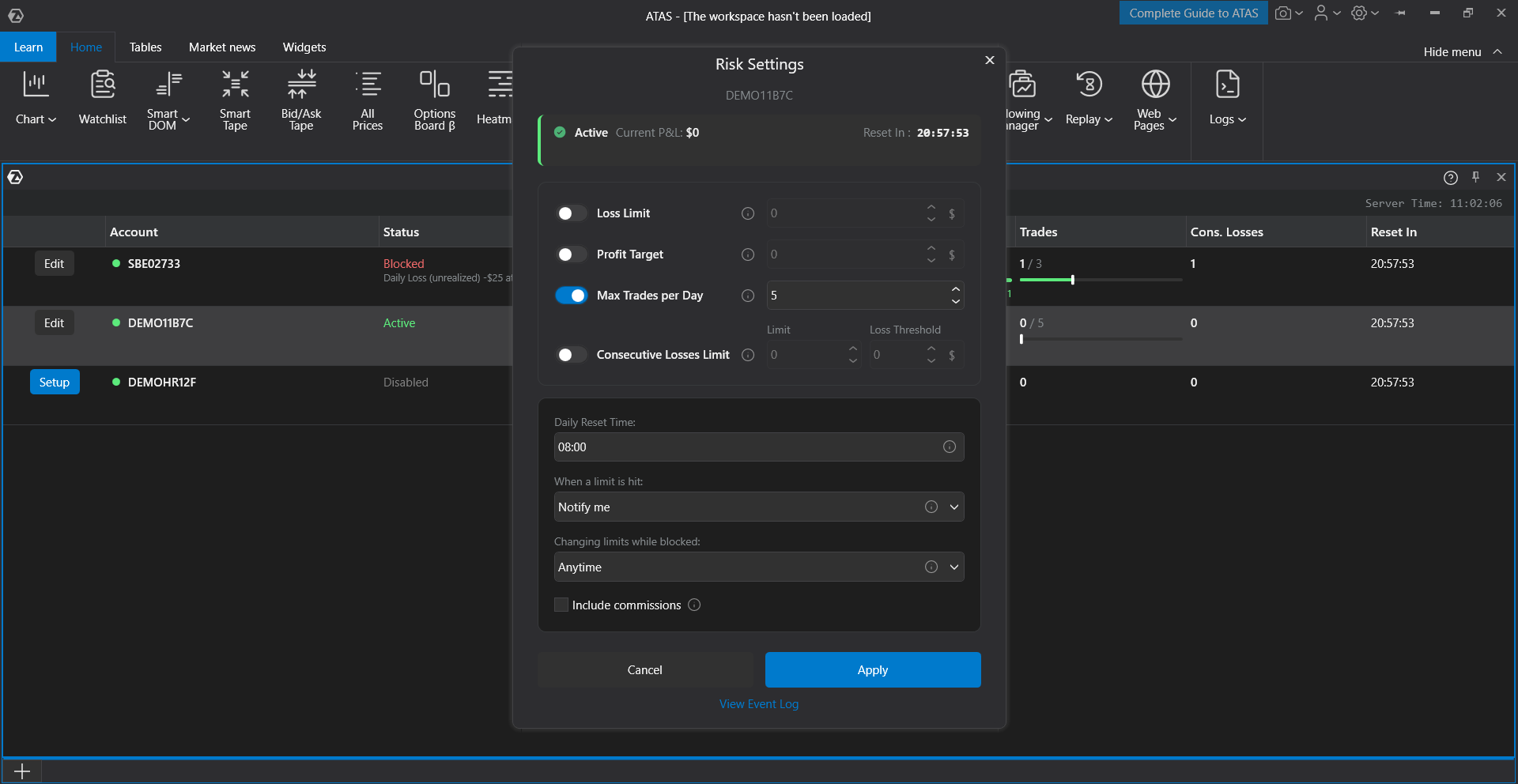
| Limit | What it does |
| Loss limit | The maximum loss for the day. As soon as the daily result reaches this amount, the account is blocked. |
| Profit target | The profit amount after which the trading day is considered complete. It helps you avoid giving back already earned profit. |
| Trades per day | How many trades can be made during the day. This helps avoid excessive or impulsive trading. |
| Consecutive loss limit | How many losing trades in a row are allowed. A profitable trade resets the counter. |
| Loss threshold | Configured next to the consecutive loss limit. Only trades whose loss is equal to or greater than the threshold are included in the losing streak. A small loss, for example a few ticks, does not extend or reset the streak. If the threshold is 0, any losing trade is counted. |
| Include commissions | Subtracts the broker commission from the result of each trade. This affects the loss limit, the profit target, and whether a trade is considered losing for the consecutive loss counter. |
Limits are entered as whole numbers in the account currency.
How Values Are Calculated
- Current PnL is the sum of closed trade results since the last reset. Open positions are shown separately, but they are also checked. See the Open Positions section below.
- A trade is one row in Trading Journal. If an order was filled in parts, several rows can appear in the journal, and Risk Management can count them as several trades.
- Commissions are counted only from the moment when you enable the checkbox. Trades closed earlier are not recalculated. Commission is not counted for open positions because its final amount is known only after the position is closed.
Step 2. Choose What Happens When a Limit Is Reached
| Mode | What happens |
| Notify me | ATAS shows a notification, changes the account status, and shows a yellow banner on the chart. You can continue trading without restrictions. |
| Stop trading (reduce only) | You cannot open new positions or increase existing ones. You can always close or reduce a position and cancel orders. See the When a Limit Is Triggered section below. |
If you are using Risk Management for the first time, start with Notify me. Watch for a few days to see how often limits are triggered and adjust the amounts. After that, you can switch to Stop trading.
Step 3. Decide Whether Limits Can Be Changed During a Block
The most dangerous moment is when a limit has already been triggered and you want to raise it just a little. This setting controls how easy it is to do that.
| Option | What happens if the account is blocked |
| At any time | Limits can be changed immediately. If no limit is exceeded after the change, the block is removed. |
| Password when blocked | Before saving, ATAS asks you to enter a discipline phrase. The window shows the current PnL and the reason for the block. This creates a pause so you can think again. If you close the window or enter the phrase incorrectly, the changes are not saved. |
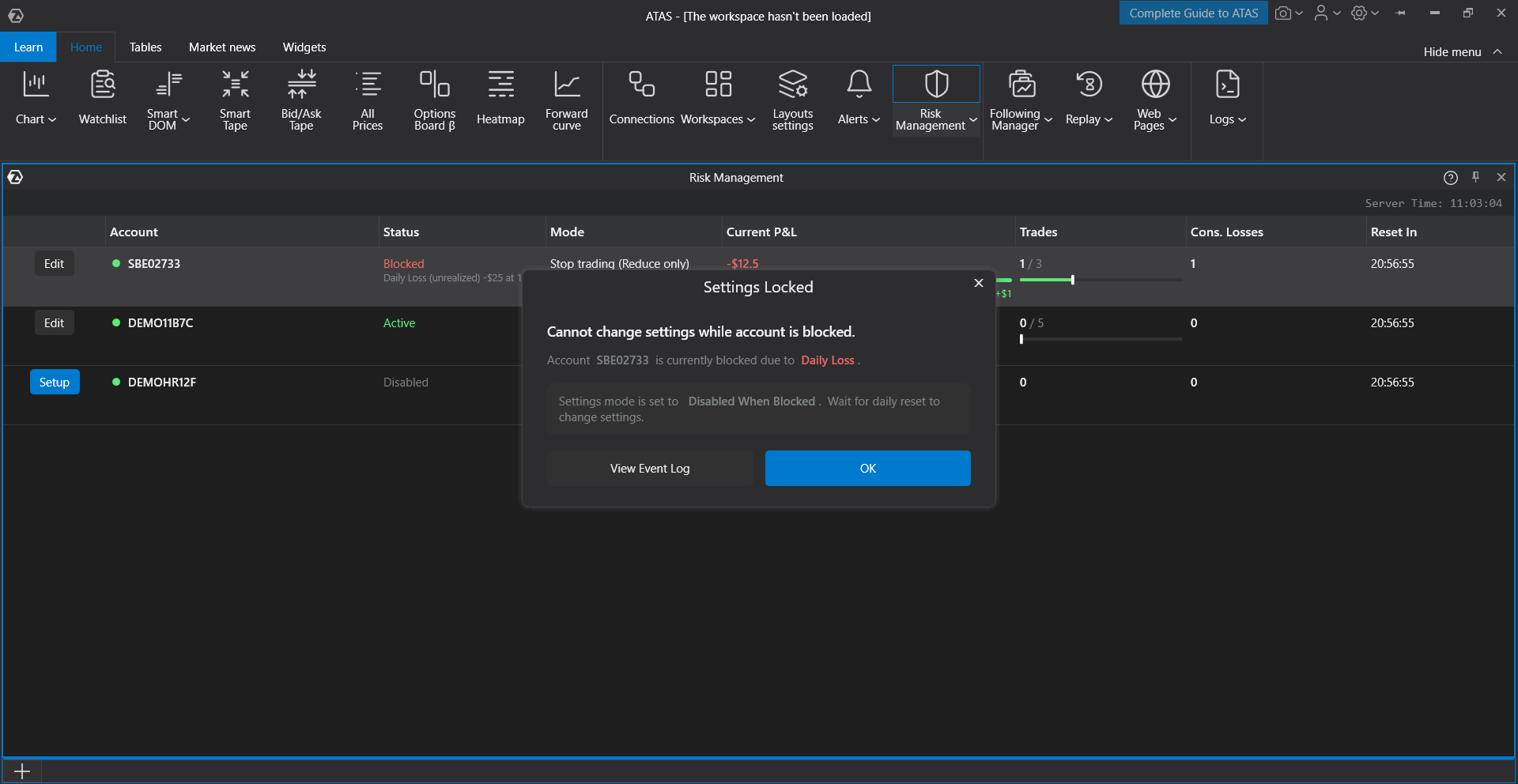
| Prohibited when blocked | The settings cannot be opened until the reset. Instead, ATAS shows a Settings locked window with the reason and a button that opens the event journal. |
 Step 4. Set the Reset Time
Set the time when the trading day ends for Risk Management. At this time, current PnL, trade counters, consecutive loss counters, and blocks are reset. The countdown uses ATAS server time, so changing the time on your computer does not affect the reset.
Click Apply to save the settings.
Warnings When Saving
| Window | When it appears |
| Protection mode warning | Appears when you enable Stop trading or change the rule that controls whether limits can be changed. The window explains how protection will work and when you will be able to change it. Settings are not saved until you confirm the warning. |
| Immediate block warning | Appears when the new limit has already been violated. For example, the current daily loss is 455, and you set the loss limit to 400. After confirmation, the account will be blocked immediately. |
When a Limit Is Triggered
In Stop trading mode, the following happens when a limit is triggered:
- The account status changes to Blocked or Target, and you receive a notification.
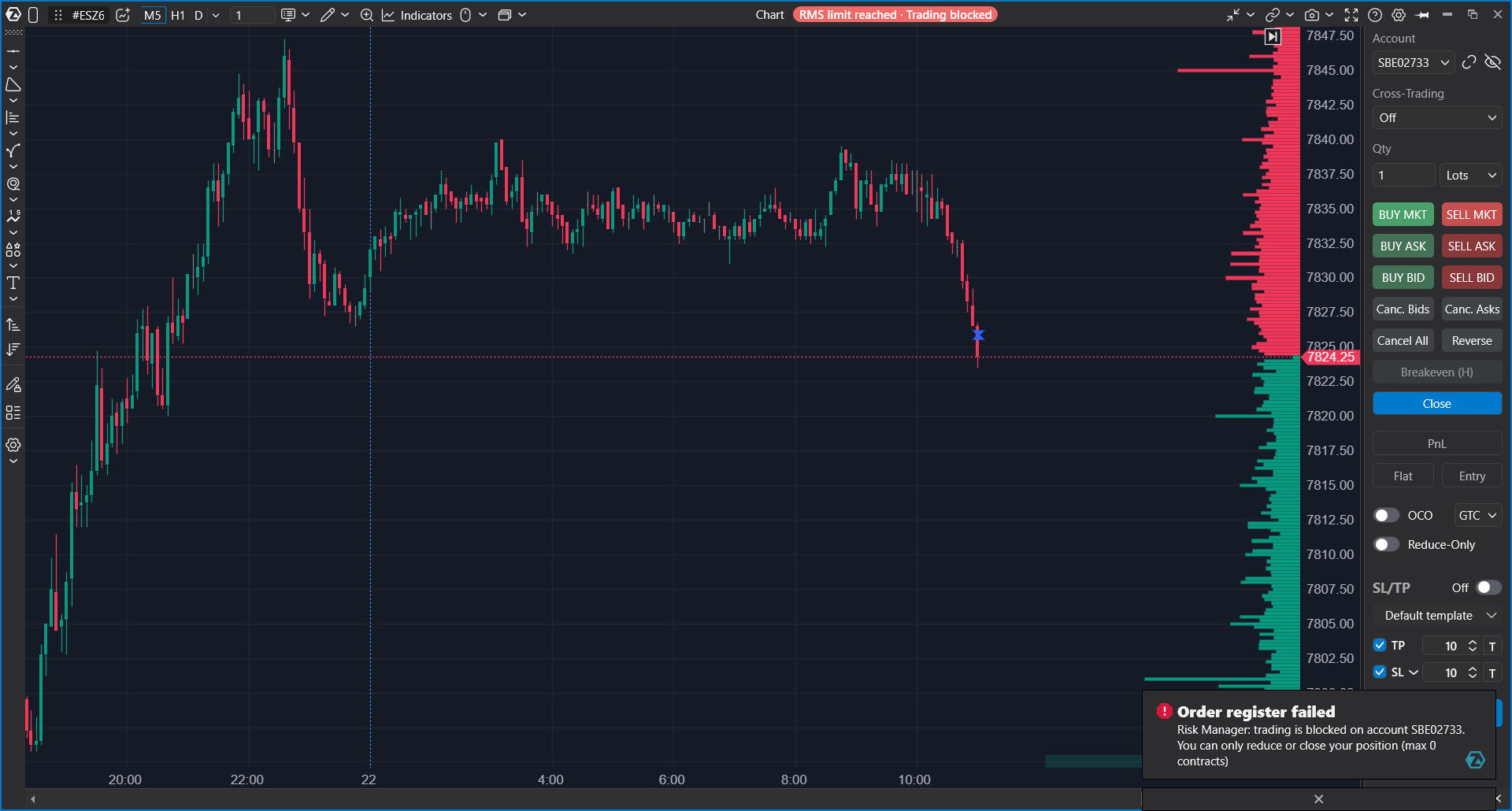
- Charts and order books for this account show a red banner: RMS limit reached · Trading is blocked. In Notify me mode, the banner is yellow and does not include the second part.
- ATAS cancels active orders that could increase the position. Stop loss, take profit, and orders that reduce the position remain active.
- New orders that open or increase a position are rejected with a sound and a message.
| Action | During a block |
| Close a position | Allowed |
| Reduce a position | Allowed |
| Cancel an order | Allowed |
| Open a new position | Not allowed |
| Add to a position | Not allowed |
| Reverse a position | Not allowed. An order larger than the current position is rejected entirely. ATAS will not close only the part that brings the position to zero. |
Example: you have a long position of 3 contracts, and the account is blocked. A sell order for 3 contracts will be accepted and will close the position. A sell order for 5 contracts will be rejected entirely because 2 contracts would open a short position.
How a Block Is Removed
| What triggered the block | When the block is removed |
| Loss limit or profit target by closed trades | Automatically, as soon as closed trades bring the result back within the limit. For example, another position was already open and later closed with profit. |
| Consecutive losses | Automatically, after a profitable trade resets the counter. While the account is blocked, you cannot open a new trade, so the profitable trade can only come from a position opened before the block. |
| Trade count | Only at reset or after changing limits. The number of trades made during the day does not decrease. |
| Open position | After all positions are closed, if closed trades are within all limits. See the next section for details. |
| Any limit | At the daily reset, or after changing limits if this is allowed by the selected rule and the new limits are not violated. |
When the block is removed, you receive a notification that trading is allowed again, the status changes to Active, and the banner on the chart disappears after a few seconds.
If two limits are holding the account at the same time, for example the loss limit and the trade count limit, the block remains even if one of them stops applying. The status shows the limit that is currently holding the account.
Open Positions
Risk Management checks not only closed trades, but also open positions several times per second. If the result of closed trades together with open positions reaches the loss limit or profit target, the account is blocked immediately, without waiting for the position to close.
- The status shows that the unrealized PnL limit was reached.
- If the price then returns and the position is back within the limit, the block remains. This is intentional: otherwise, a position moving around the limit could repeatedly remove and return the block.
- Partial closing does not change the block.
- When all positions are closed, ATAS checks the block again using closed trades. If they are within all limits, the block is removed automatically. If a limit is still violated, the account remains blocked.
- If the broker connection is lost, the result of open positions is unknown. Until the connection is restored, Risk Management will not block the account by open positions and will not remove this type of block.
Risk Management does not close positions automatically. Even when the account is blocked, you must close an open position manually or wait for the stop loss.
Event Journal
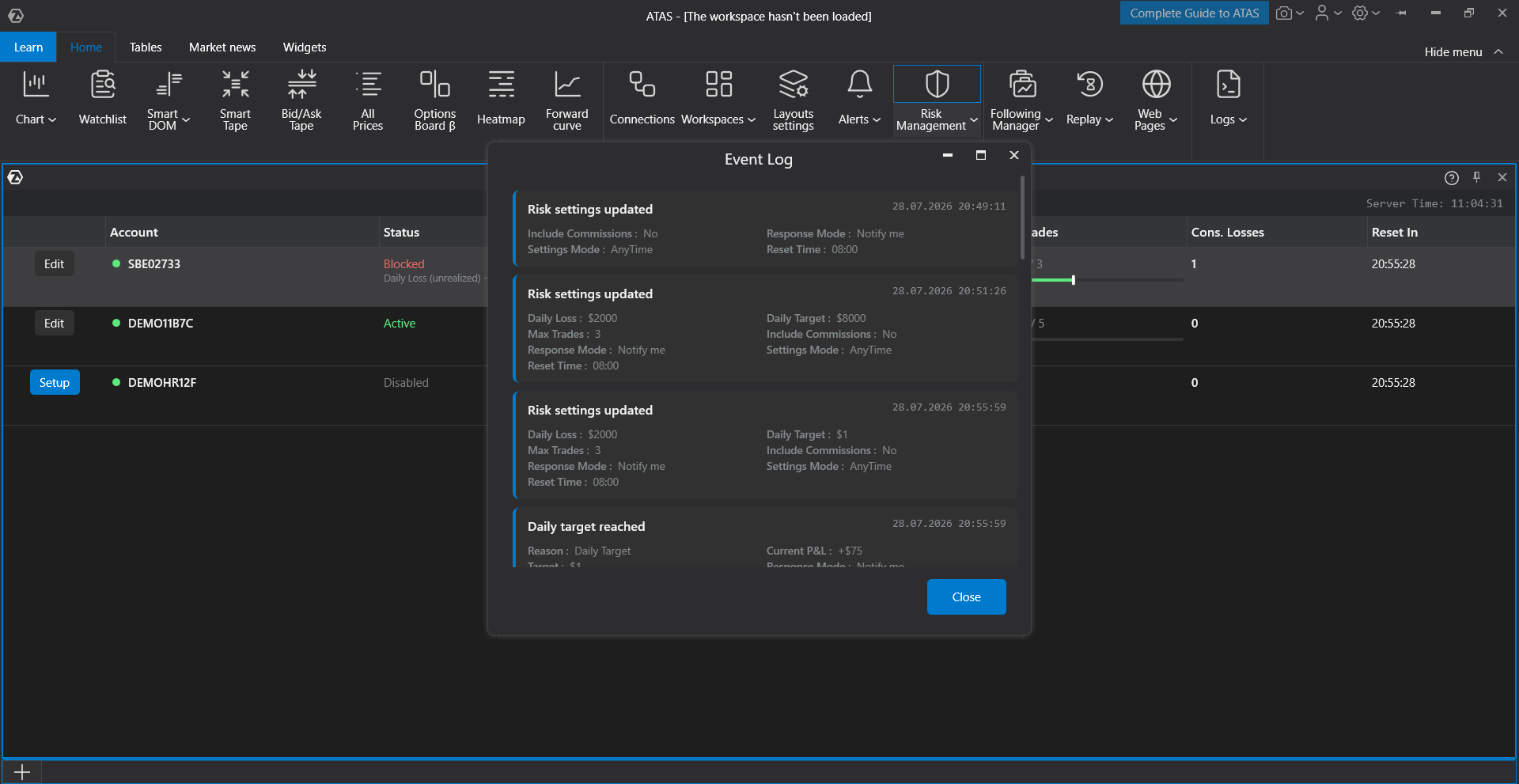
Click View event journal in the account settings window. The journal records everything that happened to the account with date and time: limit changes, confirmations, blocks and their reasons, canceled orders, block removal, and daily resets.
The journal is stored separately for each account and is saved between platform launches.
 Troubleshooting
| What happens | What to do |
| There is no Risk Management button | The module is not available in all versions and subscriptions. Update ATAS to the latest version. If the button still does not appear, contact support. |
| The required account is not in the list | Connect the account during the current platform session. The list shows only accounts that were connected during this session. |
| An order is rejected even though I am only closing a position | Check the volume. If the order is larger than the position, it is rejected entirely. Reduce the order volume to the position size. |
| My limit orders disappeared after the block | ATAS cancels orders that can increase the position. Stop loss and take profit orders remain active. You can see which orders were canceled in the event journal. |
| The price returned, but the account is still blocked | If the block was caused by an open position, it remains until all positions are closed or until reset. |
| The settings window does not open | The selected option is Prohibited when blocked. You can change limits after the reset. |
| The trade count is higher than the number of trades I made | An order may have been filled in parts, and Trading Journal may show several rows. Each row is counted as a separate trade. |
| The result does not match the broker data | Check the Include commissions checkbox. Commissions are counted only from the moment when the checkbox is enabled. |
| Limits do not work in ATAS X or in ATAS | ATAS and ATAS X have separate settings. Configure limits in each platform where you trade. |
| I can trade this account in another platform | This is expected. Risk Management works only inside ATAS and does not block the account at the broker. |
Was this article helpful?
That’s Great!
Thank you for your feedback
Sorry! We couldn't be helpful
Thank you for your feedback
Feedback sent
We appreciate your effort and will try to fix the article