The chart in ATAS can be configured faster using several related tools: quick lines on the price and time scales, the drawing panel, favorite drawing object templates, and instrument drag and drop between windows.
These features help you mark up the chart faster, reuse ready-made object settings, and change the instrument in a module without manually searching for it in the list.
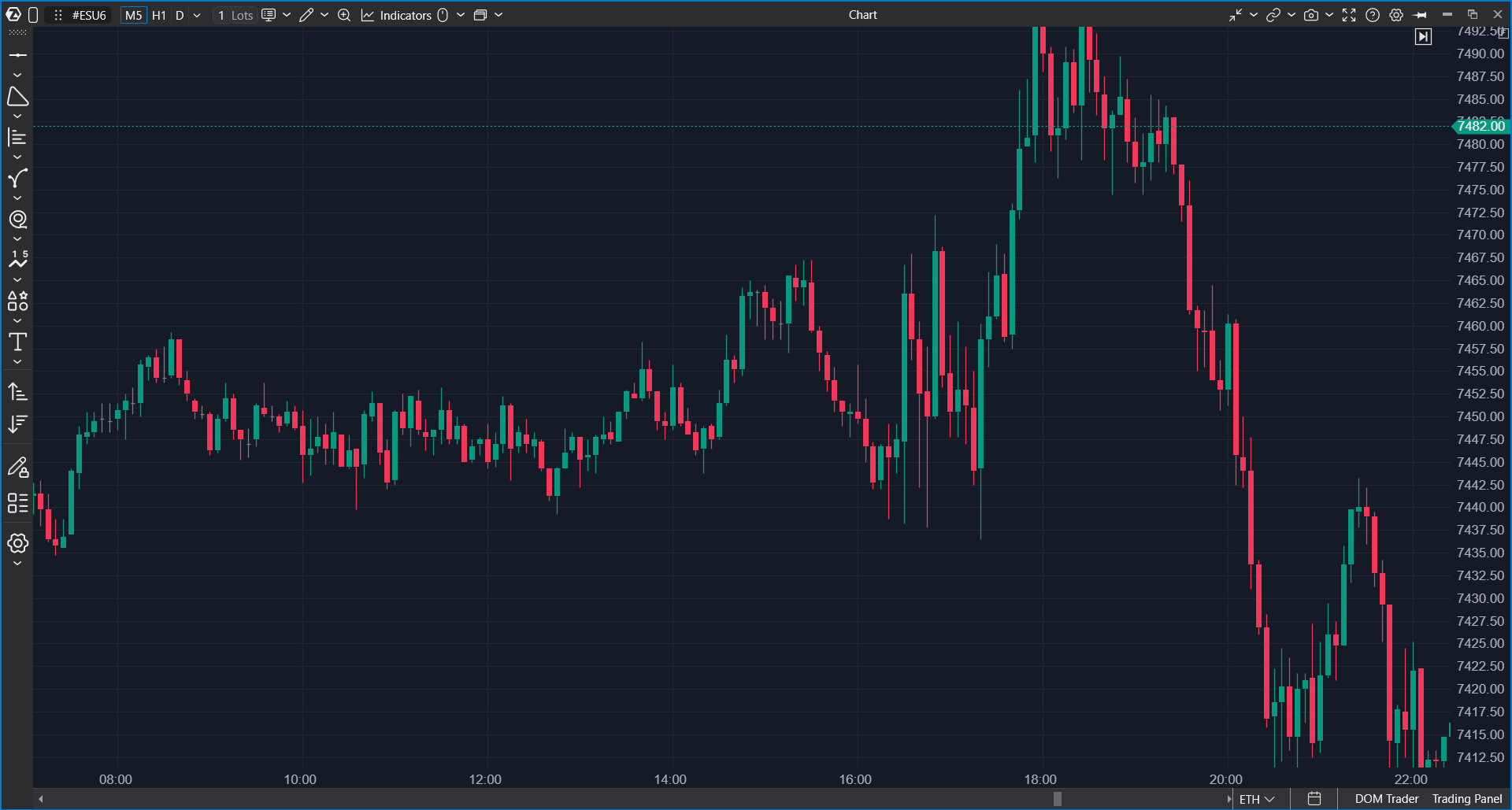
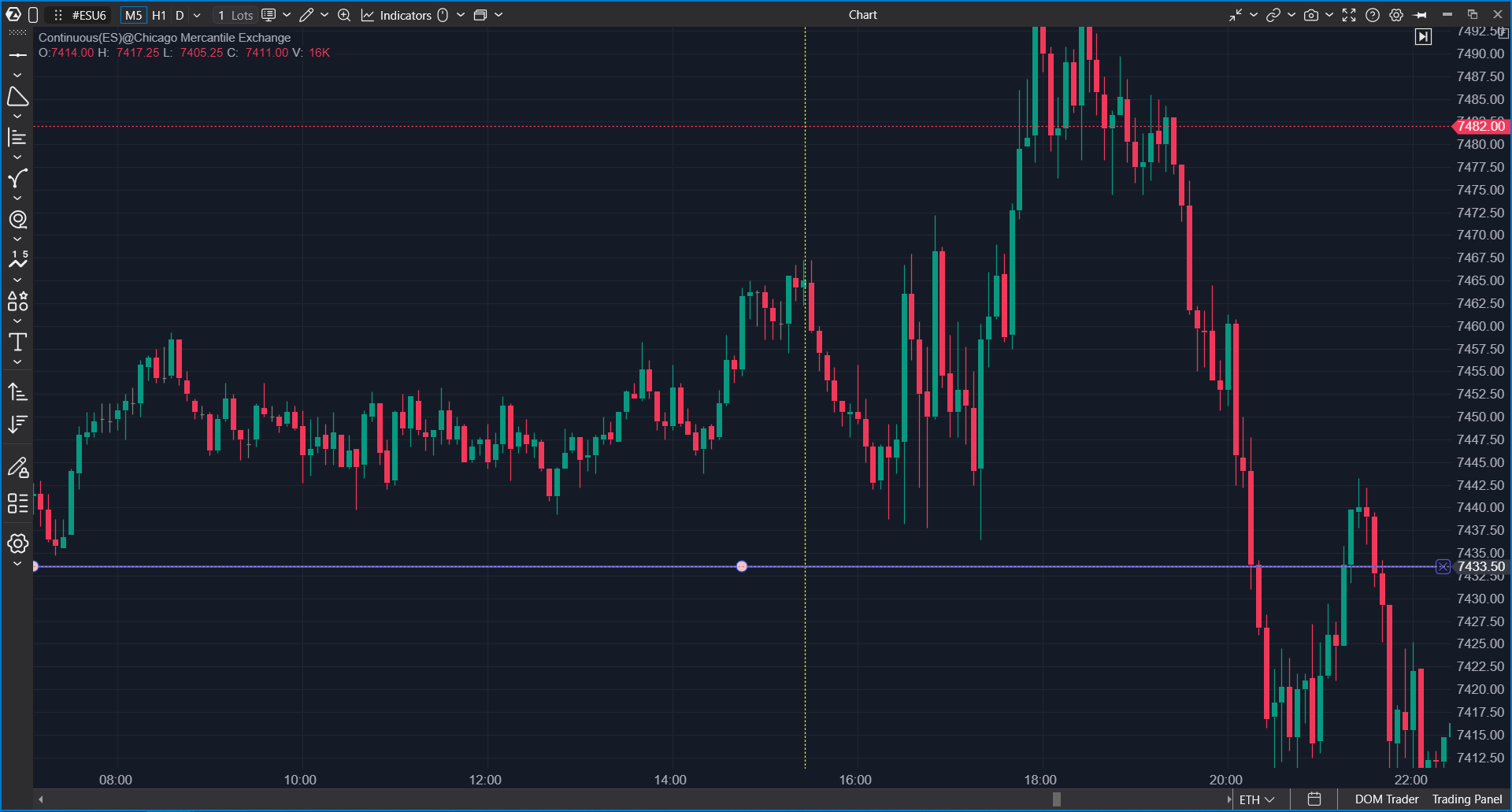
Quick lines on the price and time scales
If you need to quickly mark a price level or a point in time, use the chart scales.
- Move the cursor over the price scale or the time scale.
- Right-click the required place once.
- A line will appear on the chart.
- On the price scale, a horizontal line or ray is added.
- On the time scale, a vertical line is added.
Quick lines are useful for fast chart markup: marking a level, the time of a price reaction, a session boundary, or an area you want to return to later.
Deleting quick lines
Lines and rays have a delete button next to the object. It helps remove markup without opening the context menu and without additional actions.
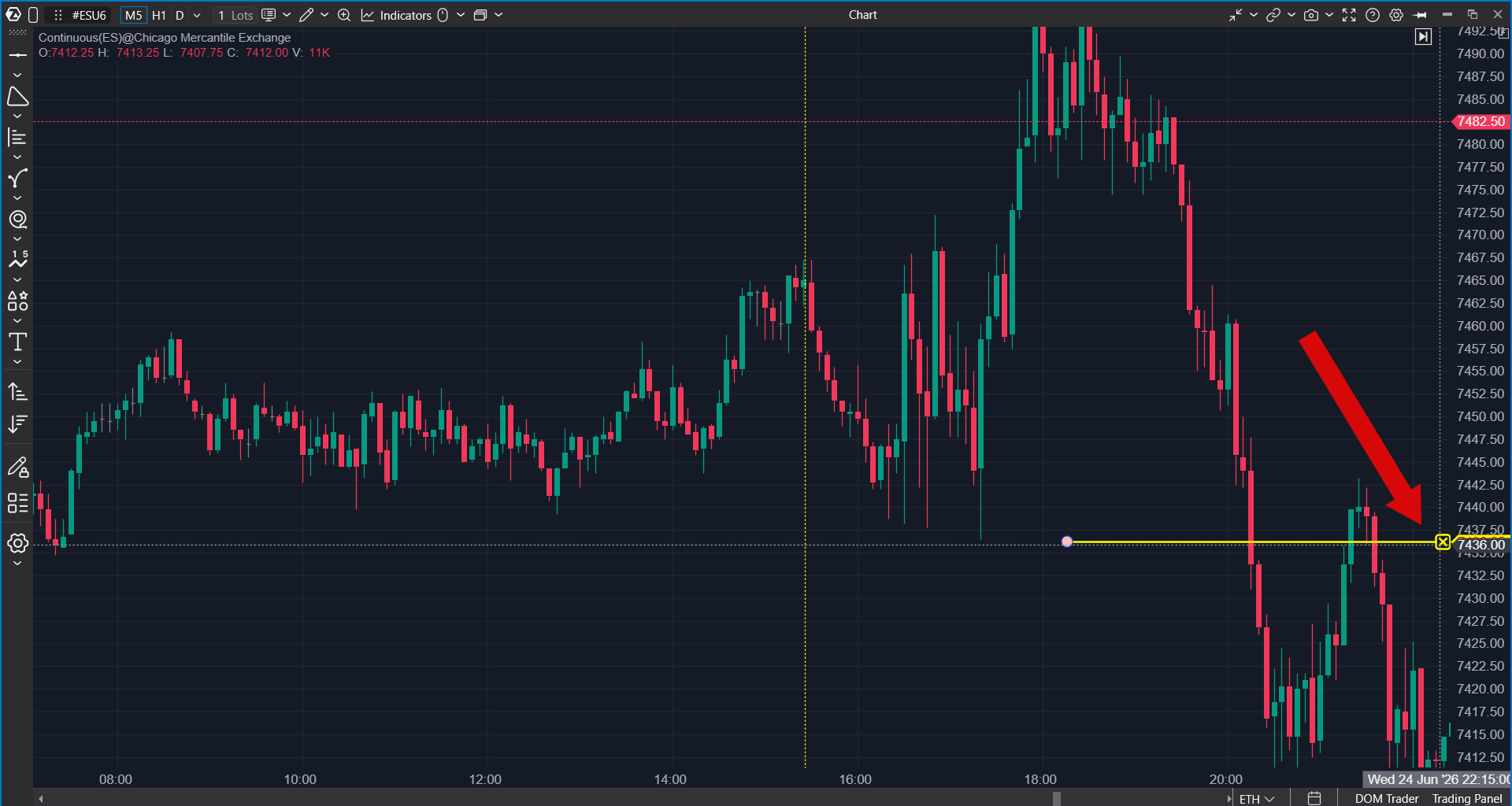
If the button is not always visible, move the cursor over the object or select it on the chart.
Price scale auto-scaling
Double-click the price scale to enable chart auto-scaling.
Templates for lines and objects
Objects added through the chart scales use the same logic as objects added through the drawing panel. This means that regular object settings and templates are applied to them.
If the object has a last used template, it may be applied when the object is added through the scale. If there is no suitable template, the standard object appearance is used.
Drawing panel
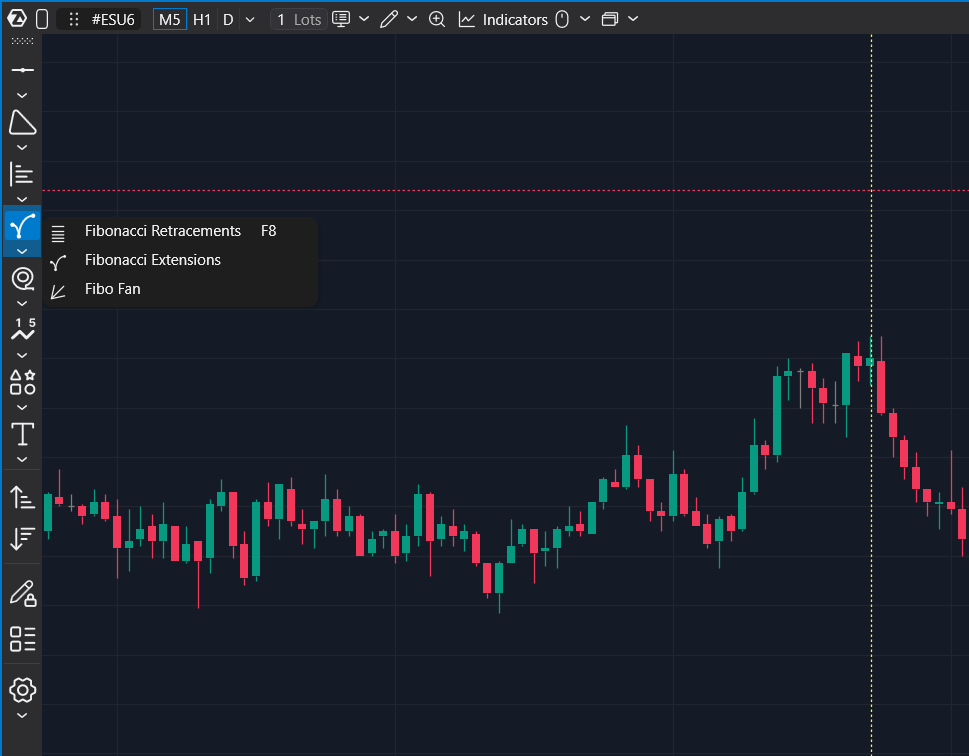
The drawing panel is used to add graphical objects to the chart: lines, shapes, profiles, and other markup objects.
Through the drawing panel, you can:
- select a drawing object;
- add an object to favorites;
- use object templates;
- quickly switch between frequently used tools;
- change the panel width if you need a compact or expanded view.
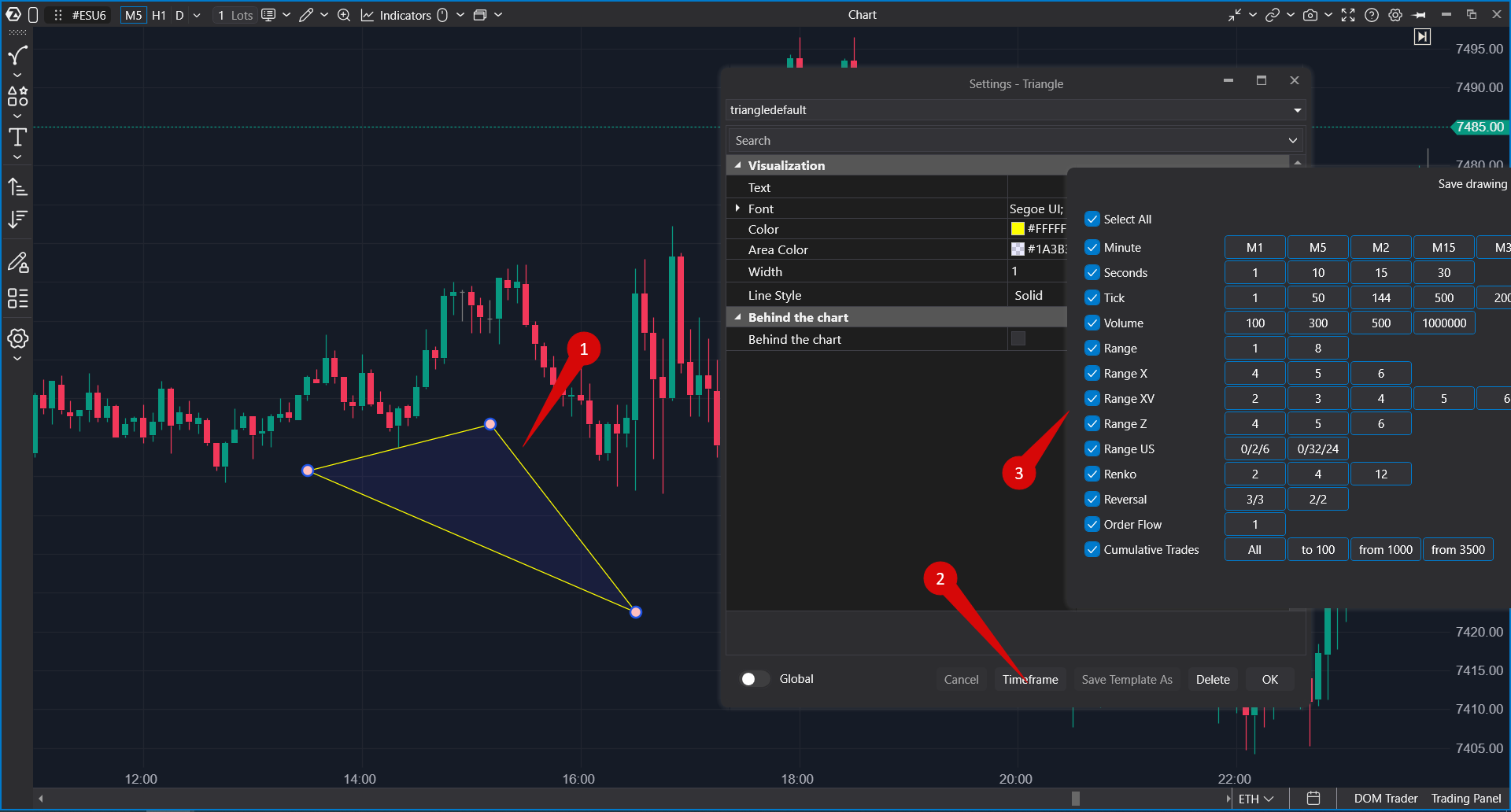
Configuring timeframes for drawing objects
The Timeframes setting allows you to choose on which timeframes a graphical object should be displayed. If all timeframes are selected, the object is always visible. If only specific timeframes are selected, the object is displayed only on those timeframes and hidden on the others.
Drawing on several charts
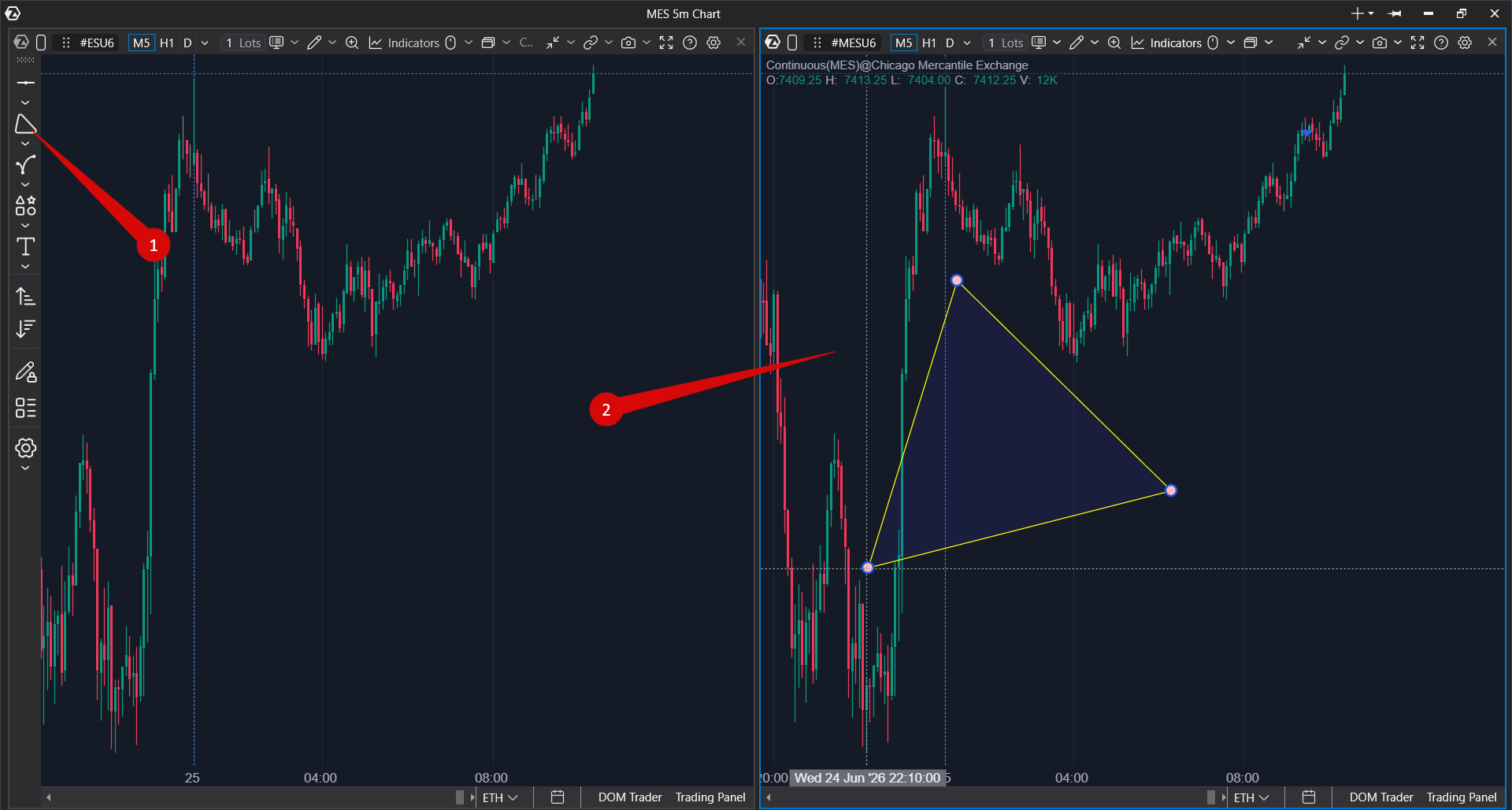
If several charts are open, it is not necessary to enable the drawing panel on each of them.
You can select a tool on the panel of one chart, then move to another chart and draw the object there. This is convenient when you work with several instruments, timeframes, or different views of the same market.
If Continue Drawing mode is enabled, the next object is created on the chart where you click.
If you start drawing an object on one chart and then switch to another chart, the unfinished object on the first chart may be canceled, and drawing will start on the new chart.
Drawing panel size
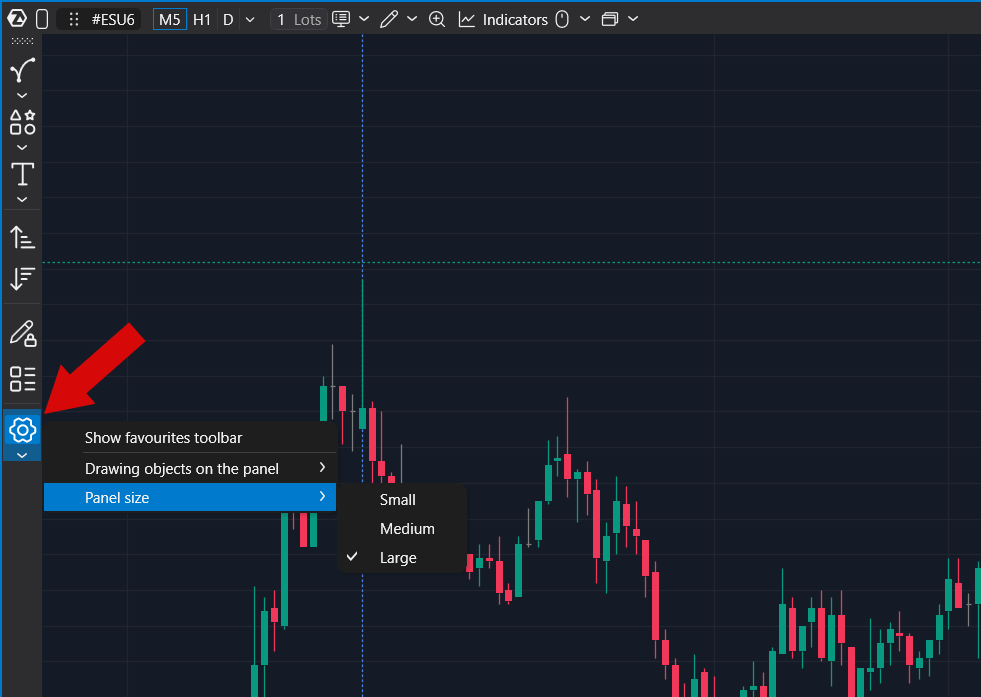
The drawing panel can be made more compact or wider. Use the size that is convenient for your workspace:
- Small — when it is important to leave more space for the chart;
- Medium — for standard work;
- Large — when you need to see more panel elements.
Dragging an instrument between windows
To quickly open the same instrument in another module, use the instrument Drag & Drop feature.
- Move the cursor over the instrument name or the drag handle in the module title.
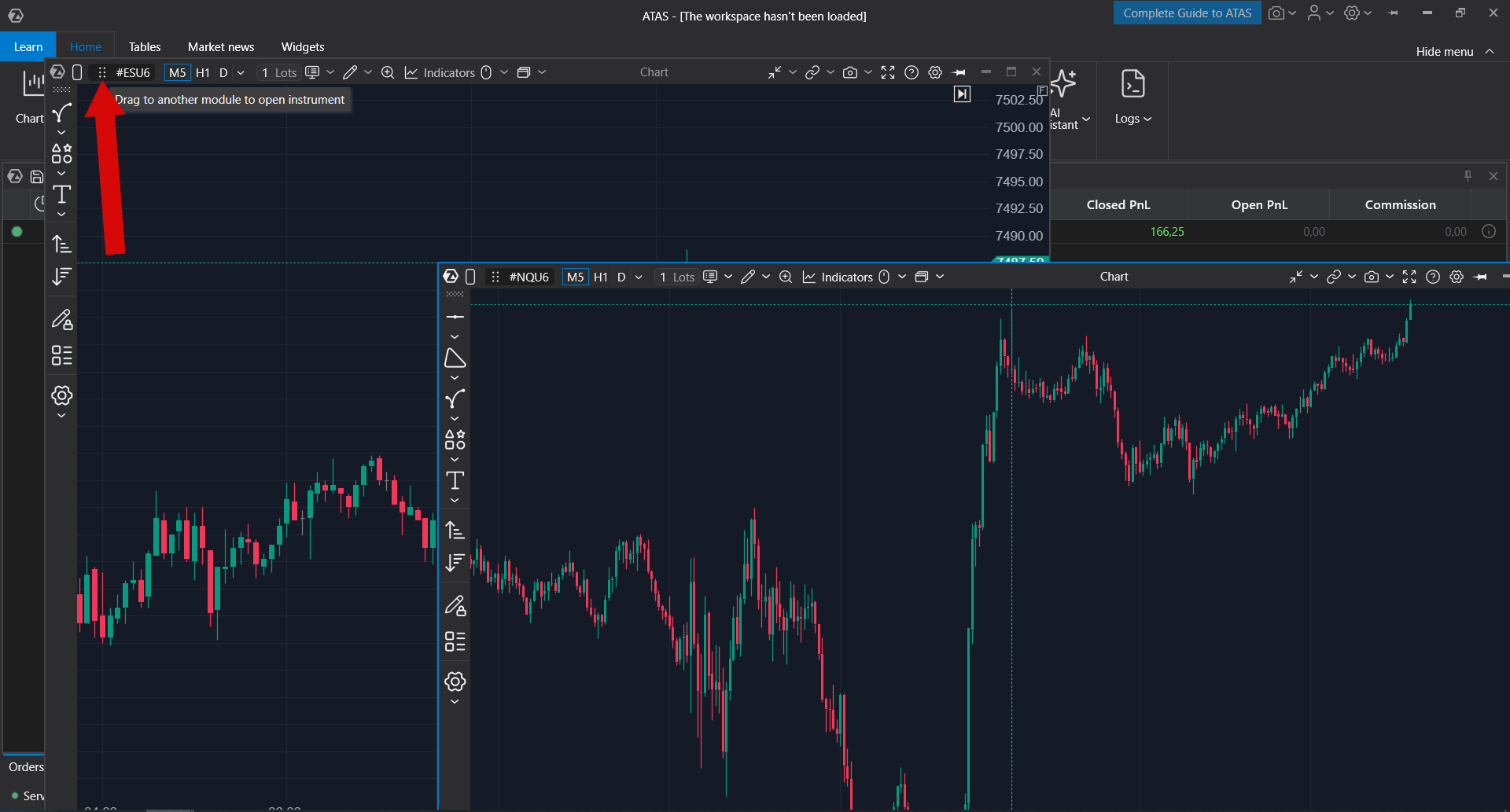
- Click and hold the cursor, then drag the instrument to another supported module.
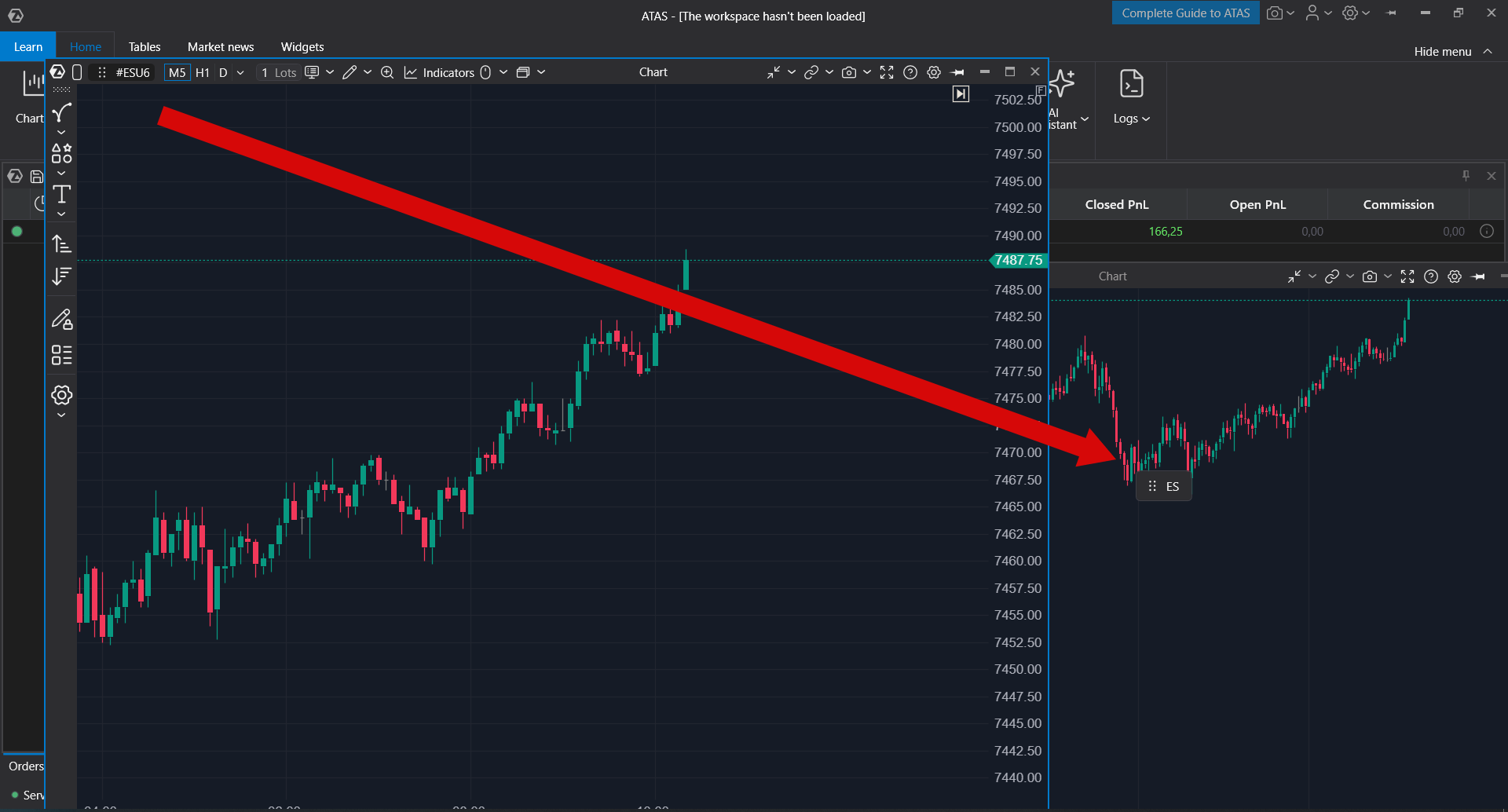
- Release the cursor over the target module.
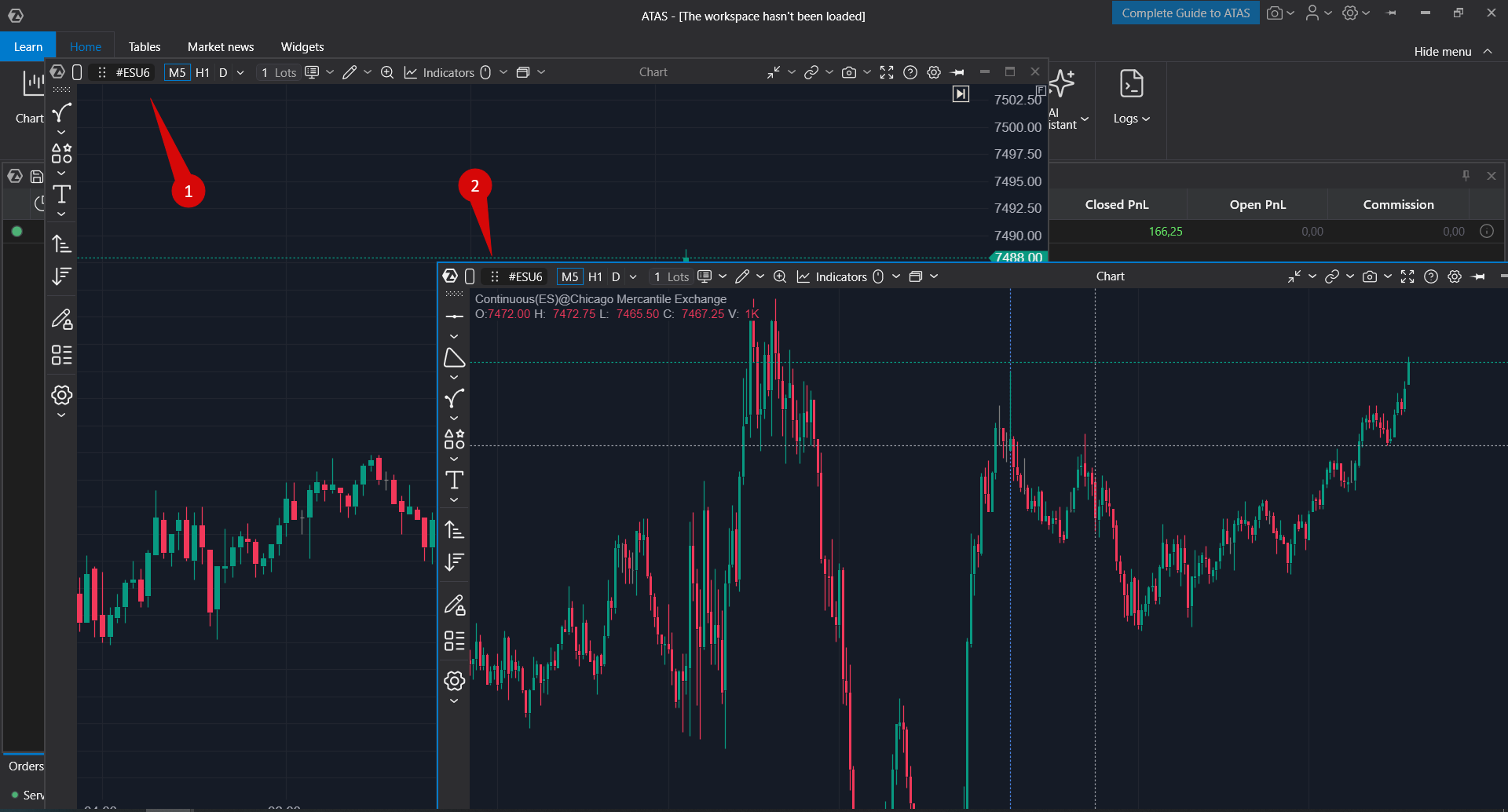
The target module opens the selected instrument while preserving its own settings, such as the timeframe, chart type, and other module parameters. These settings are not reset when only the instrument is changed.
If the destination does not support drag and drop, the platform indicates that the instrument cannot be dropped in that location.
Where instrument drag and drop is supported
Instrument drag and drop is available between supported modules that allow instrument selection and display market data.
Typical chart scenarios include:
- from one Chart to another Chart;
- from Chart to Smart DOM or Smart Tape;
- from Watchlist to Chart;
- from Chart to another supported analysis module.
The list of supported destinations may vary depending on the platform version and module type.
Rithmic indicator on the chart
When a Rithmic connection is active, a service indicator showing the market data provider may be displayed on the chart. It helps identify the source of market data and is positioned so that it does not obstruct the chart or indicators.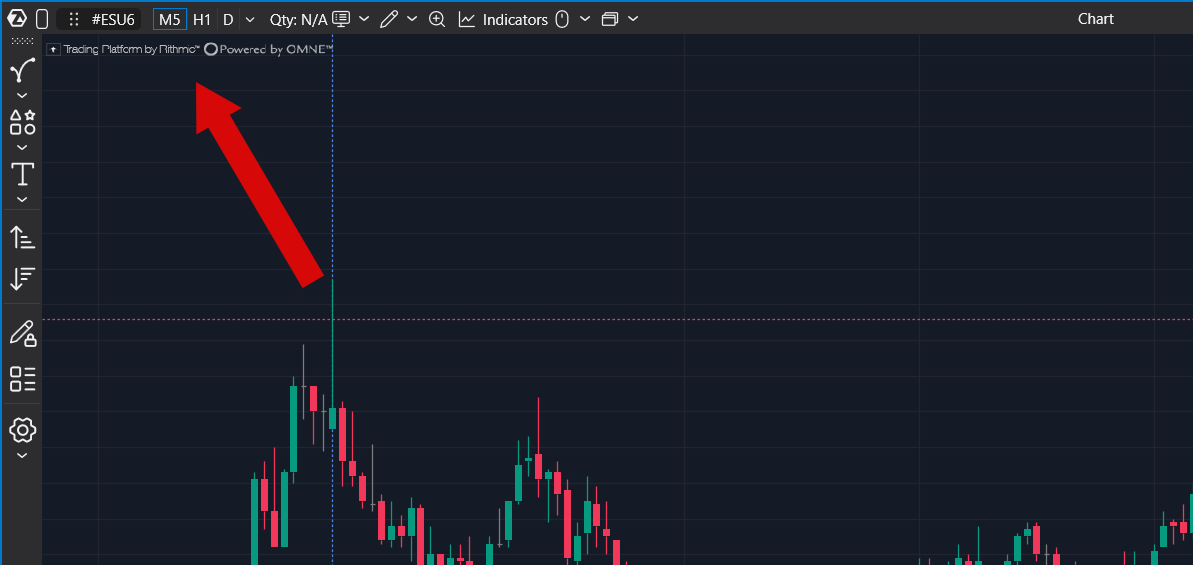
The Rithmic data provider indicator cannot be hidden or disabled.
This indicator is displayed only in modules that show market data. It may not appear in tables or other interface elements where it does not provide useful information.
Was this article helpful?
That’s Great!
Thank you for your feedback
Sorry! We couldn't be helpful
Thank you for your feedback
Feedback sent
We appreciate your effort and will try to fix the article