Link Price Axis allows you to link several modules so that the same price levels are displayed on the same horizontal line.
This is useful when the user compares the same instrument in different views: for example, analyzes charts with different timeframes, keeps Heatmap nearby, or uses Smart DOM to work with the order book.
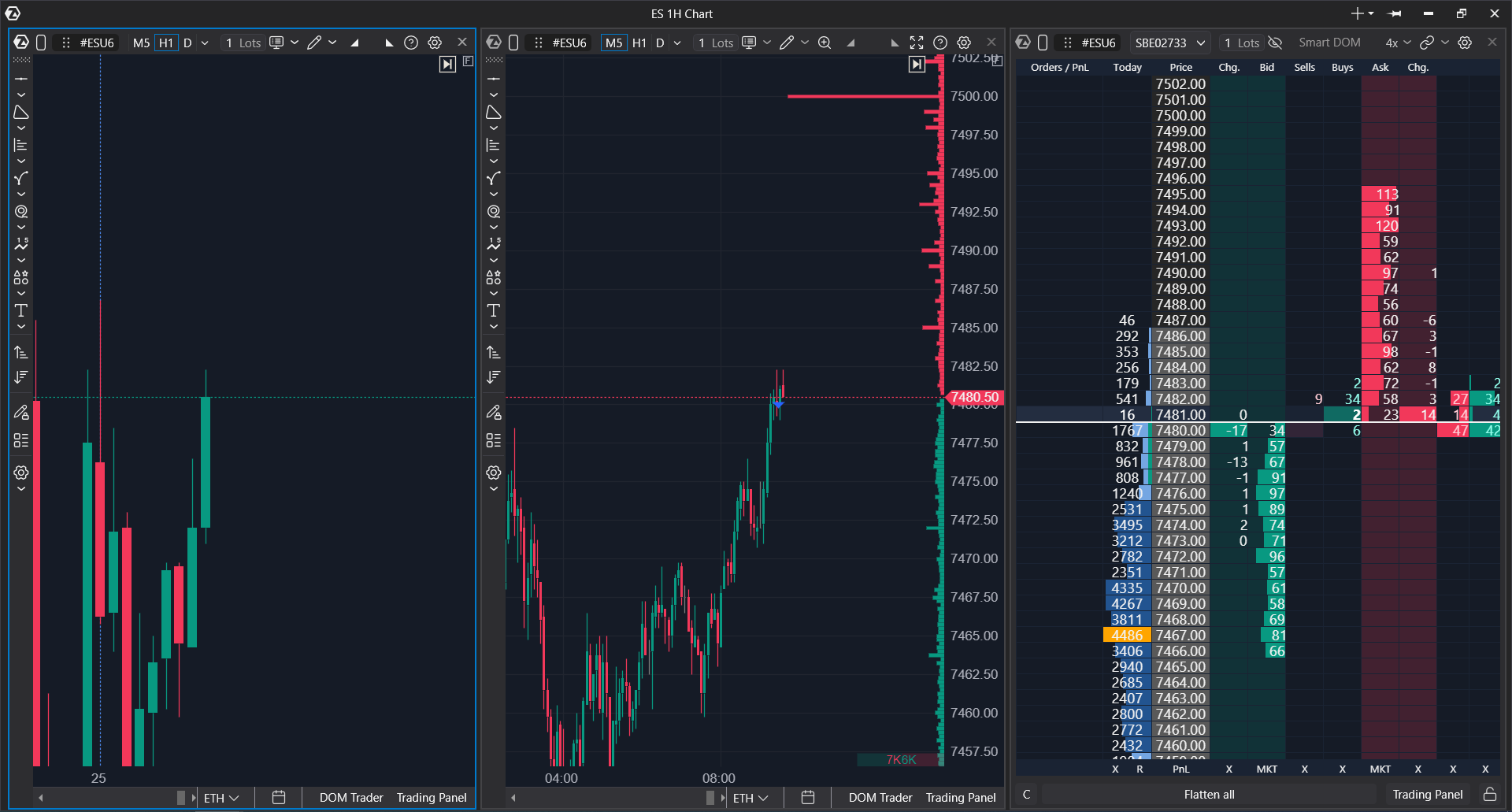
What Price Scale Linking is used for
- comparing the same instrument in several windows without manually aligning charts;
- keeping price levels aligned between neighboring modules;
- saving screen space when the price panel is needed only on one of the linked charts;
- working faster in a workspace where several charts are placed next to each other or inside the main window.
When to use Price Scale Linking
Price Scale Linking is useful when you analyze one instrument in several modules and want the price scale in these modules to move in a coordinated way. For example, a higher timeframe chart is open on the left, a working chart for entries is open on the right, and Heatmap or Smart DOM is placed nearby.
How to enable Price Scale Linking on a chart
- Open several charts or modules next to each other in one window.
- On the chart, click the linking icon.
- In the menu that opens, select the direction or neighboring module to link the chart with.
- Check that the price levels in the linked modules are aligned by height.
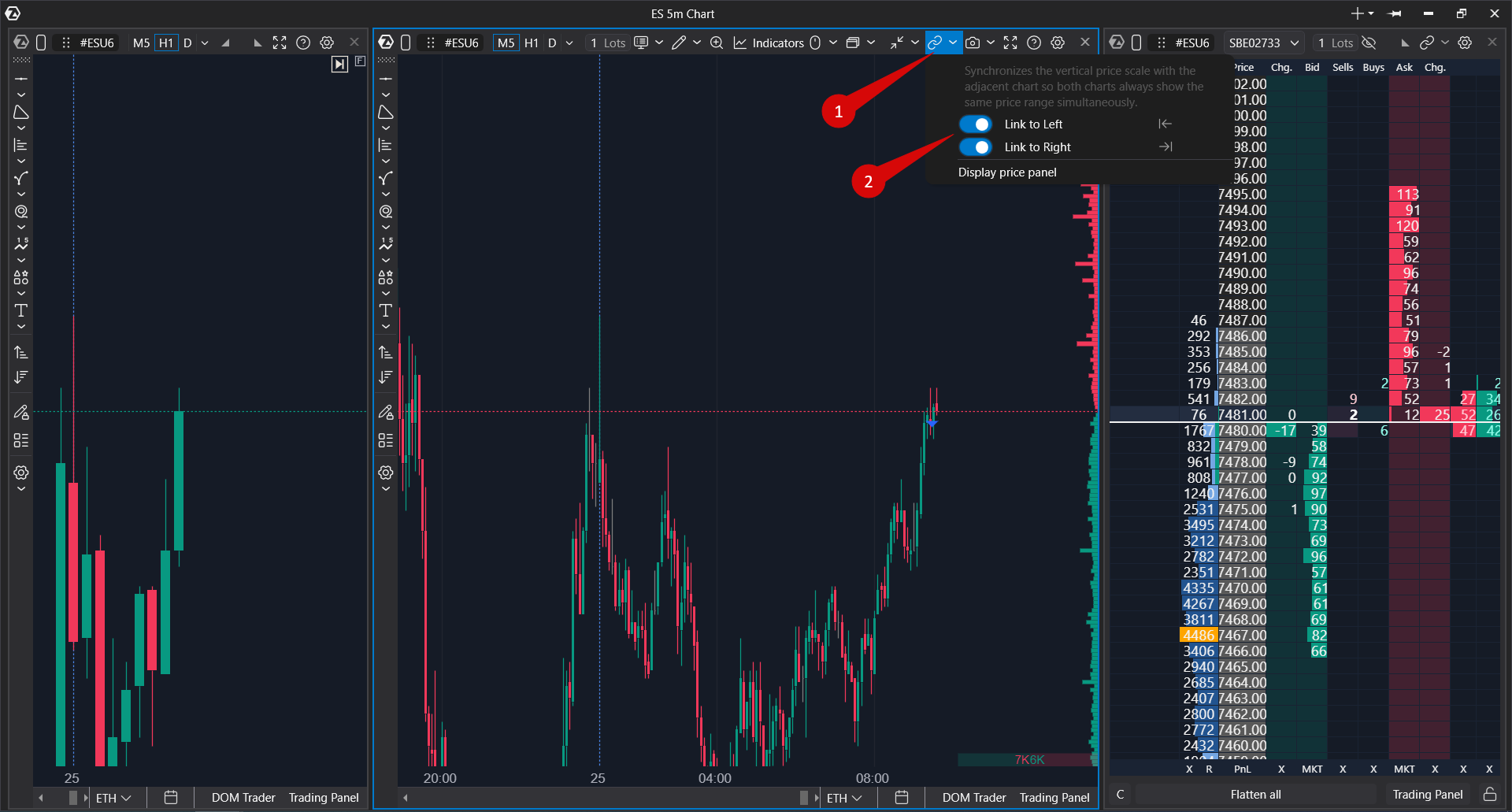
What is available in the linking menu
- a hint about the linking mode;
- selection of the direction or neighboring window that can be linked to the chart;
- price panel display settings, if they are available for the selected scenario. This option allows you to hide the price scale.
If there are several suitable windows next to the chart, the menu should display the relevant linking options. For example, you can link the chart to the window on the left or to another neighboring module if this connection is available in the current layout.
Example
The user opens ES on two charts: one chart is used to view the overall context, and the other one is used to analyze the entry point. The user enables linking so that the same prices on both charts are displayed at the same level and the scale does not need to be adjusted manually.
Display Price Panel
In a group of linked charts, you can manage the display of the price panel. This helps save screen space: for example, you can leave the price panel only on the rightmost chart and hide it on the neighboring chart.
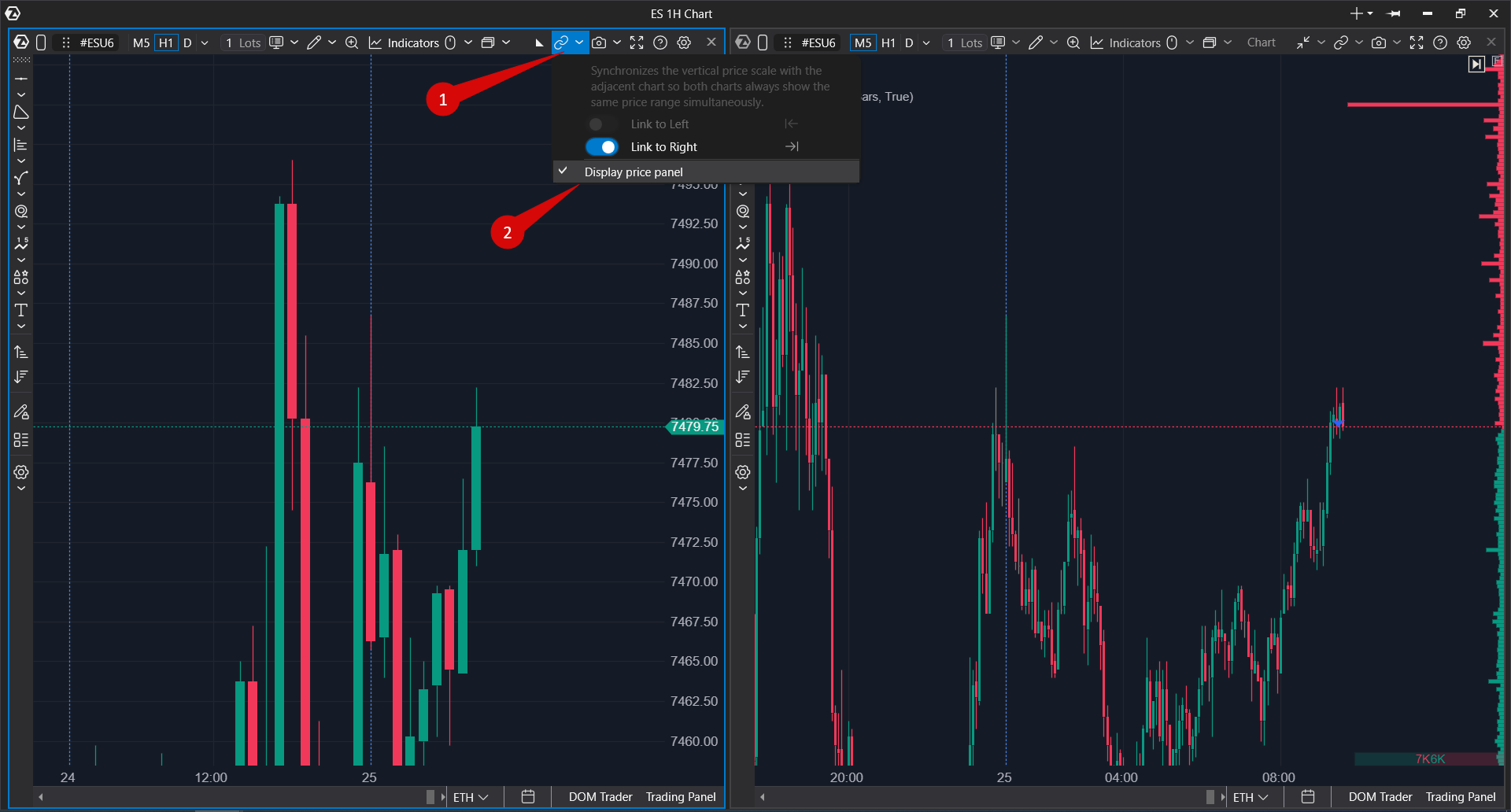
How to use it
- Link the charts through the linking menu.
- Open the linking menu on the required chart.
- Use the Display Price Panel setting.
- Check that the price panel is displayed where it is needed.
Linking Chart, Heatmap, and Smart DOM
Linking can be used not only between two charts. In trading scenarios, Heatmap or Smart DOM can be placed next to the chart.
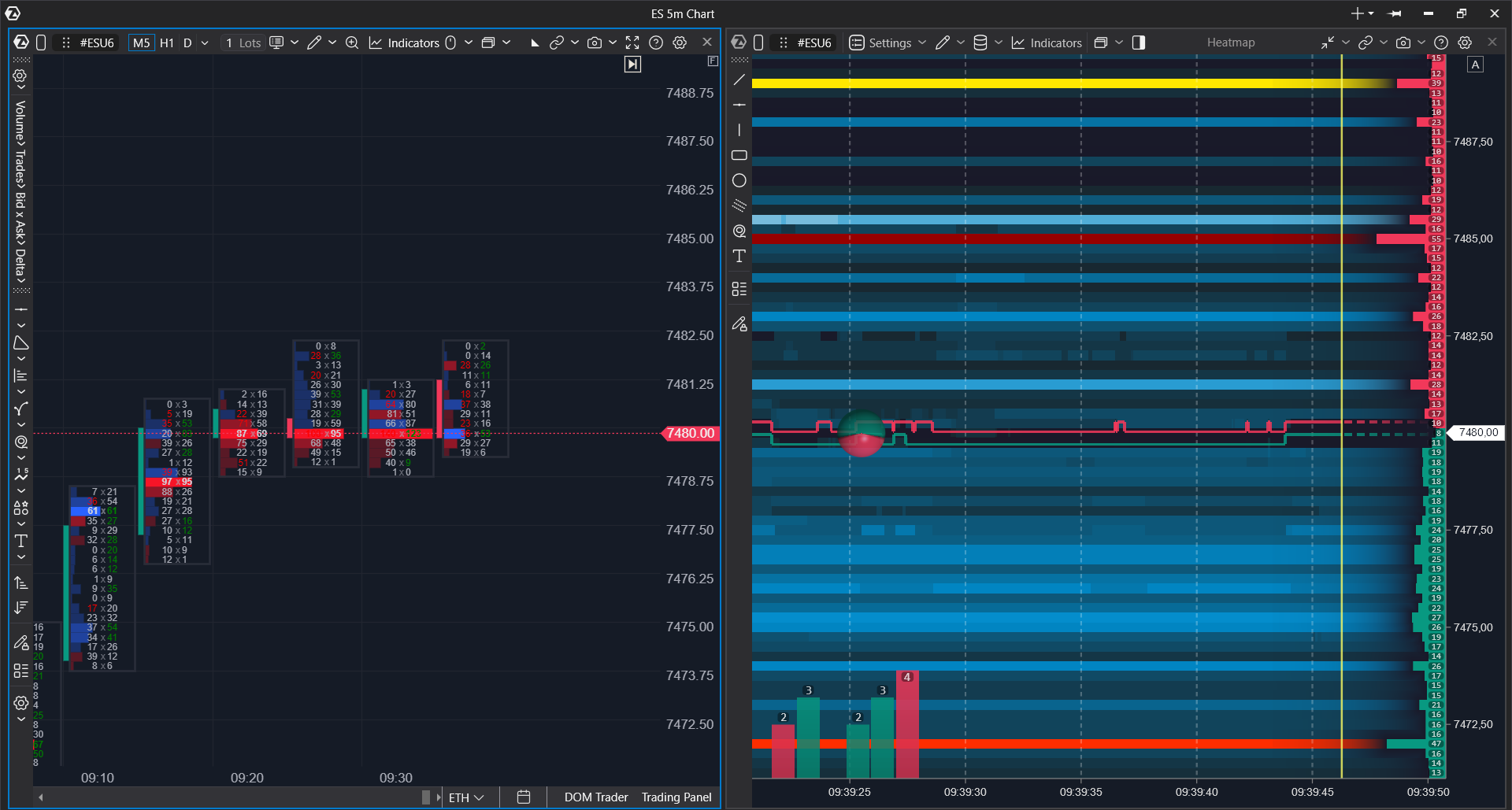
Chart
For charts, linking is enabled manually through the linking menu. The user selects which neighboring window the chart should be linked with.
Heatmap
In the classic version of ATAS, Heatmap can be linked automatically if Heatmap and the chart are in the same group or added to the main platform window. This should be shown separately in the article so that the user does not expect the same manual workflow in all modules.
Smart DOM
Smart DOM can be used next to the chart to work with the order book. When linked with Smart DOM, a slight offset in price levels may remain due to differences in the scaling logic of Smart DOM and Chart or Heatmap.
Was this article helpful?
That’s Great!
Thank you for your feedback
Sorry! We couldn't be helpful
Thank you for your feedback
Feedback sent
We appreciate your effort and will try to fix the article