Trading Panel in Smart DOM
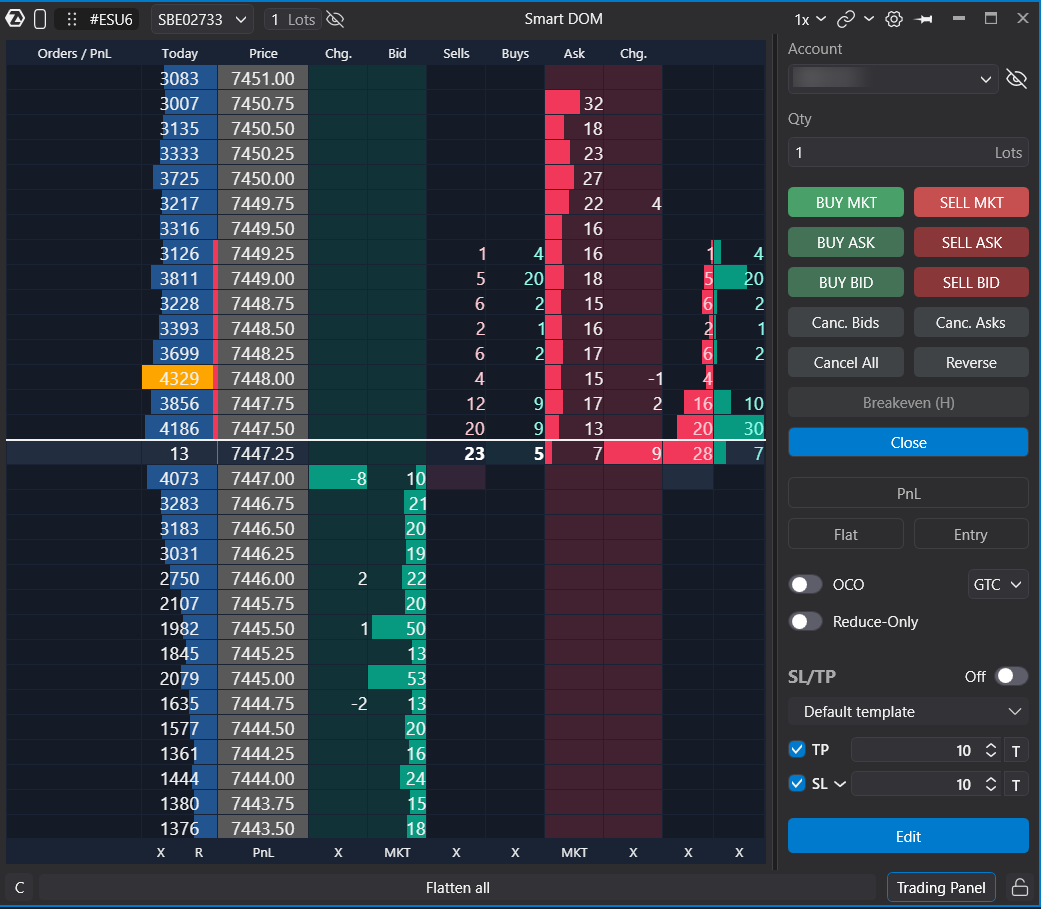
The trading panel in Smart DOM allows you to manage orders and positions from the same module where you work with the order book. It is useful when you need to quickly select an account, set the order volume, send a trading command, close a position, or show/hide the trading panel without switching to a chart.
The panel opens inside Smart DOM and uses common trading parameters shared with the chart trading panel. If trading data is not available for the selected instrument or connection, trading commands remain unavailable until the data is restored.
How to Open the Trading Panel
- Open the Smart DOM module.
- Click Trading Panel at the bottom of the module.
- Alternatively, open the Smart DOM context menu and enable Trading Panel.
After the option is enabled, the trading panel appears to the right of the order book. It provides access to account selection, volume, order parameters, and trading actions. Clicking Trading Panel again hides the panel.
If there is no suitable connected account for the instrument, the account selector displays [no account]. If the previously selected account is temporarily unavailable, it may be shown as offline until the connection is restored.
What Changed in Smart DOM
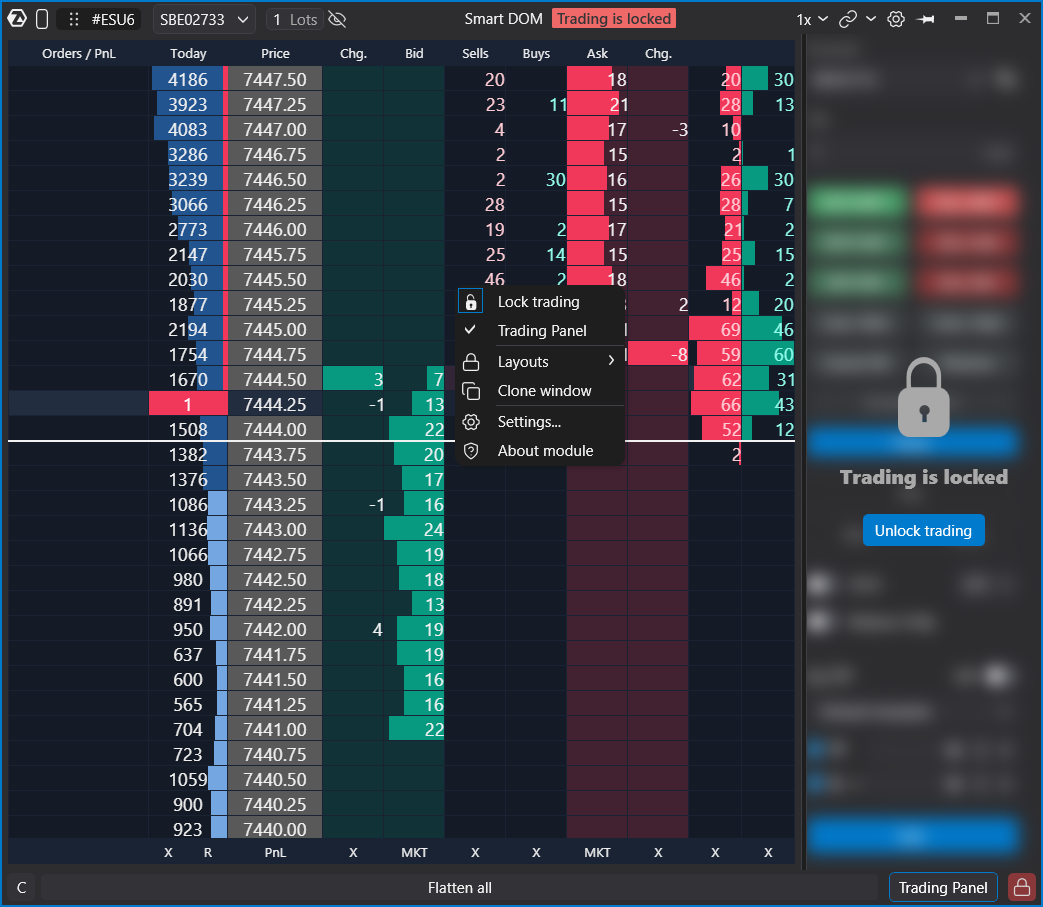
An account selector has been added to the Smart DOM header next to the instrument. Account selection in the header and in the trading panel works consistently: if the account is changed in one place, trading actions use the same selected account.
The bottom row of Smart DOM contains quick actions:
- Close All for emergency closing.
- The order book centering button.
- Trading Panel to show or hide the panel.
- The data provider logo, if applicable for the connection.
Some actions from the previous header were moved to the Smart DOM context menu: trading lock, working layers, cloning, settings, and module information.
Working with the Account and Instrument
The account selector shows accounts that are suitable for the current instrument. If the user switches the instrument or restores a workspace, Smart DOM updates the list of available accounts and tries to restore the previous selection when possible.
When a new Smart DOM is created, the account selection may be based on the last suitable account used. When a workspace is restored, the saved state of that workspace has priority.
If an account was selected manually, reconnection should not automatically replace this selection with another account.
Cross-Trading
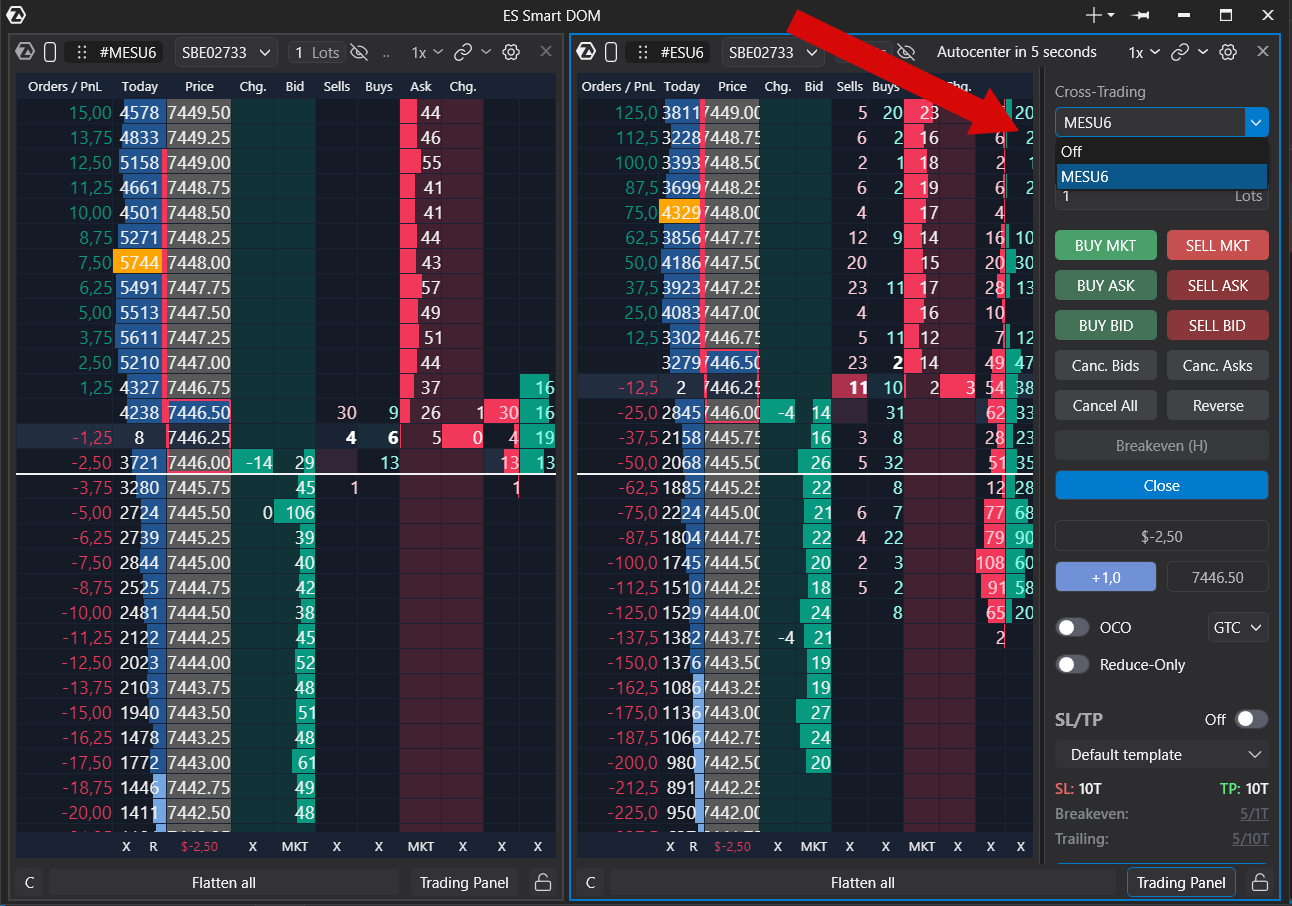
If cross-trading is available for the instrument, the trading panel can work with the selected linked contract. In this case, Smart DOM keeps the main order book for the base instrument, while trading actions are sent for the selected trading instrument.
The selected cross-trading instrument and trading parameters are saved per instrument. When a new window with the same instrument is opened, the last saved parameters for this instrument are used.
Continuous synchronization of already opened modules for the same instrument is not part of this behavior. If trading parameters are changed in one already opened module, this does not mean they will be instantly changed in all other already opened modules.
Settings and Selected Parameters
The trading panel remembers the parameters selected by the trader during work. These parameters are used when the window is restored and when a new window is opened for the same instrument.
| Parameter | Description | Default |
| Account | Defines the account from which trading commands are sent. | Selected from the available accounts for the instrument or restored from the saved state. |
| Volume | Sets the order size. | If there is no saved value, the standard panel value is used. |
| Currency or Percentage Volume Mode | Changes how volume is specified, if supported by the connection and instrument. | Depends on the available instrument parameters. |
| TIF | Sets the order validity period. | Depends on the available connection parameters. |
| Route | Sets the order route, if available. | Depends on the connection. |
| Order Type | Defines the type of order to be created. | Depends on the selected panel mode. |
| Stop Price and Limit Price | Used for stop and limit orders. | Not set until the user specifies a price. |
| Market, Limit, and Conditional Order Flags | Control additional parameters of the corresponding order types. | Depends on the panel and connection settings. |
| Cross-Trading Instrument | Defines the linked instrument for trading actions in cross-trading mode. | Not selected until the user enables or restores cross-trading. |
There is no separate Chart Trading switch for Smart DOM.
Hotkeys
Smart DOM supports trading hotkeys for main actions: Buy/Sell, order cancellation, position closing, Reverse, volume change, Stop Loss, Take Profit, Breakeven, and opening or hiding the Trading Panel.
Hotkeys are executed only when trading commands are available for the current module state.
Was this article helpful?
That’s Great!
Thank you for your feedback
Sorry! We couldn't be helpful
Thank you for your feedback
Feedback sent
We appreciate your effort and will try to fix the article