Trading Panel is a panel that opens on the right side of the chart. It is designed for placing and managing orders directly from a chart while you analyze the selected instrument.
For classical markets, Trading Panel can be used with supported futures, stocks, and other non-crypto instruments, depending on the selected connection, account, exchange, and instrument permissions.
Use Trading Panel when you want to place market and limit orders, manage active orders, monitor the current position, use protective strategies, or trade directly from chart price levels.
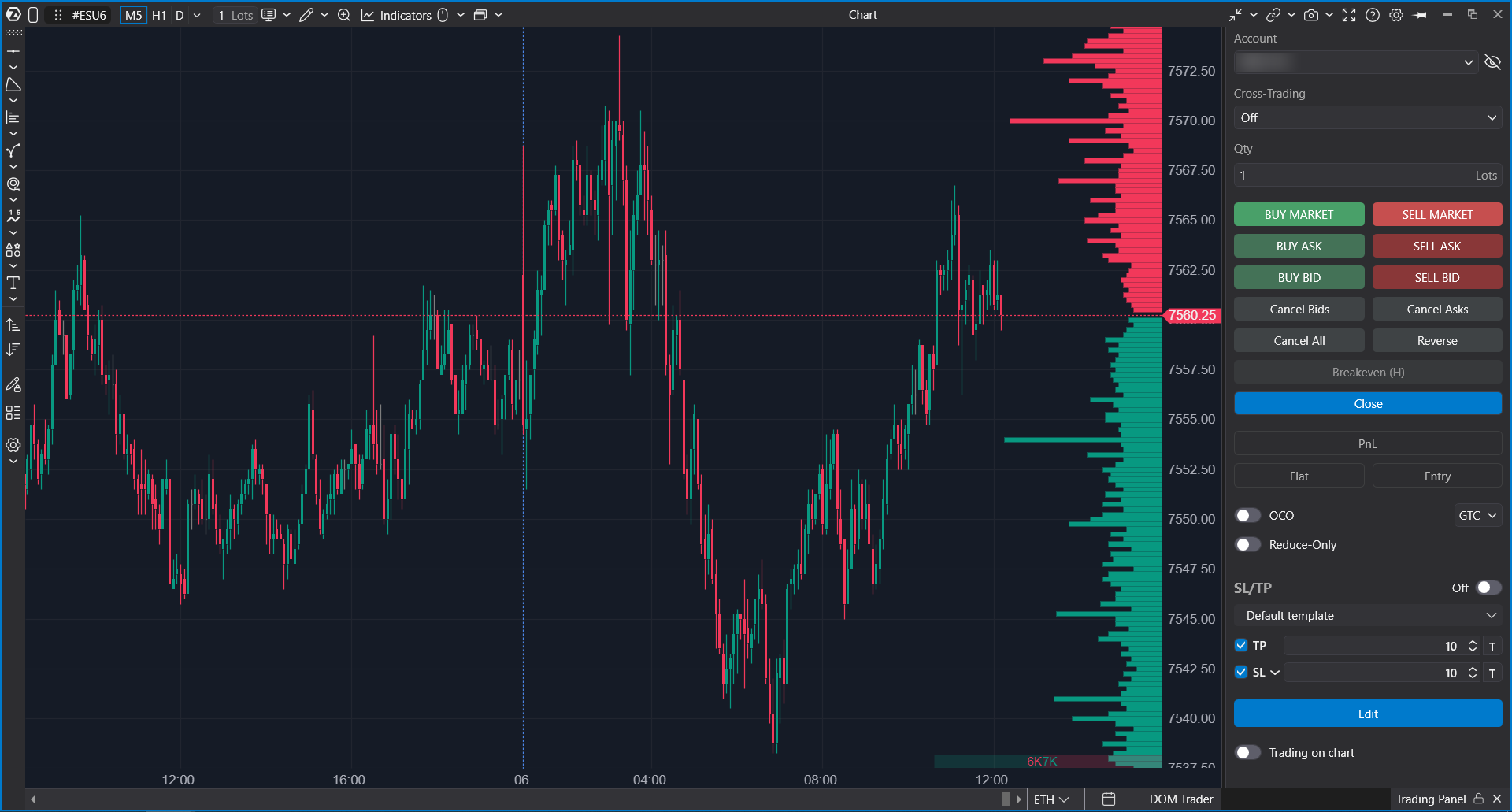
Opening Trading Panel
- Open a chart for the required classical market instrument.
- Make sure a supported trading connection and account are configured.
- Click the Trading Panel button in the lower-right area of the chart window, or press T if the default hotkey is active.
- The Trading Panel appears on the right side of the chart.
If no trading account is selected, Trading Panel shows a prompt to open the Connections window and connect an account.
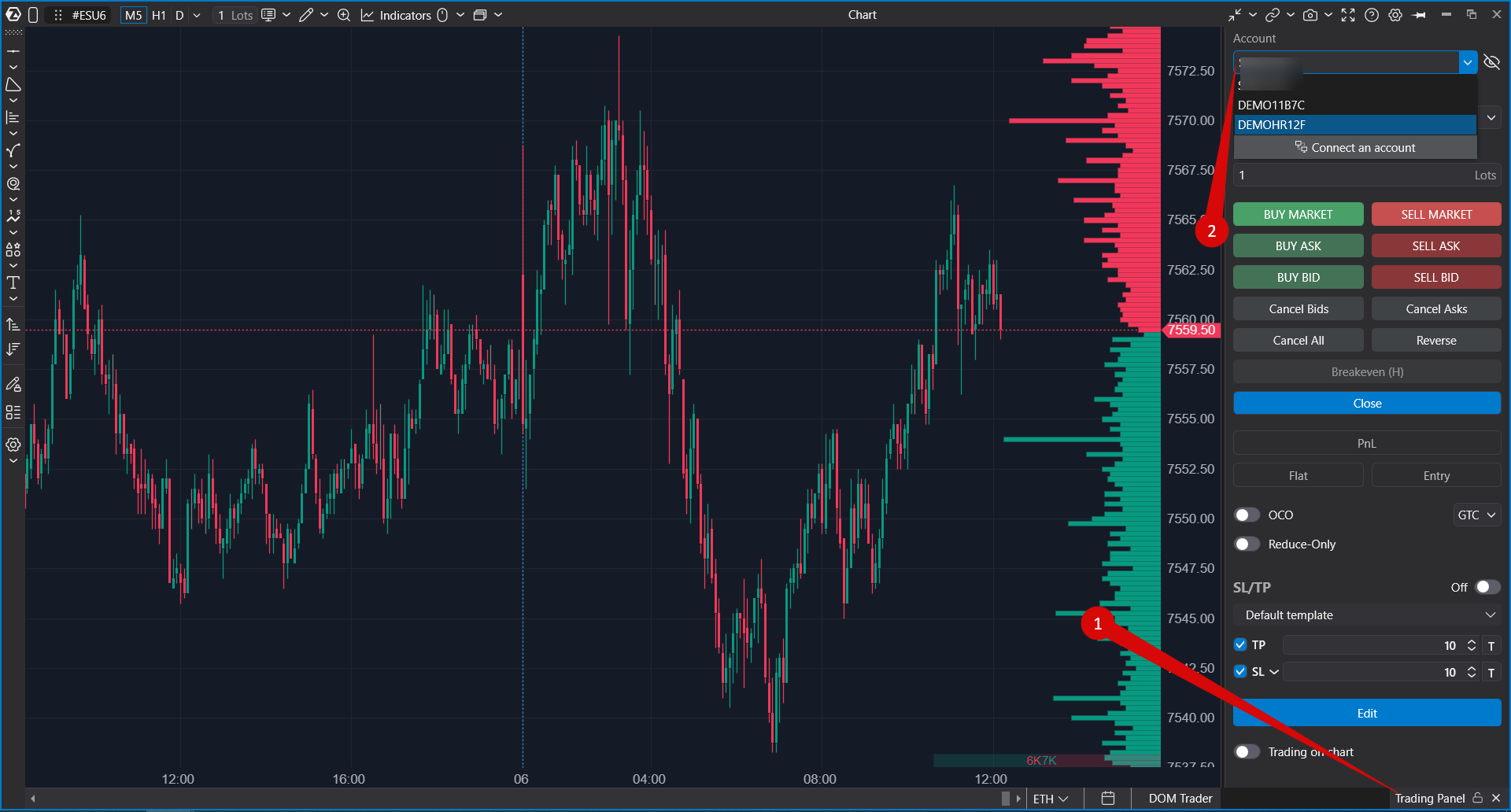
Trading Panel Structure
The Trading Panel contains the main controls required for chart-based trading:
- Account Selector — selects the trading account.
- Qty — sets the order volume.
- Trading Buttons — place market and limit orders.
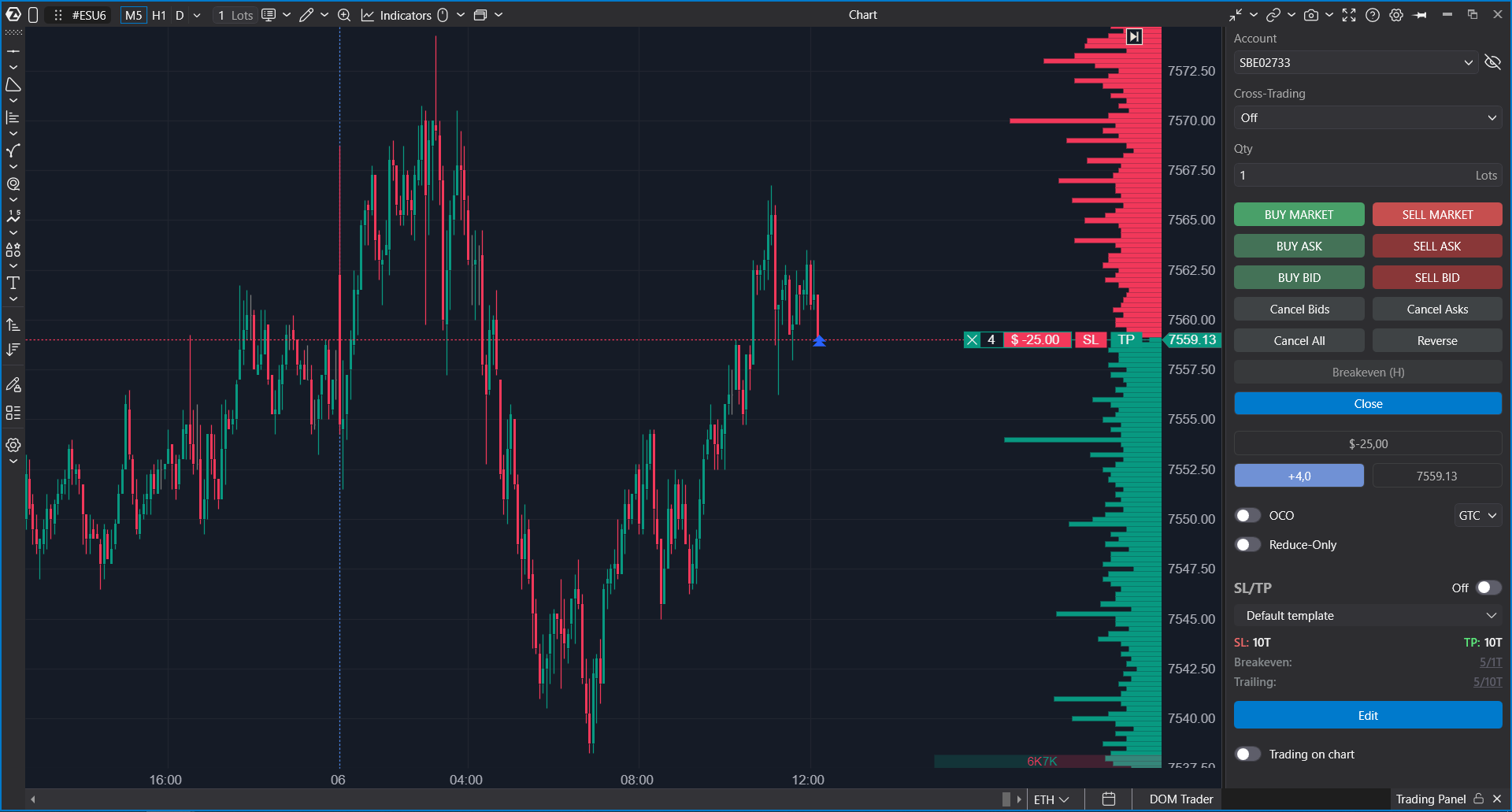
- Position Information — shows PnL, position size, and entry price.
- OCO and Time in Force — configure linked orders and order validity.
- Protective Strategies — select or configure Stop Loss and Take Profit behavior.
- Trading from Chart — enables placing orders directly from chart price levels.
Some sections are shown only when they are supported by the selected connector and instrument.
Account Selection
The account selector at the top of Trading Panel shows the currently selected trading account. Use it to switch between available accounts connected to the selected broker or trading connector.
The account area can also include a button for opening the Connections window. Use it when you need to add, edit, reconnect, or check a trading connection.
If privacy mode is enabled, sensitive account values are hidden.
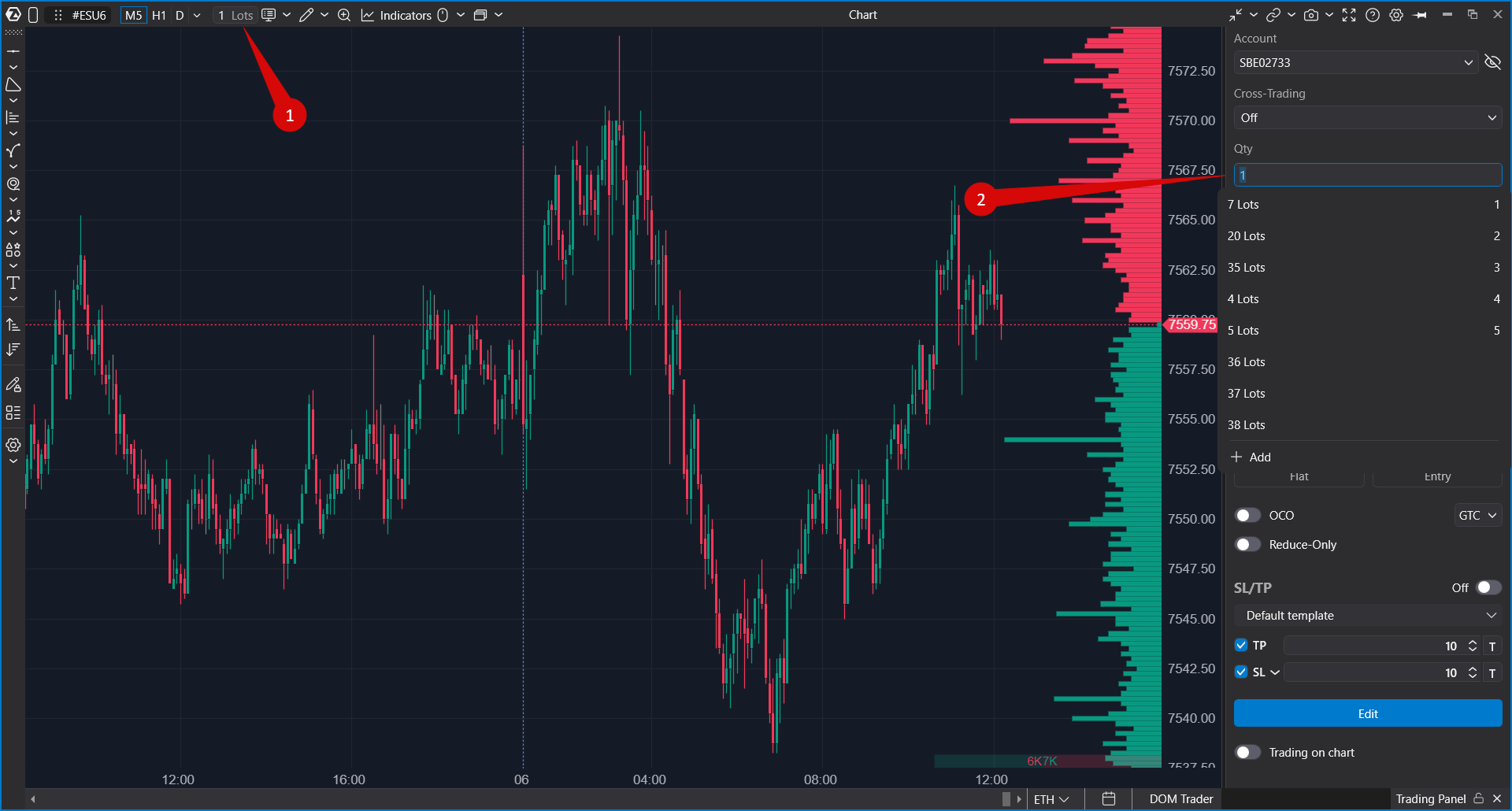
Order Volume
The Qty field controls the order volume used by Trading Panel buttons and by trading from the chart.
Depending on the selected instrument and connector, the volume editor can allow you to:
- enter the order size manually;
- select a saved volume value;
- use volume hotkeys if they are configured;
- use additional volume modes if they are supported by the selected instrument.
Always check the selected account, instrument, and volume before sending an order.
Best Bid and Best Ask Information
Trading Panel uses current market prices to place quick limit orders at the best bid or best ask. The panel can display or use Best Bid and Best Ask values for order-entry buttons.
These values depend on the selected instrument and market data feed.
Trading Buttons
Trading Panel provides quick buttons for order entry:
- Buy Market — sends a market buy order.
- Sell Market — sends a market sell order.
- Buy Ask — places a buy limit order at the current best ask.
- Sell Ask — places a sell limit order at the current best ask.
- Buy Bid — places a buy limit order at the current best bid.
- Sell Bid — places a sell limit order at the current best bid.
Market orders can execute immediately. Limit orders are sent at the selected price level and remain active according to their Time in Force settings.
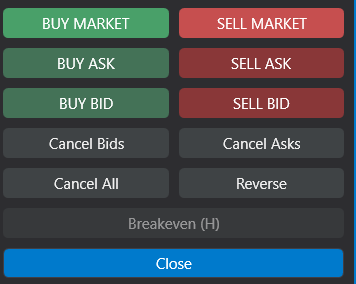
Order Cancellation and Position Buttons
Trading Panel also includes buttons for managing active orders and the current position:
- Cancel Bids — cancels active buy orders.
- Cancel Asks — cancels active sell orders.
- Cancel All — cancels all active orders for the selected account and instrument.
- Reverse — reverses the current position by closing the existing position and opening an opposite one.
- Close — closes the current position and cancels active orders when the close-position workflow requires it.
These actions affect real orders and positions when a live account is selected.
Position Information
The position information block shows the current position state for the selected account and instrument.
It can display:
- PnL — current profit or loss for the open position;
- Flat / Position Size — current position volume and direction;
- Entry — average entry price.
Click the PnL area to change the PnL display mode. Available modes can include money, percent, ticks, or hidden display.
Position information appears only when there is an open position for the selected instrument and account.
OCO and Linked Orders
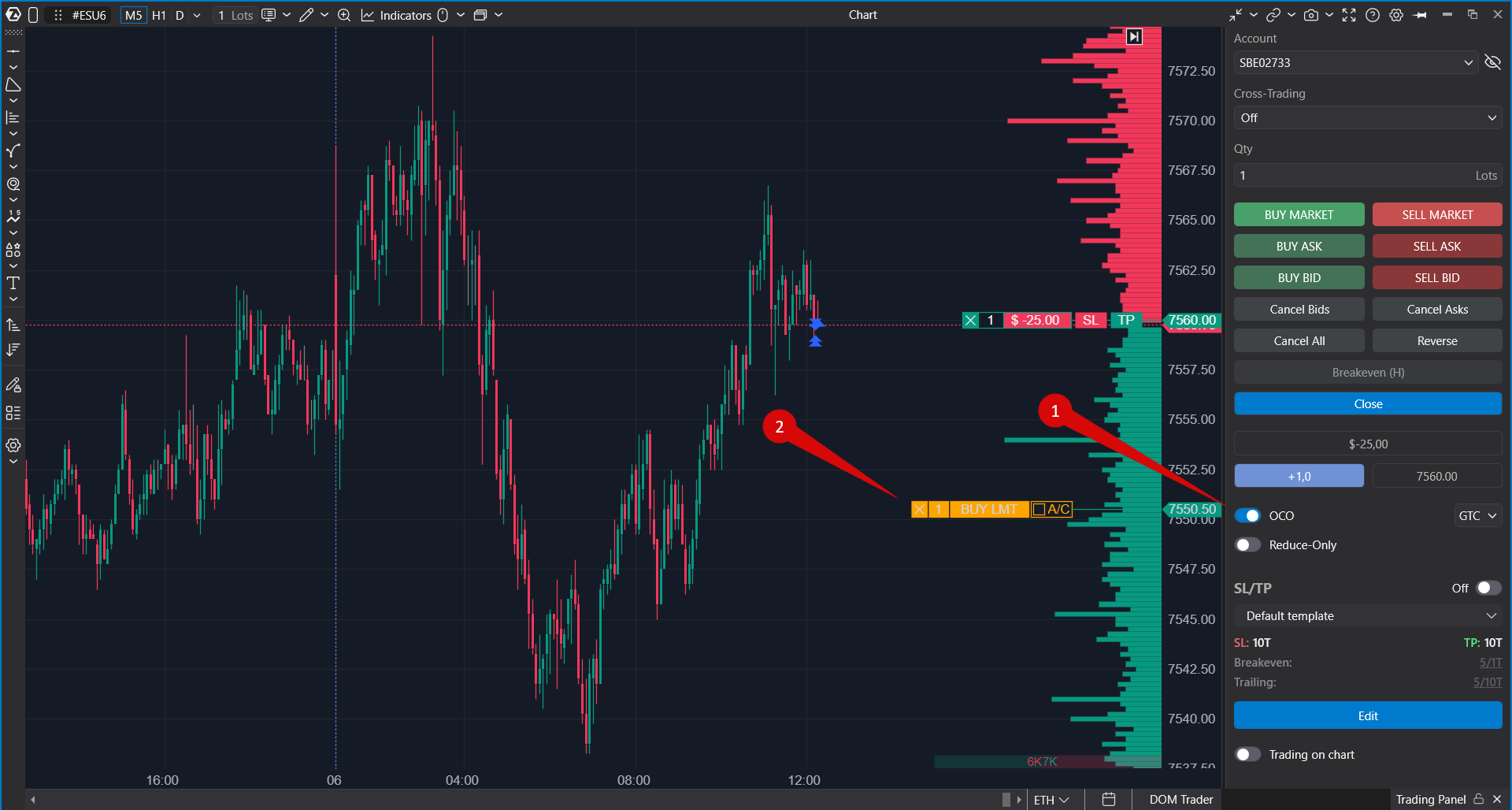
OCO means One Cancels the Other. It allows placing linked orders where execution of one order cancels the other.
In Trading Panel, OCO mode is useful when you want to place two connected orders, for example a target order and a protective order. When one order from the group is executed, the other order is canceled.
When OCO mode is active, ATAS can show a preview of the first order before the second linked order is placed. After both prices are selected, the linked orders are placed according to the selected account and connector rules.
Time in Force
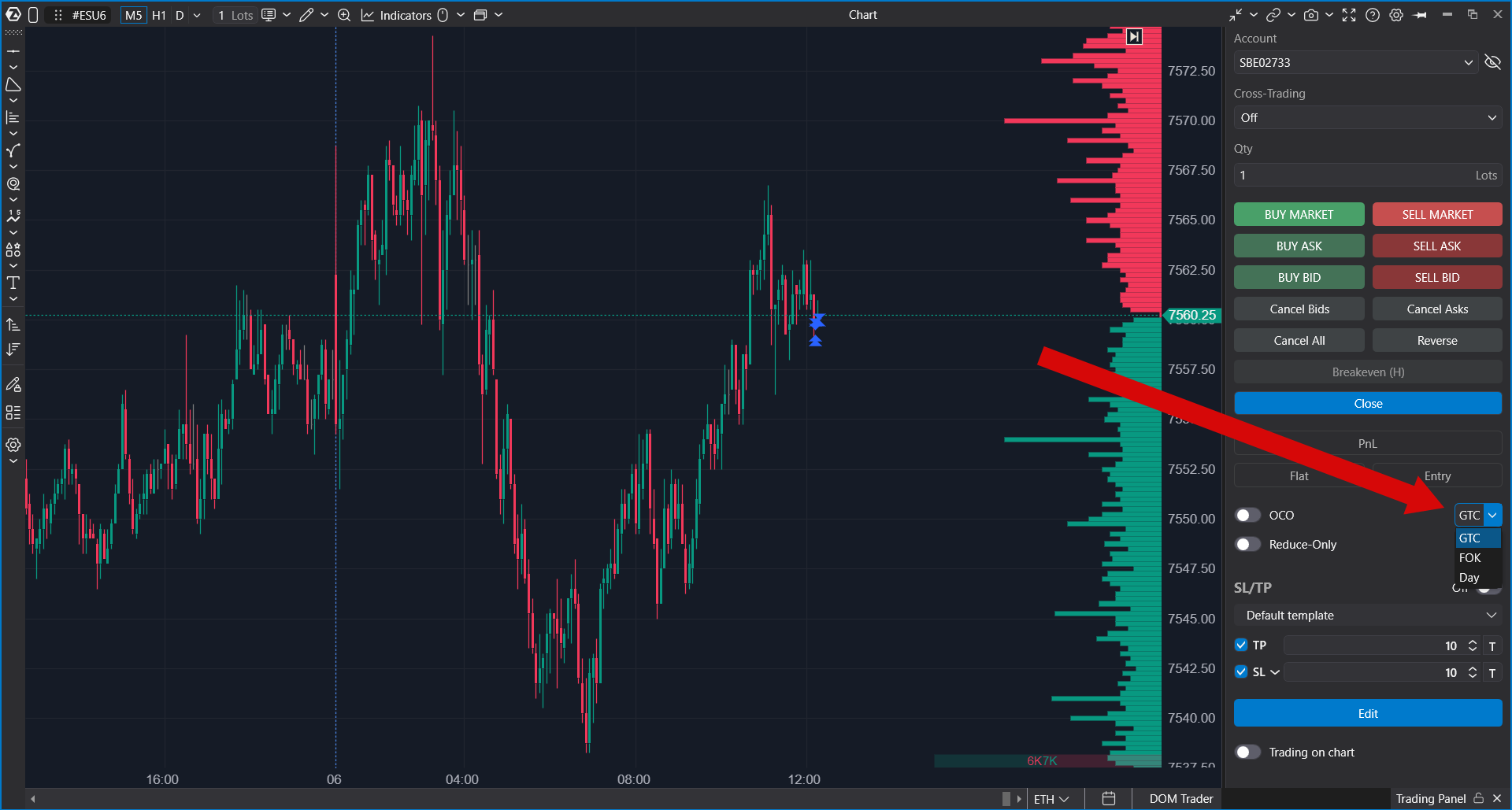
The Time in Force selector defines how long an order remains active. The available options depend on the selected connector and instrument.
Common options include:
- Day — the order is valid until the end of the current trading session.
- GTC — Good Till Cancel. The order remains active until it is filled or canceled.
- FOK — Fill Or Kill. The order must be filled immediately in full or canceled.
- IOC — Immediate Or Cancel. The order is filled immediately as much as possible, and the unfilled part is canceled.
Not every connector supports every Time in Force option.
Protective Strategies
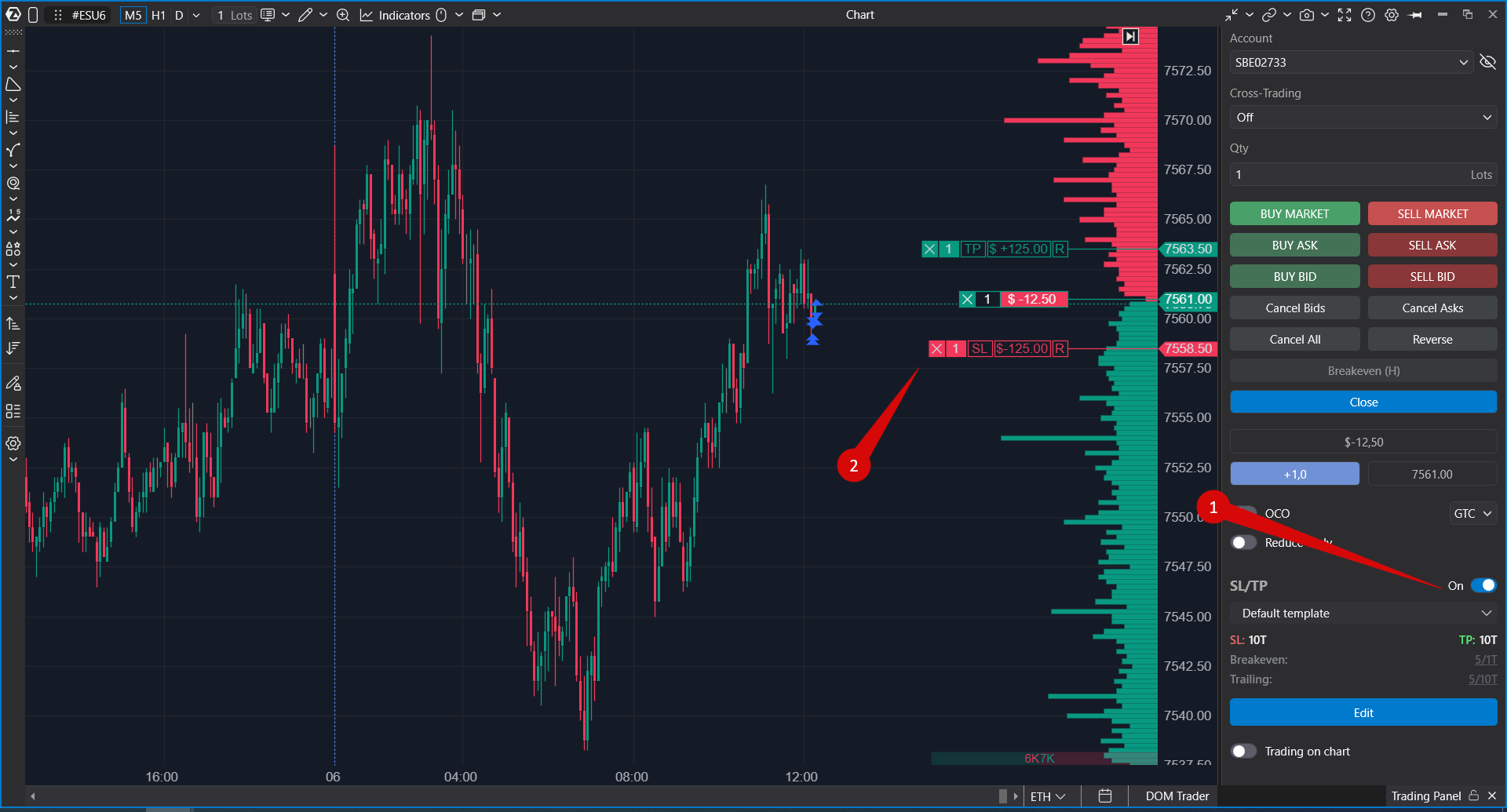
The protective strategies section lets you select and configure Stop Loss and Take Profit behavior for chart trading.
Use protective strategies when you want ATAS to prepare exit orders together with your trade or manage protective orders after a position is opened.
Depending on the selected strategy and connector, you can work with Stop Loss, Take Profit, Breakeven, and other exit logic.
Breakeven
The Breakeven button moves a protective order to the breakeven level when the current position and strategy state support this action.
Use it when you want to reduce position risk after the market has moved in your favor.
Trading from the Chart
The Trading from Chart toggle enables order placement directly from chart price levels.
When this mode is enabled, mouse clicks on the chart can place orders according to the chart trading mode and selected Trading Panel settings.
The available trading-from-chart modes include:
- Auto Detection — ATAS determines order direction and order type based on the clicked price level and mouse button.
- Lclick: Buy. Rclick: Sell — left click is used for buy orders and right click is used for sell orders.
You can enable the mode with the switch in Trading Panel or use the configured hotkey. The existing help article mentions the Space Bar as the default hotkey for holding trading-from-chart mode.
Routes, T+ Limits, and Additional Options
Some classical market connectors can show additional controls in Trading Panel.
Depending on the selected connector and instrument, you may see:
- Route — selects an available order route.
- T+ Limit — selects a T+ limit option when supported.
- Order Flags — connector-specific order options.
- Stop Price Mode — trigger price mode for supported conditional orders.
If an option is not supported by the selected connector, account, or instrument, it may be hidden or disabled.
Hotkeys
Most Trading Panel actions can be controlled with hotkeys if they are configured in the platform.
Hotkeys can be used for actions such as opening Trading Panel, enabling trading from chart, sending trading commands, setting Stop Loss or Take Profit mode, setting breakeven, and switching supported order options.
To change hotkeys, open the platform hotkey settings and configure the trading actions you need.
Important Notes
- Trading Panel sends orders for the selected account and instrument.
- Trading availability depends on the selected connection, broker, exchange, account permissions, and instrument.
- Market orders can execute immediately and may have slippage.
- Limit orders, OCO, Time in Force, routes, T+ limits, and protective strategies depend on connector support.
- If trading controls are not visible, check that a trading account is connected and selected.
- If order placement is blocked, check the selected account, instrument, order volume, trading permissions, and platform trading lock state.
Was this article helpful?
That’s Great!
Thank you for your feedback
Sorry! We couldn't be helpful
Thank you for your feedback
Feedback sent
We appreciate your effort and will try to fix the article