Tradin panel for Cryptocurrency Markets
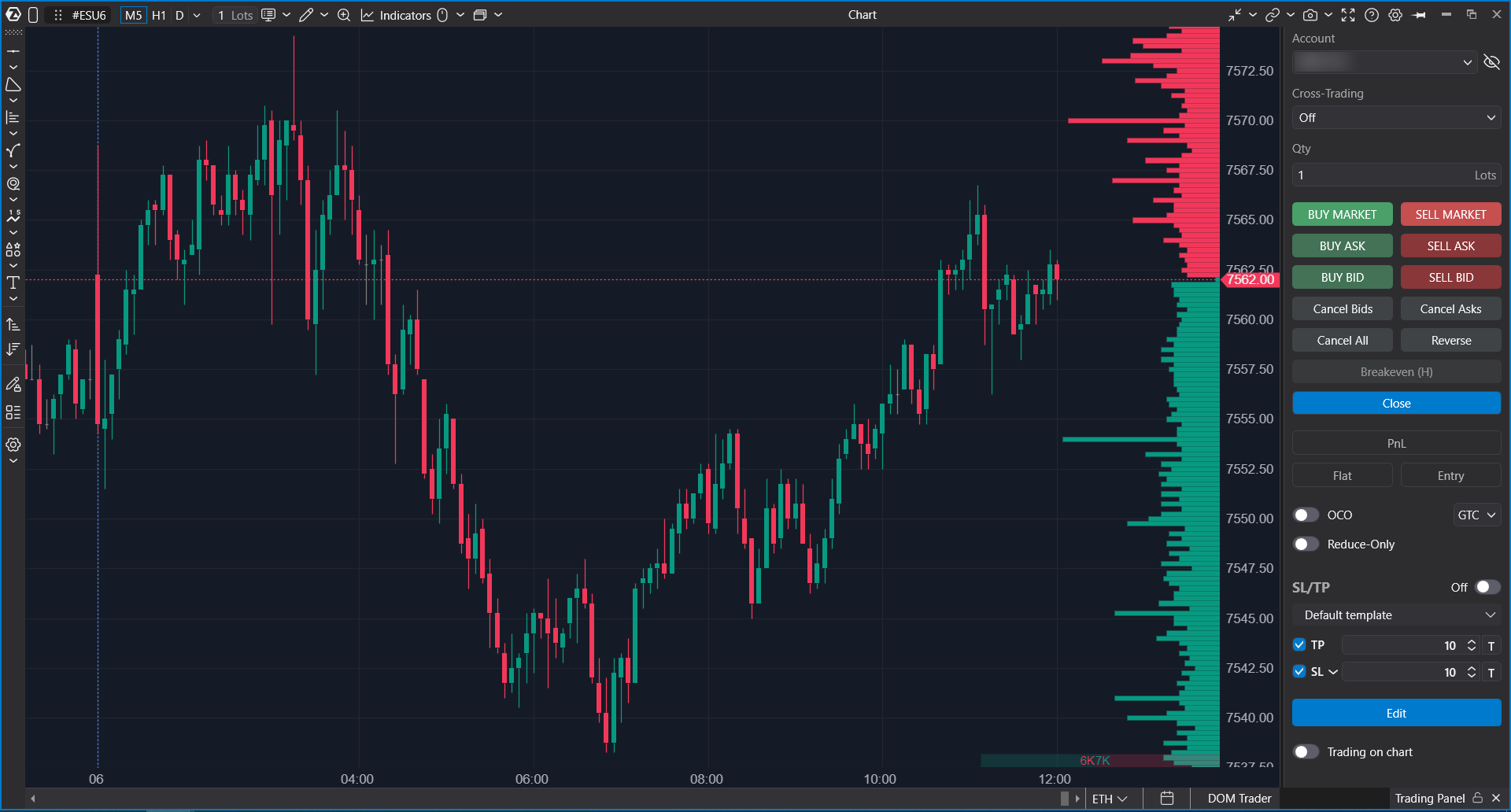
Trading panel is a trading panel that opens on the right side of the chart. For cryptocurrency markets, it allows you to select a crypto trading account, set order volume, choose margin and leverage parameters when supported, place market and limit orders, use order flags, manage active orders, and control the current position without leaving the chart.
Use Trading Panel when you want to trade a cryptocurrency instrument directly from the chart and keep order entry, position information, PnL, and chart analysis in one place.
Availability
Trading Panel for cryptocurrency markets is available for supported crypto connectors and instruments. The exact set of available controls depends on the selected exchange, account type, instrument, margin mode, and connector capabilities.
If a specific exchange does not support a feature, the related control may be hidden, disabled, or unavailable.
Opening Trading Panel
- Open a chart for a cryptocurrency instrument.
- Make sure the required crypto trading connection is configured.
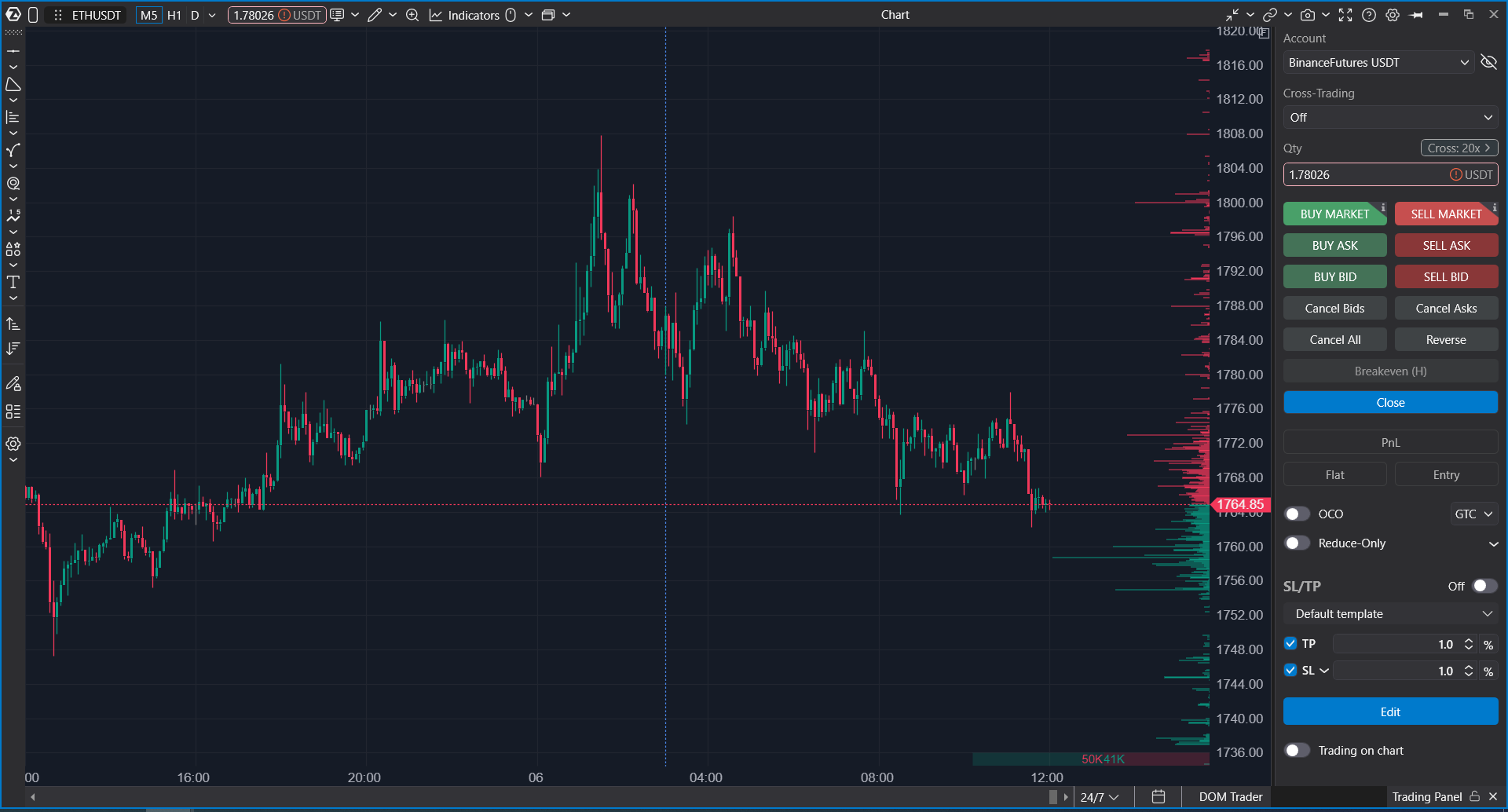
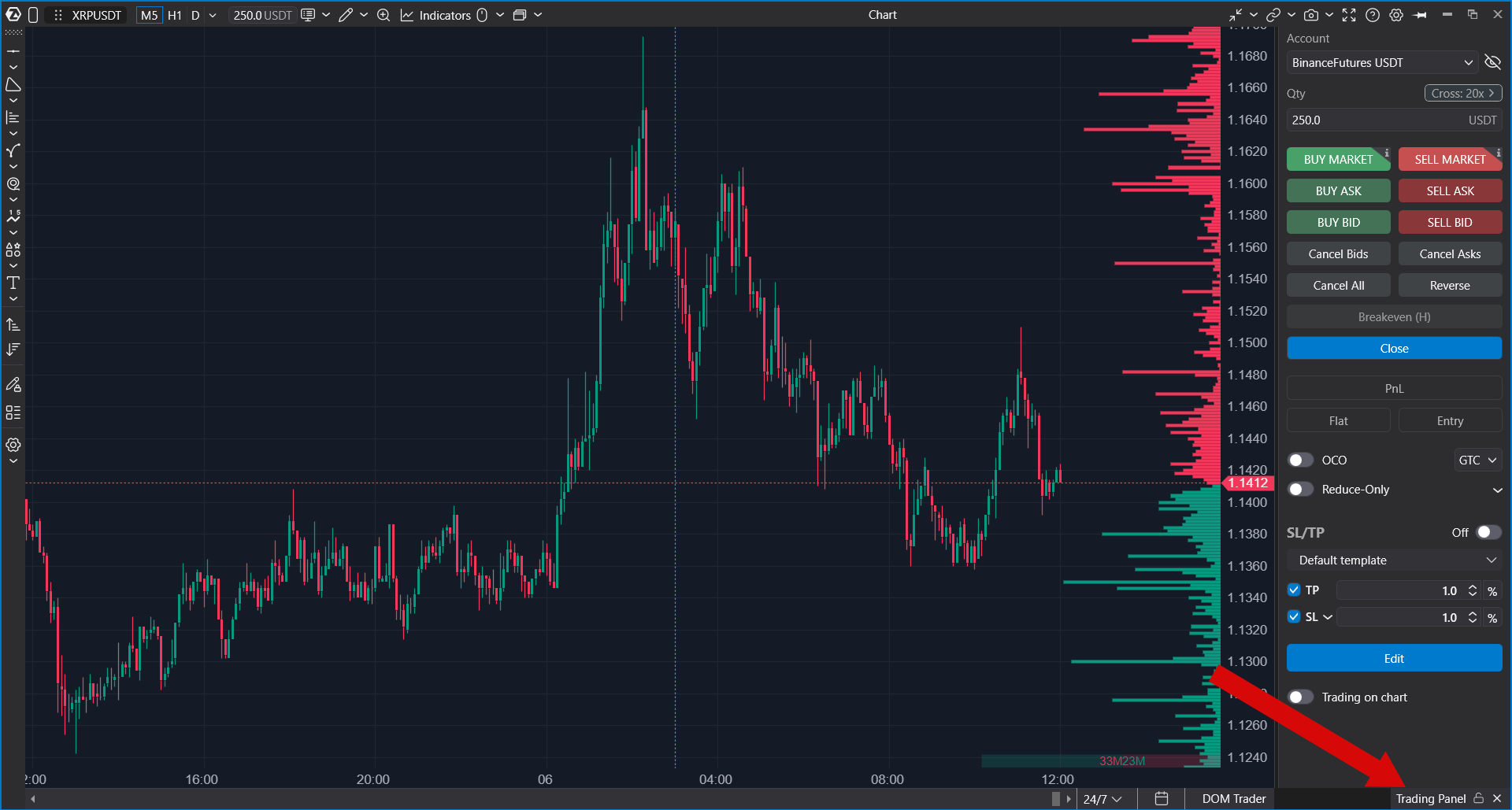
- Click the Trading Panel button in the lower-right area of the chart window, or press T if the default hotkey is active.
- The Trading Panel panel will appear on the right side of the chart.
If no trading account is selected, Trading Panel shows a prompt to open the Connections window and connect an account.
Account Selection
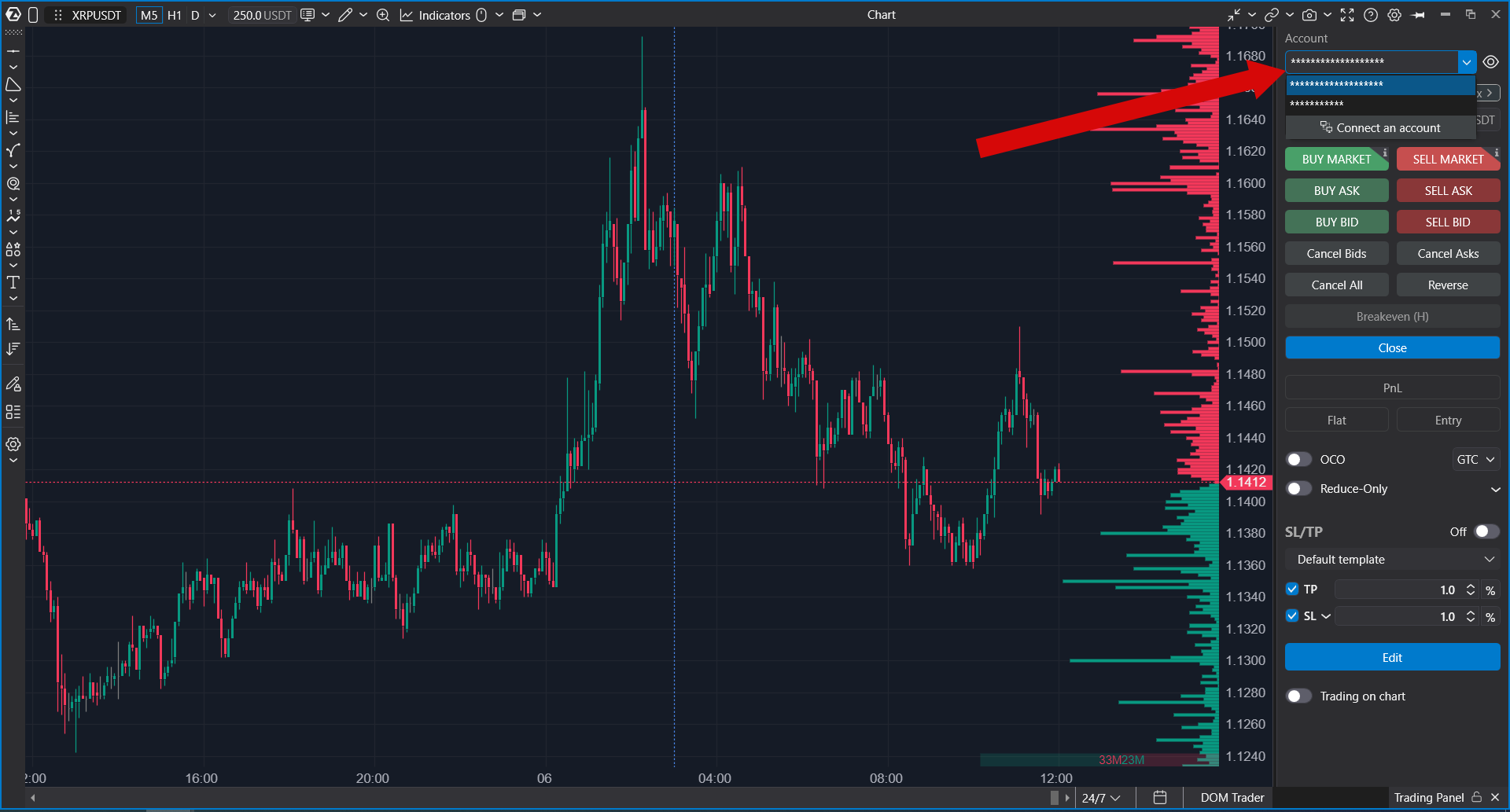
The account selector at the top of Trading Panel shows the currently selected trading account. Use it to switch between available accounts connected to the selected exchange.
The account area can also include a button for opening the Connections window. Use it when you need to add, edit, reconnect, or check a crypto connector.
If privacy mode is enabled, account balance values are hidden and replaced with masked values.
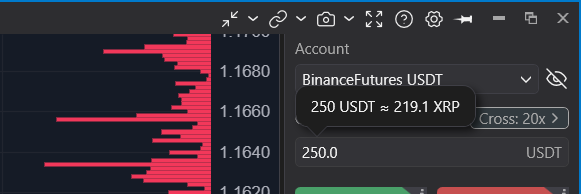
Balance and Available Funds
Trading Panel can show account balance and available funds for the selected account. These values help you check whether the account has enough funds for the selected order volume.
Depending on the connector and account type, balance information may be shown in the account currency or may be unavailable.
Margin Mode and Leverage
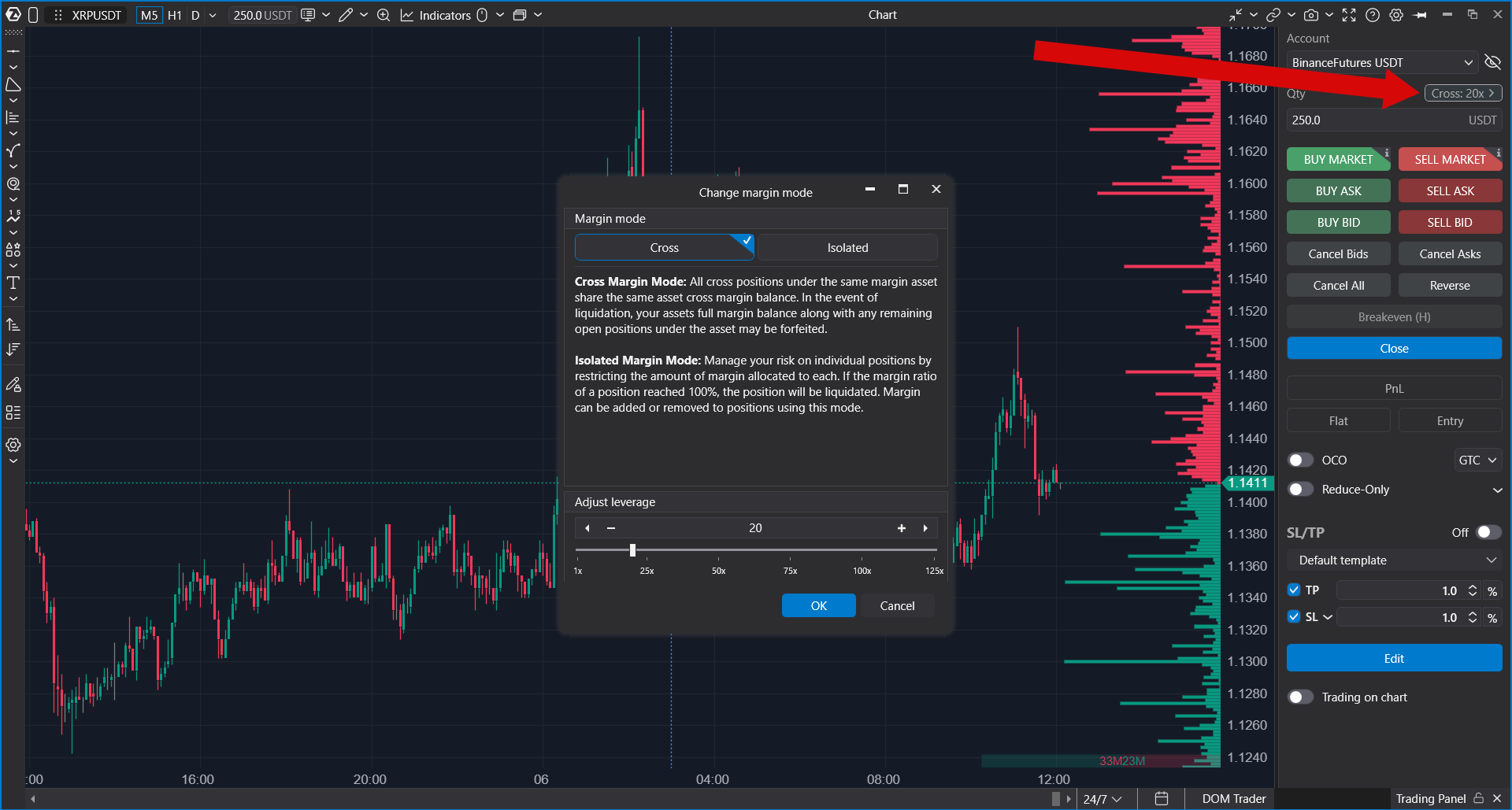
For crypto futures instruments, Trading Panel can show margin mode and leverage information near the volume area.
Available margin modes may include:
- Cross — available balance of the corresponding margin account can be used to support positions.
- Isolated — margin is allocated to a specific position, and risk is managed separately for that position.
If margin and leverage editing is supported by the exchange and account, click the margin or leverage control to open the margin mode and leverage settings.
Changing margin mode or leverage may affect existing positions and active orders for the current pair. Some exchanges may restrict changes when a position or active order already exists.
Order Volume
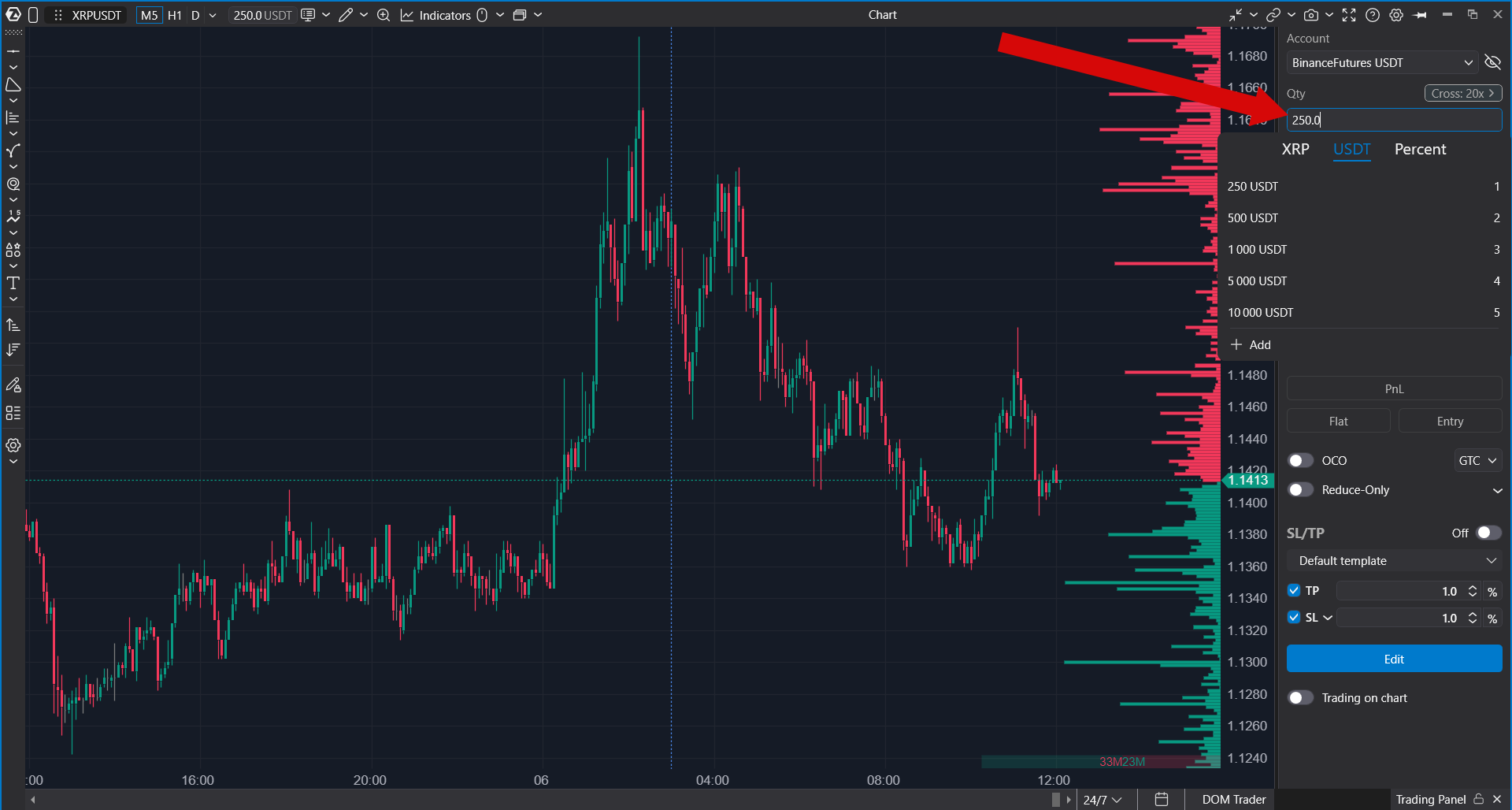
The Qty field controls the order volume used by Trading Panel buttons and by trading from the chart.
Depending on the selected crypto instrument and connector, the volume editor can allow you to:
- enter the order size manually;
- select a saved volume value;
- choose the volume currency, for example base or quote currency when conversion is supported;
- set volume as a percentage of the account size when percent mode is available.
Always check the selected volume before sending an order.
Order Buttons
Trading Panel provides quick buttons for order entry and order management.
Main Trading Buttons
- Buy Market — sends a market buy order.
- Sell Market — sends a market sell order.
- Buy Ask — places a buy limit order at the current best ask.
- Sell Ask — places a sell limit order at the current best ask.
- Buy Bid — places a buy limit order at the current best bid.
- Sell Bid — places a sell limit order at the current best bid.
Order Cancellation and Position Buttons
- Cancel Bids — cancels active buy orders.
- Cancel Asks — cancels active sell orders.
- Cancel All — cancels all active orders for the selected account and instrument.
- Reverse — reverses the current position by closing the existing position and opening an opposite one.
- Close — closes the current position.
Trading actions affect the selected real or demo account. Check the account, instrument, volume, and order settings before clicking a trading button.
Time in Force
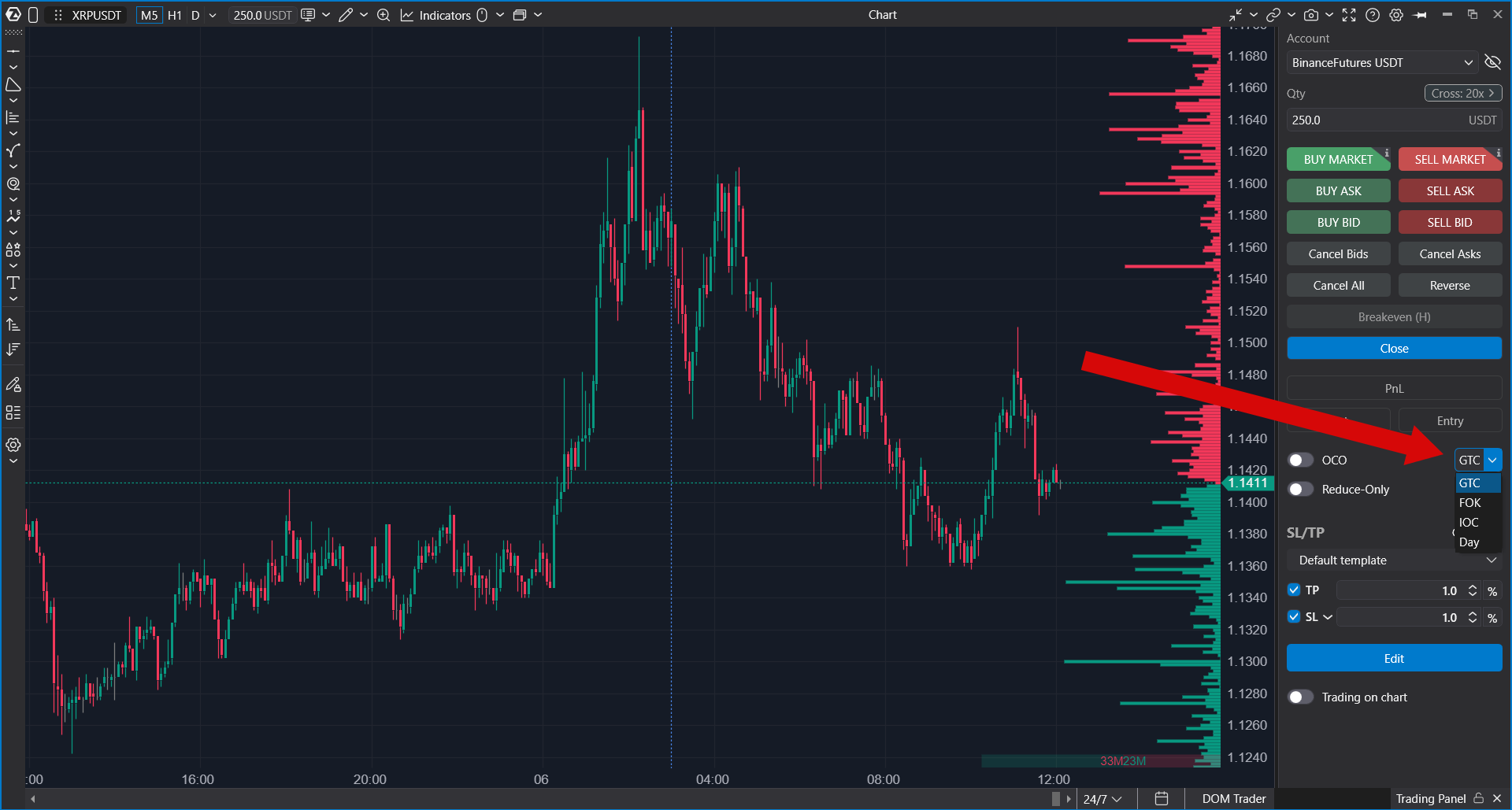
The Time in Force selector defines how long an order remains active. The available options depend on the selected connector and instrument.
Common options include:
- GTC — Good Till Cancel. The order remains active until it is filled or canceled.
- FOK — Fill Or Kill. The order must be filled immediately in full or canceled.
- IOC — Immediate Or Cancel. The order is filled immediately as much as possible, and the unfilled part is canceled.
- Day — the order is valid only for the current trading session, if supported.
OCO Mode
OCO means One Cancels the Other. It allows placing linked orders where execution of one order cancels the other.
In Trading Panel, OCO mode is used when you need two connected exit or conditional orders, for example a Take Profit order and a protective Stop order.
The exact OCO behavior depends on whether the selected connector supports server-side OCO or whether ATAS needs to manage the relationship locally.
Order Flags
For supported crypto exchanges, Trading Panel can show additional order flags.
Available flags may include:
- Reduce-Only — the order can only reduce the current position size.
- Post-Only — the order should be executed as a maker order only. If it would execute immediately as a taker order, it can be canceled by the exchange.
- Close On Trigger — used for supported conditional close orders.
The list of available flags depends on the selected exchange, instrument, and order type.
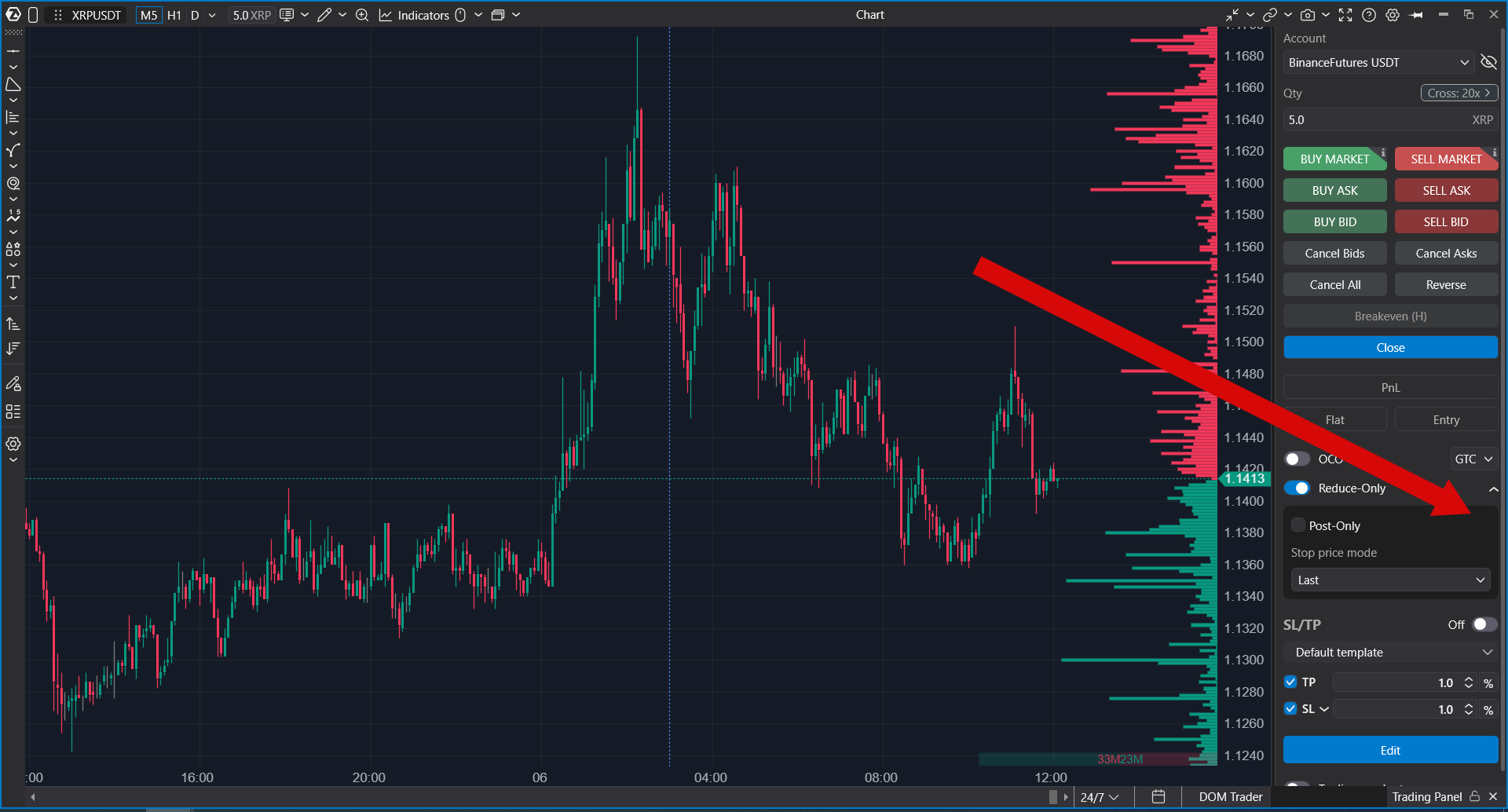
Stop Trigger Price Mode
For conditional stop orders, Trading Panel can provide a Stop Price Mode selector. The available trigger price types depend on the selected crypto connector.
Possible trigger price types may include:
- Last — the last traded price is used as the trigger source.
- Mark — the exchange mark price is used as the trigger source.
- Index — the exchange index price is used as the trigger source.
Use the trigger price type that matches your exchange workflow and risk rules.
Position Information
The position block shows information for the selected account and instrument.
It can display:
- PnL — current profit or loss for the open position;
- Flat / Position Size — current position volume and direction;
- Entry — average entry price.
Click the PnL area to change the PnL display mode. Available modes can include currency, percent, ticks, or hidden display.
Position information appears only when there is an open position for the selected instrument and account.
Breakeven
The Breakeven button moves a protective order to the breakeven level when the current position and strategy state support this action.
Use it when you want to reduce position risk after the market has moved in your favor.
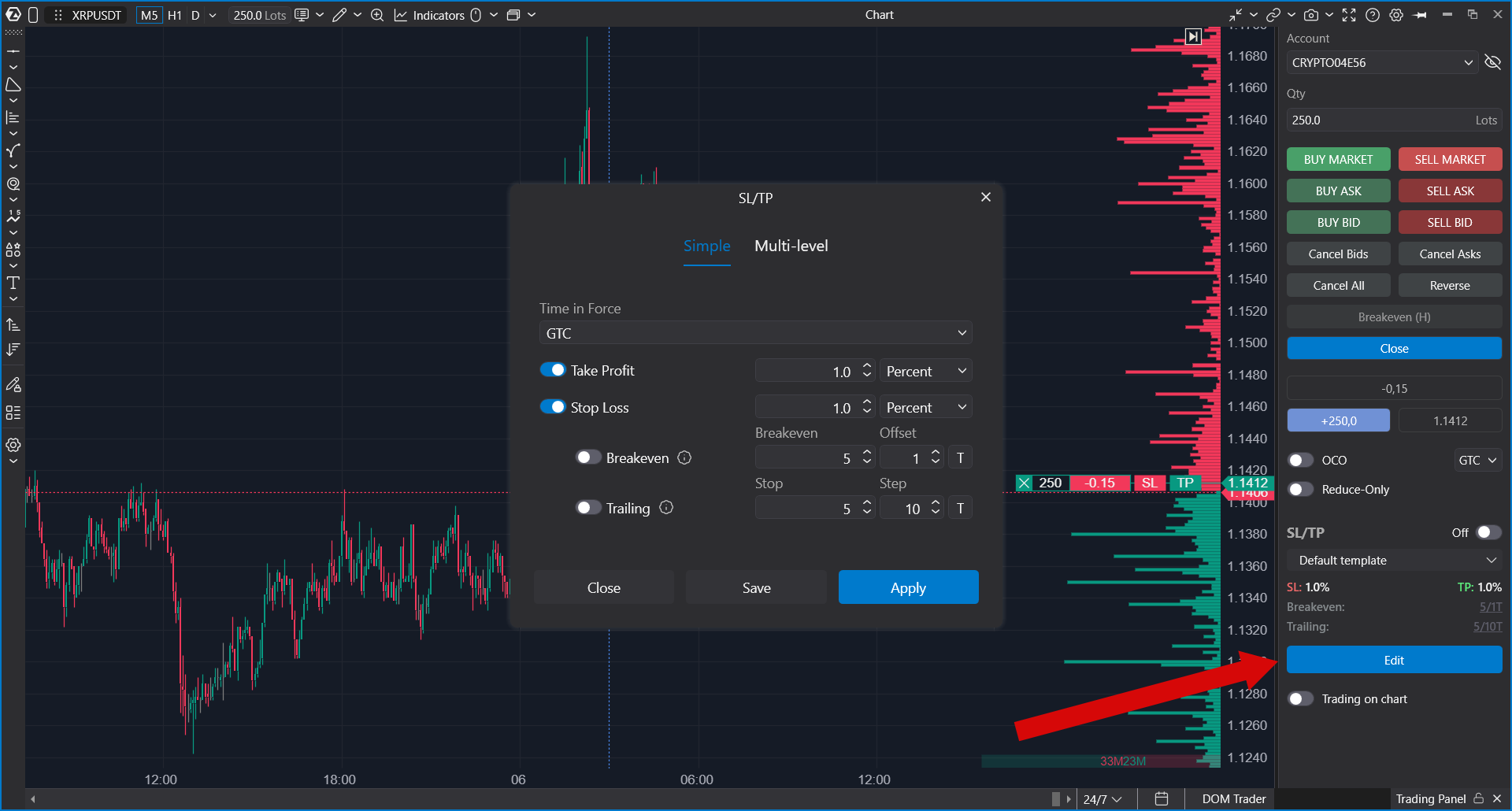
Exit Strategies
Trading Panel supports exit strategy controls for managing Stop Loss and Take Profit behavior when the selected connector and account support the required order types.
Use exit strategies to prepare automatic protective and target orders for a position. Depending on the setup, you can select or configure a strategy before placing an order.
Stop Loss and Take Profit actions can also be controlled with configured hotkeys.
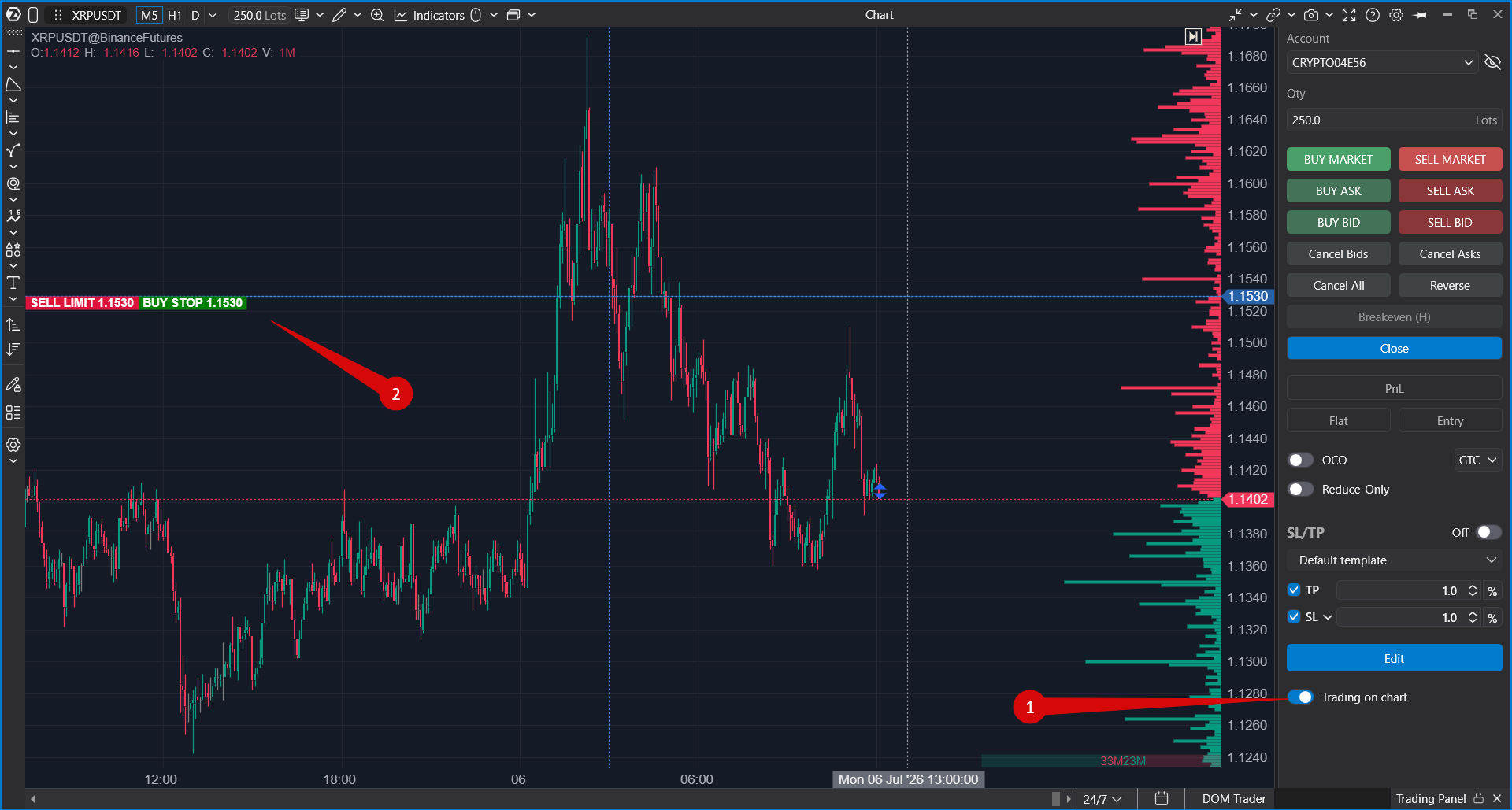
Trading from the Chart
The Trading from Chart toggle enables order placement directly from the chart area.
When this mode is enabled, mouse clicks on chart price levels can be used to place orders according to the chart trading settings. The exact order direction and order type depend on the selected trading-from-chart mode and the clicked price level.
You can enable the mode with the toggle in Trading Panel or use the configured hotkey. By default, the Space key can be used to temporarily activate Trading from Chart mode.
Routes and T+ Limits
Some connectors can display additional controls such as:
- Route — selects an available trading route when the connector provides multiple routes.
- T+ Limit — selects a T+ limit option when supported by the connector.
If these options are not supported by the selected connector or instrument, they are not displayed.
Hotkeys
Most Trading Panel actions can be controlled with hotkeys if they are configured in the platform.
Hotkeys can be used for actions such as:
- opening Trading Panel;
- enabling Trading from Chart;
- switching Reduce-Only or Post-Only modes;
- setting Stop Loss or Take Profit mode;
- moving Stop Loss to breakeven;
- executing trading commands.
To customize keyboard shortcuts, open the platform Hot Keys settings and configure the required trading actions.
Notes
- Trading Panel sends orders for the currently selected account and instrument.
- Available controls depend on the selected exchange, connector, account type, instrument, and order type.
- Margin mode, leverage, Reduce-Only, Post-Only, OCO, trigger price types, routes, and T+ limits may not be available for every cryptocurrency exchange.
- Market orders execute immediately at the best available market price and may experience slippage.
- Order flags and conditional order behavior are ultimately governed by the exchange rules.
- If trading controls are unavailable, verify the trading connection, selected account, selected instrument, and account permissions.
Was this article helpful?
That’s Great!
Thank you for your feedback
Sorry! We couldn't be helpful
Thank you for your feedback
Feedback sent
We appreciate your effort and will try to fix the article