Adding Indicators to a Chart
This article explains how to add an indicator to a chart and configure its settings.
To open the Indicators window in ATAS, use one of the following methods:
- Click the Indicators icon on the chart toolbar.
- Use the chart context menu.
- Press Ctrl + I (the default shortcut, which can be changed in the Hot Keys Configuration settings).
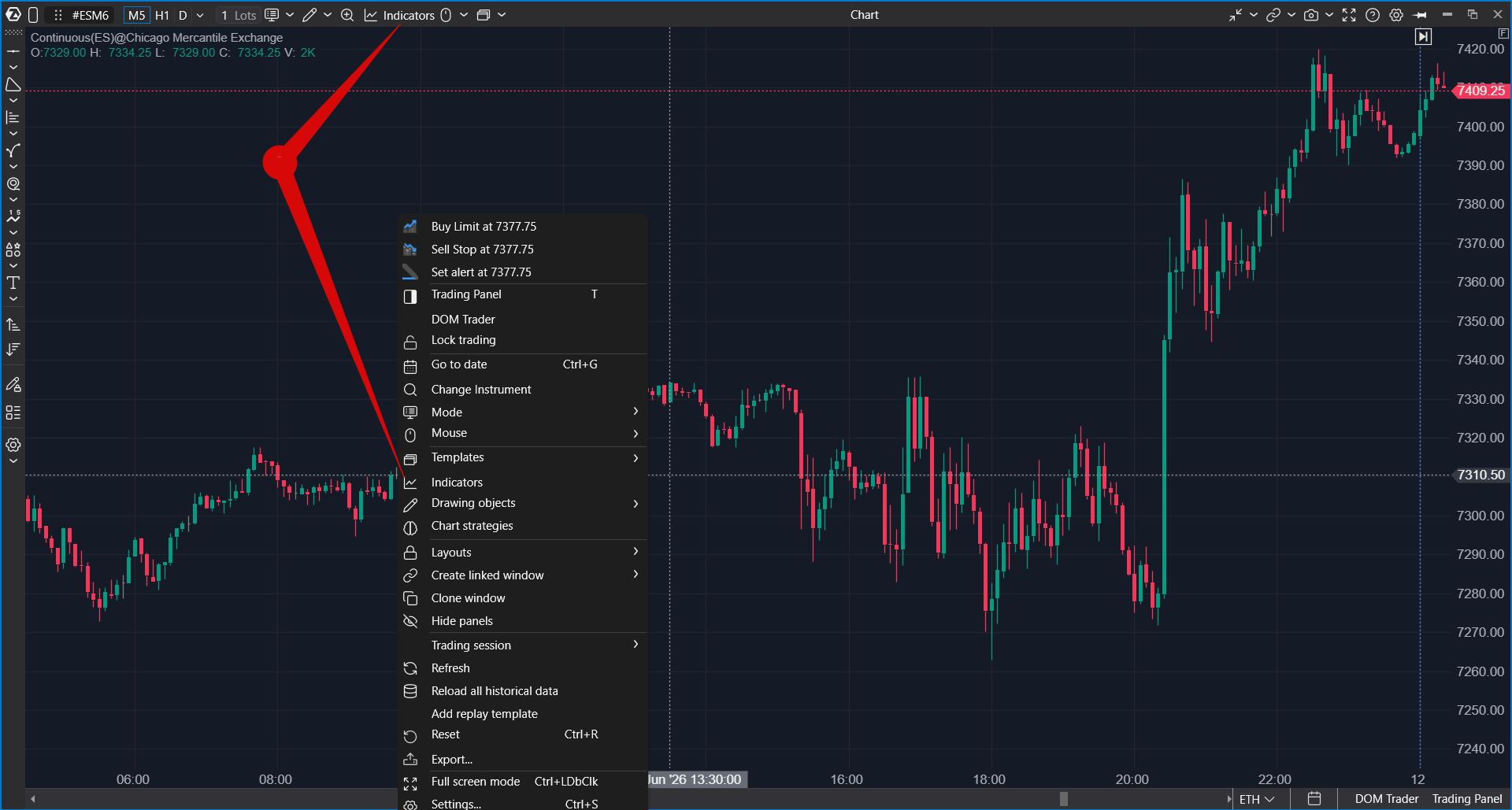
In the window that opens:
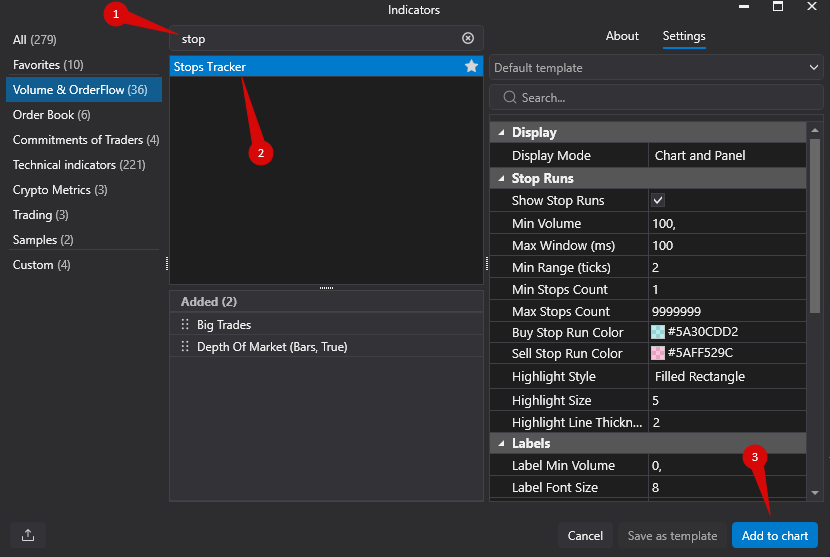
- Use the Search field to quickly find the required indicator.
- Select an indicator from the available list.
- Click Add to Chart to add the indicator to the chart.
- Configure the indicator settings as needed.
- Click Apply to save the changes.
To add an indicator to the Favorites list, click the Star icon.
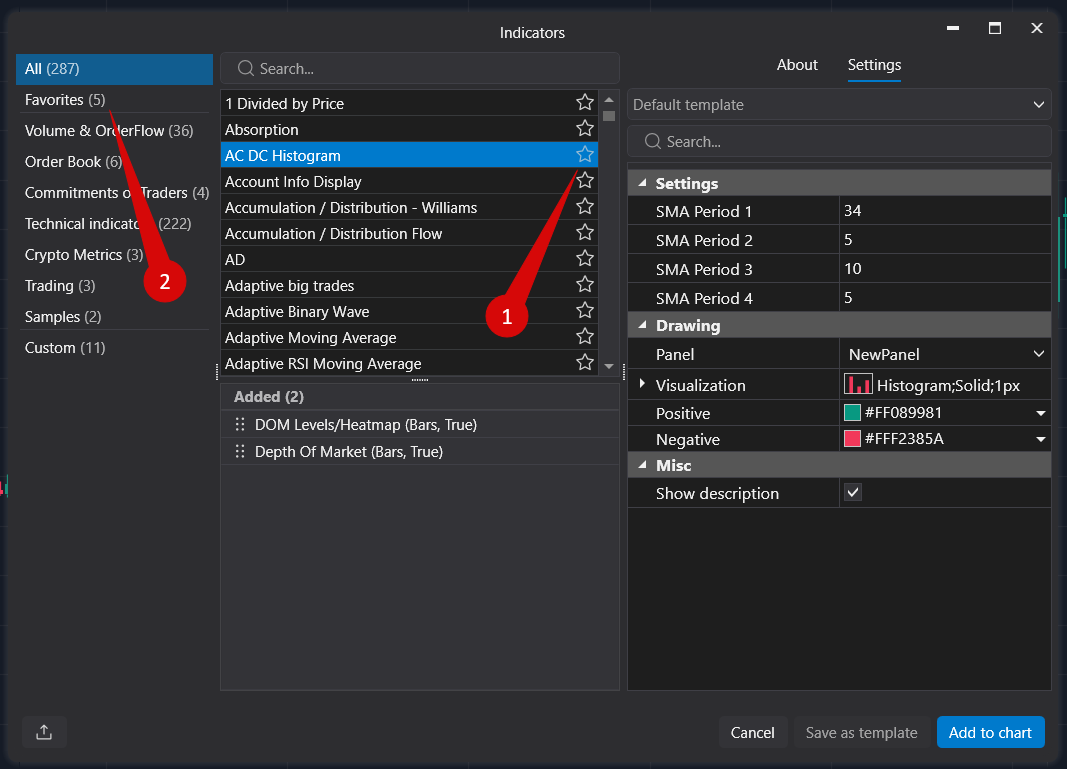
Indicator Settings Organization
Indicator settings in ATAS can be organized into tabs, making it easier to find the required parameters without scrolling through the entire settings list.
Depending on the indicator, the settings may be grouped into the following tabs:
- Data — calculation parameters, data sources, filters, and processing logic.
- Visualization — appearance settings, including colors, line styles, labels, and display options.
- Alerts — notification settings for indicators that support alerts.
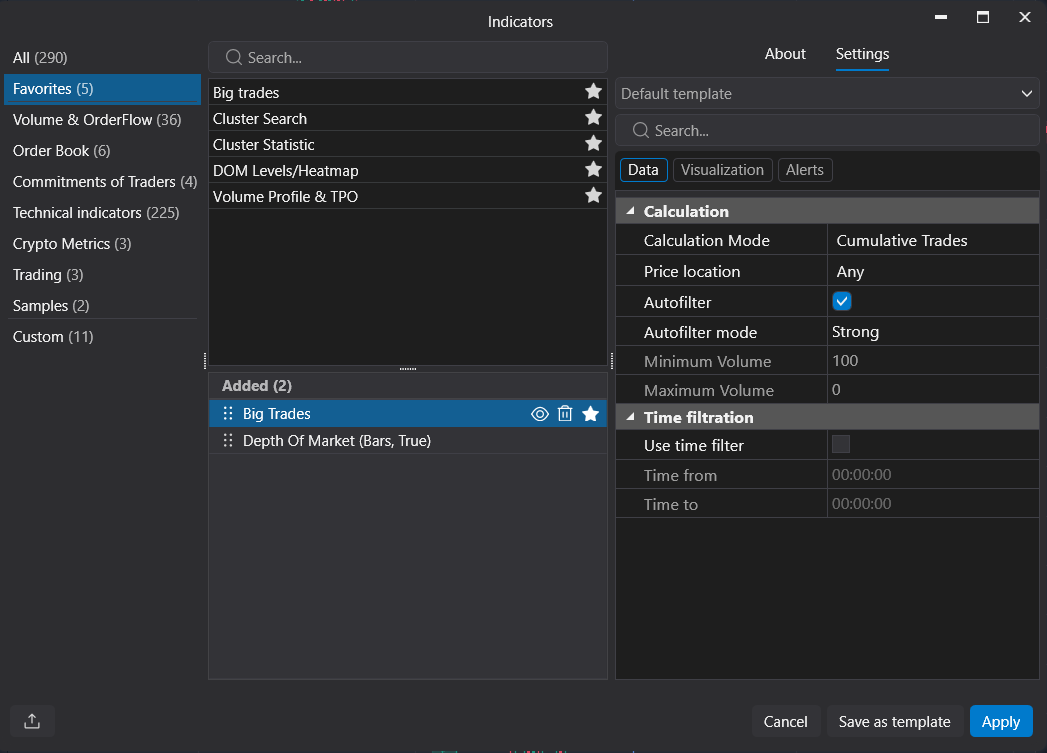
The available tabs and parameters depend on the selected indicator. Some indicators may contain more calculation settings, while others provide additional visualization or alert options.
Searching Indicator Settings
If you do not know which tab contains a specific parameter, use the search field in the indicator settings window.
Enter part of the parameter name to quickly locate the required setting. This is especially useful for indicators with a large number of available parameters.
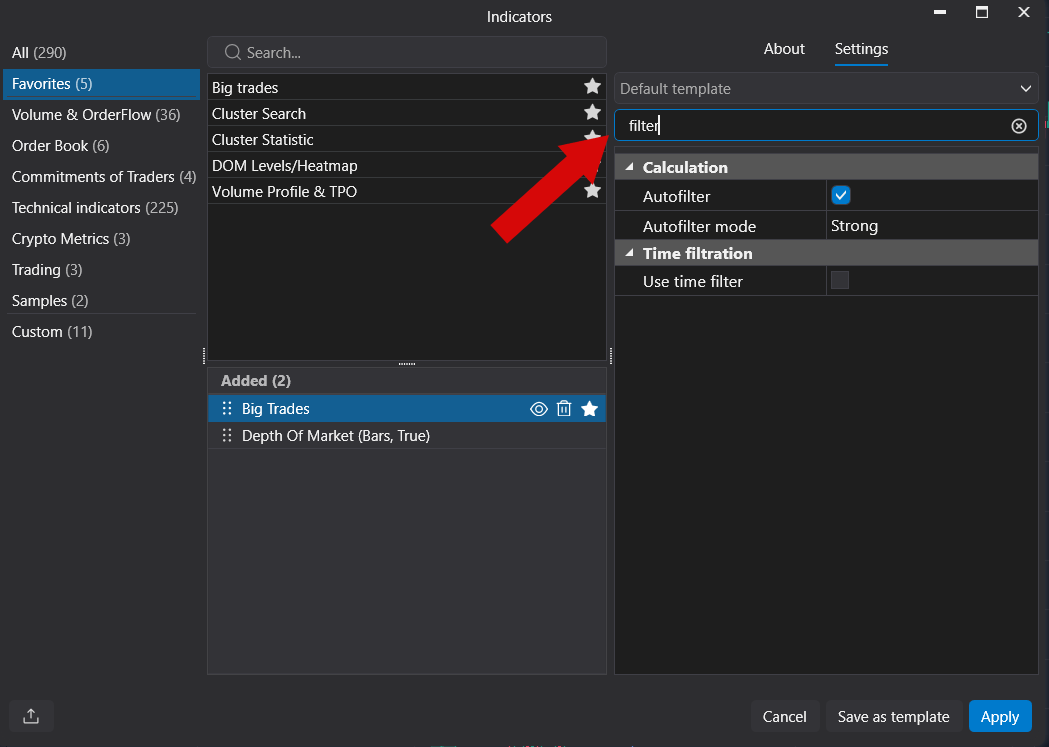
- Tabs are displayed only for indicators whose settings are organized into categories.
- If an indicator does not support alerts, the Alerts tab may be hidden or unavailable.
- The available parameters vary depending on the selected indicator.
- The search function helps locate a parameter even if you do not know which tab contains it.
- After changing settings, the indicator is updated automatically without the need to add it to the chart again.
Was this article helpful?
That’s Great!
Thank you for your feedback
Sorry! We couldn't be helpful
Thank you for your feedback
Feedback sent
We appreciate your effort and will try to fix the article