Volume Profile & TPO is a profile analysis tool in ATAS. It shows how volume and time were distributed across price levels within a selected period.
Volume Profile shows at which prices most of the traded volume appeared. TPO shows at which prices the market spent more time. Together, they help analyze the structure of a selected area, including high-activity zones, maximum concentration levels, Value Area boundaries, Single Prints, and Initial Balance.
The purpose of the indicator is to visually organize market activity by price and time so that the market context can be analyzed more clearly.
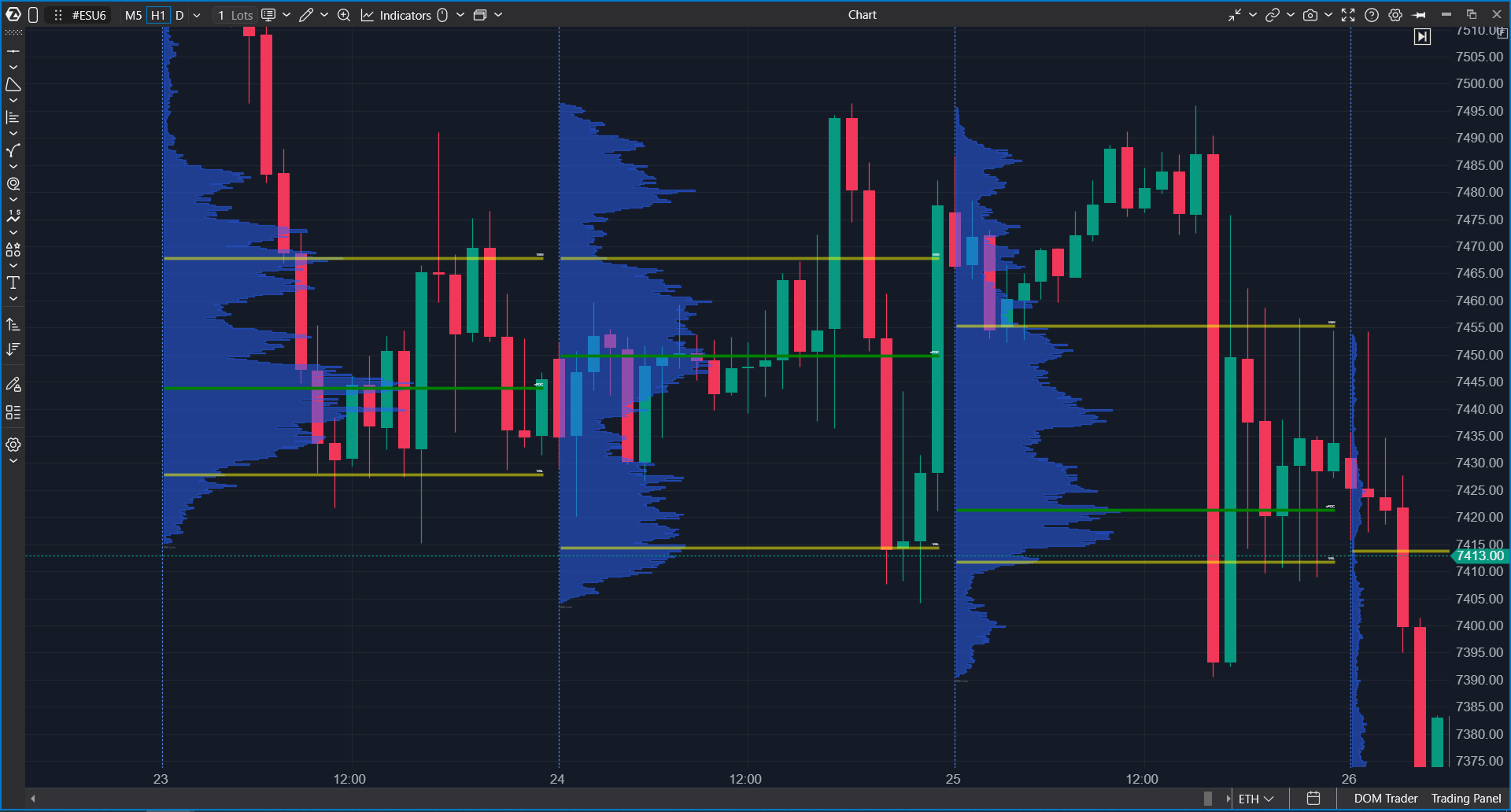
What the Indicator Shows
Volume Profile & TPO can display:
- volume profile by price levels;
- TPO profile based on how long price stayed at each level;
- POC — the level of maximum concentration based on the selected data type;
- Value Area — the area where the main profile activity is concentrated;
- VAH and VAL — the upper and lower Value Area boundaries;
- TPO POC and TPO Value Area;
- Single Prints — single TPO levels;
- Initial Balance — the initial range of selected sub-periods;
- candles or bars inside the profile area;
- cumulative profile values, if enabled in the settings.
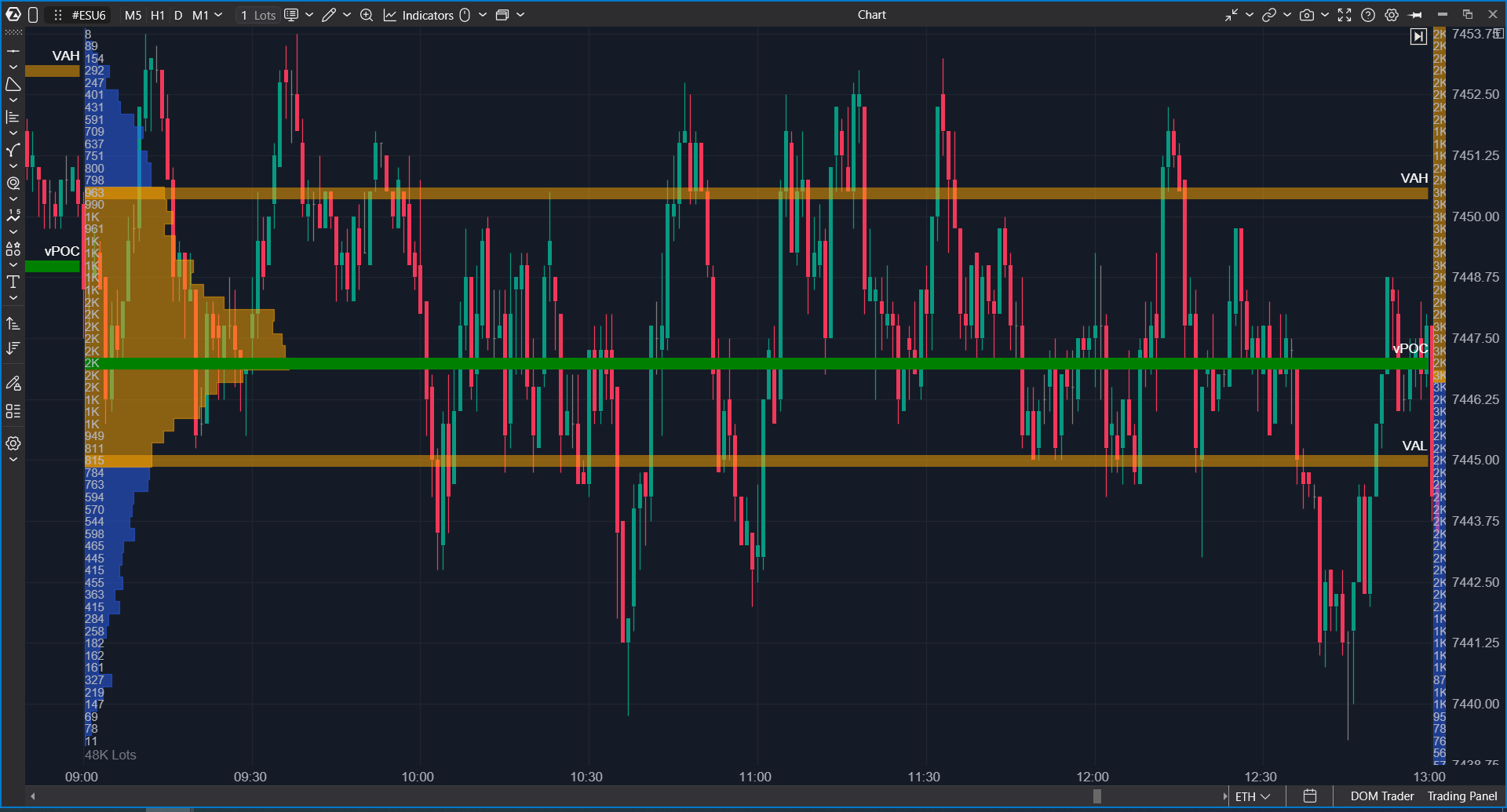
Volume Profile vs TPO
Volume Profile builds a horizontal distribution of volume by price. The more volume traded at a level, the more visible that profile row becomes.
This is useful when you need to see where the main trading activity was concentrated within a day, week, month, or another selected period.
TPO stands for Time Price Opportunity. TPO shows at which price levels the market spent time during different sub-periods. It can be displayed as letters, blocks, or a combination of blocks and letters.
Volume Profile shows volume distribution. TPO shows time distribution. These modes can be used separately or together.
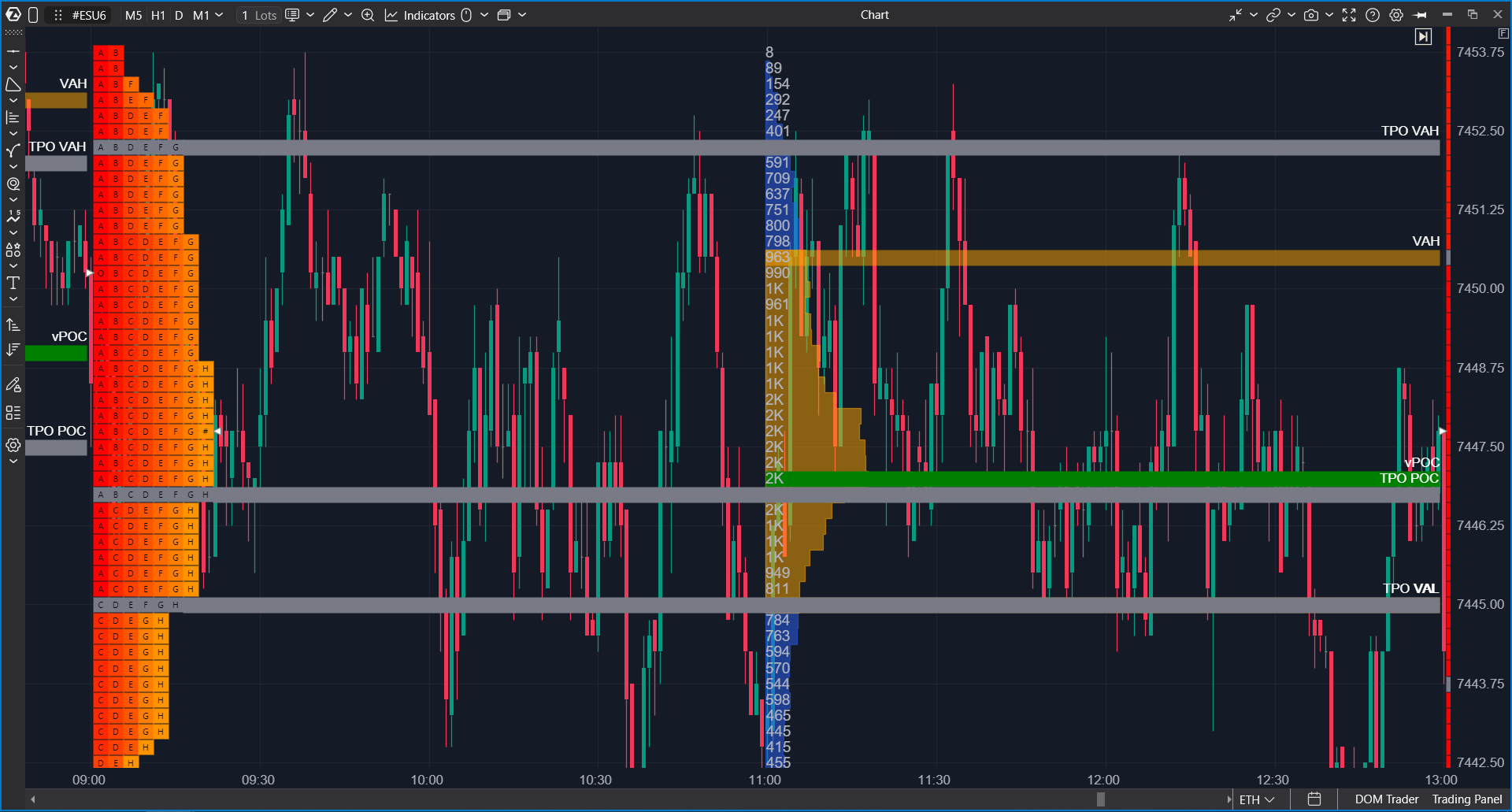
Display Modes
The Mode setting includes the main display options:
- Profile — displays the volume profile;
- TPO — displays the TPO profile;
- TPO and Volume Profile — displays both profile types;
- Profile over TPO — overlays the profile on top of TPO.
If you need to analyze only volume distribution, use Profile. If time distribution matters, use TPO. To compare volume and time within one period, use TPO and Volume Profile or Profile over TPO.
Profile Period
External Period defines the period used to build each profile. The current logic supports M1, M5, M15, M30, Hourly, H2, H4, H6, Daily, Weekly, Monthly, and Custom.
Custom allows you to set your own start and end time using Custom Begin Time and Custom End Time. This is useful when the profile should follow a specific trading session instead of a standard day or hour.
How to Use the Indicator for Analysis
Review Activity Distribution Inside a Period
Add the indicator to the chart and select the profile period. For example, Daily displays daily profiles, Weekly displays weekly profiles, and Custom displays user-defined sessions.
The profile shape helps evaluate where the main activity occurred inside the period, which levels price moved through quickly, and where it paused or accumulated volume.
Compare Volume and Time
Sometimes a high-volume level matches an area where price spent a lot of time. Sometimes it does not. Comparing Volume Profile and TPO helps identify these differences.
This is not a standalone trading signal. It is a way to analyze the structure of the selected period: where activity was volume-heavy, where the market spent time, and where price moved through quickly.
Use POC and Value Area as Structural References
POC shows the level of maximum concentration based on the selected data type. Value Area shows the main activity area of the profile, while VAH and VAL mark its upper and lower boundaries.
These levels can be used as visual reference points when analyzing historical and current market structure.
Analyze Single Prints and Initial Balance
Single Prints show single TPO levels. They help visually identify price areas where the market moved quickly and did not stay through multiple sub-periods.
Initial Balance shows the initial range of the profile based on a selected number of sub-periods. It is useful for analyzing session structure: where the initial range formed and how the rest of the profile developed around it.
Main Settings: Common and Profile
Common
The Common section defines the basic profile logic:
- Mode — display mode: Profile, TPO, TPO and Volume Profile, or Profile over TPO;
- External Period — profile-building period;
- Custom Begin Time / Custom End Time — custom period boundaries when Custom is selected;
- Extend Lines Till Start of Next Profile — extends lines to the start of the next profile;
- Show Labels of Finished Lines — displays labels for completed lines;
- Auto Proportion — automatically adjusts profile proportions;
- Custom Font Size — user-defined font size;
- Draw Above Price — draws the object above the chart.
Auto Proportion is useful when several profiles are displayed on the same chart and you need to compare them visually. If Auto Proportion is disabled, proportions can be controlled manually with Custom Proportion.
Profile
The Profile section defines what the histogram is based on:
- Volume
- Trades
- Delta
- Delta V2
- Delta over Volume
- Bid and Ask
- Delta Volume Proportional
- Delta to Volume
This section also includes Left to Right, which controls the profile drawing direction.
POC, Value Area, and Filters
Max Level / POC
The Max Level section controls the level of maximum concentration in the profile. It is often called POC, but the settings allow you to choose which data type should be used to find the maximum level:
- Volume
- Trades
- Delta
- Positive Delta
- Negative Delta
- Bid
- Ask
You can enable or disable the level, extend the line, configure its style, text color, label, and show its value and date.
Value Area
Value Area shows the main activity area of the profile. The display type can be configured as:
- None
- Line
- Area
- Line and Area
You can also extend Value Area lines, configure the style, text color, and VAH/VAL labels.
Filter
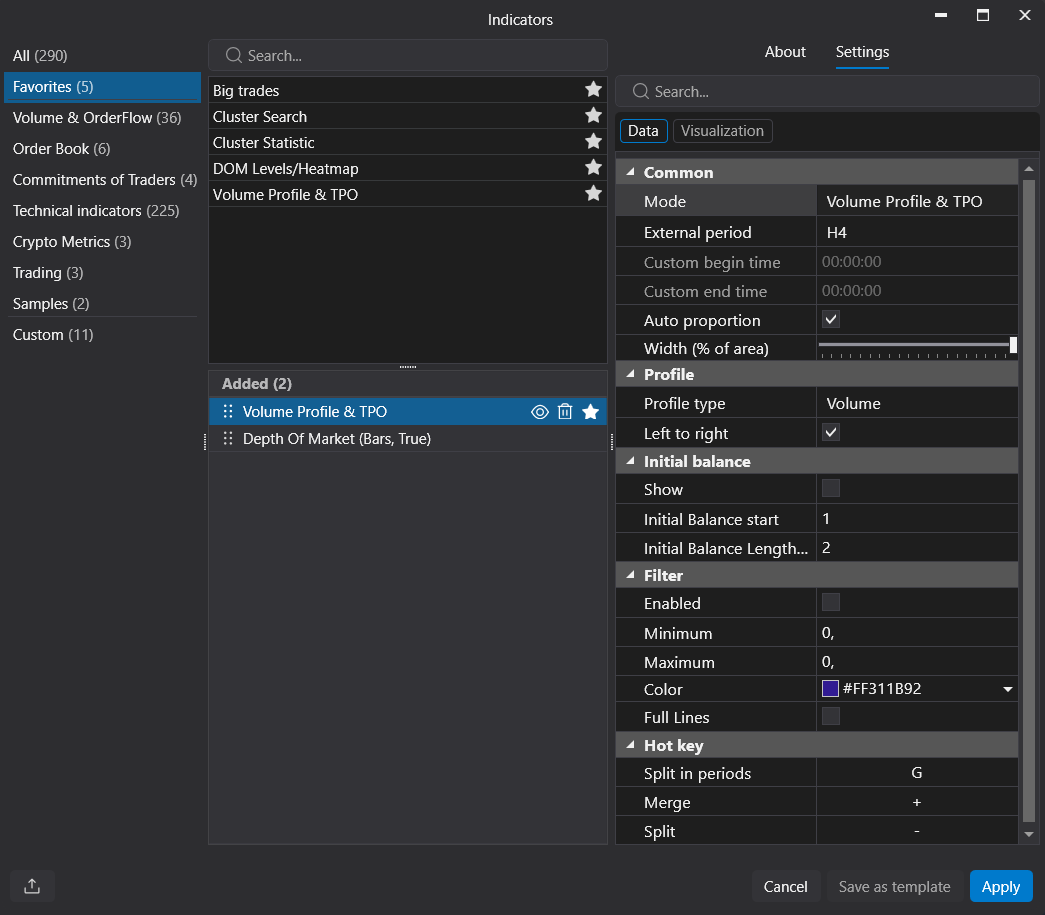
The Filter section highlights levels that fall within a selected range. It includes Enabled, Minimum, Maximum, Color, and Full Lines.
This is useful when you need to visually separate levels that match a specific condition, for example by volume or another selected profile type.
TPO Settings
TPO
The TPO section controls how the TPO profile is displayed:
- TPO Chars — character set used for TPO;
- Prices per Row — how many prices are grouped into one row;
- Marker Letters — letter color;
- TPO Color Mode — color mode;
- Colors — color list;
- Drawing Mode — Auto, Letters, Blocks, or Blocks and Letters;
- Block Text Color — text color inside blocks.
Drawing Mode defines how TPO appears on the chart: as letters, blocks, or a combined view. If chart space is limited, blocks may look cleaner. If you need the classic TPO structure, letters or a combined mode may be more useful.
Sub Periods
Sub Period defines the size of a TPO sub-period. You can also enable Split Periods, highlight sub-period opens and closes with Highlight Opens / Highlight Closes, and configure highlight colors.
You can split or merge profiles with hotkeys:
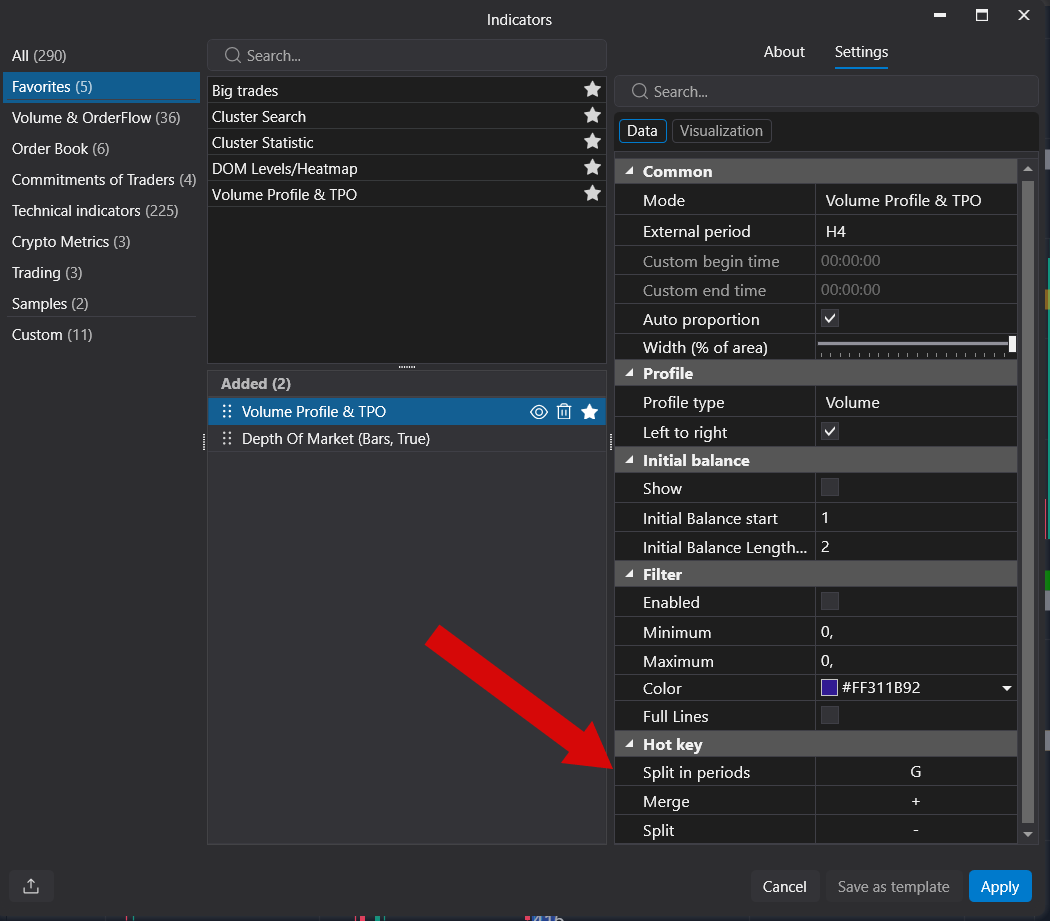
TPO POC and TPO Value Area
TPO has separate POC and Value Area settings. You can enable TPO POC, configure line style, extension, text color, and label.
For TPO Value Area, you can select the display mode, style, extension, and TPO VAH / TPO VAL labels.
Additional Elements
Single Prints
Single Prints highlight single TPO levels. The settings allow you to enable them, extend them, configure color, text color, and label.
This section is useful for TPO analysis when you need to visually identify levels where price did not stay through several sub-periods.
Initial Balance
Initial Balance shows the initial range of the profile. You can enable it, set the start sub-period, range, color, and line width.
Candle / Bar
The Candle / Bar section controls how candles or bars are displayed inside the profile area. You can choose the mode, width, border color, border width, and colors for up and down candles.
Grid and Cumulative Values
Grid adds a grid inside the profile.
Cumulative Values controls cumulative values and their location: Top Left, Top Right, Bottom Left, Bottom Right, or Hide.
Useful Tips
- Start with Profile mode and the Daily period to see the basic volume distribution by day.
- If you need to compare volume and time, switch to TPO and Volume Profile.
- Use Custom Period if the standard day or hour does not match the trading session being analyzed.
- Enable Auto Proportion when comparing several profiles on the same chart.
- Use Max Level Type if POC should be calculated not only by Volume, but also by Trades, Delta, Bid, or Ask.
- Avoid enabling every element at once: POC, Value Area, TPO POC, Single Prints, Initial Balance, and Grid can overload the chart.
Was this article helpful?
That’s Great!
Thank you for your feedback
Sorry! We couldn't be helpful
Thank you for your feedback
Feedback sent
We appreciate your effort and will try to fix the article