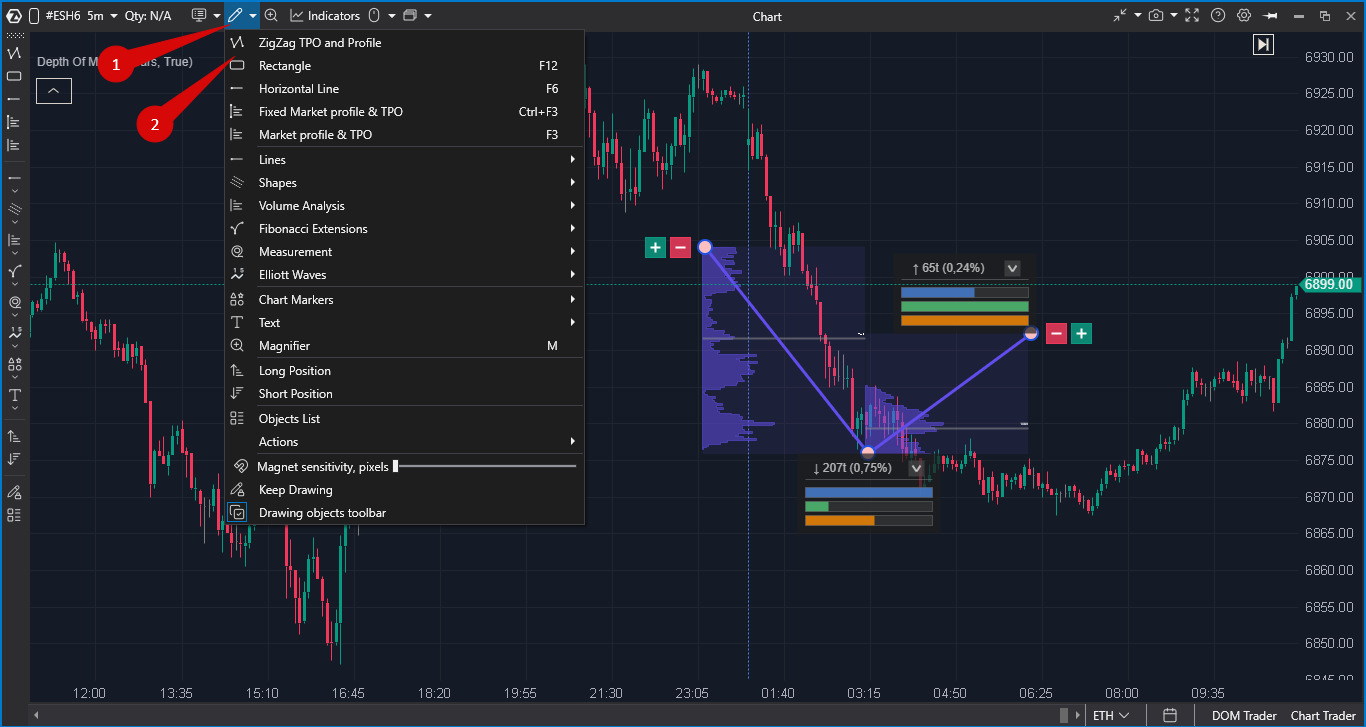
ZigZag TPO and Profile is a drawing object that combines a manual ZigZag with profile analysis. You mark price swings with points on the chart, and the object builds a profile and calculates key metrics for each swing: size, volume, delta, speed and volume density.
Contents
- What it is for
- How to add the object
- Creating the object
- Editing the object
- Profiles
- Swing metrics
- Settings
- How to use it in analysis
- Tips and common mistakes
What It Is For
- Swing analysis: compare strong and weak price moves using several metrics at once.
- Market structure: see how volume (and, if you choose, time) was distributed inside each move.
- Comparison: put the metrics of different swings side by side to see how the market is changing.
- Wave analysis: mark up a wave structure and get detailed data for every wave.
- Activity zones: find levels where volume or time was concentrated.
How It Differs from Other Tools
From the ZigZag indicator:
- It is not calculated automatically: you place the points yourself.
- It builds a profile for every segment.
- It shows detailed metrics for every move: speed, density, delta.
From the regular Market Profile:
- It is built for the segments you mark, not for a session or a whole period.
- It calculates metrics for every move automatically.
- It is made for comparing swings, not sessions.
How to Add the Object
- Open a chart.
- On the drawing toolbar, open the Volume analysis group (the same group contains Fixed and Anchored Volume Profile & TPO).
- Select ZigZag TPO and Profile.
You can also assign a hotkey to the object in the hotkey settings, in the list of drawing objects. There is no hotkey by default.
Creating the Object
- Move the cursor to the first point (price and time) and left-click. The point snaps to the nearest bar and price.
- Move the cursor to the next swing high or low and left-click again. A line appears between the points.
- Keep adding points where you need them.
- When all points are placed, right-click anywhere on the chart. While you are placing points, the hint Right click to finish is shown next to the cursor.
After you finish, the object builds a profile and calculates metrics for every segment between two neighbouring points.
Minimum number of points: 2. There is no fixed maximum; a very large number of points can slow the chart down.
Editing the Object
A finished object stays editable. Select it by clicking any part of it: control buttons appear at both ends.
- Add points on the right or left: click the + button at the right or left end, then left-click to add new points on that side. Right-click to finish.
- Remove a point: click the − button next to +. The rightmost (or leftmost) point is removed, and the profiles are recalculated. If only 2 points are left, removing one more deletes the whole object.
- Move a point: drag it with the left mouse button. Profiles and metrics are recalculated automatically.
Profiles
A separate profile is built for every segment between two points, inside the price range of that segment. What the profile shows depends on the Mode setting in the Common group:
- Profile (default) — volume profile only;
- TPO — time profile only;
- Volume Profile & TPO — both;
- Profile over TPO — the volume profile drawn over the TPO.
Volume Profile
The volume profile shows how traded volume was distributed across price levels inside the segment.
- Bar length shows the volume at each level.
- POC (Point of Control) is the level with the maximum volume in the segment.
- High-volume levels show where trading was most active; low-volume levels show where price moved through quickly.
What the profile is built from (volume, trades, delta, bid/ask and others) is set by Profile type in the Profile group. Left to right sets the side the profile is drawn from.
TPO Profile
TPO (Time Price Opportunity) shows how much time price spent at each level.
- Each letter or block is one time sub-period: 30 minutes by default (Sub period (minutes) in the TPO. Sub periods group).
- Wide levels (many TPO blocks) are consolidation zones where price spent a lot of time.
- Narrow levels (few TPO blocks) are zones price passed quickly.
With Auto proportion on (default), profiles of different segments are scaled relative to each other, so you can compare them visually.
Swing Metrics
For every segment, the object shows a panel with metrics. By default the panel is shown only while the object is selected (Cumulative values → Mode: Show when selected, Show or Hide).
The panel opens in a compact view: the header and three comparison bars. Click the arrow button in the top-right corner of a panel to show all metrics; the button switches all panels of the object at once.
| Metric | Format | How it is calculated |
| Size | ↑ 150t (2.50%) | The range between the highest high and the lowest low of all bars in the segment, in ticks, and as a percentage of that low. The arrow shows the direction of the move. |
| Volume and Delta | V: 5.2M | Δ+850K | Total volume and cumulative delta (buys minus sells) of all bars in the segment. Large numbers are shortened with K, M, B. |
| Speed | Speed: 45.0t/min | Size in ticks divided by the time between the two points, in minutes. |
| Density | Density: 34.7K/t | Total volume divided by size in ticks: how much volume was traded per tick of the move. |
Comparison Bars
Under the metrics there are three horizontal bars: volume (blue), speed (green) and density (orange). Each bar is scaled to the maximum value among all segments of the object, so you can see at a glance which swing stands out.
Settings
To open the settings, right-click the finished object and open its settings from the context menu.
| Group | Main settings |
| Common | Mode (profile display mode), Style (ZigZag line), Area Color, Auto proportion, Width (% of area). |
| Profile | Profile type, Extend Lines, Left to right. |
| Profile. Colors | Profile Color, Bid, Ask, Text Color. |
| Profile. Maximum level | Maximum level (POC) Type, line style, value, date and label. |
| Profile. Value areas | Drawing mode of the Value Area, style and VAH/VAL labels. |
| TPO, TPO. Sub periods | TPO characters, colours, Drawing mode (letters or blocks), Sub period (minutes), Split sub-periods. |
| TPO. POC, TPO. Value area, TPO. Single prints | TPO levels: POC, Value Area and single prints. |
| Initial balance | Initial balance display, start sub-period and length. |
| Candle/Bar | Candles or bars inside the profile area. |
| Cumulative values | Mode of the metrics panel: Show when selected, Show, Hide. |
How to Use It in Analysis
Strong and Weak Swings
Signs of a strong swing:
- high Speed;
- delta in the direction of the move (Δ+ for an up move, Δ− for a down move);
- significant Volume;
- relatively low Density: price moved without strong resistance.
Signs of a weak swing:
- low speed;
- delta against the direction of the move;
- small volume;
- high density: a lot of volume was needed for every tick, the move met resistance.
Place points on swing highs and lows and compare up and down moves: which ones developed with more force?
Density: Impulse or Accumulation
- Low density: a large move on relatively small volume. Typical for impulse phases.
- High density: a lot of volume on a small move. Can point to accumulation or distribution.
Activity Zones
- POC levels of different segments can serve as reference levels.
- High-volume zones often act as support or resistance later.
- Comparing POCs of consecutive moves shows how the activity zone shifts.
- In TPO mode, wide levels show where price spent the most time.
Comparing Swings over Time
Place points from left to right and follow the changes:
- Speed: are the moves speeding up, are the pullbacks slowing down?
- Volume: is participation growing or falling?
- Delta: is buying or selling pressure getting stronger?
Examples of Reading the Metrics
Strong impulse
↑ 150t (2.50%)
V: 5.2M | Δ+850K
Speed: 45.0t/min
Density: 34.7K/t
Large size and high speed: an impulse. Positive delta confirms the direction. Moderate density: the move did not meet strong resistance.
Accumulation zone
↑ 40t (0.50%)
V: 8.5M | Δ+120K
Speed: 2.5t/min
Density: 212.5K/t
Small size with large volume: consolidation. Very high density: a lot of trading on a small move. Low speed: a long accumulation phase.
Weak pullback
↓ 80t (1.30%)
V: 1.8M | Δ+200K
Speed: 15.0t/min
Density: 22.5K/t
The move is down, but delta is positive: sellers were not driving it. Low volume: little participation. Moderate speed: a pullback without aggression.
Tips and Common Mistakes
How Many Points to Use
- Short-term analysis: 3–7 points for the main moves.
- Medium-term analysis: 7–15 points for a detailed structure.
- Long-term analysis: 15 or more points for a full wave structure; use a higher timeframe so the chart stays readable.
Start with the main highs and lows, then add detail if needed.
Timeframes
- 5–15 minutes: intraday impulses and pullbacks.
- 30–60 minutes: daily structures, a balance between detail and the big picture.
- 1 hour and higher: long-term structure and wave analysis.
Below 5 minutes the metrics are noisy. On daily charts there are too few bars inside a segment for a detailed profile.
Common Mistakes
- Too many points. The picture becomes hard to read. Place points only on significant highs and lows.
- Ignoring the profiles. Numbers alone do not show the structure of a move; look at the profile shape too.
- Looking at one metric. Volume alone says little. Read size, speed, delta and density together.
- The wrong timeframe. A very low timeframe with many points gives noise. Match the timeframe to the scale of your analysis.
- No comparison. A swing means little on its own. Use the comparison bars and compare segments with each other.
ZigZag TPO and Profile is an analysis tool, not a trading signal. The metrics describe how a move developed; they do not predict what price will do next.
Was this article helpful?
That’s Great!
Thank you for your feedback
Sorry! We couldn't be helpful
Thank you for your feedback
Feedback sent
We appreciate your effort and will try to fix the article