This guide provides instructions for connecting a 4PropTrader account to the ATAS platform.
If you already have a license, you should use a Rithmic connection and select either the Rithmic Paper Trading server or dxFeed Prop.
Before launching the platform and connecting the account, you need to register here:
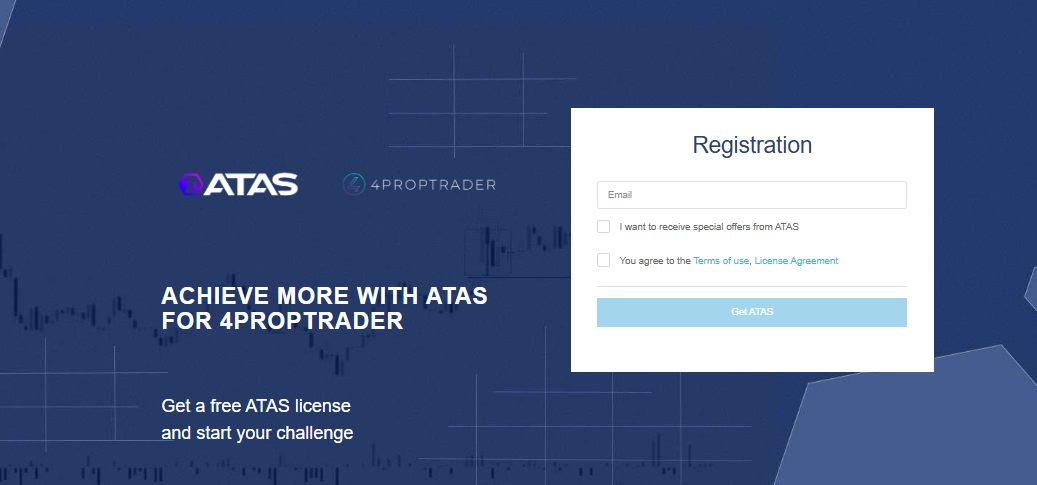
If you already have an ATAS account, use the same login credentials. If you don’t have an account and are signing up with a new email address, use the credentials you receive via email.
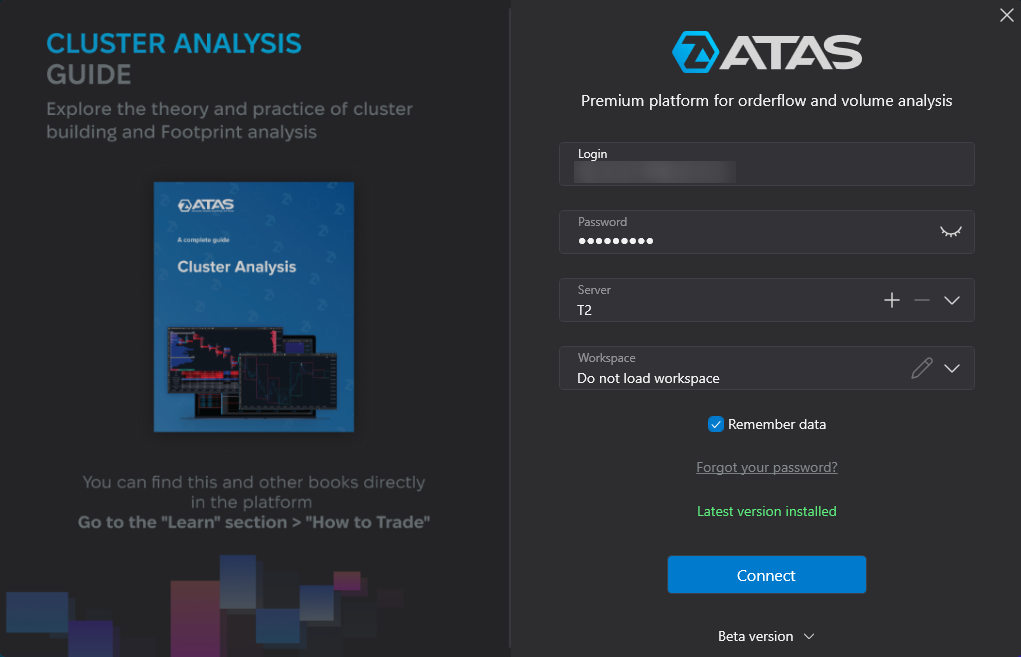
In the ATAS login menu, enter your username and password.
Rithmic Connection
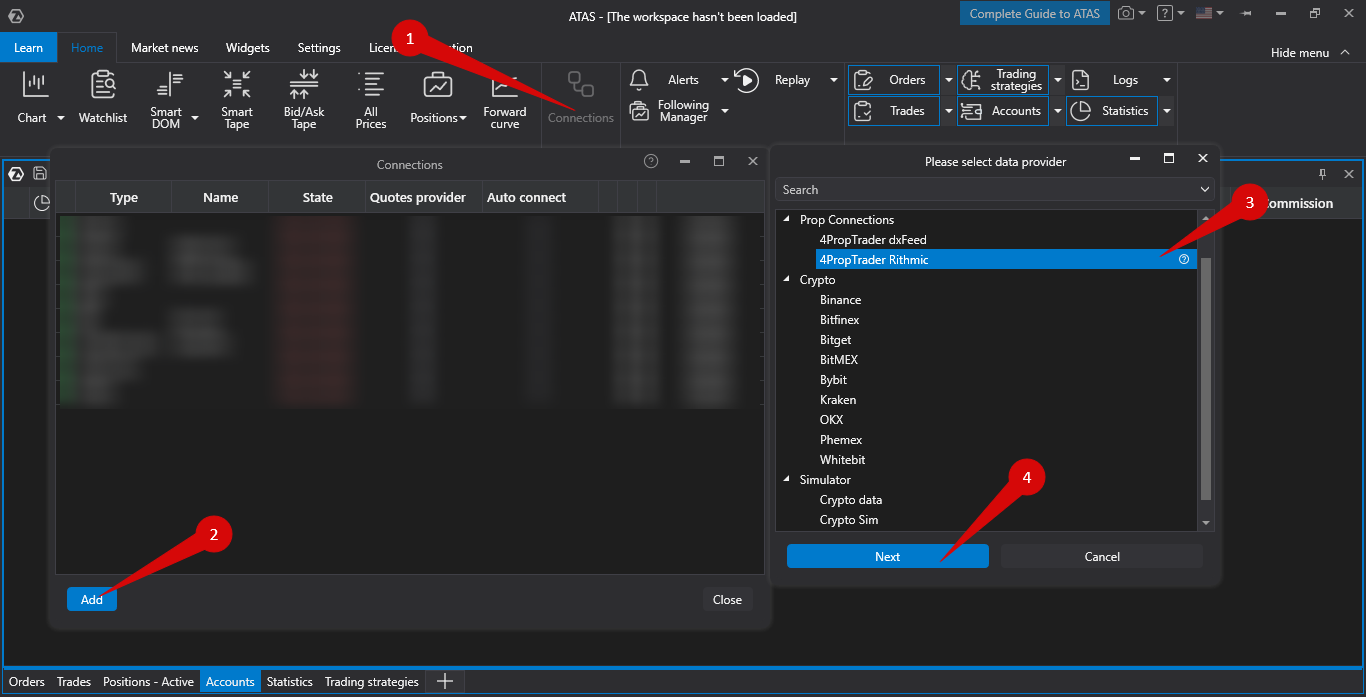
To connect the account using Rithmic, click Connections in the main platform window, then click Add. In the next window, select 4PropTrader Rithmic.
Enter the login and password for your 4PropTrader account.
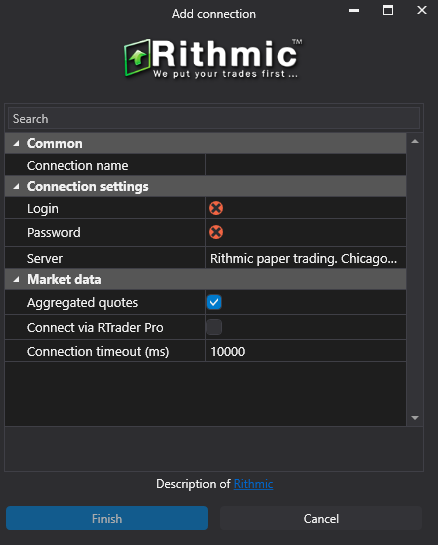
When connecting, it is important to select the Rithmic Paper Trading server.
Click Finish.
dxFeed Connection
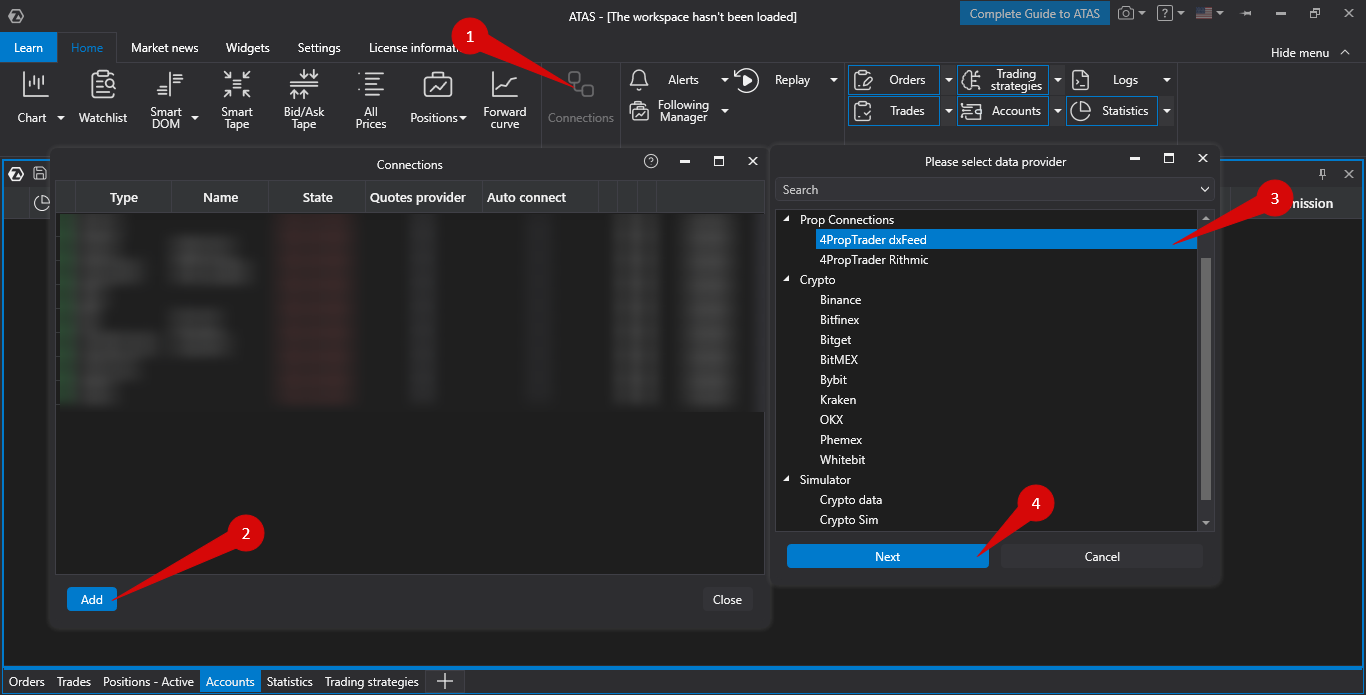
To connect the account using dxFeed, click Connections in the main platform window, then click Add. In the next window, select 4PropTrader dxFeed and click Next.
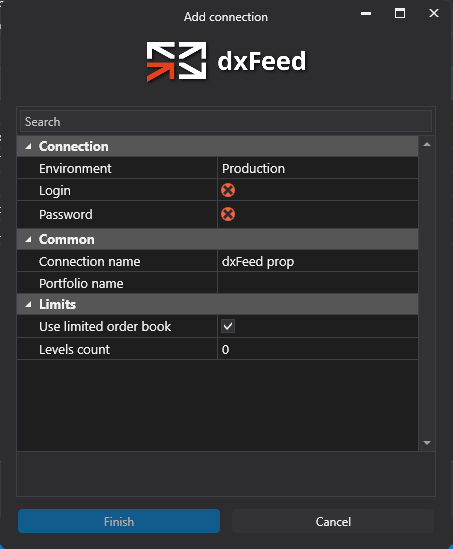
Enter the login and password for your dxFeed 4PropTrader account.
After configuring the connection, it will appear as a separate line in the list of connections.
You can read more about the settings of this window here: Connection Settings Window.
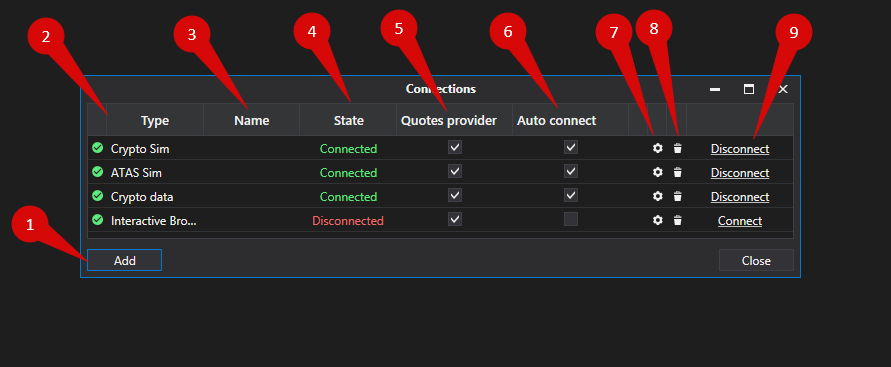
Connection Settings Overview
Add — add a new connection.
Type — connection source.
Name — the name of the connection, which you can set yourself.
State — connection status.
Is market data — option to choose a quote provider (this connection will be used as the quote provider).
Auto connect — enables automatic connection when the platform starts.
Connection settings button.
Delete — removes the connection from the list.
Connect/Disconnect — connects or disconnects the connector.
It is recommended to read other articles on this topic |
Was this article helpful?
That’s Great!
Thank you for your feedback
Sorry! We couldn't be helpful
Thank you for your feedback
Feedback sent
We appreciate your effort and will try to fix the article