This article explains how to place, move, cancel, and close orders directly from the chart in ATAS by using the Chart Trader module and the trading-from-chart mode.
Trading from the chart is useful when you want to work with orders visually: select a price level on the chart, place an order with a mouse click, and then manage the order without switching to another trading module.
Before placing real orders, make sure the correct account, instrument, order quantity, and trading mode are selected. If you are not familiar with the workflow, test it on a simulation account first.
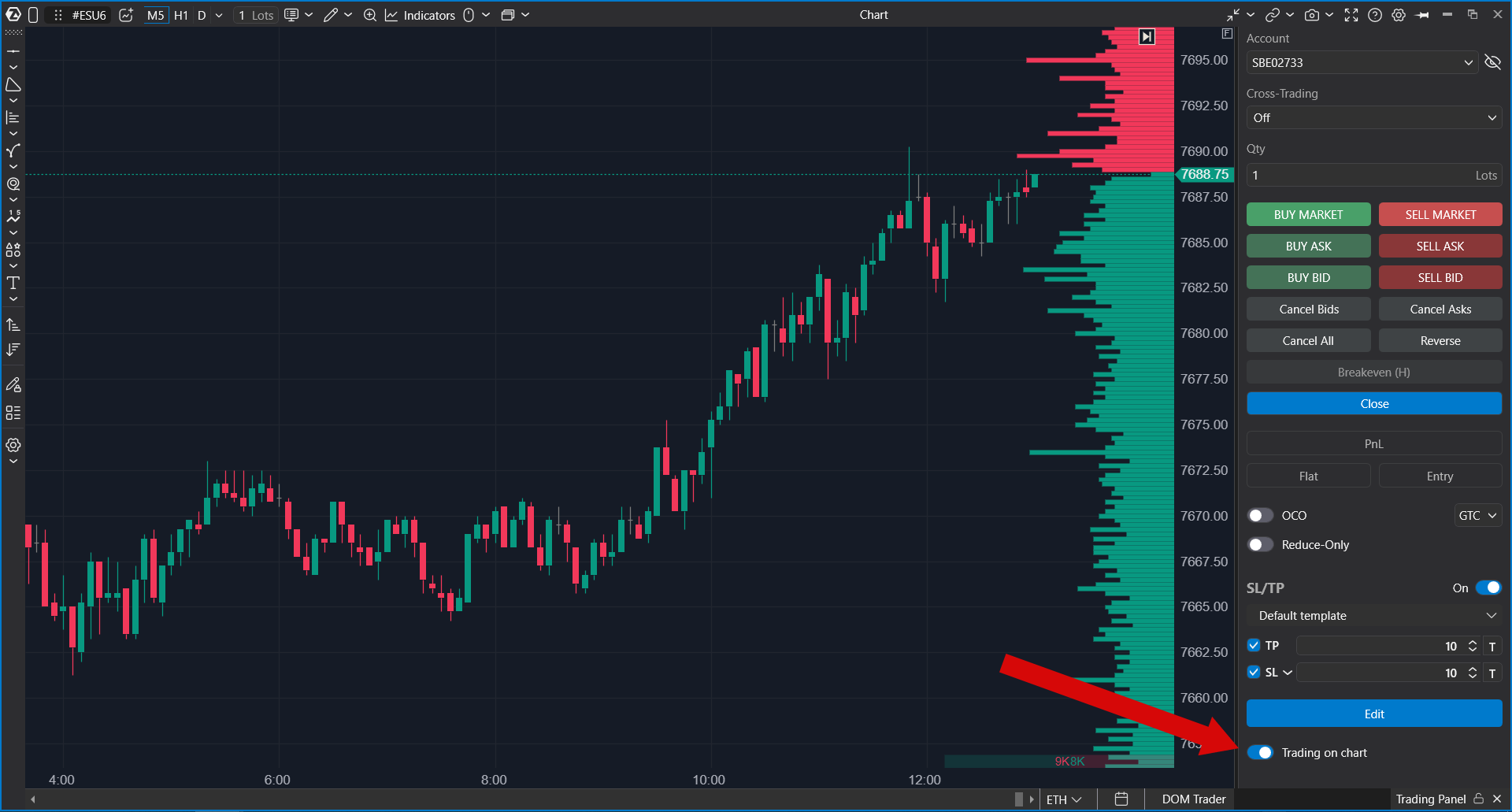
How to enable trading from the chart
- Open a chart for the required instrument.
- Open or enable the Chart Trader panel.
- Select the account that will be used for trading.
- Set the order quantity and other order parameters on the Chart Trader panel.
- Enable the trading-from-chart mode.
When the mode is enabled, move the cursor over the chart area. ATAS shows tooltips near the current cursor price level. These tooltips indicate which order type will be placed if you click the left or right mouse button.
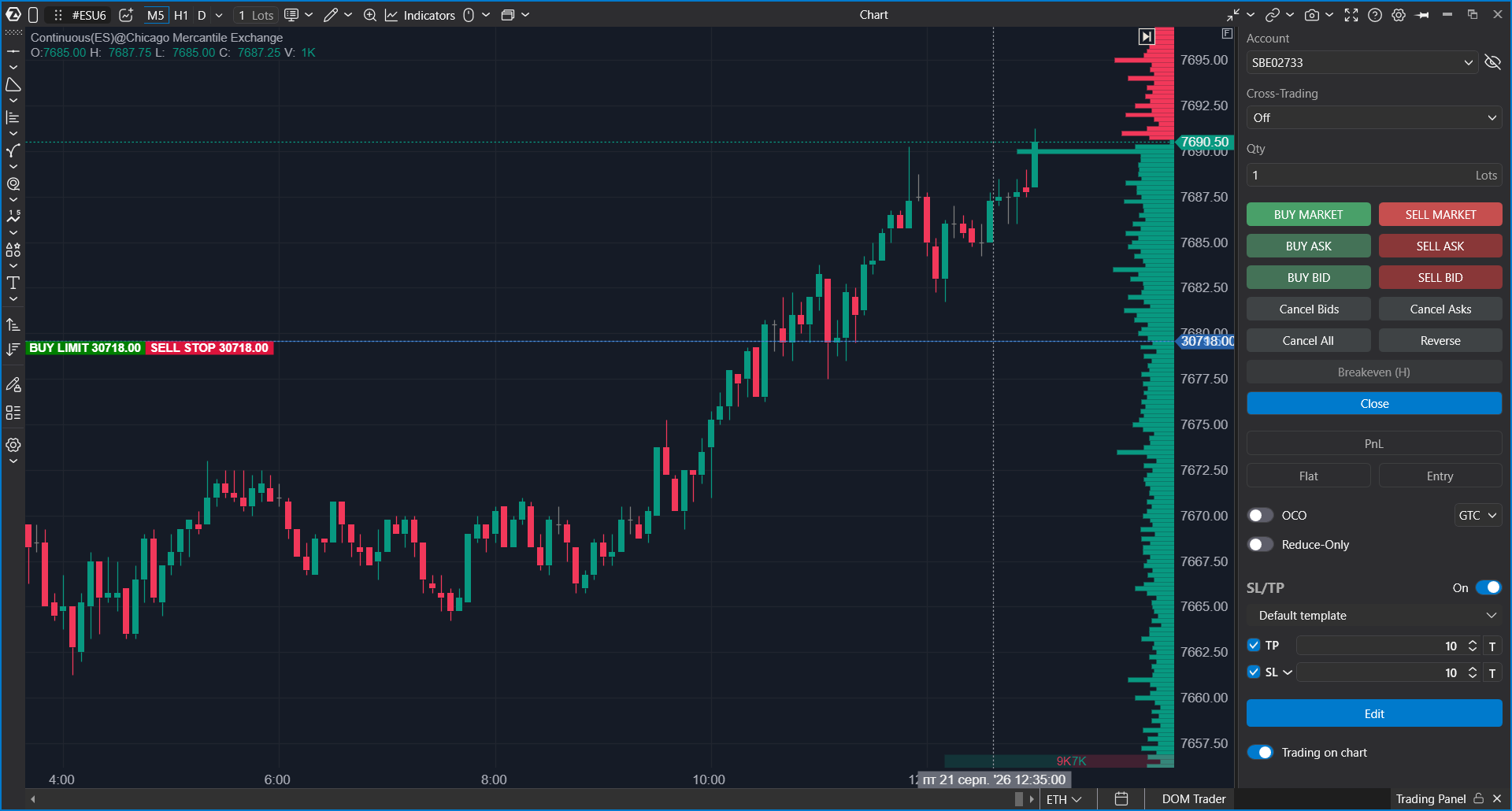
Placing orders in automatic order detection mode
In automatic order detection mode, the order type depends on where the cursor is located relative to the current Best Bid and Best Ask prices, and on whether you use the left or right mouse button.
Buy Limit order
If the cursor is below the Best Bid price, left-click on the chart to place a Buy Limit order at the selected price level.
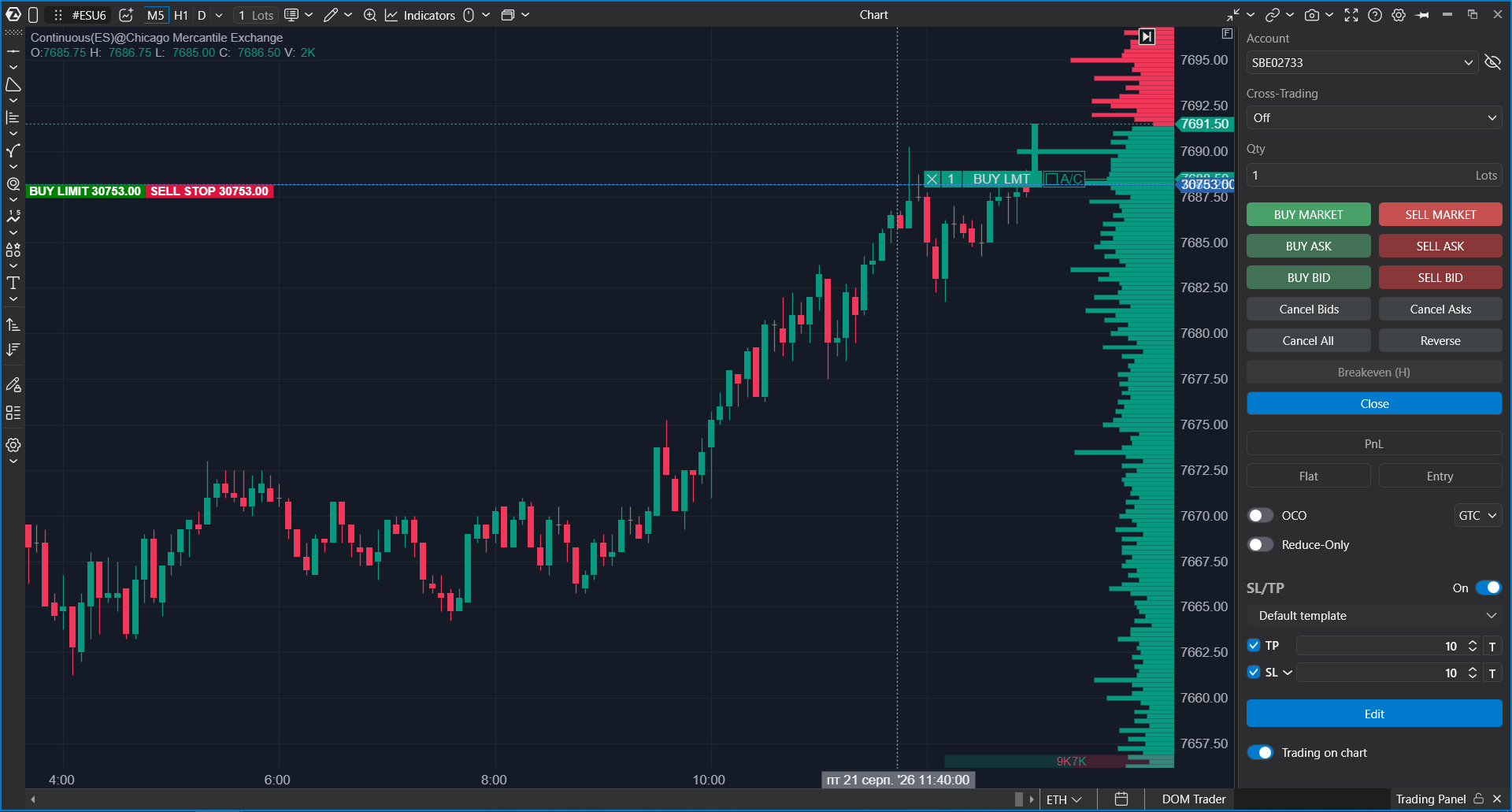
If you drag a Buy Limit order to the Best Ask price or higher, the exchange matching mechanism may execute the order immediately at the available ask price.
Sell Limit order
If the cursor is above the Best Ask price, left-click on the chart to place a Sell Limit order at the selected price level.
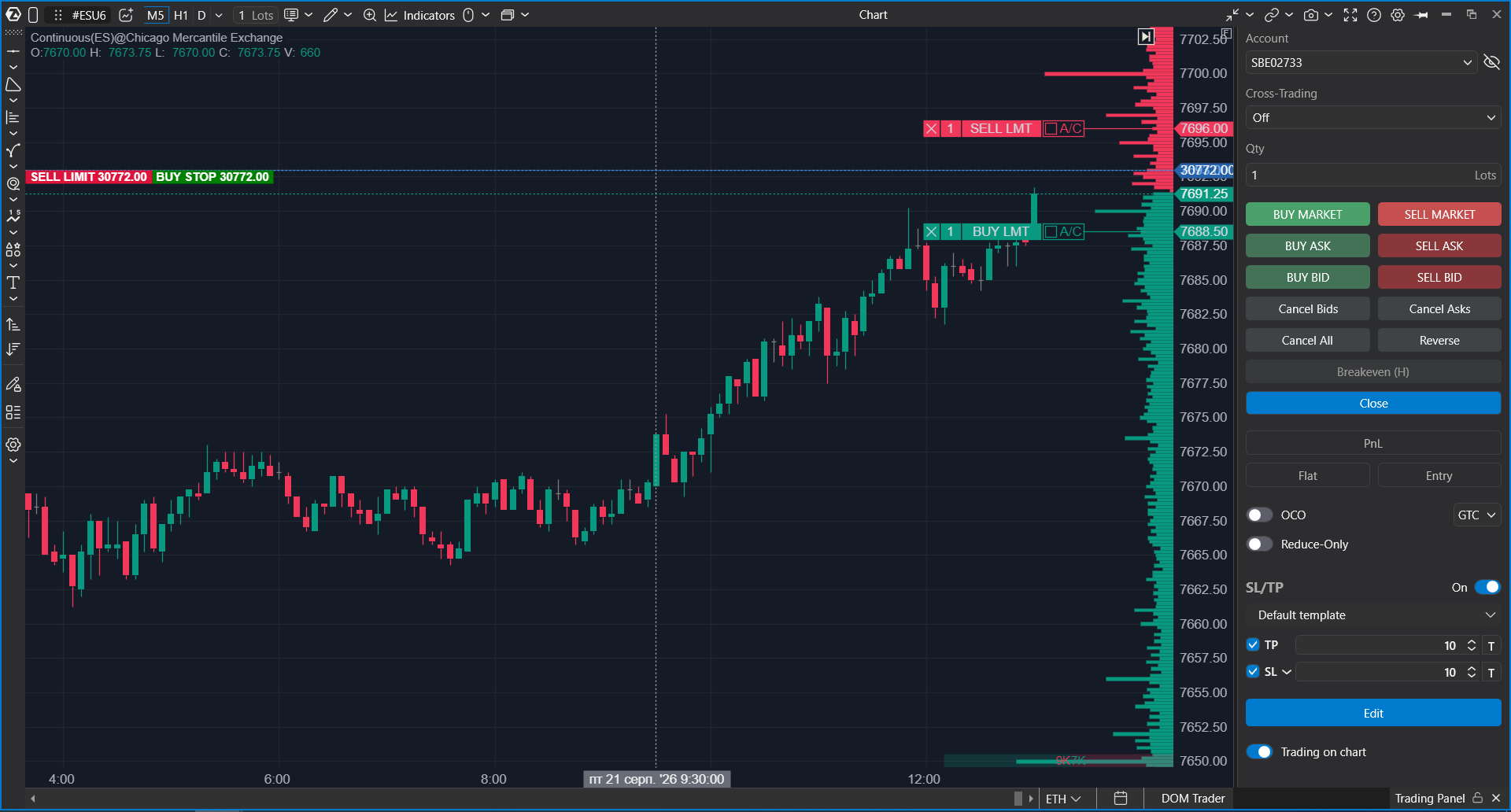
If you drag a Sell Limit order to the Best Bid price or lower, the exchange matching mechanism may execute the order immediately at the available bid price.
Buy Stop order
If the cursor is above the Best Ask price, right-click on the chart to place a Buy Stop order at the selected price level.
Sell Stop order
If the cursor is below the Best Bid price, right-click on the chart to place a Sell Stop order at the selected price level.
Placing pending orders from the context menu
You can also place pending Limit or Stop orders from the chart context menu.
- Turn off the trading-from-chart toggle.
- Right-click the required price level on the chart.
- Select the required order action from the context menu.
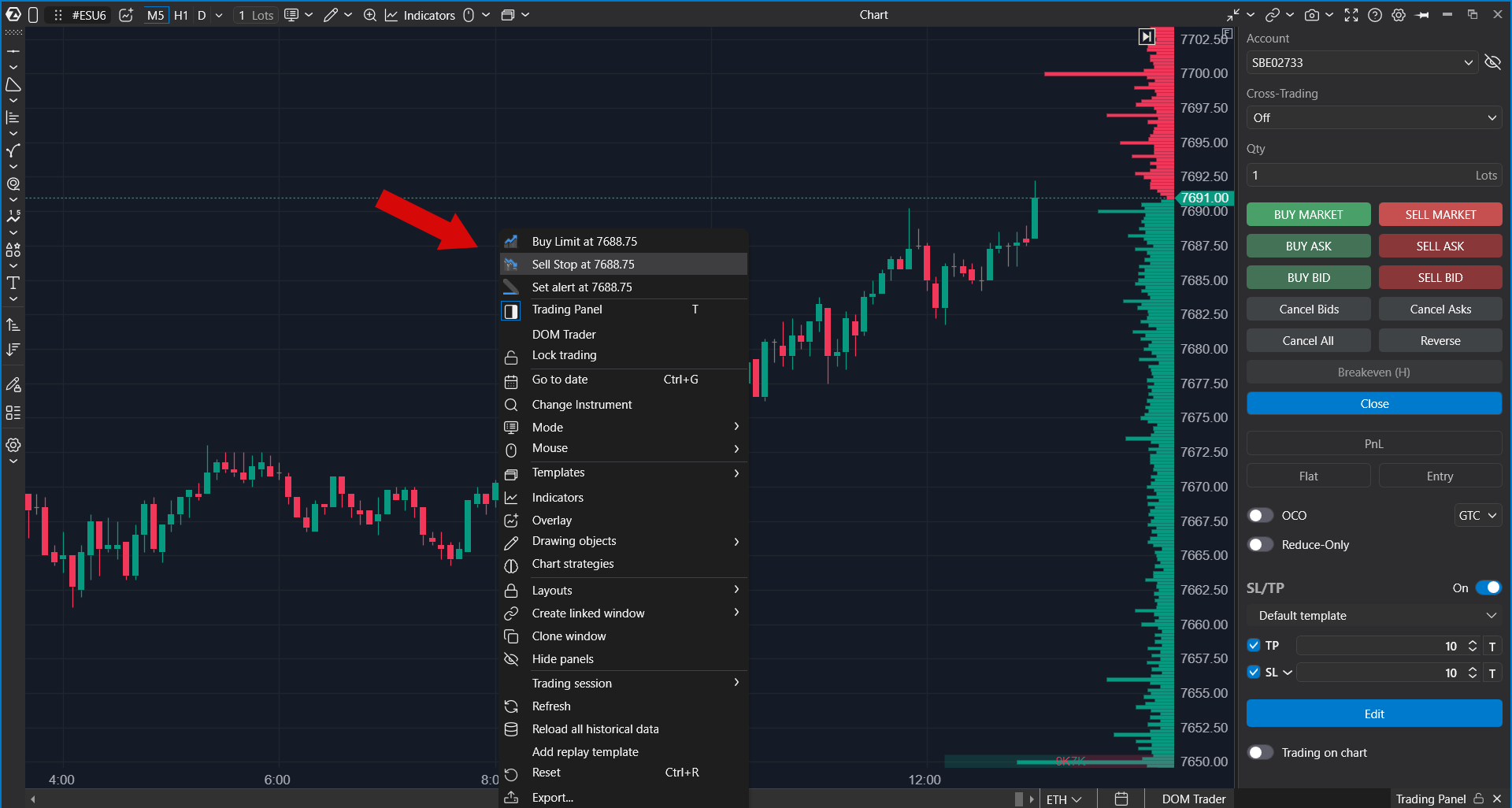
Use this method when you want to select an order action from the menu instead of relying on automatic left-click/right-click order detection.
Moving active orders
To change the price of an active pending order, click and hold the order label on the chart, drag it to the required price level, and release the mouse button
Be careful when moving orders close to the market price. Depending on the order side and type, moving an order through the Best Bid or Best Ask may lead to immediate execution.
Canceling orders
You can cancel active pending orders from the chart or from the Chart Trader panel.
- Click the X button on an order label to cancel a specific order.
- Use Cancel Bids to cancel all active buy orders for the selected instrument and account.
- Use Cancel Asks to cancel all active sell orders for the selected instrument and account.
- Use Cancel All to cancel all active pending orders for the selected instrument and account.
- Use configured hotkeys if your workspace has order-canceling hotkeys assigned.
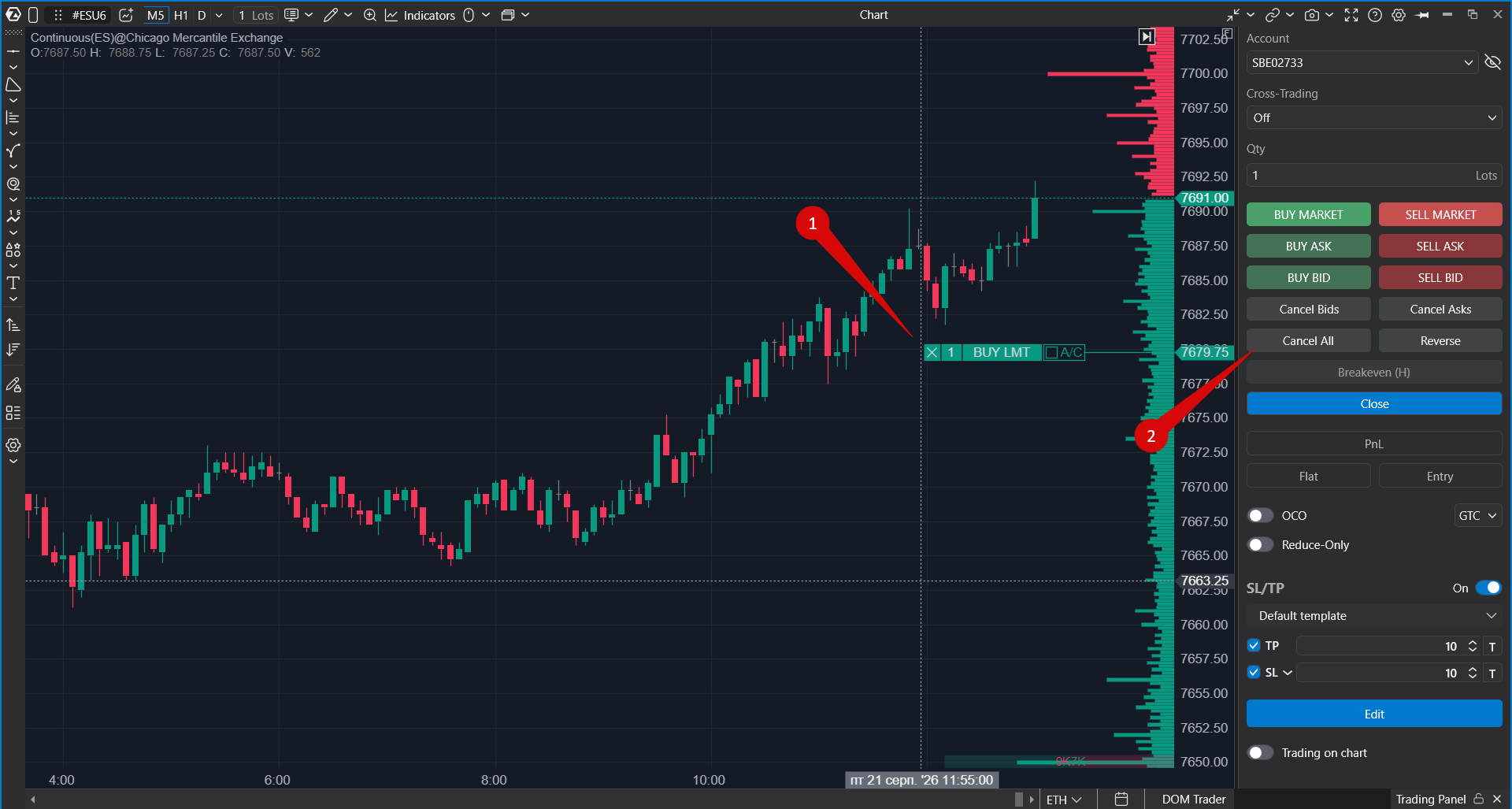
The Close button is not the same as a simple order-canceling command. If there is an open position, Close can close the position and remove related pending orders.
Closing an open position
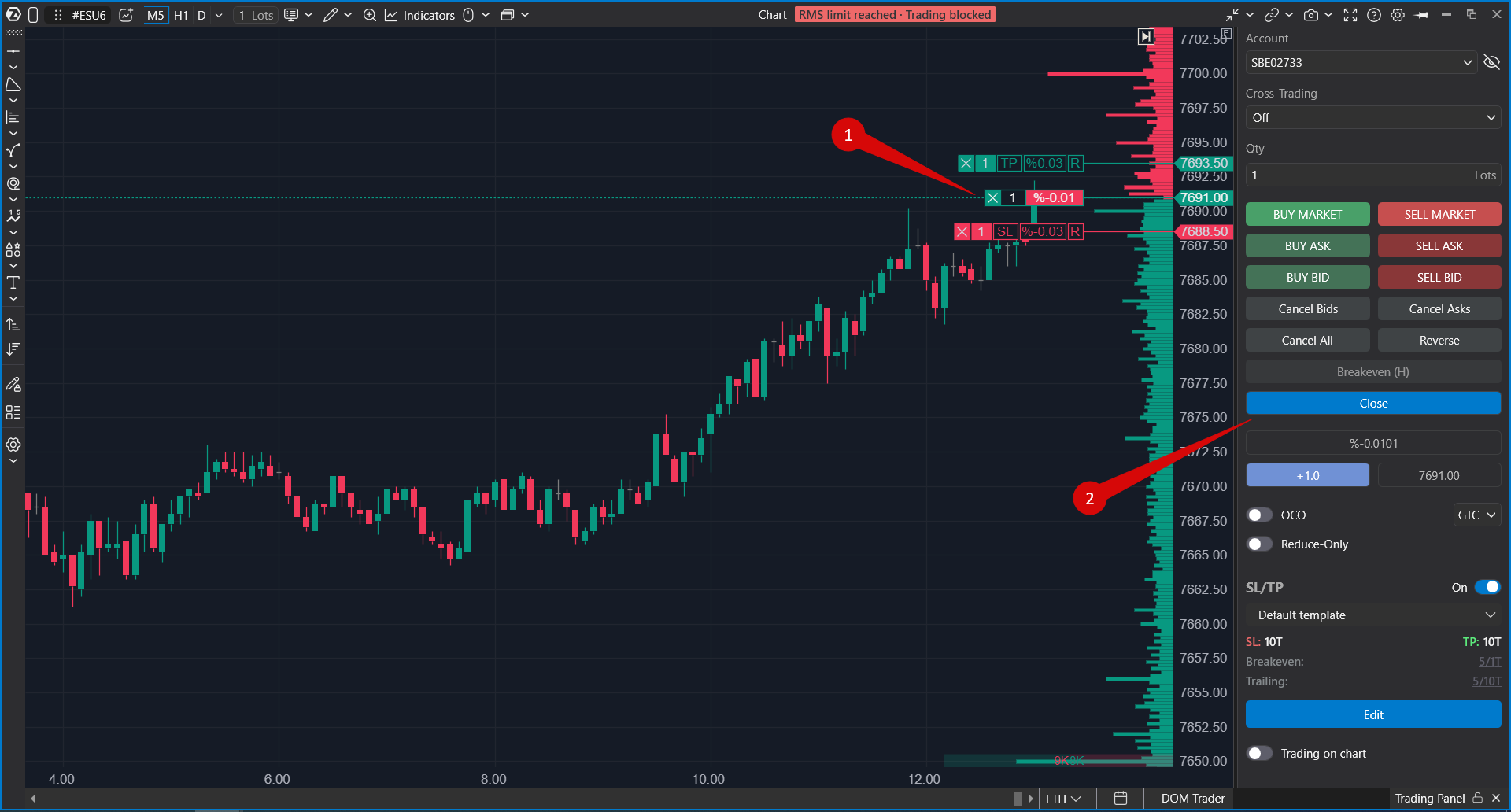
When you have an open position, you can close it in several ways:
- Click the X button on the position label on the chart, if available.
- Use the Close button on the Chart Trader panel to close the current position and remove pending orders for the selected instrument and account.
- Place an opposite order using the trading buttons or the trading-from-chart mode.
- Use configured hotkeys if your workspace has position-closing hotkeys assigned.
Route selection
The Route field lets you select the router or ECN through which the order will be sent.
This option is available only for stock trading on the American stock market.
OCO orders
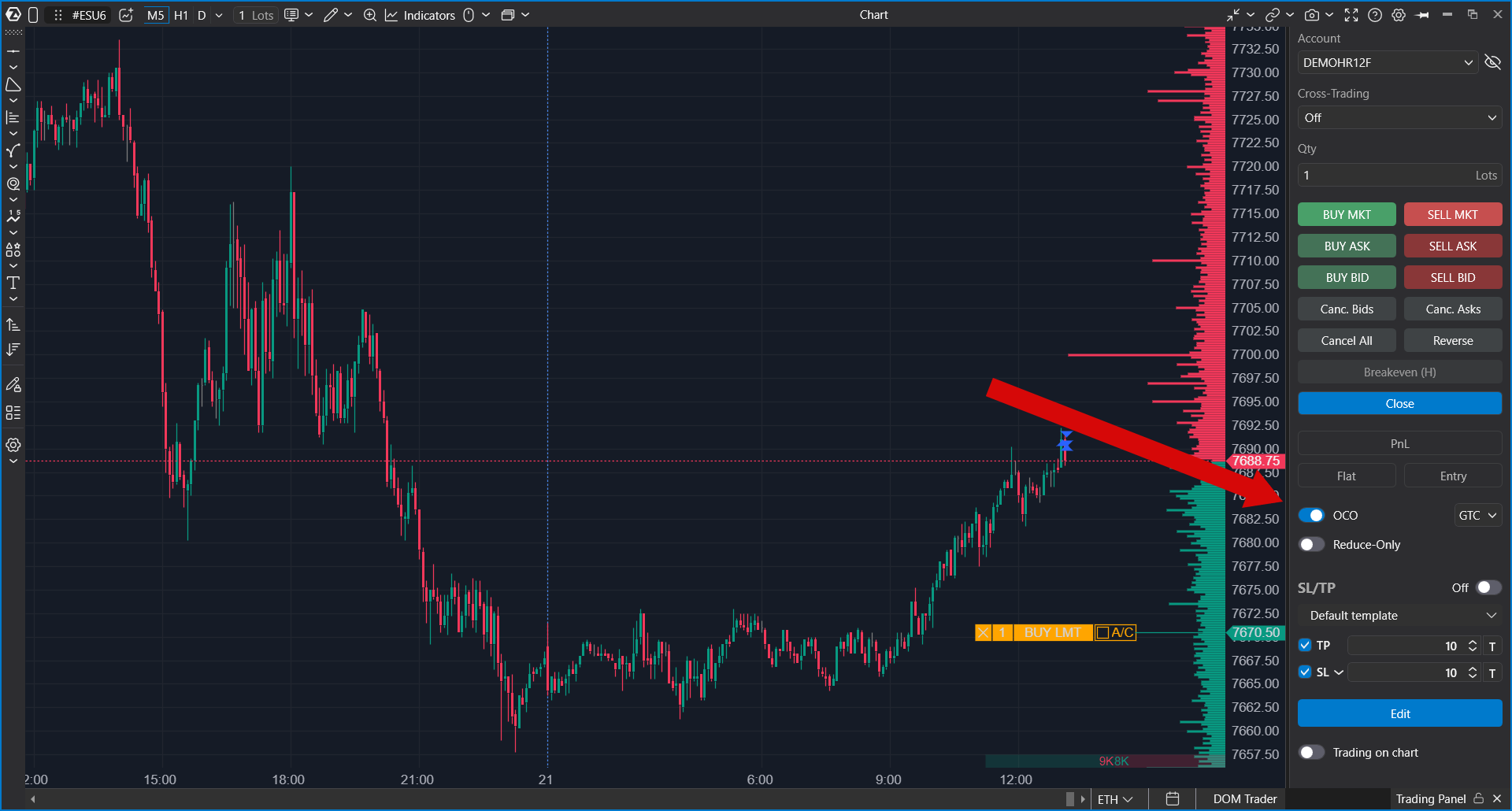
An OCO order, or One Cancels the Other order, combines two linked pending orders. When one order is filled, the other order is canceled automatically.
OCO orders can be used in ATAS through trading modules such as SMART DOM and Chart Trader.
Most order routing systems do not support OCO orders on the server side, so OCO orders are usually stored on the client side. For client-side OCO orders to work correctly, the ATAS platform must stay running and the trading account must remain connected.
Server-side order placement through ATAS is currently supported for the following accounts:
- CQG
- IB
- Crypto Sim
- ATAS Sim
Recommended checks before trading
- Check that the selected account matches the account you want to trade.
- Check the selected instrument and contract month.
- Check the order quantity before each order.
- Make sure the trading connection is active.
- Review any protective Stop Loss or Take Profit settings before placing a live order.
- If you use OCO orders, keep ATAS running and keep the account connected until the orders are filled or canceled.
Was this article helpful?
That’s Great!
Thank you for your feedback
Sorry! We couldn't be helpful
Thank you for your feedback
Feedback sent
We appreciate your effort and will try to fix the article