Risk Management helps you set personal trading risk limits for each trading account in ATAS. The module tracks today's trading results and can warn you or restrict new risk-taking when a limit is reached.
Use it as a self-control tool before trading: define what loss, profit target, number of trades, or losing streak should stop you for the day.
Risk Management works only for trading activity performed through ATAS. It does not lock your broker account and cannot prevent trading from another platform.
Availability
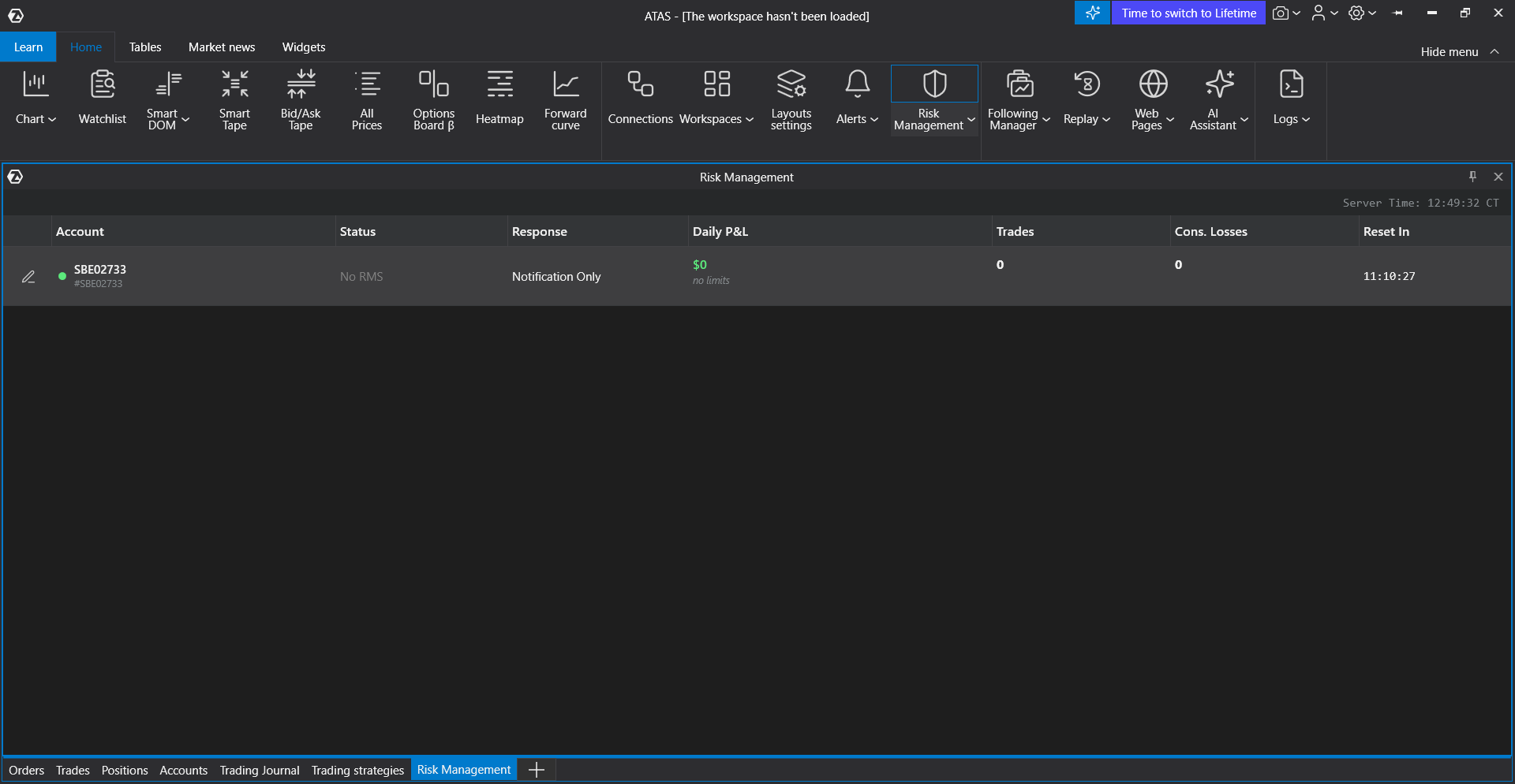
The module is available only when the Risk Management feature is enabled for your ATAS account and platform version. If you do not see it in the platform menu, contact ATAS support.
How to open Risk Management
- Open the ATAS main window.
- Open the platform modules or tables menu.
- Select Risk Management.
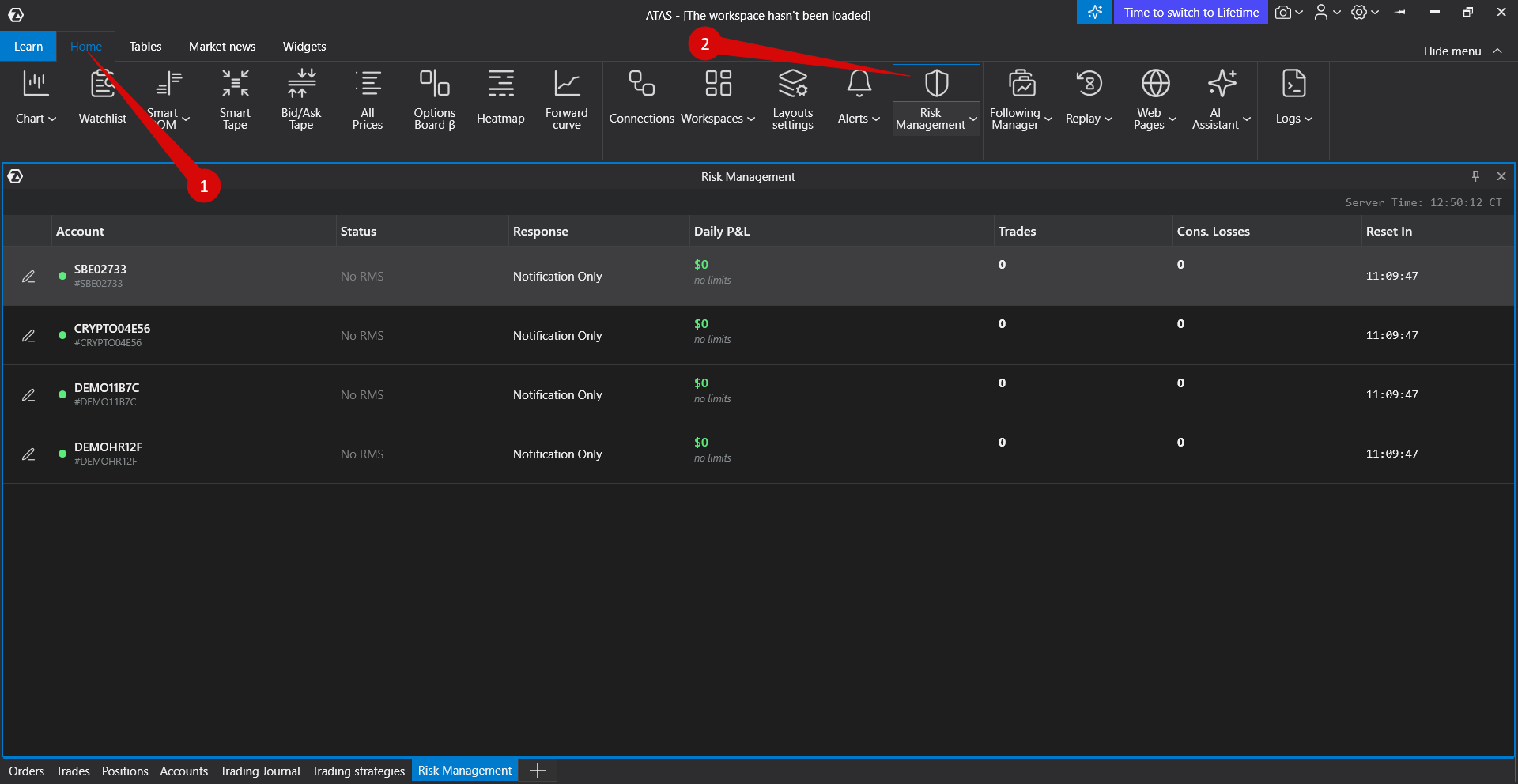 The window shows trading accounts connected or configured in ATAS. Each account has its own risk settings and current status.
Main Window
The account list shows the current risk state for each account:
- Account - the trading account name.
- Status - the current RMS state for this account.
- Response - what ATAS does when a limit is reached.
- Daily P&L - today's closed-trade result for the current RMS day.
- Trades - the number of trades counted for the current RMS day.
- Cons. Losses - consecutive losing trades that meet the configured loss threshold.
- Reset In - time left until the next daily reset.
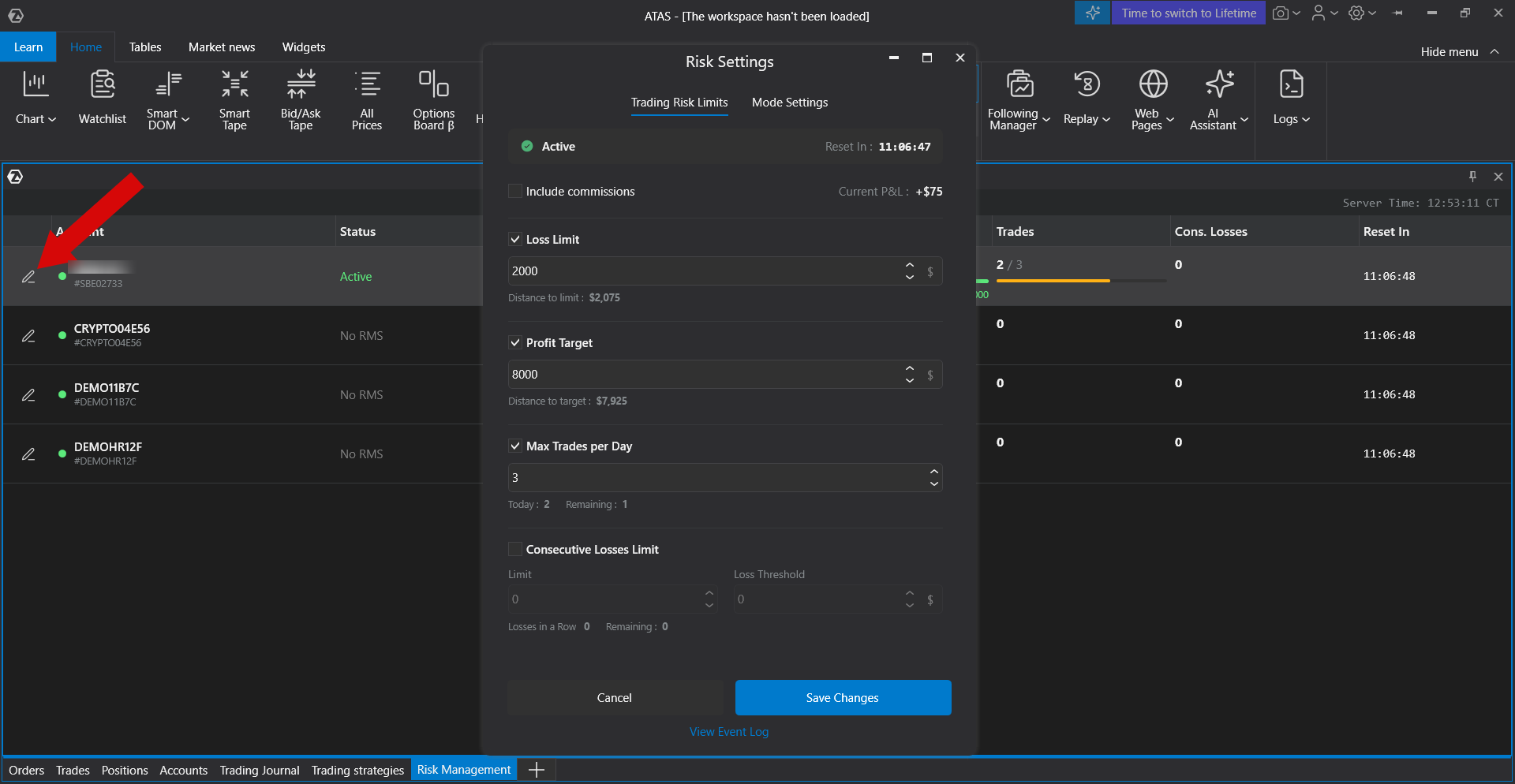
Use the settings action for an account to configure or change its RMS rules.
Account Statuses
- Active - at least one RMS rule is enabled and no active limit has been reached.
- Blocked - a risk rule has been reached. If Response Mode is set to Reduce Only, opening new positions and increasing existing positions are blocked.
- Target - the daily profit target has been reached. Restrictions depend on the selected response mode.
- No RMS - no RMS rules are enabled for the account, so trading is not restricted by RMS.
Risk Settings
| Setting | What it controls |
|---|---|
| Loss Limit | The maximum daily loss allowed for the account. |
| Profit Target | The daily profit target. When it is reached, the account status becomes Target. |
| Include commissions | Includes commissions in Daily P&L calculations when enabled. |
| Max Trades per Day | The maximum number of trades allowed during the current RMS day. |
| Consecutive Losses Limit | The maximum number of consecutive losing trades allowed for the day. |
| Loss Threshold | The minimum loss amount required for a trade to count as a losing trade in the consecutive-loss rule. |
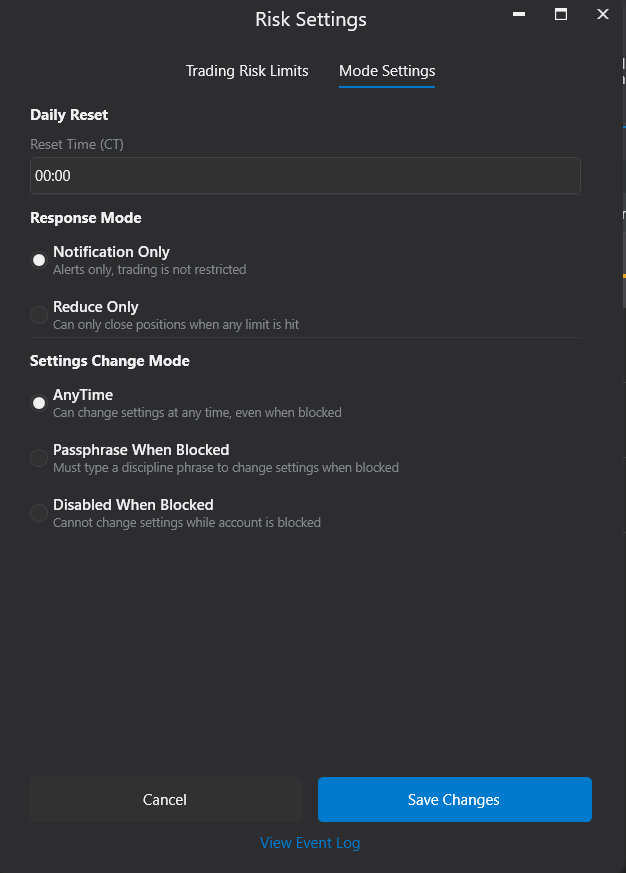
| Reset Time (CT) | The daily reset time used by RMS. |
Response Mode
- Notification Only - ATAS shows alerts only. Trading is not restricted.
- Reduce Only - when a limit is reached, opening new positions and increasing existing positions are blocked. Closing positions and cancelling orders remain available.
If an order would both reduce an existing position and open a reverse position, ATAS blocks the whole order instead of partially reducing it.
Settings Change Mode
Settings Change Mode defines whether risk settings can be changed after the account is already Blocked or Target.
- AnyTime - settings can be changed at any time. If the new settings no longer violate a limit, the account can return to Active.
- Passphrase When Blocked - when the account is Blocked or Target, you must enter the discipline phrase shown in the confirmation window before saving changes.
- Disabled When Blocked - settings cannot be changed while the account is blocked. Wait for the daily reset.
Warnings and Confirmations
- If saving the settings would immediately block the account, ATAS shows an Immediate Block Warning.
- When you enable Reduce Only or change Settings Change Mode, ATAS shows a Protection Mode Warning.
- If you cancel the passphrase confirmation, unsaved settings are discarded and the form returns to the current saved values.
Event Log
Use View Event Log to review RMS events for the account, such as risk settings changes, account blocks, target reached, user confirmations, daily reset, and unblocking after a settings change.
Important Notes
- Daily metrics are calculated for the current RMS day.
- The reset uses Reset Time (CT).
- Trades from earlier daily windows do not affect today's RMS values when historical trades are loaded into the platform.
- If a daily target or blocking limit is reached, the account stays in that state until the daily reset. Changing settings can clear the state only when the selected mode allows it and the new settings are no longer violated.
- Risk Management is a self-control feature inside ATAS. It does not control trading performed outside ATAS.
Was this article helpful?
That’s Great!
Thank you for your feedback
Sorry! We couldn't be helpful
Thank you for your feedback
Feedback sent
We appreciate your effort and will try to fix the article