Ventana de autorización
Este artículo describe la ventana de Autorización, explica cómo alternar entre versiones de la plataforma y proporciona instrucciones para la recuperación de contraseña.
Puede descargar e instalar ATAS X aquí: https://atas.net/atas-x/. Se utilizan las mismas credenciales para ATAS Classic, ATAS X y la cuenta personal en atas.net.
Ventana de autorización de ATAS X
Ventana de autorización de ATAS X y selección de la versión de la plataforma
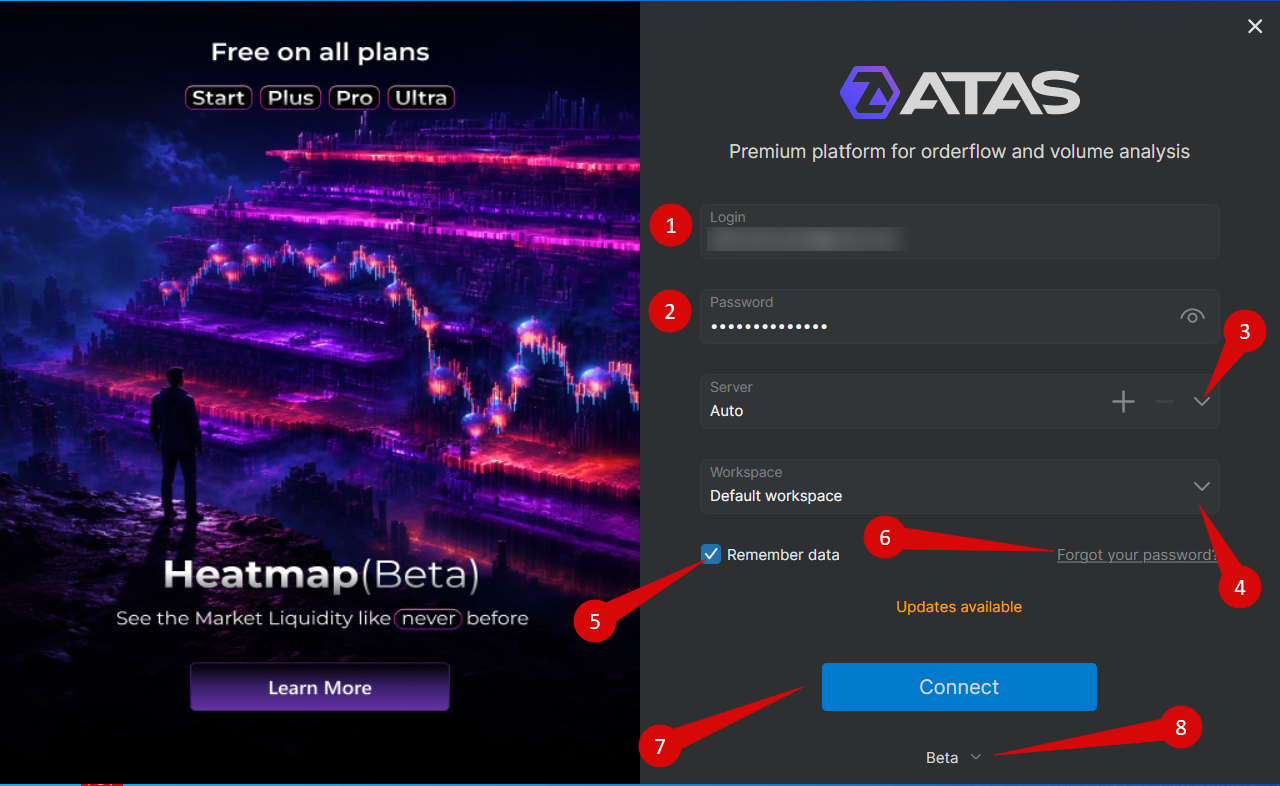
Elementos de la ventana de autorización
| Elemento | Descripción |
| 1. Login | Dirección de correo electrónico utilizada para su cuenta de ATAS. |
| 2. Password | Contraseña de su cuenta de ATAS. |
| 3. Server | Seleccione uno de los servidores disponibles: F2, E2, T2, R2 o Auto. |
| 4. Workspace | Seleccione un espacio de trabajo para cargar después de la autorización. |
| 5. Remember Data | Guarda la información de inicio de sesión para futuras sesiones. |
| 6. Forgot your password? | Abre la recuperación de contraseña. |
| 7. Connect | Inicie sesión en la plataforma. |
| 8. Platform Version | Seleccione la versión de la plataforma para iniciar. |
Versiones de la plataforma ATAS X
Alpha
Alpha es la primera versión de prueba de ATAS X. Incluye las funciones más recientes y los cambios importantes que aún están en desarrollo activo.
Puede ser inestable y puede incluir funcionalidades incompletas, errores o limitaciones temporales. Está destinada a pruebas tempranas, no al uso diario.
Beta
Beta es una versión de prueba más estable de ATAS X. Incluye funciones y correcciones que ya han superado la prueba inicial de Alpha.
Ventana de autorización de ATAS Classic
Ventana de autorización de ATAS y selección de la versión de la plataforma

Elementos de la ventana de autorización
| Elemento | Descripción |
| 1. Login | Dirección de correo electrónico utilizada para su cuenta de ATAS. |
| 2. Password | Contraseña de su cuenta de ATAS. |
| 3. Server | Seleccione uno de los servidores disponibles: F2, E2, T2, R2 o Auto. |
| 4. Workspace | Seleccione un espacio de trabajo para cargar después de la autorización. |
| 5. Workspace Editor | Edite un espacio de trabajo sin abrirlo ni cargar gráficos. |
| 6. Warning Icon | Aparece cuando el espacio de trabajo seleccionado contiene una gran cantidad de datos que pueden afectar el rendimiento. |
| 7. Remember Credentials | Guarda la información de inicio de sesión para futuras sesiones. |
| 8. Connect | Inicie sesión en la plataforma. |
| 9. Platform Version | Seleccione la versión de la plataforma para iniciar. |
Cuando se selecciona Auto, la plataforma elige automáticamente un servidor disponible.
Versiones de la plataforma ATAS Classic
Stable
La versión Stable es la versión principal de producción recomendada para el uso diario.
Se publica varias veces al año y pasa por extensas pruebas tanto por parte del equipo de QA de ATAS como de la comunidad de ATAS antes de su lanzamiento.
Es posible que esta versión no incluya las funciones más recientes disponibles en versiones posteriores.
Latest
La versión Latest es una candidata a versión final que está disponible antes de la próxima versión Stable.
Contiene nuevas funcionalidades y correcciones de errores que ya han pasado la fase beta y están en validación final.
Beta
La versión Beta contiene las funciones y mejoras más recientes que actualmente están en pruebas activas.
Debido a que el desarrollo está en curso, esta versión puede contener errores o limitaciones temporales.
Selección del servidor
La plataforma puede conectarse a los siguientes servidores:
- F2
- E2
- T2
- R2
- Auto
Cuando se selecciona Auto, la plataforma se conecta automáticamente a uno de los servidores disponibles.
El servidor seleccionado no afecta la funcionalidad de la plataforma, ya que todos los servidores proporcionan servicios idénticos.
Los servidores alojan los siguientes servicios de demostración:
- ATAS Sim
- Crypto Sim
- Crypto Data conexión de datos de mercado
ATAS no proporciona datos de mercado de intercambio en tiempo real de forma predeterminada.
Para recibir datos de mercado en vivo, conecte un bróker o proveedor de datos de mercado compatible.
Recuperación de contraseña
Método 1 — A través del sitio web de ATAS
- Abra el sitio web de ATAS y haga clic en Sign In.
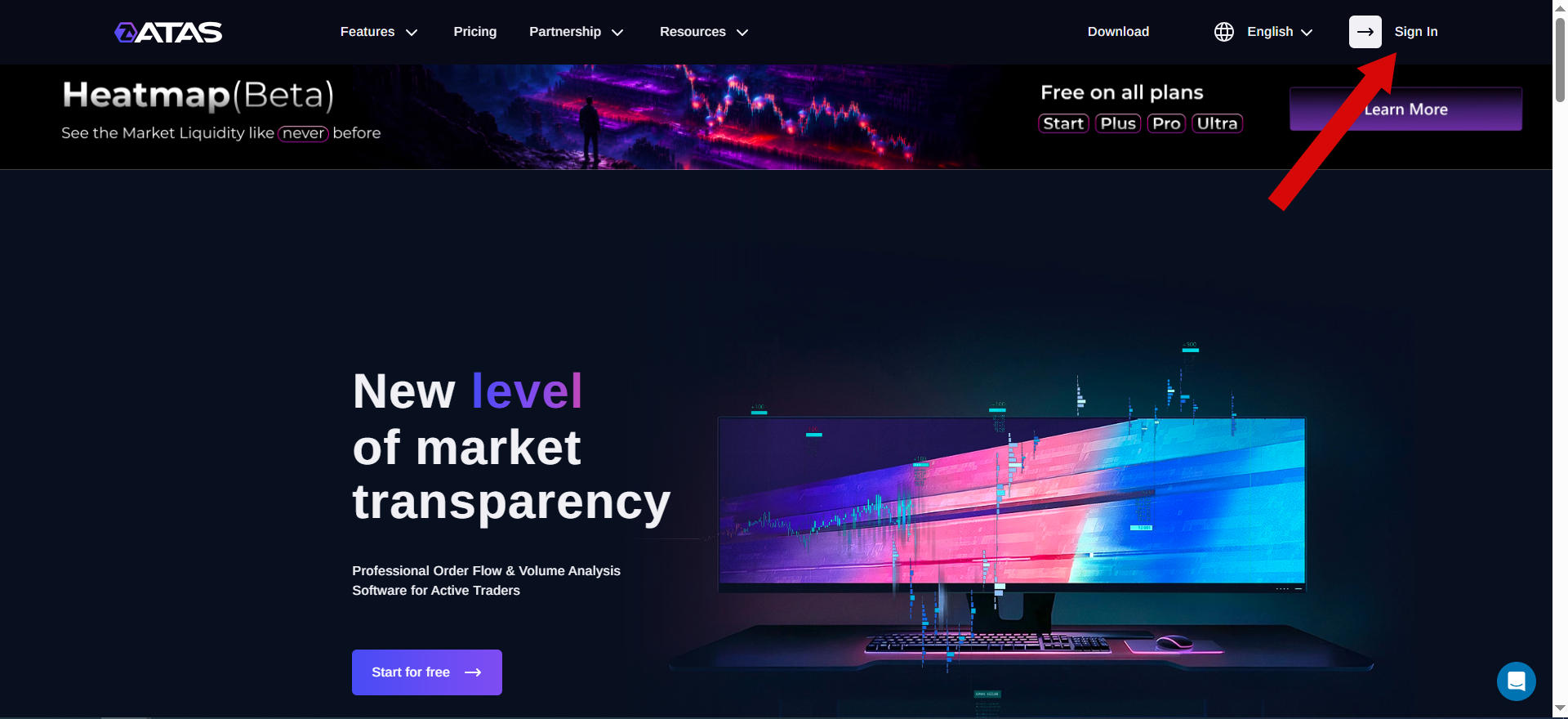
- Seleccione la pestaña Sign In y haga clic en Forgot your password?.
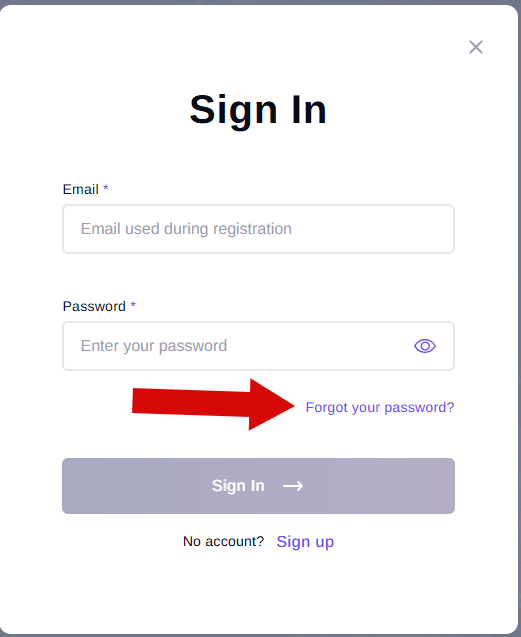
- Se abrirá la ventana de recuperación de contraseña.
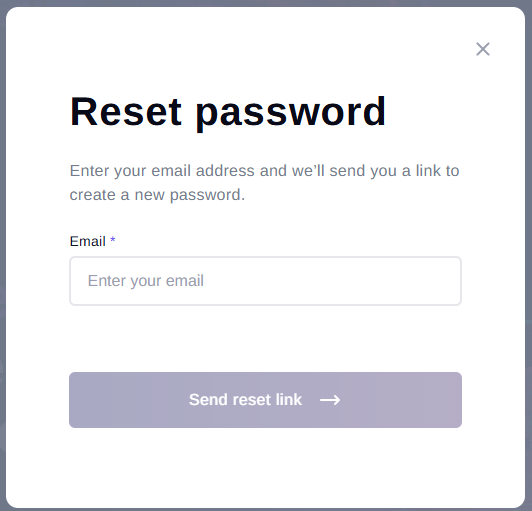
- Introduzca su dirección de correo electrónico y haga clic en Continue.
- Aparecerá un mensaje de confirmación.
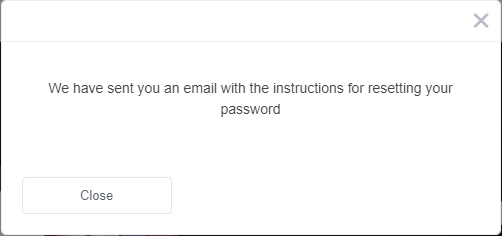
- Revise su correo electrónico y abra el mensaje de recuperación de contraseña.
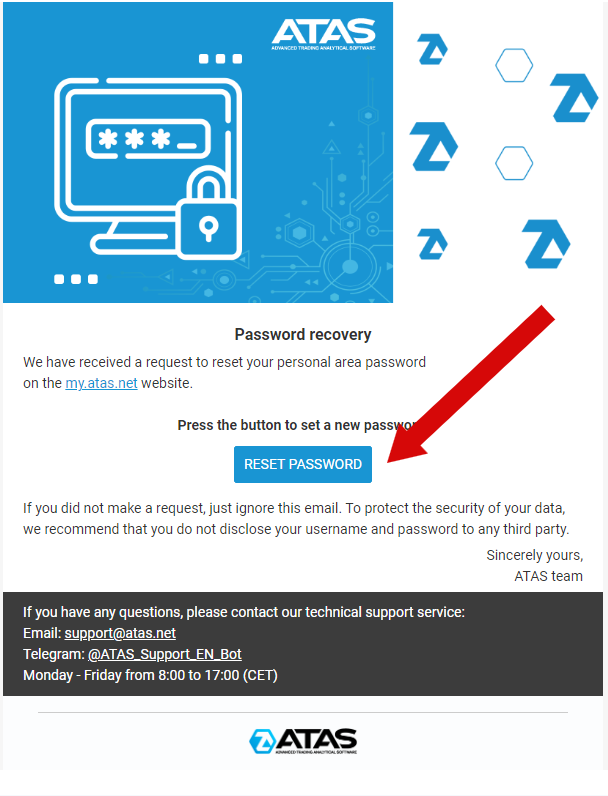
- Haga clic en Change Password.
- Se abrirá la página de restablecimiento de contraseña.
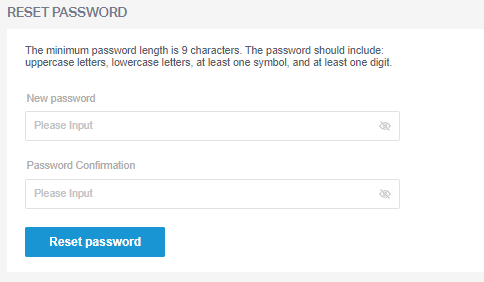
- Introduzca y confirme su nueva contraseña.
- Haga clic en Reset Password.
- Aparecerá un mensaje de confirmación indicando que la contraseña se ha cambiado correctamente.

Método 2 — A través de la cuenta personal
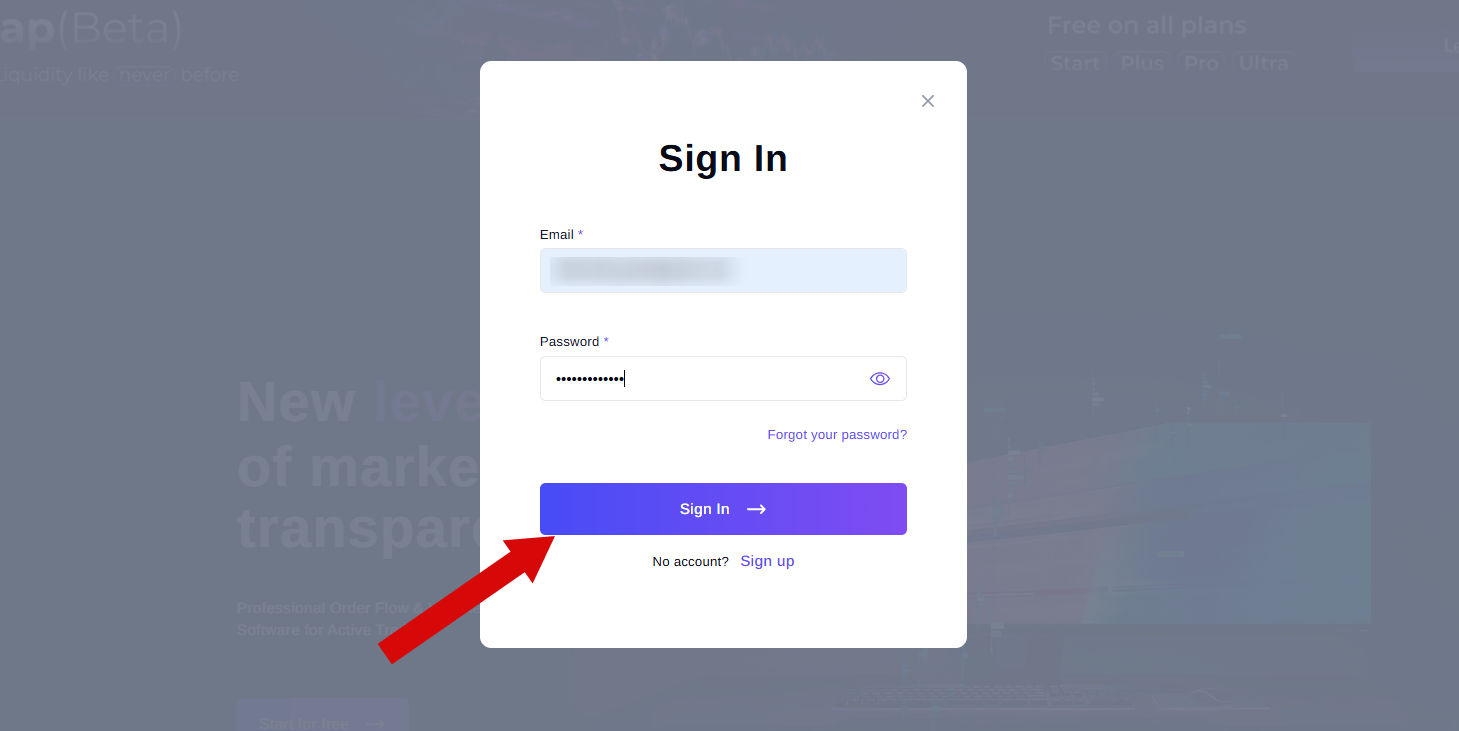
- Abra el sitio web de ATAS y haga clic en Sign In.
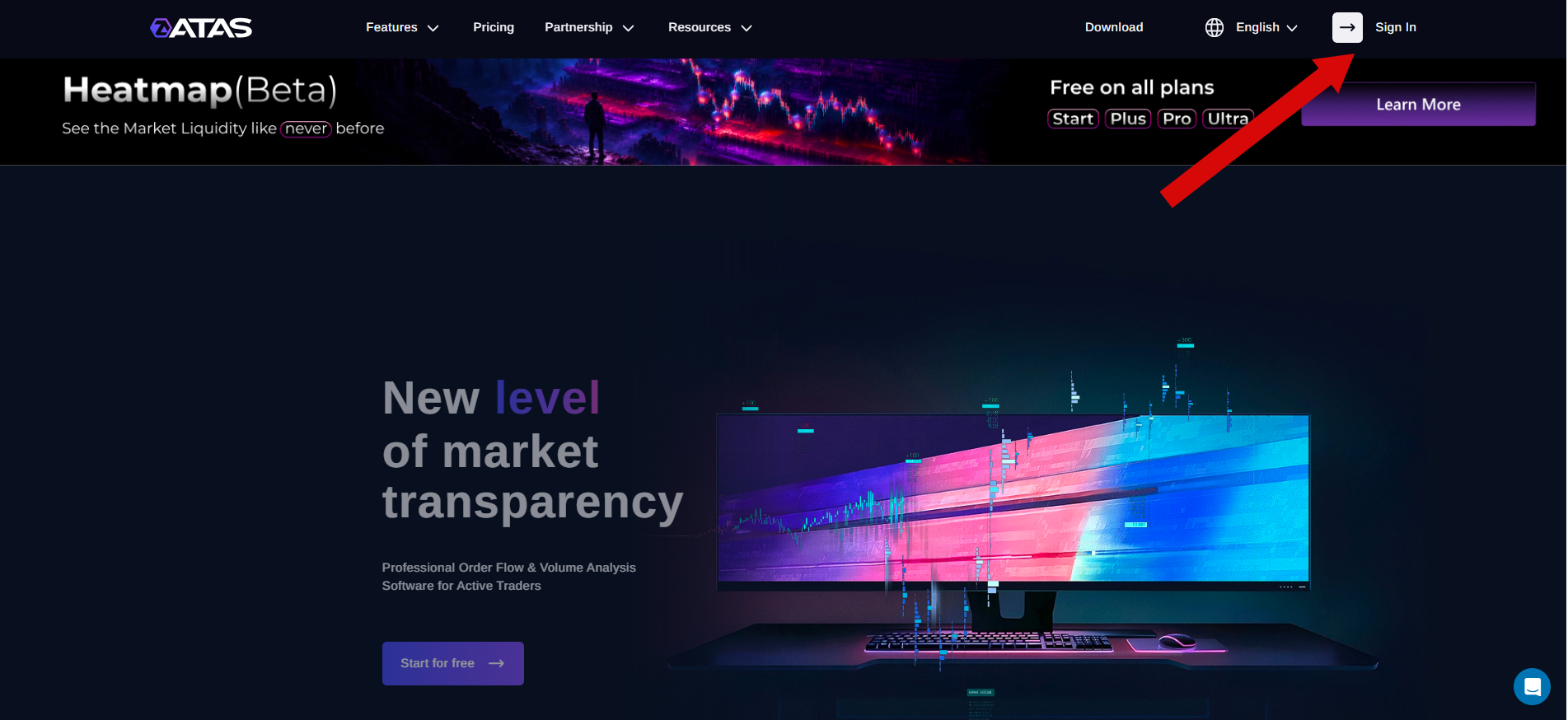
- Inicie sesión en su cuenta personal.
- Abra My Profile → Change Password.
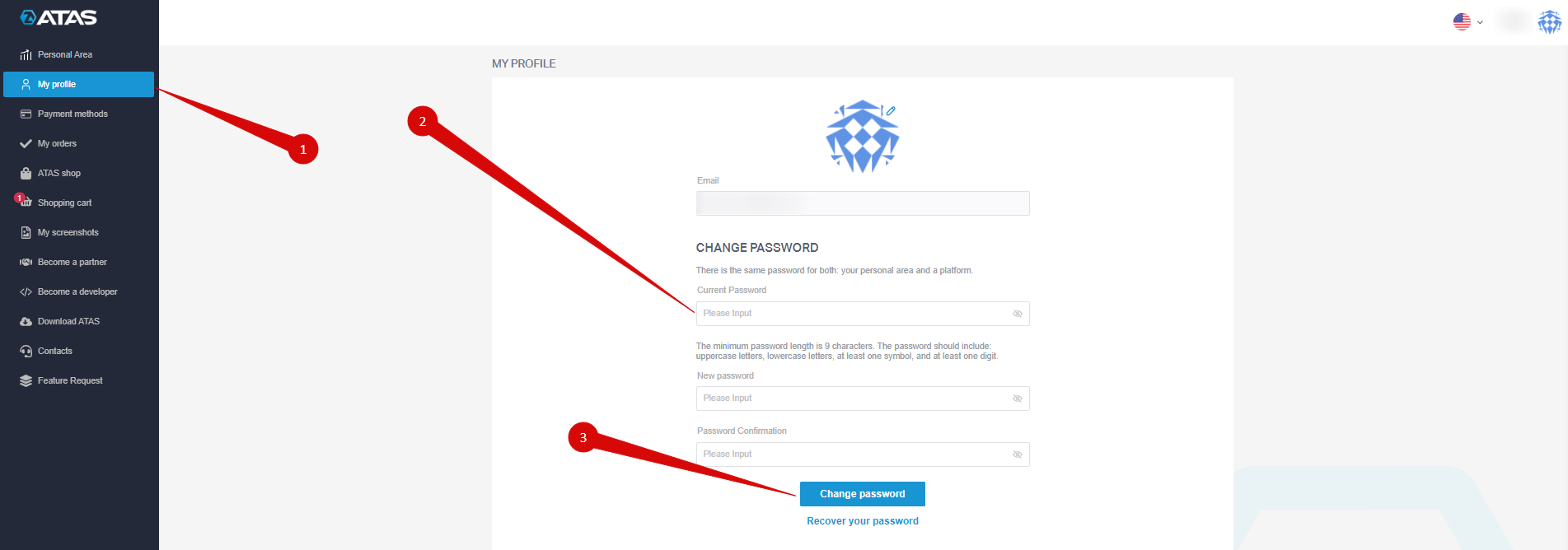
- Introduzca su contraseña actual y luego introduzca y confirme su nueva contraseña.
- Haga clic en Change Password.
- Una notificación confirmará que la contraseña se ha cambiado correctamente.

Método 3 — A través de la plataforma ATAS
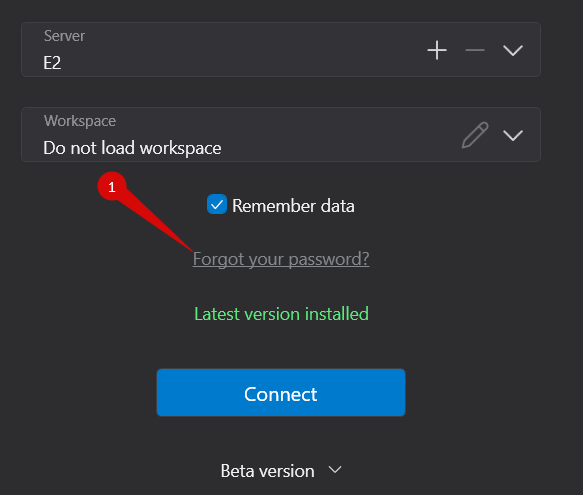
- Abra la ventana de autorización de ATAS.
- Haga clic en Forgot your password?.
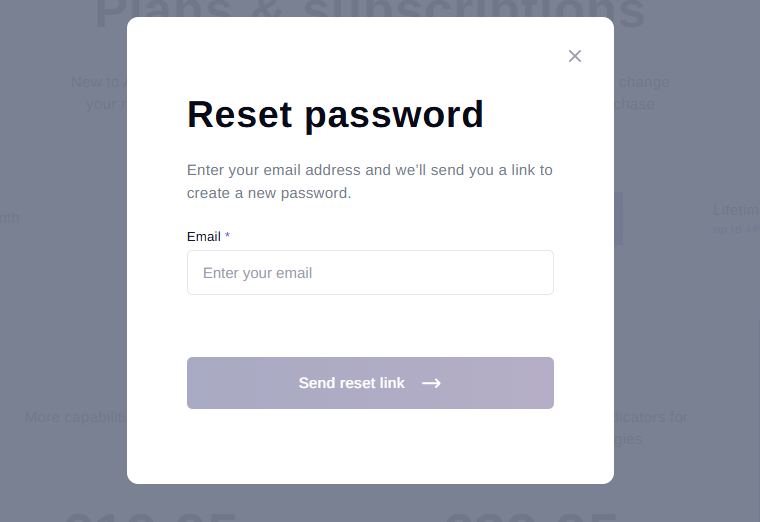
- Introduzca su dirección de correo electrónico y haga clic en Send Reset Link.
Uso de ATAS en varios ordenadores
Puede utilizar la misma cuenta de ATAS en varios ordenadores, pero solo se permite una sesión activa a la vez. Para iniciar sesión en otro dispositivo, utilice la misma dirección de correo electrónico y la misma contraseña asociadas a su cuenta de ATAS.
¿Le ha sido útil este artículo?
¡Qué bien!
Gracias por sus comentarios
¡Sentimos mucho no haber sido de ayuda!
Gracias por sus comentarios
Sus comentarios se han enviado
Agradecemos su esfuerzo e intentaremos corregir el artículo