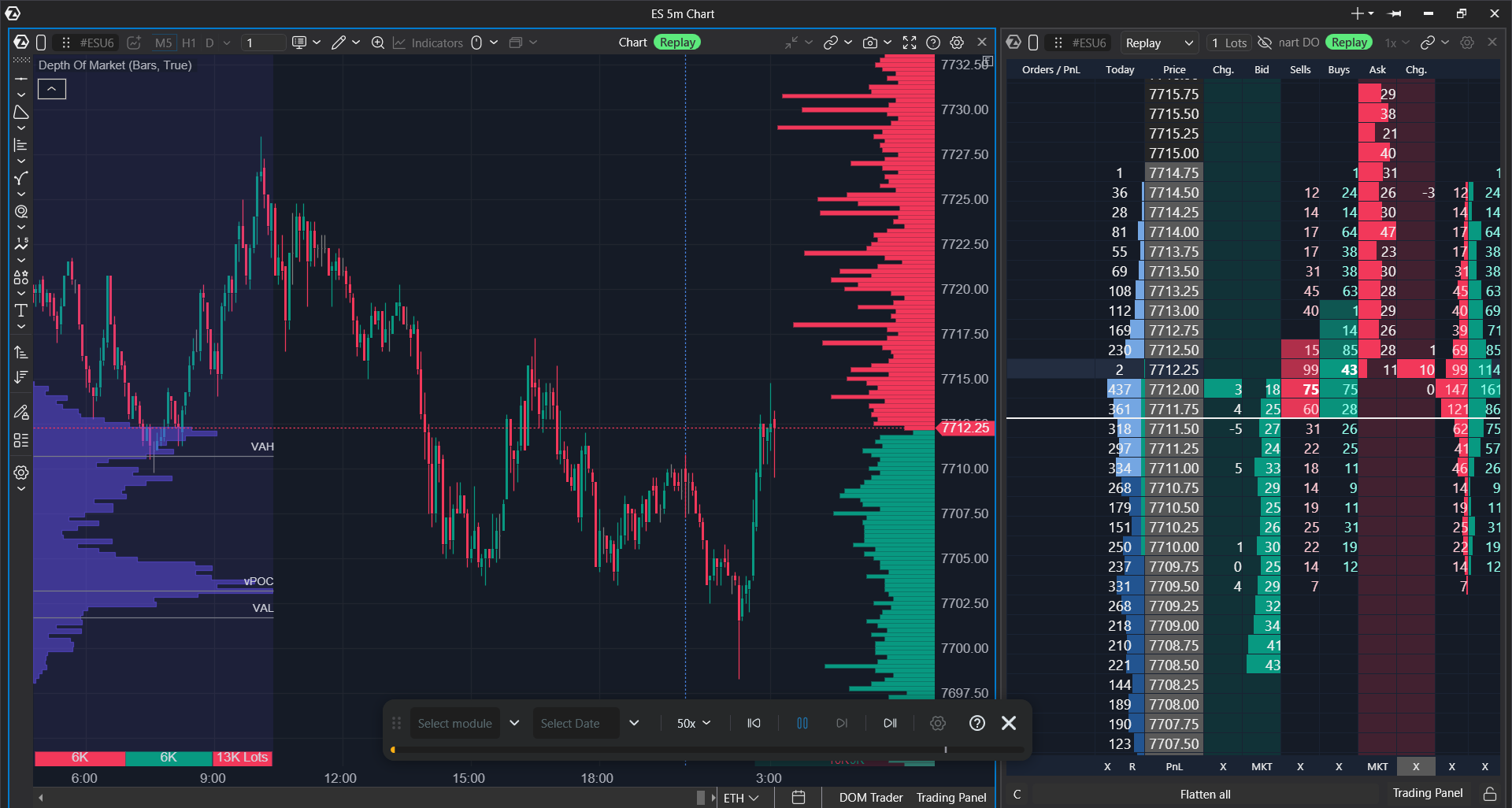
Replay allows you replay a selected completed market session as if the market were moving right now. The chart is built bar by bar, DOM data can move, Smart Tape can print trades, and you can practice trading on a training account while no orders are sent to a broker.
Use Replay to practice reading the market, train entries and exits, review a specific completed trading day, or see how an indicator behaved during a selected market session.
 Before you start
| Item | Details |
|---|---|
| Available dates | Replay works with completed trading sessions only. The current trading session cannot be replayed. Playback is available up to the latest completed session. |
| Real-time data | While Replay is enabled, the selected ATAS windows follow replay time. Real-time quotes and your real positions are not shown in those windows. To trade live, exit Replay or open another ATAS instance. |
| Orders | All Replay trades are sent to the Replay Account. Nothing is sent to your broker or exchange. |
| Connection | A broker connection is not required for Replay. |
| Available range | The available range depends on the instrument, your subscription, and the selected market data type. |
| Not supported | Charts that work through dxFeed cannot be replayed. |
Replay panel
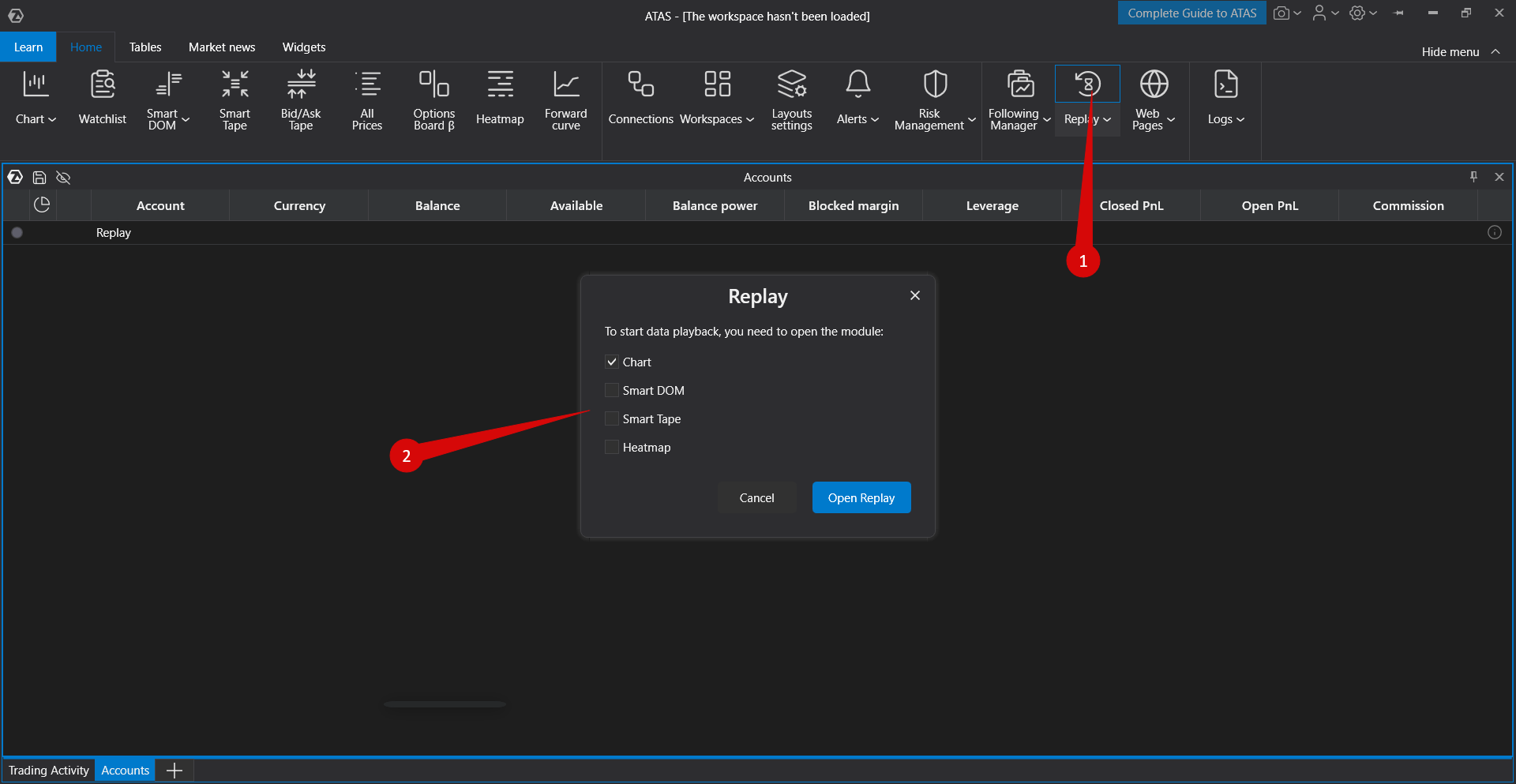
Open Replay from the main ATAS window. ATAS immediately switches to replay mode and shows a small control panel in the center of the workspace. You can drag the panel to any place on the screen. It stays above ATAS windows, while ATAS dialog windows still open above it.
| Button or control | What it does |
|---|---|
| Select Module | Enables window selection for replay. While the button is active, clicking a window adds it to Replay or removes it from Replay. The arrow next to the button opens the same list as a menu. |
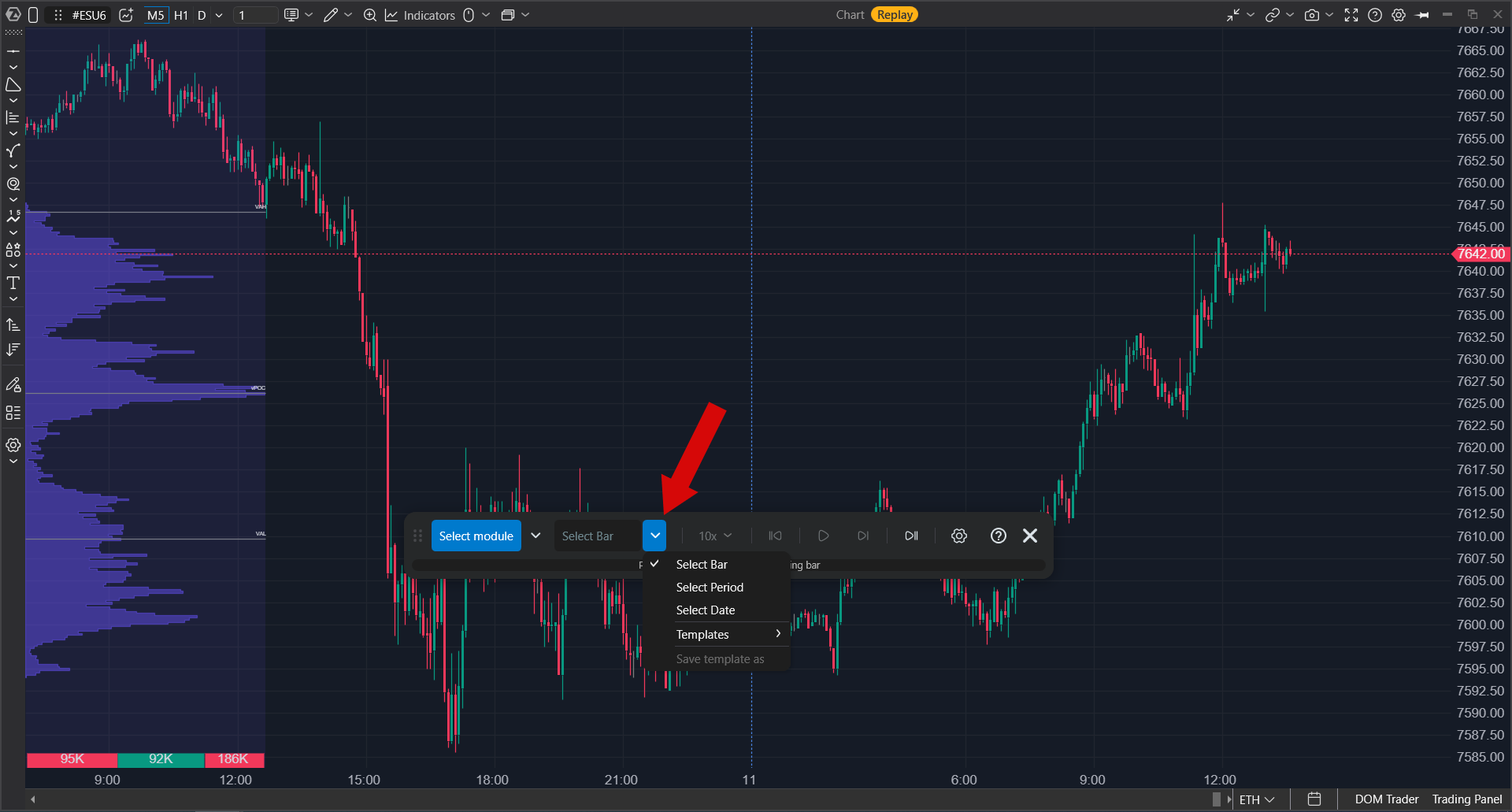
| Mode button | Selects how you define the replay range: by bar, by period, or by date. The arrow next to the button opens the mode list and saved templates. |
| Reset to start | Returns playback to the beginning of the selected range. |
| Play / Pause | Starts or pauses replay. |
| Step forward | When Replay is paused, builds one bar forward. |
| Go to real time | Resets the current replay and returns the selected windows to the state they had when Replay was opened, so you can choose another bar, period, or date. This button does not exit Replay. |
| Speed | Changes the replay speed, from slow playback such as 0.1x to accelerated playback. |
| Settings | Opens market data type, repeat-after-finish, and template settings. |
| ? | Opens this article. |
| x | Closes Replay and returns all windows to current market data. |
The status bar is located below the buttons. Before playback starts, it tells you what to do next. During playback, it shows how much of the selected range has already been replayed.
ATAS modules are windows such as Chart, SmartDOM, Heatmap, Smart Tape, and others. Replay can run playback in several modules at the same time.
Quick start
For a single chart, the shortest workflow is:
- Click Select Module, then click the chart you want to replay.
- Select the bar selection mode.
- Click the bar where replay should start.
- Click Play.
The sections below explain the available options in more detail.
Step 1. Select windows for replay
When Replay opens, the Select Module button is already active, and the mode button is not available yet. The status bar asks you to select one or more modules for replay.
- Click a window. The Replay mark appears in its title, and the window is checked in the list.
- Click the same window again to remove it from Replay.
- Click Select Module again to turn off selection. Selected windows remain in Replay, and you can work inside charts again, for example add indicators or change the timeframe.
While Select Module is active, clicks inside windows only select or deselect them for Replay. The window itself does not react to those clicks.
Windows that are not selected do not receive replay data. They stay empty until you add them to Replay.
If the workspace is empty, Replay first asks which window to open and then which instrument to use. If you close this selection without choosing anything, Replay closes. Replay also closes if you close the last window that was participating in playback.
 Step 2. Select what to replay
Replay has three range selection modes. Availability depends on what you selected in step 1.
| Mode | Purpose | When it is available |
|---|---|---|
| Select bar | Start from any bar and replay forward to the end of the available range. | One chart is selected. |
| Select period | Replay a specific section, for example the first hour after the open, a news release, or a sharp move. | One chart is selected. |
| Select date | Select start and end date and time in a calendar. This is the only mode for several windows at the same time and for modules that are not charts, such as SmartDOM, Heatmap, or Smart Tape. | Always available. |
If several windows are selected, or if the selected window is not a chart, Replay switches to Select date automatically, and the other two modes become unavailable. Hover over an unavailable mode to see the reason.
Select bar
Choose Select bar and move the cursor over the chart. A vertical line follows the cursor. Click the bar where replay should start.
- The chart is not cut off. The part of the chart that will be replayed is shaded.
- You can move the selected line with the mouse like a regular vertical drawing object.
- When the line is in place, click Play.
- If playback is paused, you can select another start bar.
Select period
This mode works in a similar way, but you make two clicks: the beginning and the end of the section. Replay runs strictly between these two points. Both boundaries can be moved with the mouse. Hover over the mode button to see the selected period.
Select date
Choose Select date to open the calendar. Set the start and end date and time, then confirm the selection.
- If you close the window with Cancel or the close button, changes are not applied.
- Hover over the mode button later to see the selected period.
- The current day cannot be selected.
If you selected a date range while several windows are selected, the status bar asks you to choose a window from the list. The selected period will be loaded into that window.
 Status bar prompts
| State | Prompt |
|---|---|
| No window is selected yet | Select one or more modules for replay. |
| Select Module is disabled and nothing is selected | Click Select Module to choose modules for replay. |
| Select bar is enabled, but the start point is not set | Click the bar where replay should start. |
| Select period is enabled, but the period is not set | Select the period on the chart. |
| Select date is confirmed, but no window is selected | Click the module you want to replay. |
| Everything is ready | Click Play to start replay. |
Step 3. Select market data type
Open Settings to choose how detailed playback should be. This setting has the biggest impact on loading time and computer load.
| Type | What is replayed | When to choose it |
|---|---|---|
| Candles | Bars only. Best bid and ask prices are calculated approximately. | Charts and indicators. This is the fastest option and loads the least data, so it fits most tasks. |
| Ticks | Each trade print. Best bid and ask prices are calculated approximately. | Footprint and cluster charts, and Smart Tape. |
| Ticks and DOM | Each trade print plus the full order book. | Heatmap and SmartDOM. This mode loads the most data and takes longer to start. |
Heatmap and SmartDOM require DOM data. If you select one of these windows, ATAS automatically switches the market data type to Ticks and DOM and shows a notification. It does not switch back automatically when you later replay only a chart. Change the type in Settings if you need faster loading.
In Ticks and DOM mode, ATAS processes every order book change. At high replay speeds, and especially near session open or close, playback can become noticeably slower. If you only need the price picture over a long range, use Candles.
Step 4. Start playback
Click Play. ATAS loads the selected range and starts building the chart. You can follow loading progress on the panel.
- Speed can be changed at any time, including during playback.
- Pause stops playback. While paused, Step forward builds one bar at a time, which is useful for step-by-step review.
- Reset to start returns to the beginning of the selected range.
- Go to real time resets playback and returns the windows to the state they had when Replay was opened, so you can choose another bar, period, or date.
- Clicking the status bar fast-forwards to that point. Fast-forward works with Candles and Ticks. In Ticks and DOM mode, ATAS shows a tooltip that fast-forward is unavailable.
- Repeat after finish, available in Settings, automatically starts the same range again after it reaches the end.
The mark in the window title shows what is happening with that window:
- Replay: the window is selected for replay.
- Replay with active playback indication: replay is running.
- No mark: the window does not participate in replay.
While playback is paused, you cannot change the selected window or open Replay settings because those changes would require the data to be loaded again.
Replay moves forward only. There is no step-back button, and ATAS cannot move playback backwards. To review the section again, click Reset to start.
Several windows at the same time
Select two or more windows, for example a chart, Heatmap, and SmartDOM for the same instrument. Replay synchronizes them by the same replay time automatically. You do not need to enable anything else.
When several windows are selected, the only available range mode is Select date.
Trading in Replay
Replay includes a training trading account.
- Place orders the same way as in live trading: from the chart trading panel, SmartDOM, or the order book.
- All trades are saved to the Replay Account. Nothing is sent to your broker.
- To review the result, open Trading Journal while Replay is still enabled and select Replay Account. It will show orders, trades, and statistics.
The training account is shared for Replay. A new training session overwrites the previous results. Save anything you want to keep before starting another session.
Replay orders are filled ideally: at the specified price and in full. In live trading, slippage, queue position in the order book, partial fills, and broker-specific behavior can affect execution. Do not treat Replay results as proof that a strategy is profitable in live trading.
Templates
A template saves your Replay settings so you can return to them in one click.
- Save the current settings from the mode button menu and give the template a name. It appears in the list.
- The active template is marked with a check mark. The default template is active until you choose another one.
- If you delete a template, settings return to the initial state, and the check mark moves back to the default template.
Replay settings are also saved in the workspace. When you open the workspace again, Replay returns with the same mode, dates, and parameters that you used before.
Exit Replay
Click x on the Replay panel. Replay mode turns off, the panel disappears, and all windows return to current market data.
Go to real time does not exit Replay. It only resets the current playback so you can choose another range.
Troubleshooting
| What happens | What to do |
|---|---|
| Select bar and Select period are unavailable. | More than one window is selected, or the selected window is not a chart. These modes work only with one chart. Use Select date or deselect extra windows. |
| Heatmap shows only bubbles and best bid or ask lines. | DOM data is missing. Open Settings and switch the market data type to Ticks and DOM. |
| Nothing happens when you click Play. | Check the status bar. It names the step that has not been completed yet. Play will not start until setup is complete. |
| Loading takes too long. | Several days of DOM data can be heavy to load. Shorten the period, remove unnecessary windows, or switch to Candles. |
| The current day cannot be selected. | This is expected. Replay is available up to the latest completed trading session. |
| Clicking the chart selects the whole window and nothing else happens. | Select Module is still active. Click it again to turn off window selection. |
| The instrument, timeframe, or indicators cannot be changed. | First turn off Select Module. Some changes require a full exit: close Replay with the x button, make the changes, and start Replay again. |
Was this article helpful?
That’s Great!
Thank you for your feedback
Sorry! We couldn't be helpful
Thank you for your feedback
Feedback sent
We appreciate your effort and will try to fix the article