Replay is a trading simulator in ATAS. Use it to train chart reading, test trading ideas, place simulated orders, and analyze the result without sending orders to a live broker account.
Replay is useful when you want to work through a completed market session, train entries and exits, compare scenarios, or test how a strategy behaves with trades and market depth data.
Important before you start
- Replay can start from completed trading days only. The current calendar day cannot be selected.
- While Replay is active, ATAS uses a Replay time source. Real-time chart updates and live-position information are not available in the same platform session.
- For live trading, use a separate ATAS session with Replay turned off.
- Replay availability and limits depend on your subscription, account features, selected modules, selected instruments, and selected market data type.
How Replay opens
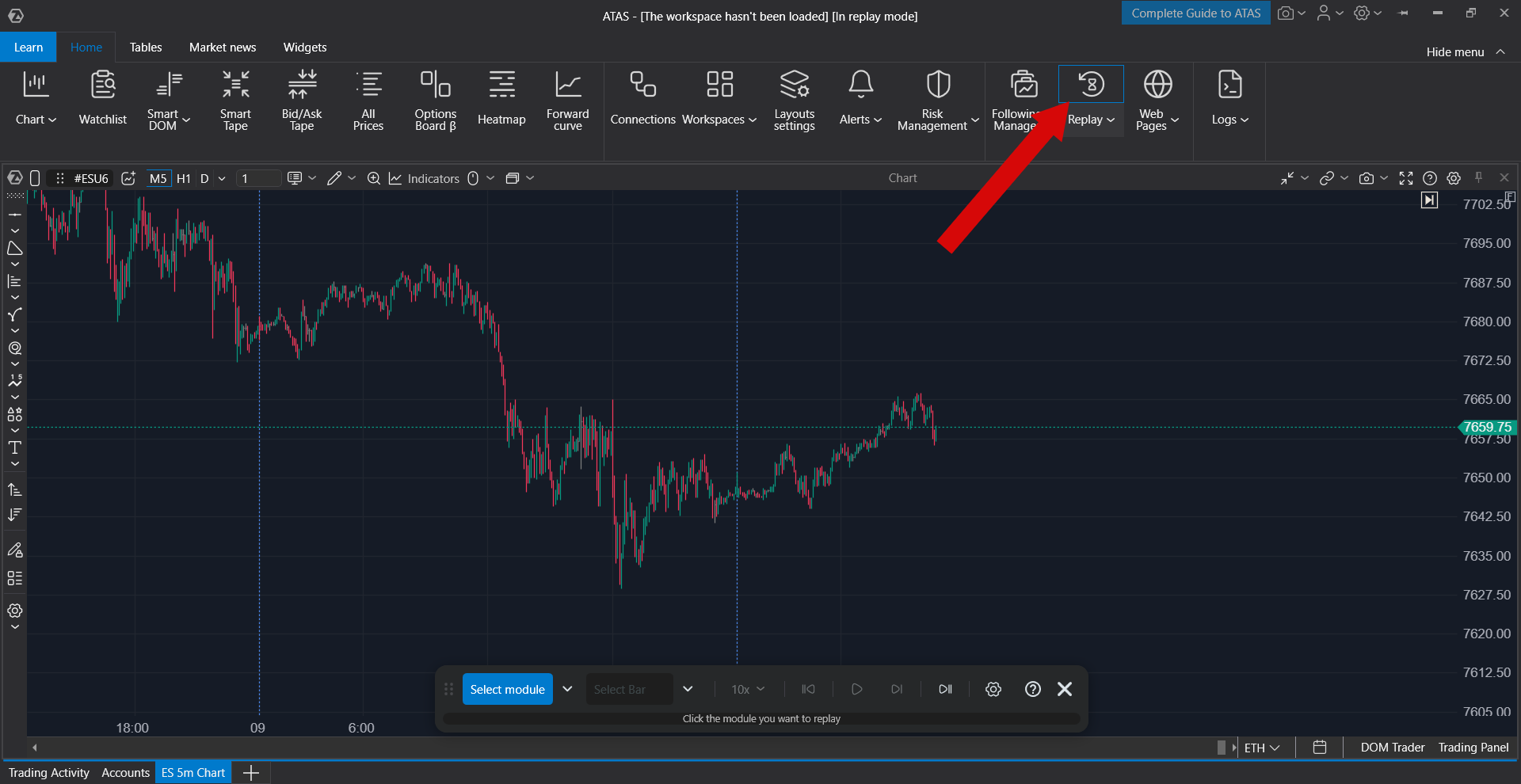
Click Replay in the main ATAS window. ATAS switches the platform to Replay mode and opens a floating Replay panel above your workspace.
The panel includes control buttons, speed settings, a status bar, and contextual hints. The hints guide you through the next required step.
If no compatible module is open, ATAS may first show a selection window so you can open a module for the instrument you want to use.
Step 1. Select modules
- Click Select Module if it is not already active.
- Click the module you want to use in Replay. The selected module changes its state so you can see that it is included.
- Click another module to add it, or click a selected module again to remove it from the Replay setup.
For the most common workflow, select one Chart. This gives you access to Select bar, Select Period, and Select Date.
If you select more than one module, or if the selected module is SmartDOM or Heatmap, Select bar and Select Period are unavailable. Use Select Date for these setups.
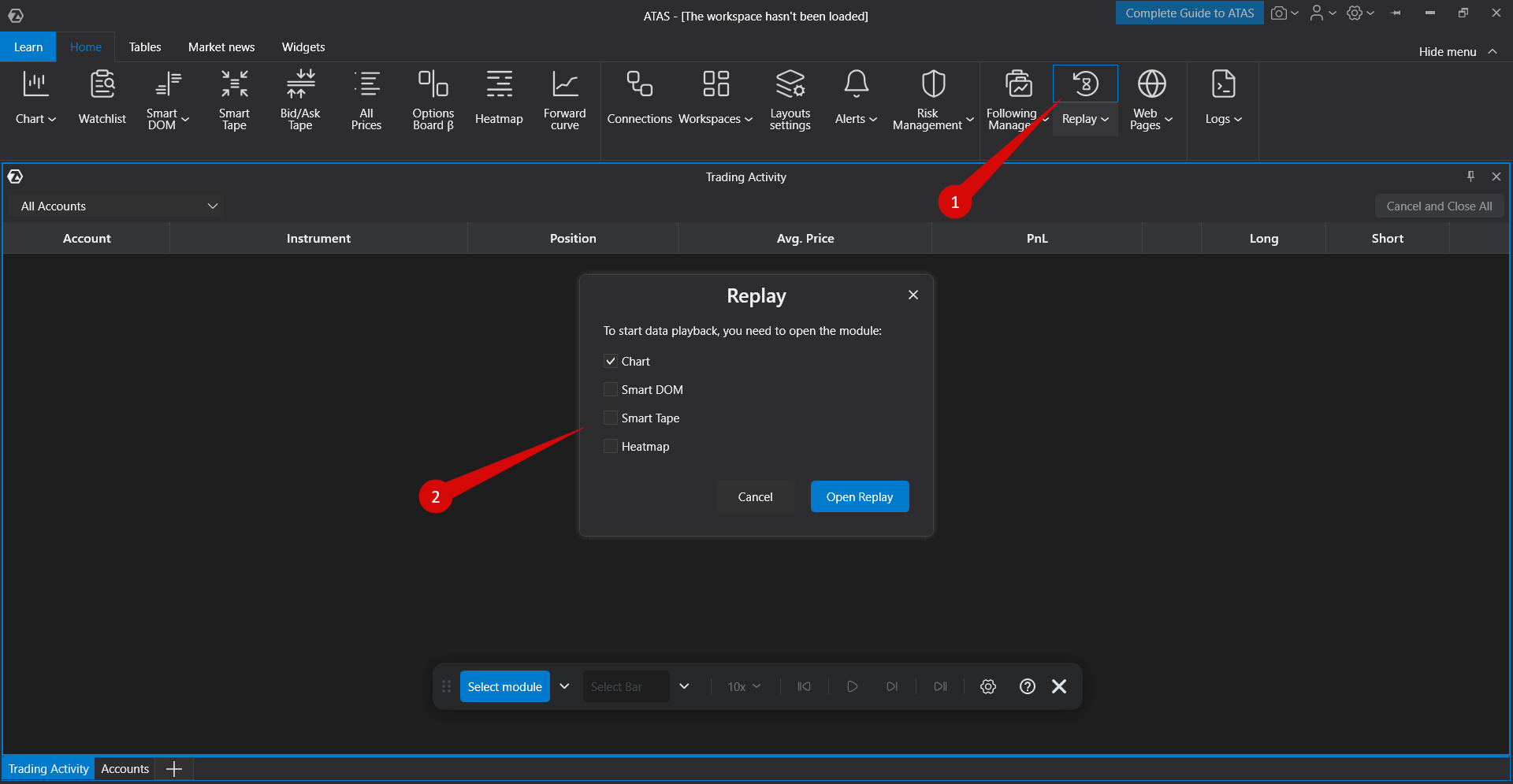
If module is not opened click on Replay and choose Module:
If Module is already opened you should choose it: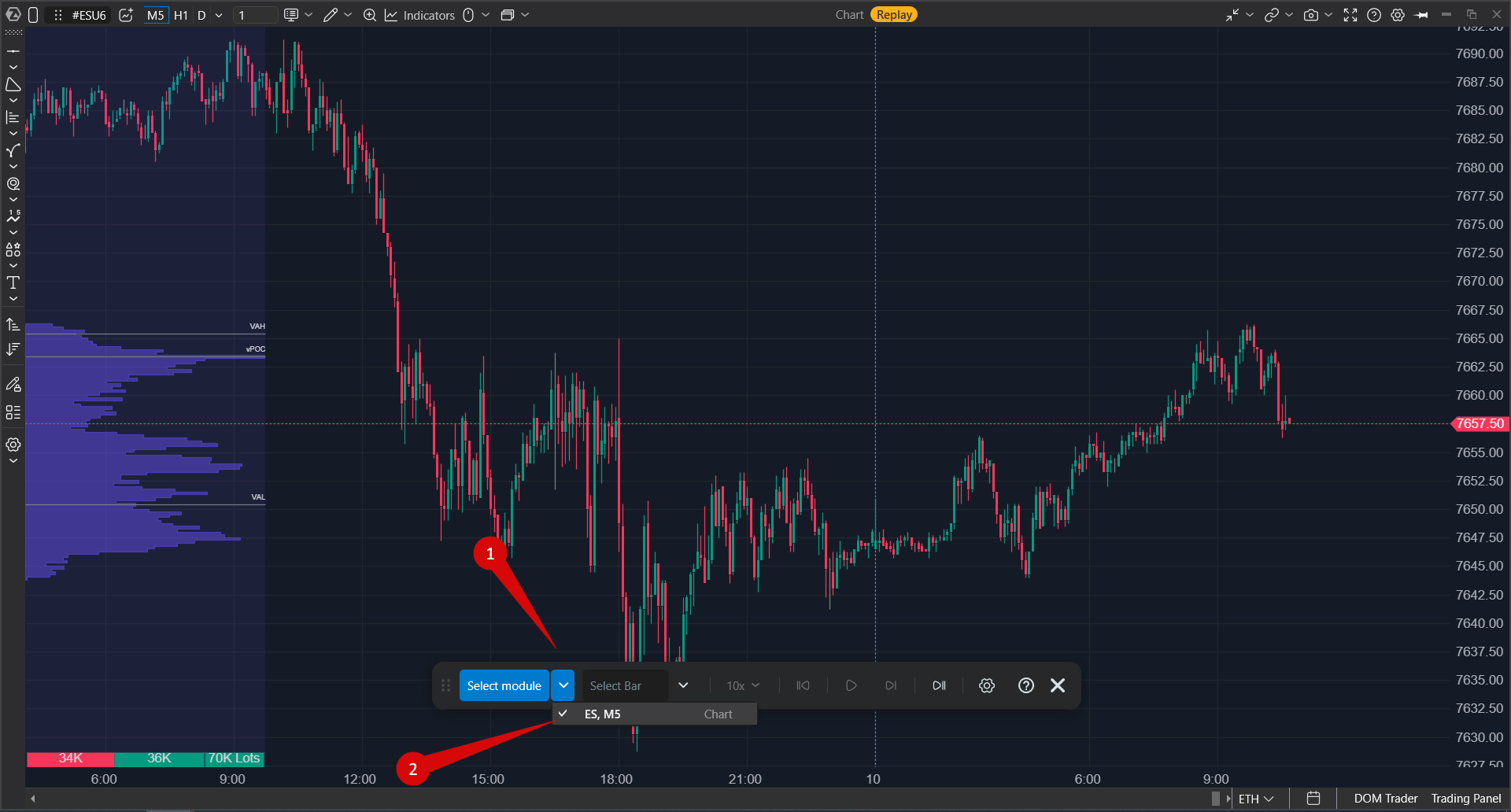
Step 2. Choose the Replay mode
After selecting a module, choose how Replay should start.
Select bar
Select bar is the default mode for a single chart. Click Select bar, then click a bar on the chart. Replay starts from that bar and continues through the available replay range. You can move the start marker before pressing Play.
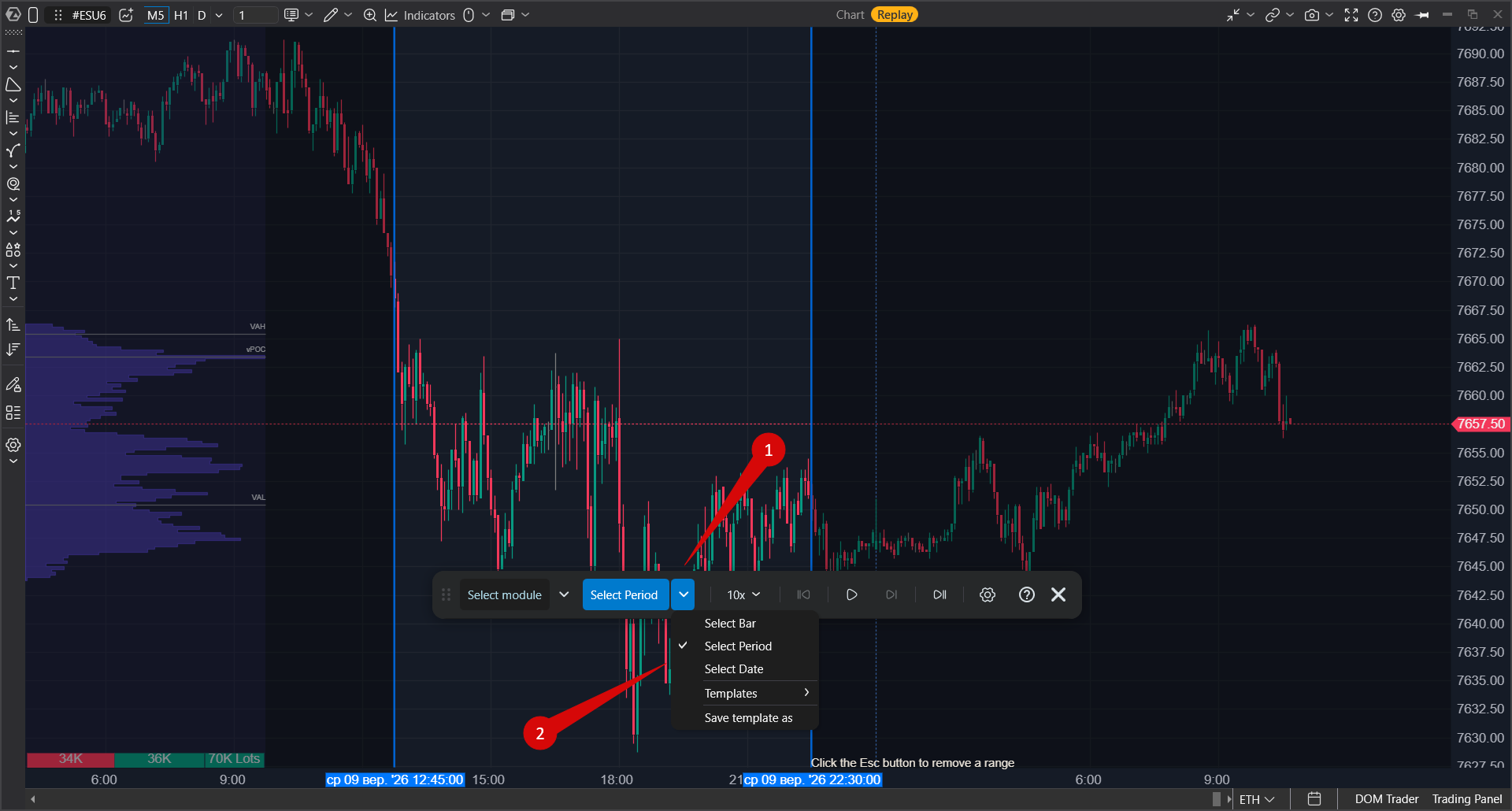
Select Period
Use Select Period when you want to train a specific part of a session, for example the first hour after the US market open. Select the range on the chart, then press Play.
Select Date
Use Select Date to choose a full completed trading day from the calendar. Choose the date and click Select. This mode is also used for multiple modules, SmartDOM, and Heatmap.
The current calendar day cannot be selected. Choose a completed trading day.
Step 3. Choose the market data type
The default market data type is suitable for most chart training. Change the market data type only when you need a different level of detail or when ATAS asks you to reduce the amount of data.
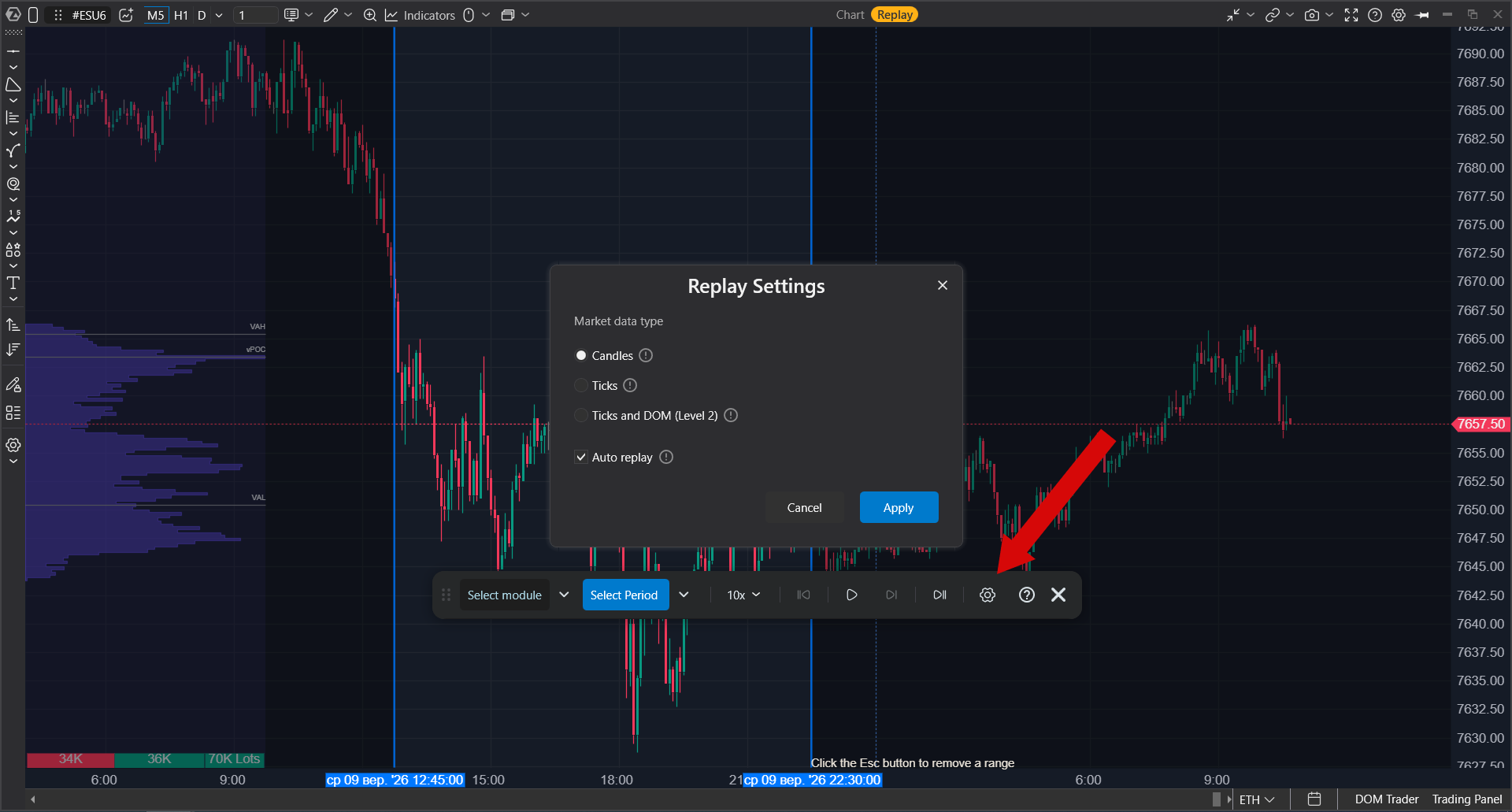
| Market data type | When to use it |
| Candles | Use this for longer chart training, candlestick formations, and general volume analysis. It loads faster and is the best starting point for most users. |
| Ticks | Use this when you need trade-by-trade movement and do not need full market depth. |
| Ticks and DOM | Use this for SmartDOM, Heatmap, liquidity analysis, and market depth work. This mode can require more traffic, CPU, and RAM, so use shorter ranges. |
If ATAS shows a message asking you to choose another type, switch to Candles, select a shorter range, or select fewer modules.
Step 4. Start and control Replay
- After selecting the module and start mode, press Play.
- Use the speed control to make Replay run slower or faster. You can change the speed while Replay is running.
- Press Pause to stop movement at the current point.
- While paused, use the step button to add one bar at a time.
- Use the restart button to return to the beginning of the selected range.
- Click Go to Real Time to leave Replay and return the platform to real-time mode.
The status bar shows how far Replay has moved through the selected range. You can click the status bar to jump to another point. White markers on the status bar show day boundaries when the selected range includes more than one day.
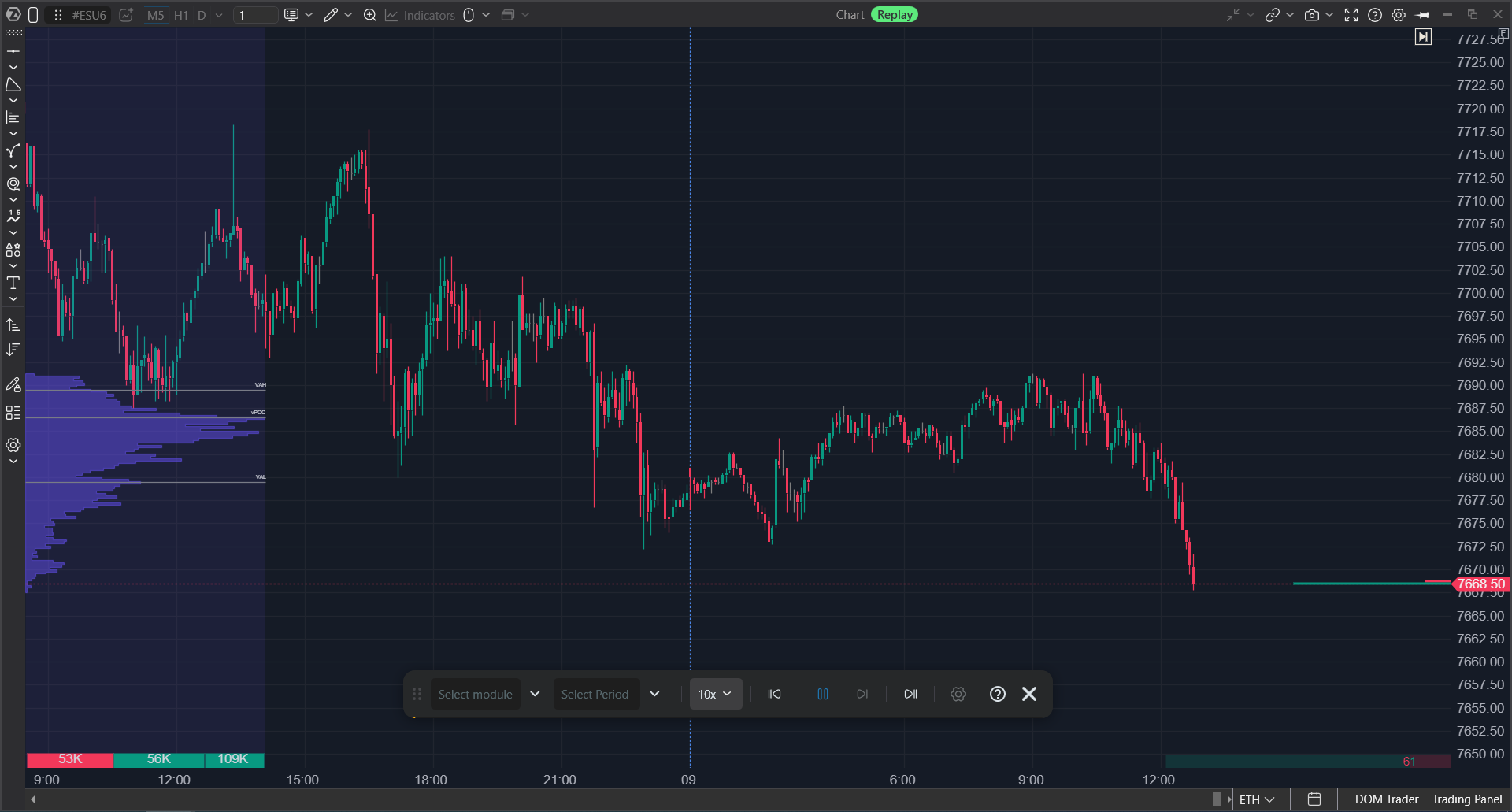
Using several modules
Replay can work with several modules at the same time. For example, you can use a chart together with SmartDOM or Heatmap for the same instrument.
When several modules are selected, use Select Date. ATAS reloads the selected modules and starts Replay for the selected date.
Compatible modules can include Chart, SmartDOM, Heatmap, Smart Tape, Bid Ask Tape, and All Prices, depending on your platform version and enabled features.
Trading in Replay
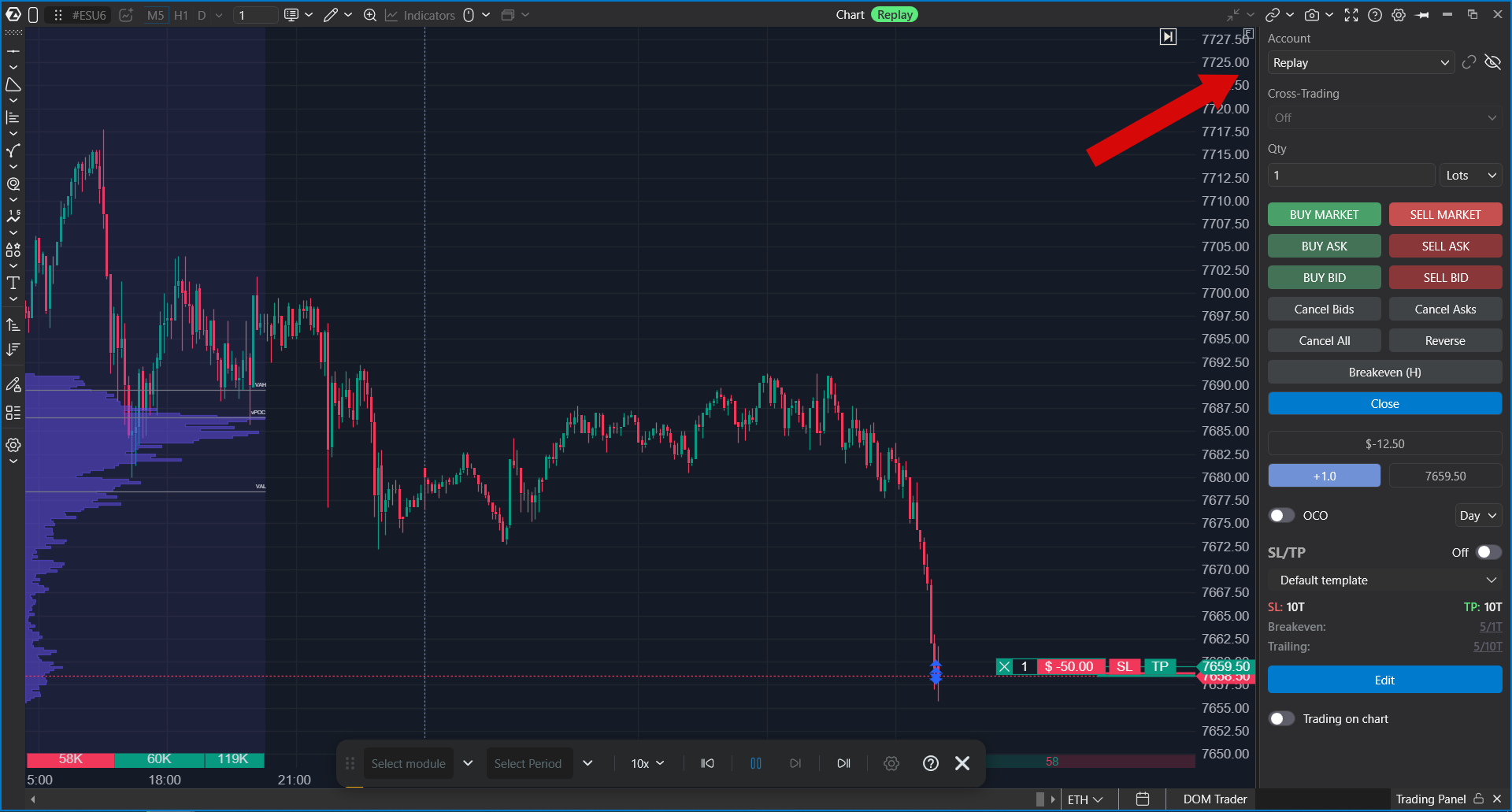 Replay supports simulated trading. Orders placed in Replay are recorded on the Replay Account and are not sent to a real broker or exchange.
You can place simulated orders from modules that support order entry, for example from the chart trading panel or SmartDOM.
After the session, open Trading Journal while Replay is enabled and select the Replay Account to review simulated trades, orders, and performance metrics.
Only one Replay Account is available. Starting a new training session can reset the results of another Replay session.
Replay templates
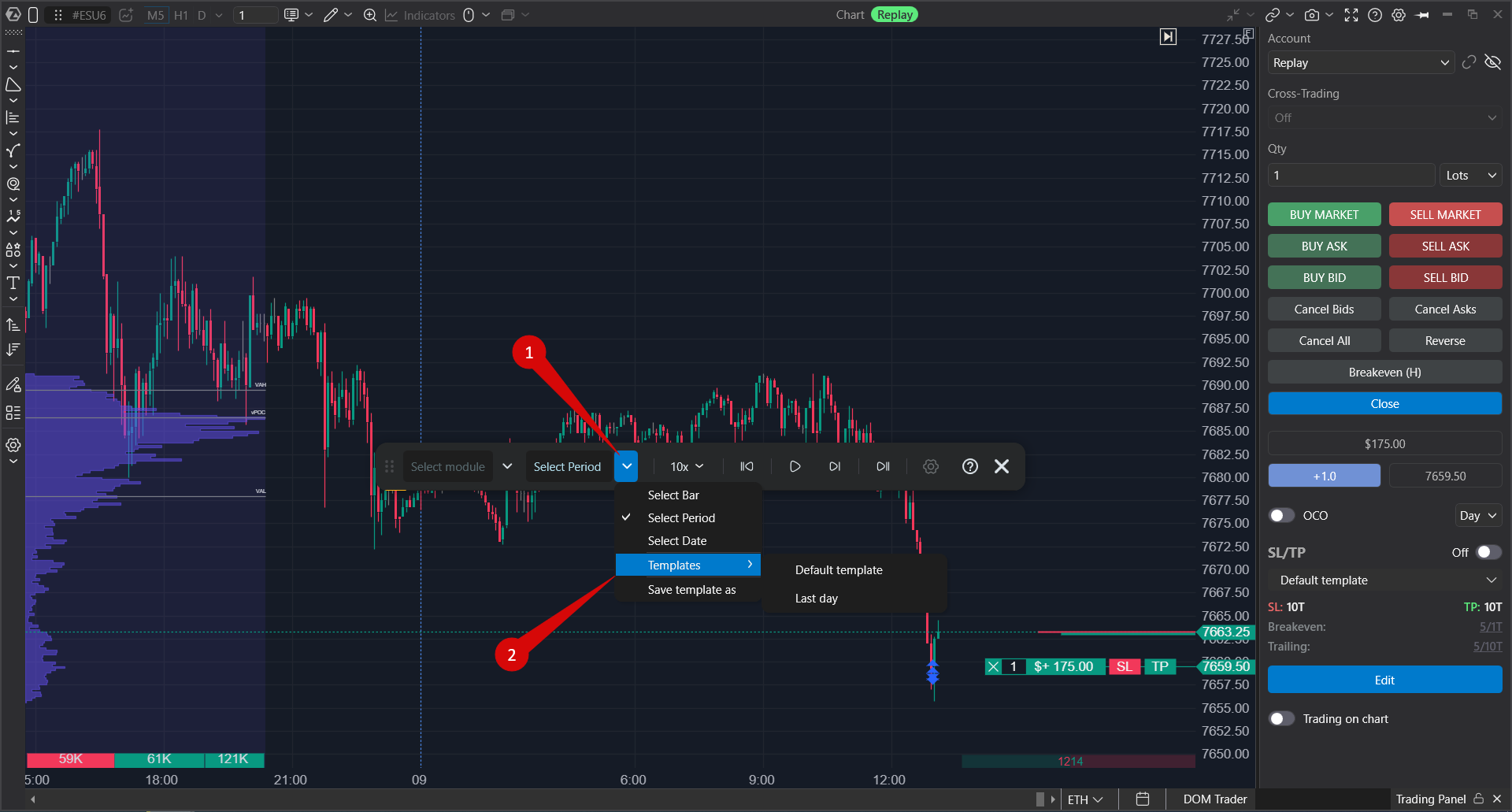
Replay templates help you reuse the same training setup. Depending on your platform version, a template can store the selected date, market data type, speed, selected modules, selected instruments, time zone, and layout.
Use templates when you regularly train the same market session, instrument group, or data mode.
Limitations
- Replay is a simulator, not a live trading mode.
- Replay orders are simulated and are not sent to a live broker account.
- The current calendar day cannot be selected.
- Real-time chart updates and live-position information are unavailable in the same ATAS session while Replay is active.
- The available range depends on the selected market data type, account limits, subscription, selected modules, selected instruments, and data availability on ATAS servers.
- Ticks and DOM provides the most detailed market depth view, but it can require more resources and shorter ranges.
- Replay assumes ideal simulated execution. Real-market slippage, queue position, liquidity, and broker behavior can differ from Replay results.
- Charts connected through dxFeed are not available in Replay mode. For US equities, dxFeed live data cannot be used to reconstruct DOM market data in Replay.
- Some features that require a live connector, real account state, or real-time data may be unavailable while Replay is active.
- If a module control is locked during Replay, leave Replay before changing the instrument, timeframe, template, indicator set, or layout settings.
FAQ
Do I need a live broker connection to use Replay?
No. A live broker connection is not required for Replay itself.
Why does Replay not start?
Check that at least one compatible module is selected, the selected date or range is allowed, and the selected market data type fits the amount of data ATAS needs to load. If ATAS shows a restriction message, choose Candles, reduce the selected range, or select fewer modules.
Why are Select bar and Select Period unavailable?
These modes are available for a single chart. If you select several modules, SmartDOM, or Heatmap, use Select Date.
Why are some controls locked?
Replay locks actions that can change the instrument, timeframe, template, indicators, layout, or data context while Replay is active. Leave Replay, make the change, and start again.
Can Forex traders use Replay?
ATAS connects to exchanges such as CME, EUREX, NASDAQ, NYSE, and cryptocurrency exchanges. It does not provide direct spot Forex data. Forex traders can train in Replay using currency futures market data.
Can I test trading robots?
Yes, if your robot or API setup can work with the Replay Account and simulated orders. Always test automation in Replay before using it with a live account.
Is slippage simulated?
No. Replay assumes ideal simulated execution. Real trading can include slippage, partial fills, queue effects, and broker-specific behavior.
Where can I see Replay trading statistics?
Open Trading Journal while Replay is enabled and select the Replay Account to review simulated trades, orders, and performance metrics.
Was this article helpful?
That’s Great!
Thank you for your feedback
Sorry! We couldn't be helpful
Thank you for your feedback
Feedback sent
We appreciate your effort and will try to fix the article