Replay is a trading simulator in ATAS. You can practice chart reading, test trading ideas, place simulated orders, and analyze the result without sending orders to a live broker account.
Replay is useful when you want to repeat a specific market day, train entries and exits, compare scenarios, or test how a strategy behaves with trades and market depth data.
Important before you start
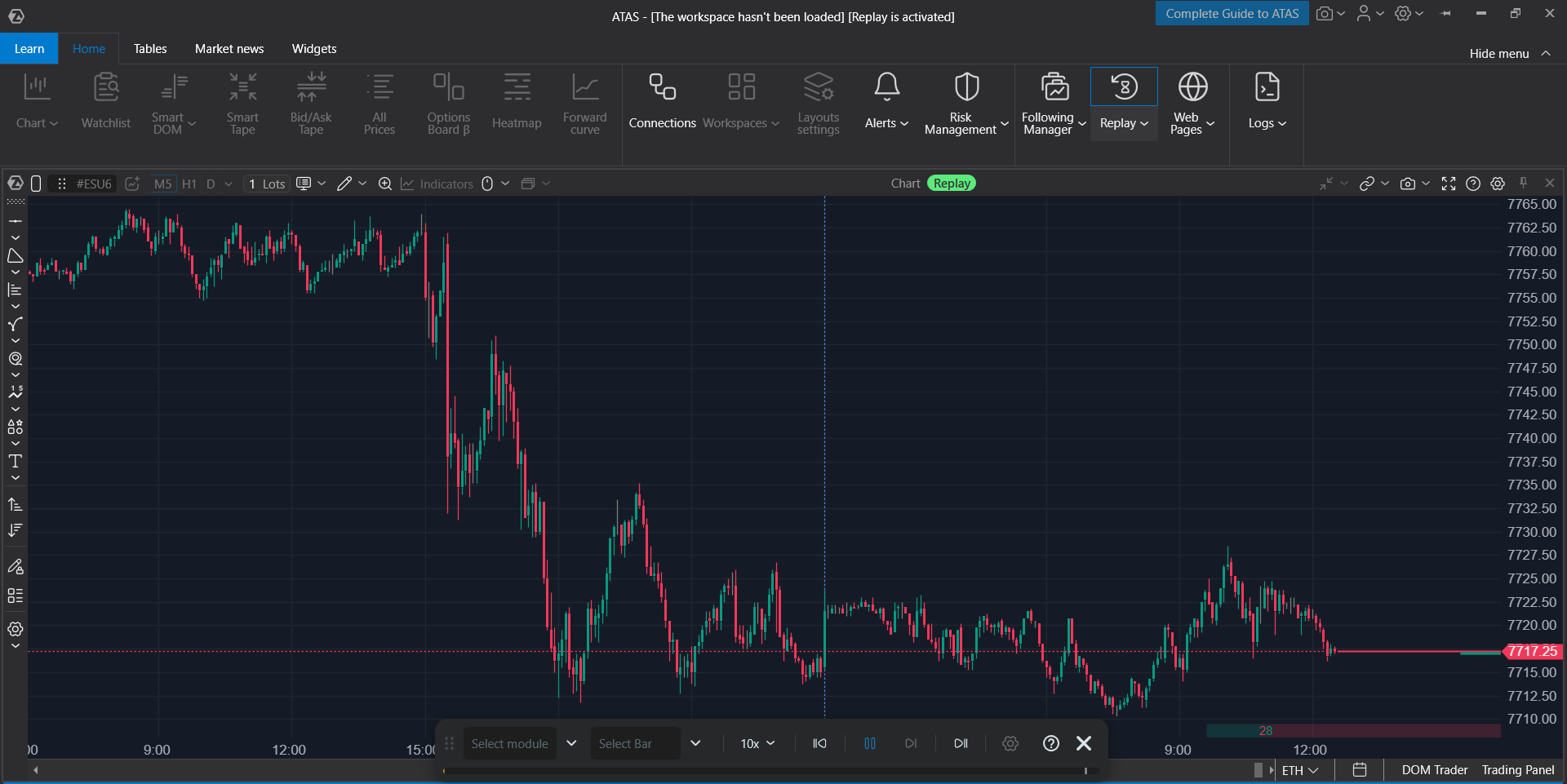
ATAS normally uses the Windows system clock. When Replay mode is enabled, ATAS switches to a Replay time source. While Replay is active, real-time chart updates and live-position information are not available in the same platform session.
We recommend separating live trading and Replay training. Do not use the same ATAS session for live trading while Replay is enabled.
Replay availability and limits depend on your subscription and account features. If ATAS shows a restriction message, reduce the selected period or selected instruments, or check your subscription.
How to launch Replay
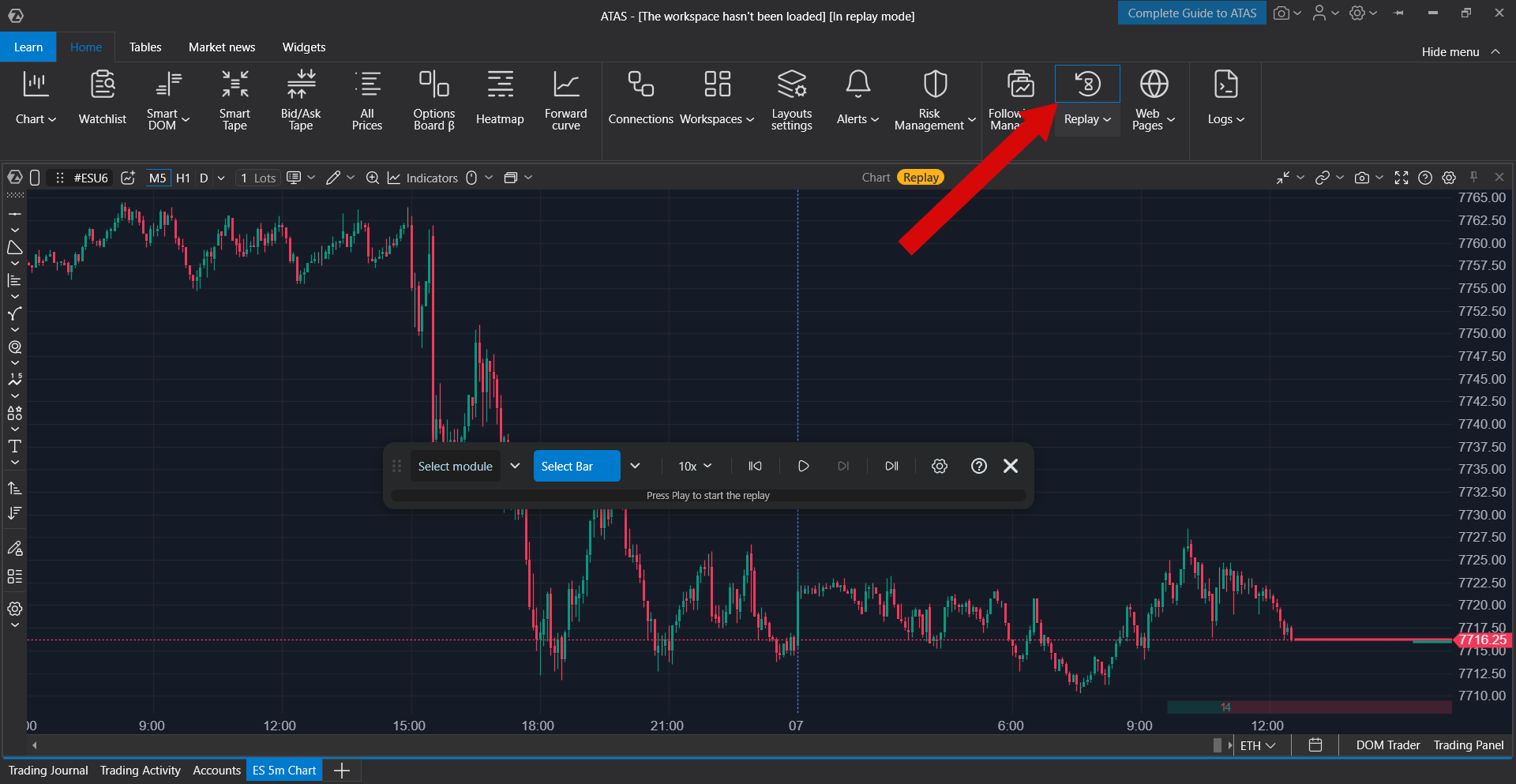
- Click Replay in the main ATAS window.
- The Replay window opens. If Replay is not active yet, ATAS shows that Replay is not connected.
- Select the modules, date range and playback speed.
- Open at least one module for the selected instrument, such as Chart, Smart DOM, or Smart Tape.
- Click Play to start playback.
Choosing the market data type
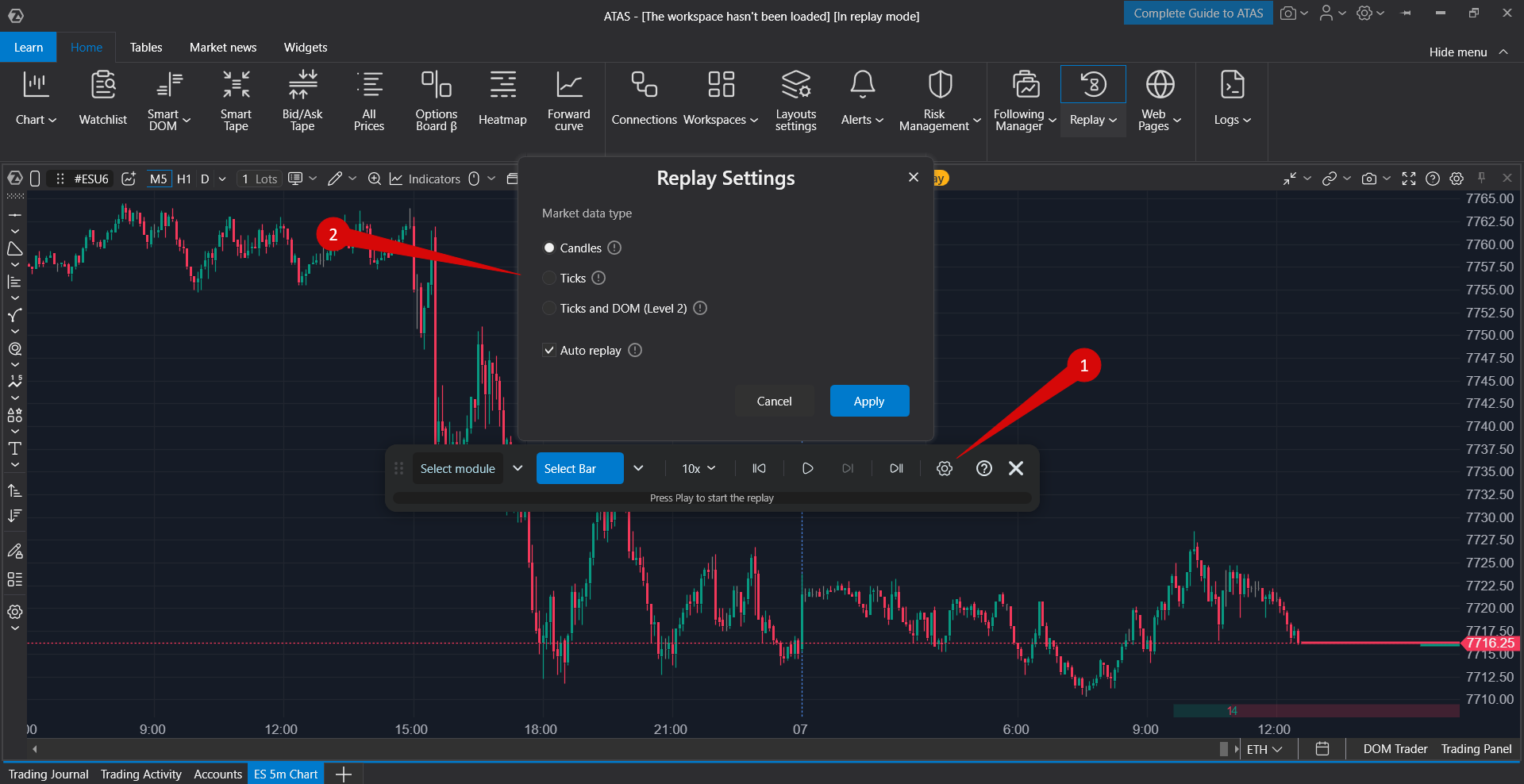
Replay supports three market data types. Choose the mode according to the level of detail you need and the amount of data you want to load.
| Market data type | What it uses | When to use it | Period limit in the selector |
| Generated Ticks and DOM | ATAS uses candle data and generates trades and best bid/ask values. | Fast practice on longer periods, candlestick formations, and general volume analysis. Generated ticks are not the same as exchange ticks. | Intended for longer periods than tick-based modes. The default period is 30 days. |
| Ticks + Generated DOM | ATAS uses trades and generates best bid/ask values. | Trade-by-trade practice when full Level II / Market Depth is not required. | Up to 7 days. The default period is 3 days. |
| Ticks + DOM | ATAS uses trades and DOM / Level II data. | Order flow, liquidity, Smart DOM, and detailed market depth analysis. | Up to 1 day. The default period is 1 day. |
Ticks + DOM can require more traffic, CPU, and RAM than generated modes. If loading or playback is slow, use a shorter period, select fewer instruments, or use a generated mode.
Selecting the replay period
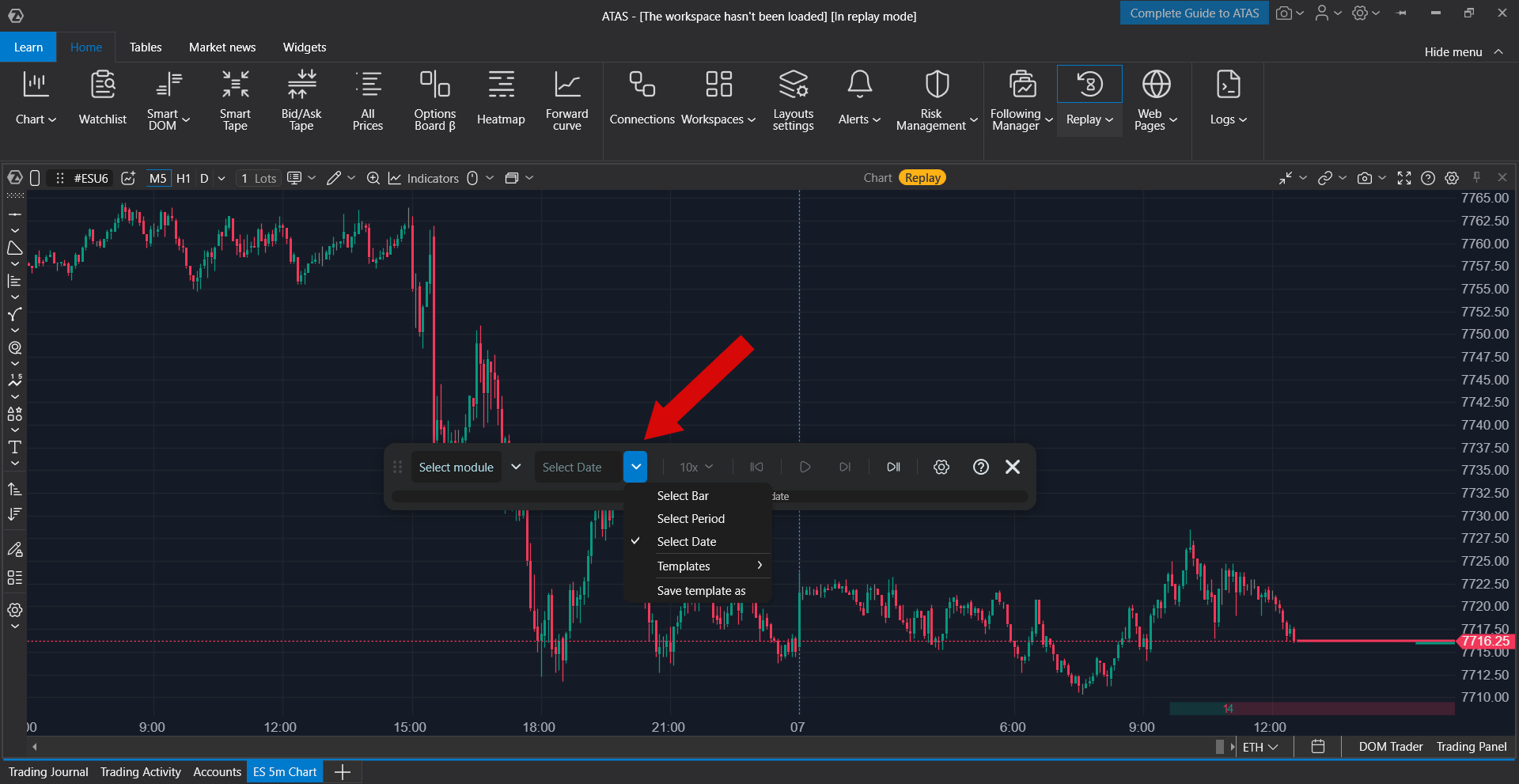
Set the start and end date/time in the Replay window. The selected period determines which part of market data ATAS loads and plays.
Use Set the last available date to move the end of the period to the latest available date for the selected instruments.
If your Replay window includes a time zone selector, choose the time zone you want to use for displaying and editing the replay period. ATAS converts the selected period to market time internally.
Selecting instruments
Select one or more instruments before loading and playing data. Account limits can restrict how many instruments can be replayed at the same time.
If ATAS shows that too many instruments are selected, reduce the number of selected instruments and start again.
For some account types, the available market data depth can also be limited. If the selected period is too long, choose a shorter period or a different market data type.
Opening modules for playback
Replay shows market data only in modules opened for selected instruments. Open the module you want to train with before starting playback.
Common modules used with Replay:
- Chart
- Smart DOM
- Smart Tape
- Bid Ask Tape, if available in your platform version
- All Prices, if available in your platform version
If no compatible module is open, playback may not start because ATAS has nowhere to display the replayed data.
To change the instrument, timeframe, chart template, or indicators, stop Replay first. During playback, actions that change the instrument or data context are locked to keep the replay session consistent.
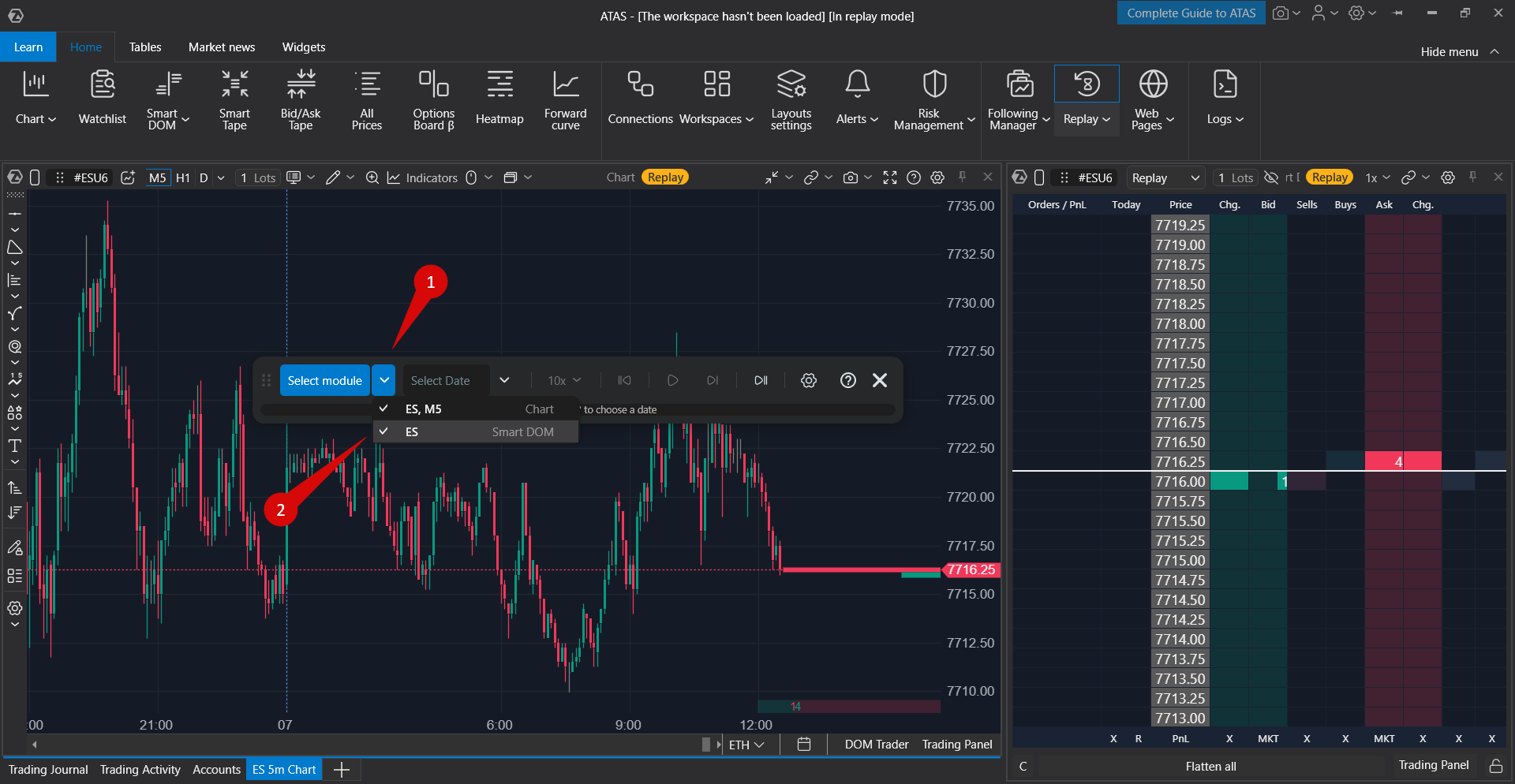
Loading and playing market data
- Select the market data type.
- Set the required date/time range.
- Select the instruments.
- Load the market data if ATAS asks you to load it.
- Wait until loading is complete.
- Click Play.
The progress indicator shows how far the playback has advanced through the selected period. You can pause playback and continue from the same point.
Use the speed slider to change playback speed. Higher values make market time move faster. The maximum available speed may depend on enabled account features.
Click Stop to finish the training session. After stopping Replay, you can change instruments, timeframe, template, indicators, the selected period, and other settings.
Trading in Replay
Replay supports simulated trading. Orders placed in Replay are recorded on the Replay Account and are not sent to a real broker or exchange.
You can place simulated orders from modules that support order entry, for example from the chart trading panel or Smart DOM.
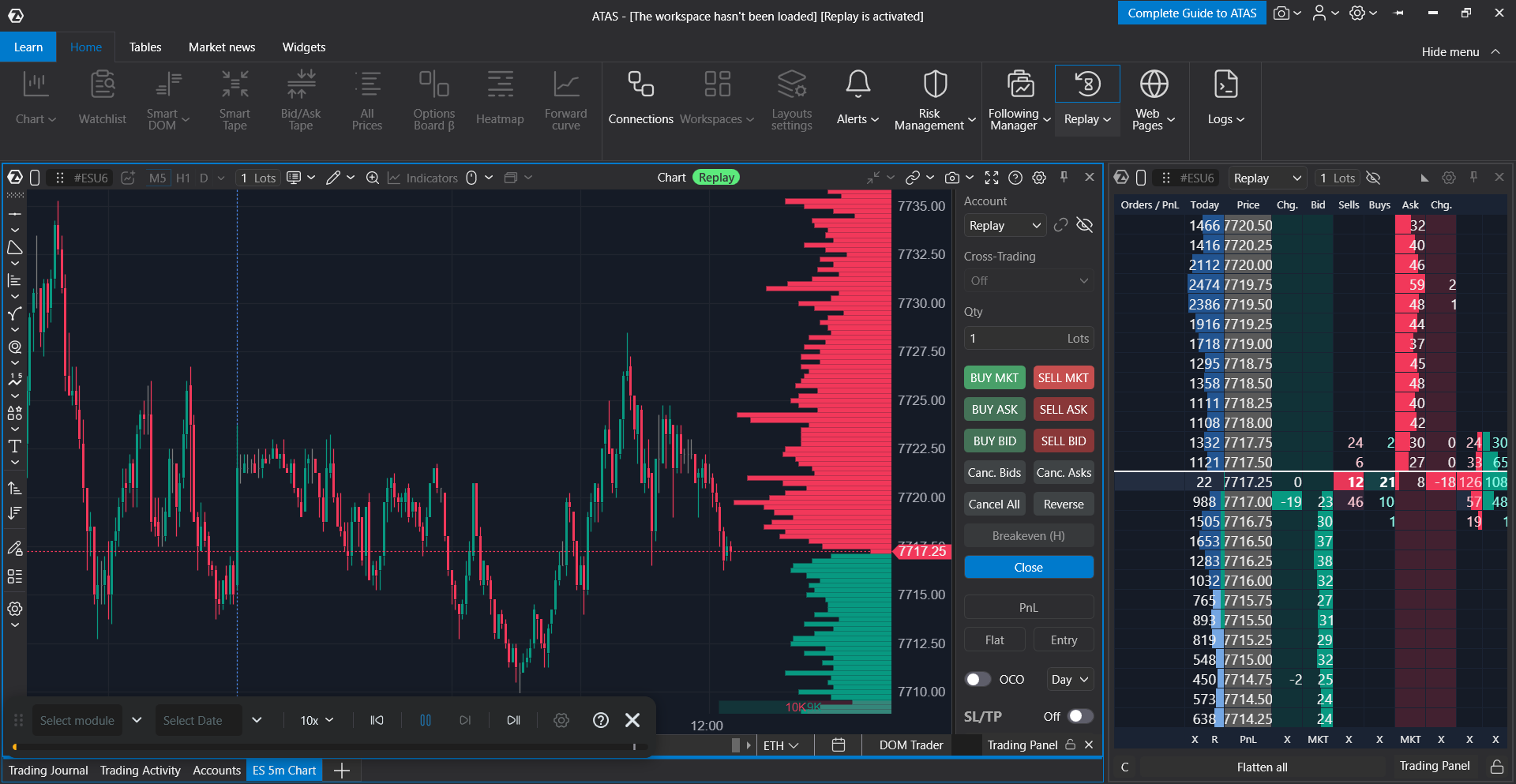
After the session, open Trading Journal while Replay is enabled to review Replay trades and statistics such as profit factor, drawdown, and other performance metrics.
Only one Replay Account is available. Starting a new training session can reset the results of the previous Replay session.
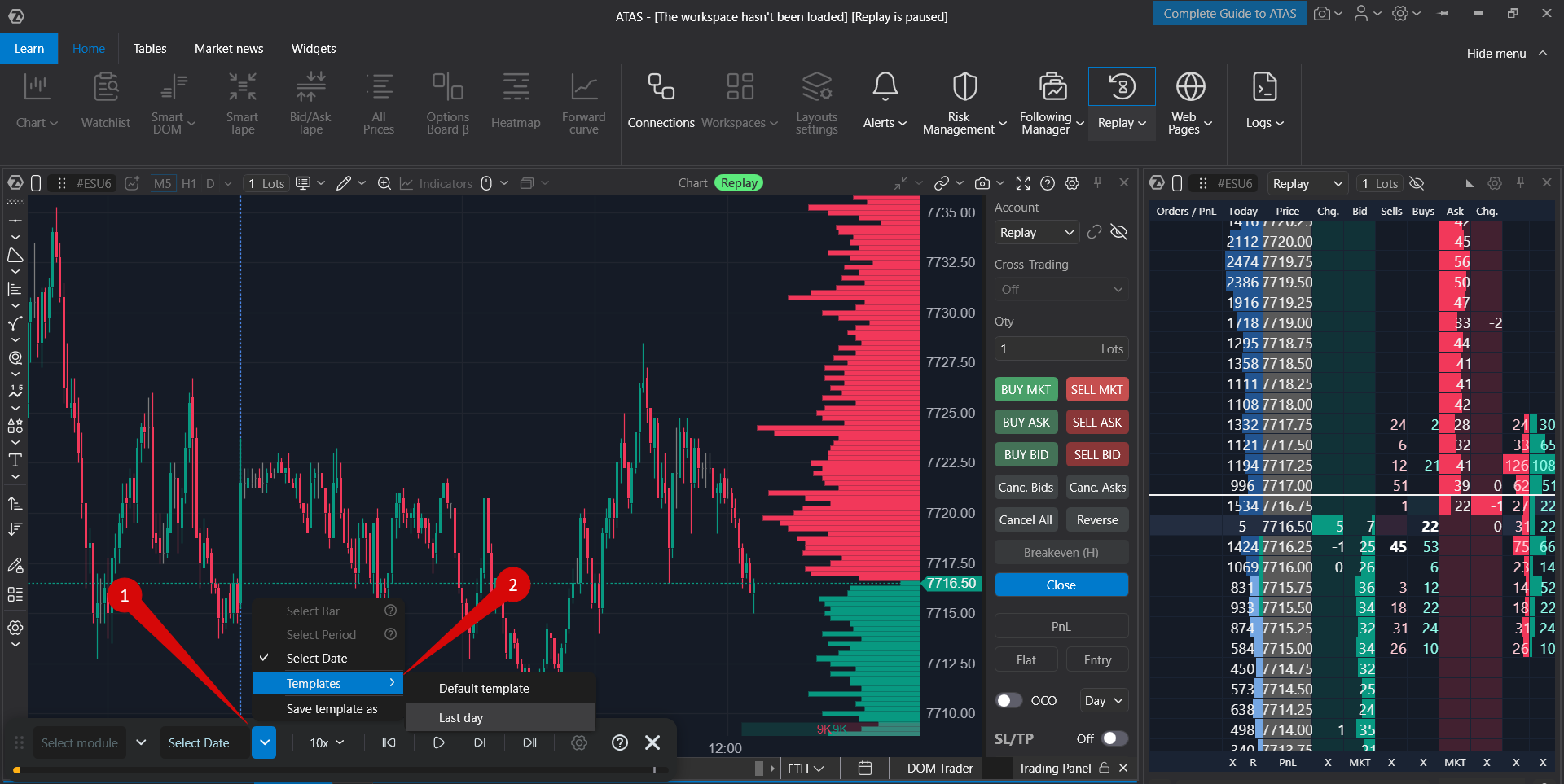
Replay templates
Replay templates help you quickly repeat the same training setup. Depending on your platform version, a template can store the selected period, market data type, playback speed, selected instruments, time zone, and grid layout.
Use templates when you regularly train the same market session, instrument group, or data mode.
Limitations
- Replay is a simulator, not a live trading mode.
- Replay orders are simulated and are not sent to a live broker account.
- Live chart updates and live-position information are unavailable in the same ATAS session while Replay is enabled.
- The available market data period depends on the selected market data type, account limits, and market data availability on ATAS servers.
- Generated Ticks and DOM uses generated trades and generated best bid/ask values. It is suitable for practice and analysis, but it does not reproduce every exchange tick.
- Ticks + Generated DOM uses real trades but generated best bid/ask values.
- Ticks + DOM provides the most detailed replay, but it can require more resources and is limited to shorter periods.
- Replay assumes ideal simulated execution. Real-market slippage, queue position, liquidity, and broker behavior can differ from Replay results.
- Charts connected through dxFeed are not available in Replay mode. For US equities, dxFeed live data cannot be used to reconstruct DOM market data in Replay.
- Some features that require a live connector, real account state, or real-time data may be unavailable while Replay is active.
- If a module control is locked during playback, stop Replay before changing the instrument, timeframe, template, indicator set, or layout settings.
FAQ
Do I need a live broker connection to use Replay?
No. A live broker connection is not required for the replay itself.
Why does Replay not start?
Check that Replay is enabled, at least one instrument is selected, the selected period is allowed for the market data type, and at least one compatible module is open. If the period is too long, reduce it or choose another market data type.
Why are some controls locked?
Replay locks actions that can change the instrument, timeframe, template, indicators, layout, or data context while playback is active. Stop Replay, make the change, and start playback again.
Can Forex traders use Replay?
ATAS connects to exchanges such as CME, EUREX, NASDAQ, NYSE, and cryptocurrency exchanges. It does not provide direct spot Forex data. Forex traders can train in Replay using currency futures market data.
Can I test trading robots?
Yes, if your robot or API setup can work with the Replay Account and simulated orders. Always test automation in Replay before using it with a live account.
Is slippage simulated?
No. Replay assumes ideal simulated execution. Real trading can include slippage, partial fills, queue effects, and broker-specific behavior.
Where can I see Replay trading statistics?
Open Trading Journal while Replay is enabled and select the Replay Account to review simulated trades, orders, and performance metrics.
Was this article helpful?
That’s Great!
Thank you for your feedback
Sorry! We couldn't be helpful
Thank you for your feedback
Feedback sent
We appreciate your effort and will try to fix the article